
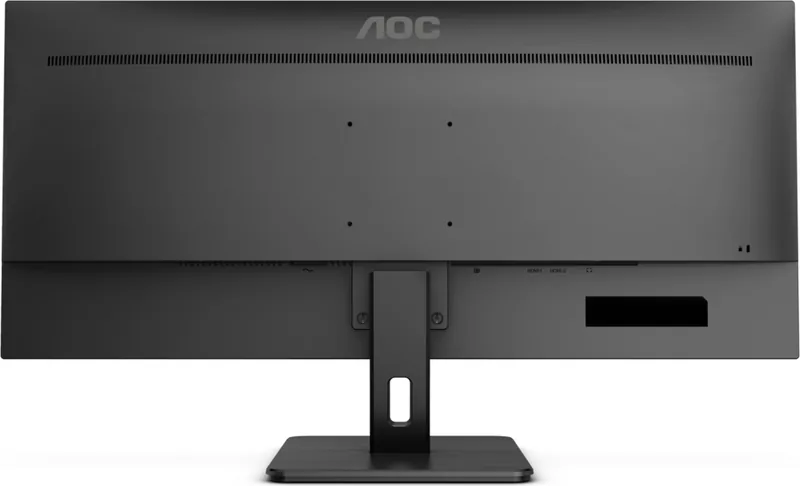
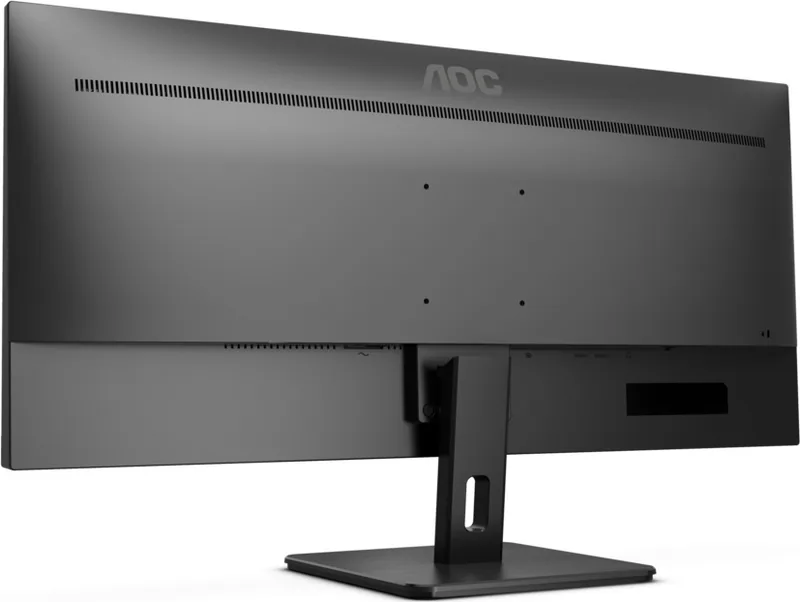
AOC Q34E2A Manual
PDF manual · 28 Pages
English



Quick check
Incorrect answer, please try again.
Chat with your AOC Q34E2A manual using AI
Get instant AI answers from your AOC Q34E2A manual
Ask anything about the AOC Q34E2A. Answers come from this manual, with the pages they are based on.
Ask a Question
Do you recommend Q34E2A?
Yes NoFrequently Asked Questions
The monitor features an optimal preset resolution of 2560x1080 at 60Hz. This Wide High Definition resolution provides a 21:9 aspect ratio suitable for immersive viewing.
Is this answer helpful?
Yes, the monitor supports both HDMI and DisplayPort interfaces. You can also connect a headphone to the earphone output port located on the back of the unit.
Is this answer helpful?
Adaptive-Sync works with DisplayPort and HDMI connections on supported graphics cards. You must select Adaptive-Sync On or Off in the Game Setting menu within the OSD.
Is this answer helpful?
Yes, the monitor allows angle adjustments between five degrees negative and twenty-three degrees positive. Hold the stand carefully to prevent toppling the monitor during adjustment.
Is this answer helpful?
Use a soft cloth and soft detergent to clean the screen. Do not use strong detergents that might cauterize the cabinet. Ensure no detergent leaks into the product.
Is this answer helpful?
Clear Vision converts low resolution and blurry images into clear and vivid ones. It is controlled via the Clear Vision buttons on the Hotkeys when the OSD is not active.
Is this answer helpful?
Move electrical devices away from the monitor to reduce interference. Use the maximum refresh rate your monitor can handle. Ensure the video cable is securely connected and the drivers are installed.
Is this answer helpful?
Advantages and Disadvantages
Advantages

- Adaptive-Sync technology reduces screen tearing for smoother visuals.
- Wide 34-inch display enhances multitasking with horizontal space.
- Multiple picture modes available for different user tasks.
- Clear Vision feature improves clarity for low-resolution images.
- Shadow Control reveals details in dark scenes during gaming.
Disadvantages

- HDR Mode disables some picture adjustment settings.
- Only one ECO mode state can be active at a time.
- VGA input is not available on every model variant.
- Viewing angle adjustment requires holding the stand carefully.
- OSD Lock requires specific button combination to unlock easily.
Product Specification
Function
Monitor (stationary)
Diagonal
34" (34.02")
Resolution
2560x1080 (UWFHD), 21:9, 82ppi
Panel
IPS
Backlight
LED, Blue Light Filter, Flicker-free
Brightness
300cd/m2 (typical)
Contrast
1,000:1 (static), 50,000,000:1 (dynamic)
Response Time
4ms (GtG)
Refresh Rate
75Hz (2560x1080)
Variable Synchronization
Adaptive Sync
Signal Frequency
30-90kHz (H) / 48-75Hz (V)
Connectors
2x HDMI 1.4, 1x DisplayPort 1.2, 1x 3.5mm Jack (Line-Out), 1x AC-In C13 (Power Input)
Shape
Straight (flat)
Viewing Angle
178deg/178deg
Coating
non-glare (matte), Hardness 3H
Color Depth
8bit (16.7 Million Colors)
FRC
Unknown
Certifications/Standards
TCO 9
Speakers
Speakers (2x 3W)
Controls
Mechanical Buttons
Ergonomics
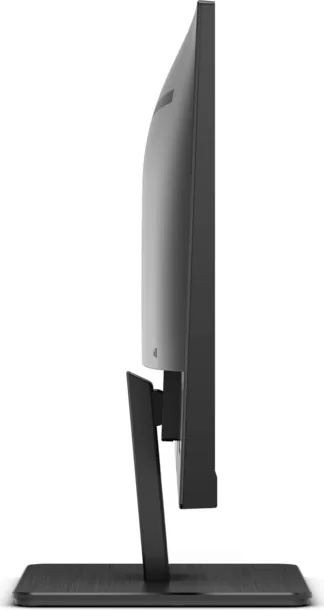
with stand, height adjustable N/A, Pivot N/A, Swivel N/A, Tilt (+24deg/-6deg)
VESA
100x100 (free)
Power Consumption
50W (max), 36W (typical), 0.3W (standby), 38W (Old Energy Label A+++ to G)
Energy Efficiency SDR (A to G)
26kWh/1000h (E)
Energy Efficiency HDR (A to G)
28kWh/1000h (F)
Energy Efficiency Old (A+++ to G)
55.5kWh (A)
Features
Security Lock (Kensington Security Slot)
Screen-to-Body Ratio
88.12% (calculated)
Dimensions
32.17x18.70x10.00in (WxHxD) with stand, 32.17x14.61x2.20in (WxHxD) without stand
Color
black (display frame) / black (bottom bezel) / black (stand) / black (rear)
Weight
17.86 lbs (with stand)
Power Supply
Internal
Warranty
three years
USB Port Orientation
Left
Product Description
Discover the AOC Q34E2A 34 Inch Monitor
Immersive UltraWide Experience
The AOC Q34E2A offers a stunning 34-inch display that redefines your workspace. With a native resolution of 2560x1080, this monitor provides ample screen real estate. Users benefit from the ability to multitask seamlessly with multiple windows open side by side. The TFT Color LCD technology ensures vibrant colors and sharp images, supporting 16.7 million colors for a vivid experience. This design is ideal for professionals needing horizontal space or casual users wanting cinema-like visuals. The 799.79mm horizontal scan size offers a wide field of view suitable for productivity.
Advanced Gaming Features
Gamers will appreciate the dedicated Game Setting menu within the On-Screen Display. Functions like Shadow Control help reveal details in dark scenes, while Low Input Lag ensures responsiveness. The monitor supports Adaptive-Sync technology when connected via DisplayPort or HDMI, reducing screen tearing for smoother gameplay. Compatible graphics cards include various Radeon series from AMD, enhancing visual fidelity during action sequences. Frame counters are also available to track performance metrics during intense matches.
Ergonomic Design and Connectivity
Physical flexibility is key to long-term comfort. The stand allows for viewing angle adjustments ranging from negative five degrees to twenty-three degrees. This range helps reduce neck strain during extended sessions. Connectivity options include DisplayPort, HDMI, and a headphone output. The built-in LED indicator shows power status with white for full power and orange for active-off mode.
Versatile Picture Enhancement
Picture quality can be tailored to specific needs through the OSD menu. Modes include Standard, Text, Internet, Game, Movie, Sports, and Reading. Users can adjust luminance, contrast, and color temperature to suit their environment. The Clear Vision feature converts low resolution and blurry images into clearer visuals. Additionally, the Bright Frame tool allows for customizable framing of content on the screen. Users can adjust brightness and contrast specifically for the frame to enhance visibility.
Installation and Safety
Installation requires placing the monitor on a stable cart or stand. Never place the monitor on an unstable surface or push objects into slots. Leave space around the monitor for air circulation to prevent overheating. Cleaning should be performed with a soft cloth and mild detergent. Avoid strong chemicals that might damage the cabinet. Always unplug the unit during lightning storms to protect against surges.
Troubleshooting Issues
Troubleshooting issues often involves checking cable connections first. Power LED issues require checking if the button is ON and the cord is grounded. If images do not appear, check the VGA, HDMI, or DP cable connections. Ensure the computer video card is snugly fitted. If the picture bounces or flickers, move electrical devices away or use the maximum refresh rate possible.
Search for 67,706 Manuals online


Type-in Brand or Model
Julian Schmidt
6 months ago
Does the screen image rotate automatically when the monitor is physically turned to portrait mode, or must this be set manually?
Manual.ly
6 months ago
The image orientation requires manual configuration via the On-Screen Display menu. Although the stand supports physical rotation, the display output mode does not change automatically. Please adjust the settings in the OSD menu to match your physical rotation preference.