
AOC Q27G2U/BK Manual
PDF manual · 27 Pages
English



Quick check
Incorrect answer, please try again.
Chat with your AOC Q27G2U/BK manual using AI
Get instant AI answers from your AOC Q27G2U/BK manual
Ask anything about the AOC Q27G2U/BK. Answers come from this manual, with the pages they are based on.
Ask a Question
Do you recommend Q27G2U/BK?
Yes NoFrequently Asked Questions
It supports an optimal preset of 2560x1440 at 60Hz, with maximum resolution up to 2560x1440 at 144Hz (via HDMI or DisplayPort). For other timing modes, use the monitor presets and your GPU settings.
Is this answer helpful?
Yes. The Adaptive function is described as working with DP/HDMI. For FreeSync specifically, the instructions note that you should select DP 1.2 in DP Capability if your DP content supports it.
Is this answer helpful?
Use DisplayPort input and set DP Capability to DP 1.2 when the DP video content supports DP 1.2. If you cannot select DP 1.2 (or the content does not support it), choose DP 1.1 instead.
Is this answer helpful?
The OSD includes Game Mode profiles such as FPS, RTS, Racing, and Gamer 1 through Gamer 3. When the OSD is closed, the hotkey flow in the guide describes opening game mode and then selecting a mode using the left/right controls.
Is this answer helpful?
Picture Boost includes a Bright Frame option that can be turned on or off. You can adjust Bright Frame size (14-100), brightness (0-100), contrast (0-100), and its horizontal and vertical position for more focused viewing.
Is this answer helpful?
Disconnect power before cleaning. Wipe the cabinet regularly with a soft cloth, and you may use a soft detergent for stains. Do not use rough cloth that can scratch the screen, and avoid letting detergent leak into the monitor.
Is this answer helpful?
This message can appear when your signal exceeds the monitor's maximum resolution or frequency. Adjust the PC to a supported mode and resolution. Also confirm the correct cable connection for HDMI/DP/VGA, and reboot to check the initial screen.
Is this answer helpful?
Advantages and Disadvantages
Advantages

- Crisp QHD resolution (2560x1440) with refresh support up to 144Hz for smoother motion.
- Adaptive-Sync works with DP/HDMI; FreeSync requires DP 1.2 capability.
- Game Mode presets (FPS, RTS, Racing) plus Low Input Lag, Overdrive, Shadow Control, and Frame Counter.
- Strong image and color controls: DCR, HDR Effect/Mode options, gamma adjustments, RGB color temperature settings.
Disadvantages

- FreeSync is available only when using DP 1.2 (select DP 1.2 under DP Capability).
- MBR and Overdrive Boost are available only when Adaptive-Sync is off and vertical frequency is up to 75 Hz.
- Some signal cables may not be included depending on country/region.
- Best performance requires avoiding extension cables/switch boxes and using proper direct connections.
Product Specification
Function
Monitor (stationary)
Diagonal
27" (27.01in)
Resolution
2560x1440 (QHD), 16:9, 109ppi
Panel
VA
Backlight
LED, blue light filter, flicker-free
Brightness
250cd/m² (typical)
Contrast
3,000:1 (static), 80,000,000:1 (dynamic)
Response time
1ms (MPRT)
Refresh rate
144Hz (2560x1440)
Variable Synchronization
Adaptive Sync, AMD FreeSync Premium certified (48-144Hz via DisplayPort, 48-144Hz via HDMI, with LFC support, without HDR)
Signal frequency
30-160kHz (H) / 48-146Hz (V)
Connections
2x HDMI 2.0, 1x DisplayPort 1.2, 1x USB-B 3.0 (Upstream, 5Gb/s), 4x USB-A 3.0 (Downstream, 5Gb/s), 1x 3.5mm jack (Line-Out), 1x DC-In barrel connector (Power connection)
Form
straight (flat)
Viewing angle
178°/178°
Coating
non-glare (matte)
Color depth
8bit (16.7 million colors)
FRC
unknown
sRGB
121%
Adobe RGB
90%
Controls
mechanical buttons
Ergonomics
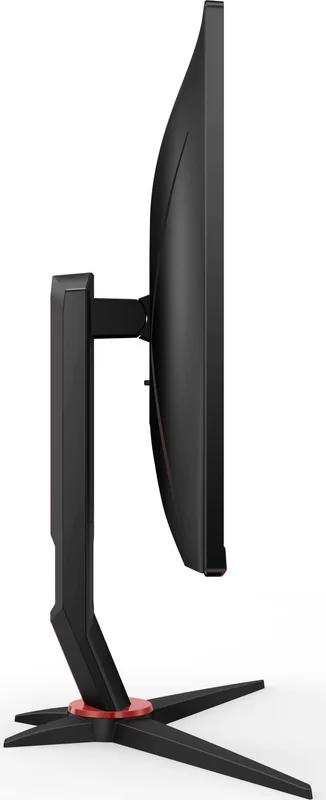
with stand, height adjustable (5.12in), Pivot (+90°), rotatable (±30°), tiltable (+22°/-4°)
VESA
3.94x3.94in (occupied)
Power consumption
32W (typical), 0.5W (Standby), 29W (Energy label old A+++ to G)
Energy efficiency SDR (A to G)
34kWh/1000h (G)
Energy efficiency old (A+++ to G)
42.3kWh (A)
Special features
Security lock (Kensington Security Slot), Slim Bezel
Screen-to-Body-Ratio
Inf% (calculated)
Dimensions
24.09x15.59x8.94in (WxHxD) with stand compressed
Color
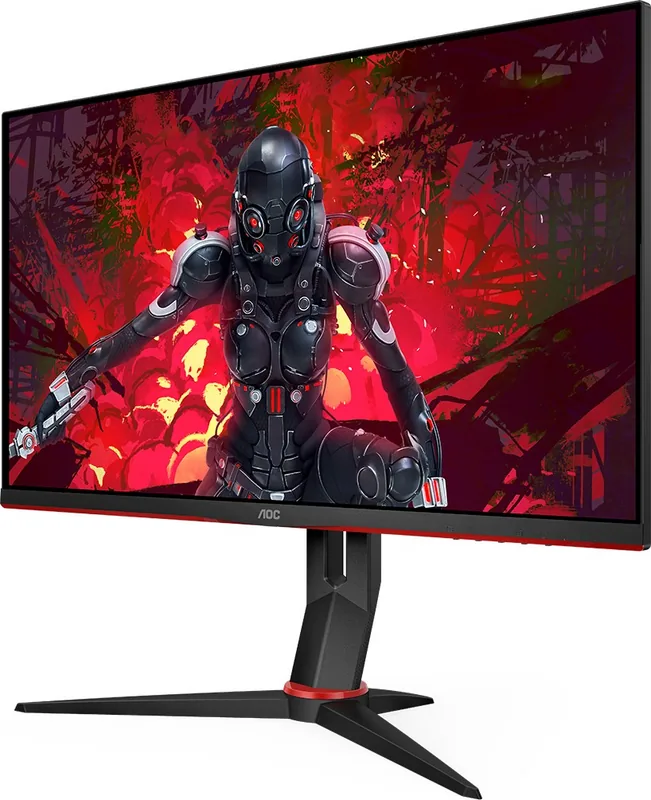
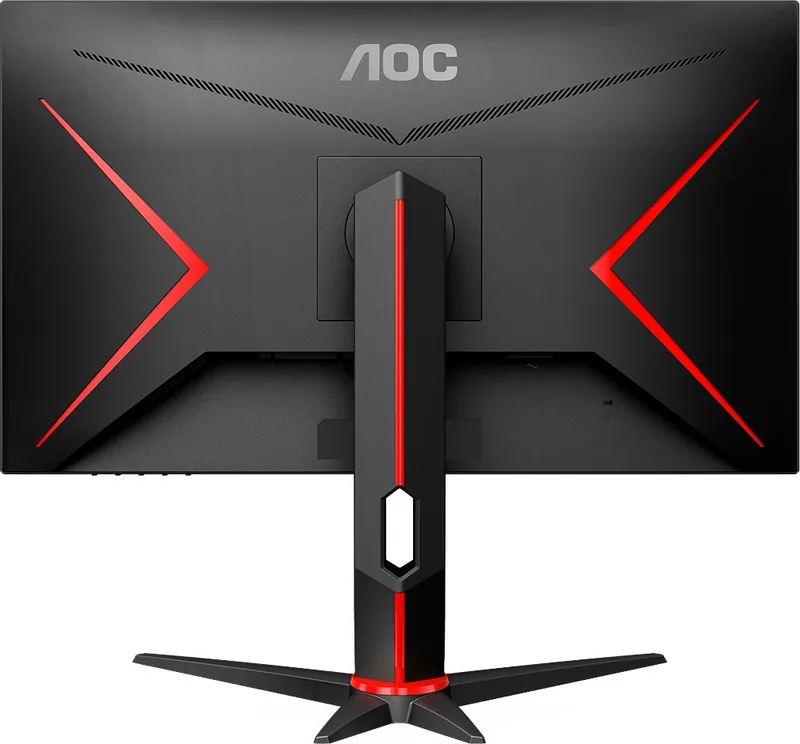
black (display frame) / black, red (lower bezel) / black, red (stand) / black, red (back)
Weight
11.46lb (with stand), 9.04lb (without stand)
Power supply
external
Warranty
three years
USB notation
Link
Product Description
AOC Q27G2U/BK, 27" Manual-Style Controls for Smooth QHD Gaming
The AOC Q27G2U/BK, 27" is a 27-inch gaming monitor built around crisp QHD visuals (2560x1440) and high refresh rates, supporting up to 144Hz via HDMI and DisplayPort. With a fast response-focused feature set and practical on-screen display controls, it is designed to help both competitive players and everyday users dial in a display that looks sharp, feels responsive, and stays comfortable for longer sessions.
Under the hood, the monitor runs a TFT color LCD panel with 16.7 million colors and a typical power draw around 35W. Its adaptive features are aimed at reducing stutter and tearing: Adaptive-Sync is supported for DP/HDMI input, and FreeSync function requires DP 1.2 capability. For gamers who want quick tuning, the OSD includes game-focused options such as Low Input Lag, Overdrive, Shadow Control, and a Frame Counter.
Picture quality tuning is also a key highlight. You can adjust brightness, contrast, gamma (Gamma 1-3), and dynamic contrast options like DCR. Color customization supports multiple color temperature presets (Warm, Normal, Cool, sRGB) and a user mode with individual RGB gain. For content that benefits from emphasis, the Picture Boost feature offers a Bright Frame with adjustable brightness, contrast, and positioning to guide attention on the screen.
Gaming presets and hotkeys make it easier to switch looks without deep menu diving. The monitor includes Game Mode profiles such as FPS, RTS, Racing, and three custom Gamer slots. Low Blue Mode targets reduced blue light for reading, office, and internet-style use, while HDR Effect/Mode options provide extra display emphasis depending on your selected profile.
Notes:
- Leave adequate ventilation space to avoid overheating.
- Avoid touching the LCD panel when adjusting the viewing angle.
- Power off the PC and monitor before connecting signal cables.
Key results
- QHD clarity: 2560x1440 at up to 144Hz for sharp, fast gameplay.
- Adaptive-Sync readiness: DP/HDMI support, with FreeSync requiring DP 1.2.
- Gamer-focused tuning: Low Input Lag, Overdrive, Shadow Control, and Frame Counter.
- Flexible color and image tools: Gamma options, DCR, color temperatures, and Bright Frame Picture Boost.
- Convenient control: Hotkeys and OSD settings for quick switching between modes.
Search for 67,706 Manuals online


Type-in Brand or Model
Geo Oberbrunner
7 months ago
Hi, the listing says this monitor has built-in speakers, but mine does not. Does this model really include speakers, and what should I do if they are missing?
Manual.ly
7 months ago
Hi! If the product description states integrated speakers but your unit has none (or you cannot find speaker-related audio in the OSD), please contact support with your order number and clear photos/video showing the ports and the back/bottom of the monitor. Also confirm which input you are using (HDMI/DP) and that audio output is enabled on your PC. In most cases, we can verify the correct version for your order and arrange a replacement or another resolution if the speakers are missing. Do not open the device unless instructed by support.