
AOC CU34G2XP/BK Manual
PDF manual · 29 Pages
English



Quick check
Incorrect answer, please try again.
Chat with your AOC CU34G2XP/BK manual using AI
Get instant AI answers from your AOC CU34G2XP/BK manual
Ask anything about the AOC CU34G2XP/BK. Answers come from this manual, with the pages they are based on.
Ask a Question
Do you recommend CU34G2XP/BK?
Yes NoFrequently Asked Questions
Yes, the monitor supports AMD FreeSync Premium technology. This feature works when using DisplayPort or HDMI connections with compatible graphics cards. It synchronizes the refresh rate to eliminate tearing and stuttering during gaming.
Is this answer helpful?
The monitor supports a maximum resolution of 3440 by 1440 pixels. At this resolution, you can achieve a refresh rate of up to 100Hz via HDMI and 180Hz via DisplayPort.
Is this answer helpful?
Yes, you can mount the monitor on a wall. You will need to purchase a compatible wall mounting arm separately. Follow VESA mounting specifications and ensure you use approved screws for safety.
Is this answer helpful?
Clean the screen with a soft, water-dampened microfiber cloth. Ensure the cloth is almost dry to prevent liquid from entering the case. Always disconnect the power cord before cleaning the product.
Is this answer helpful?
The monitor includes Low Blue Mode to reduce harmful light. It also has a Flicker-Free technology and an OSD setting to adjust color temperature. These features help reduce eye fatigue during extended use.
Is this answer helpful?
This specific model does not include built-in speakers. It features a headphone jack for audio output, allowing you to connect external headphones or speakers directly.
Is this answer helpful?
Check that the power cord is connected and the power button is on. Verify that the video cable is connected to the computer and monitor correctly. You may also need to adjust the input source selection in the OSD menu.
Is this answer helpful?
Advantages and Disadvantages
Advantages

- High refresh rate up to 180Hz for smooth gameplay
- AMD FreeSync Premium prevents screen tearing
- WQHD resolution offers sharp and detailed visuals
- Multiple HDMI and DisplayPort inputs for connectivity
- Low Blue Mode reduces eye strain during long use
Disadvantages

- Panel warranty voids if tilt exceeds negative 5 degrees
- External speakers are not integrated into the design
- Wall mount kit must be purchased separately
- Overdrive settings may introduce artifacts on some screens
- OSD menu navigation can take a few clicks to change
Product Specification
Function
Monitor (Desktop)
Screen Size
34"
Resolution
3440x1440 (UWQHD), 21:9, 110 ppi
Panel
VA
Backlight
LED, Blue Light Filter, flicker-free
Contrast
4,000:1 (Static), 80,000,000:1 (Dynamic)
HDR
VESA DisplayHDR 400
Response Time
1ms (GtG), 1ms (MPRT)
Refresh Rate
180Hz (3440x1440)
Variable Refresh Rate
Adaptive Sync, AMD FreeSync Premium Certified (48-180Hz via DisplayPort, 48-120Hz via HDMI, with LFC Support, with HDR)
Frequency
30-270kHz (H) / 48-180Hz (V)
Ports
2x HDMI 2.0 (120Hz@3440x1440), 2x DisplayPort 1.4 (144Hz@3440x1440), 1x USB-B 3.0 (Upstream, 5 Gb/s), 4x USB-A 3.0 (Downstream, 5 Gb/s), 1x 3.5mm Jack (Line-Out), 1x AC-In C13 (Mains Inlet)
Shape
Curved, 1500R (59.06")
Viewing Angle
178°/178°
Coating
Non-glare (Matte), Hardness 3H
Color Depth
10-bit (1.07 Billion Colors)
FRC
Unknown
sRGB
121%
Adobe RGB
121%
DCI-P3
96%
REC 709
121%
REC 2020
70%
Speakers
Speakers (2x 2W)
Controls
Mechanical Buttons
Ergonomics
With Stand, Height Adjustable (5.12"), Pivot N/A, Rotate (+/-30°), Tilt (+23°/-5°)
VESA
100x100mm (3.94x3.94 inches, Standard)
Power Consumption
120W (Max), 59W (Typ), 0.5W (Standby)
Energy Efficiency SDR (A to G)
45 kWh/1000h (G)
Energy Efficiency HDR (A to G)
82 kWh/1000h (G)
Features
Security Lock (Kensington Slot), Picture-in-Picture, Slim Bezel
Screen-to-Body Ratio
89.43% (Calculated)
Dimensions
31.82x15.68x9.35" (WxHxD) with Stand collapsed, 31.83x14.47x4.05" (WxHxD) without Stand
Color
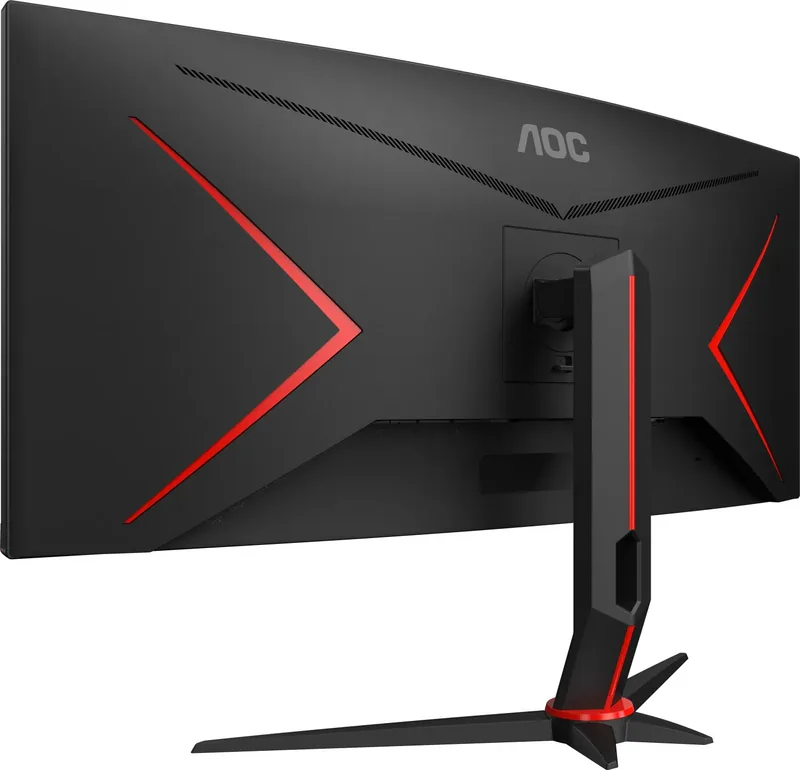
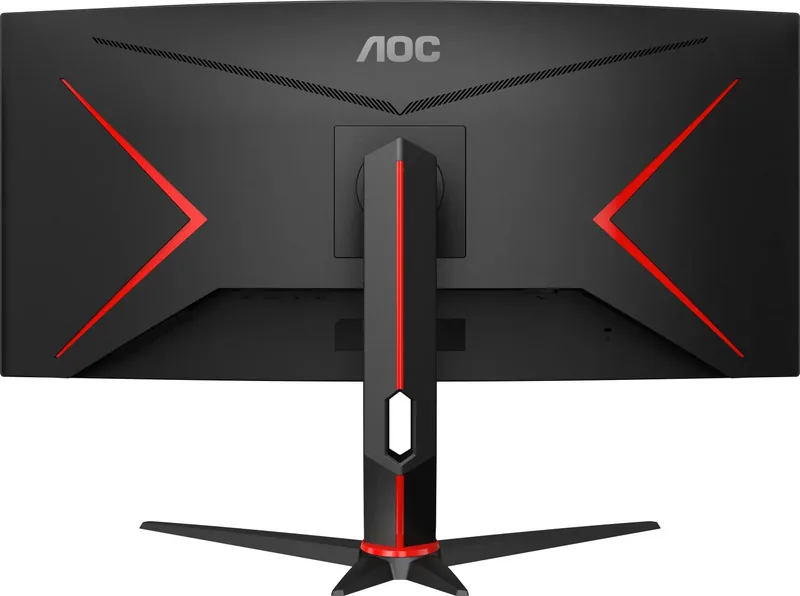
Black (Display Bezel) / Black, Red (Bottom Bezel) / Black, Red (Stand) / Black, Red (Back)
Weight
16.53 lbs (With Stand), 14.35 lbs (Without Stand)
Power Supply
Internal
Warranty
3 Years
USB Naming
Link
Product Description
Unlocking Potential with the 34 Inch Curved Monitor
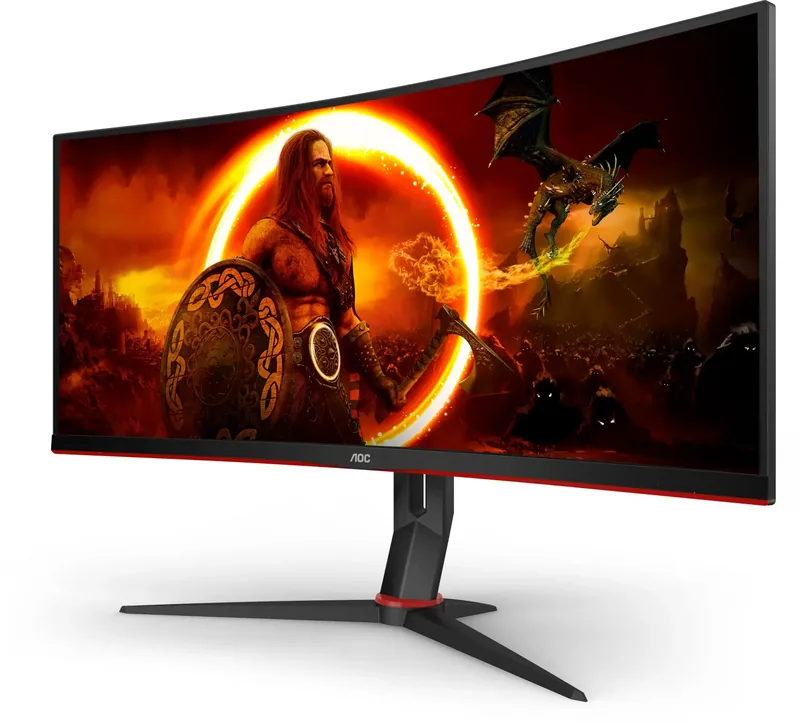
The AOC CU34G2XP Black is a stunning piece of hardware designed for serious gamers. This 34 inch curved monitor offers a panoramic view that enhances immersion significantly. Users looking for the AOC CU34G2XP Black 34 Manual will find essential information on setup and maintenance within the product documentation. The monitor features a WQHD resolution that provides crisp text and vibrant colors. This resolution is perfect for multitasking or gaming.
High Refresh Rates for Competitive Play
Speed is essential in modern gaming environments. The native refresh rate supports high performance up to 180Hz with DisplayPort. AMD FreeSync Premium ensures smooth gameplay without screen tearing. The panel adapts dynamically to the frame rate of your graphics card. This results in fluid motion during fast-paced action sequences. You can also utilize the Game Mode settings to optimize visuals for specific genres like racing or shooters. The monitor detects HDR signals automatically to adjust brightness and contrast levels. This ensures that scenes look dynamic.
Connection Options and Ergonomics
Managing cables becomes easier with the thoughtful design. The back panel houses multiple video inputs. You can connect two HDMI devices simultaneously alongside two DisplayPort connections. USB 3.2 ports allow fast data transfer for your accessories. The stand offers adjustable height and tilt capabilities. You can mount the unit on a wall using the VESA mount holes. However, you must be careful not to tilt downward excessively as per safety guidelines. Over tilting can cause panel damage and void the warranty. Always consult the installation instructions. In addition, the unit supports standard power input from 100 to 240V AC. This flexibility makes it suitable for international travel. The cable management system on the back keeps wires hidden. You can plug in headphones directly for private audio sessions. The monitor includes a remote control functionality for quick access to settings.
Visual Optimization Features
Eye care is a priority for extended usage. The Low Blue Mode filters harmful light waves during night use. Shadow Control helps reveal hidden details in dark areas of a game. HDR modes enhance contrast in supported content. The On Screen Display allows users to tweak settings like gamma and brightness. Picture Boost features further improve the visual experience for specific activities. You can also customize the brightness frame for better viewing in bright rooms. Color temperature settings allow you to switch between cool or warm tones.
Setup and Maintenance
Installation is straightforward with the included stand and cables. You must ensure the power cord is connected to a grounded outlet. Cleaning the screen requires a soft cotton cloth to avoid scratches. Never apply pressure directly on the LCD panel surface. If you encounter issues, check the troubleshooting section for common solutions. Verify that your computer drivers are updated for best performance. Check the input signal frequency to ensure compatibility. Troubleshooting tips recommend checking the input frequency first. If the screen is flickering, adjust the refresh rate to 60 or 75 Hz. Ensure that all pins on the video cable are intact. Using extension cables is not recommended for signal integrity.
Notes: Regular cleaning should only use a soft damp cloth. Ensure proper air circulation around the screen to prevent overheating. Keep the unit away from direct sunlight to maintain color accuracy over time. Always follow safety conventions listed in the user guide to avoid damage to the panel or power supply. Keep the OSD lock active if settings are frequently changed by children. Do not plug in power during lightning storms as stated in safety protocols.
Search for 67,706 Manuals online


Type-in Brand or Model