
AOC CU34G2X/BK Manual
PDF manual · 28 Pages
English



Quick check
Incorrect answer, please try again.
Chat with your AOC CU34G2X/BK manual using AI
Get instant AI answers from your AOC CU34G2X/BK manual
Ask anything about the AOC CU34G2X/BK. Answers come from this manual, with the pages they are based on.
Ask a Question
Do you recommend CU34G2X/BK?
Yes NoFrequently Asked Questions
The manual lists an optimal preset of 3440x1440 at 60 Hz. Maximum refresh is 3440x1440 up to 100 Hz (HDMI/DP) and up to 144 Hz on DisplayPort only. Match your GPU output and cables to the desired rate.
Is this answer helpful?
Adaptive-Sync is supported with compatible inputs and a DP capability configuration. The manual notes that only DP1.2 supports Adaptive-Sync for this model. Set DP Capability to the correct option in the OSD, then use DP for the connection.
Is this answer helpful?
HDR-related settings appear only when the monitor detects an HDR signal. If HDR is not detected from your source, the OSD will show the HDR Mode option for adjustment differently, or HDR adjustment entries may not be available.
Is this answer helpful?
Yes. The CU34G2X/BK supports PIP modes in the OSD. You can choose the PIP size (Small, Middle, Large), position (for example, Right-Up and corners), and select the main and sub sources based on the available inputs.
Is this answer helpful?
This message typically means the signal exceeds the monitor's supported resolution or refresh rate. Adjust your computer's maximum resolution and frequency to values the monitor can handle, and ensure the correct HDMI/DP cable and input are selected.
Is this answer helpful?
To lock: press and hold the MENU button while the monitor is off, then press the power button to turn it on. To unlock: repeat the same sequence. This helps prevent accidental changes during use.
Is this answer helpful?
Advantages and Disadvantages
Advantages

- Up to 144 Hz (DP) and 3440x1440 for fast, detailed ultrawide performance.
- Adaptive-Sync/FreeSync support with the correct DP setting (DP1.2).
- Game Mode presets including FPS, RTS, Racing, and Gamer 1-3.
- Low Input Lag option and Shadow Control for gameplay visibility.
- PIP (and PBP-style behavior via swap) helps you manage multiple sources.
Disadvantages

- Adaptive-Sync functionality requires DP1.2 capability selection.
- HDR adjustment options depend on HDR being detected from the source.
- Included signal cables can vary by region, so you may need extras.
- Some picture boosting features depend on Adaptive-Sync off conditions.
Product Specification
Function
Monitor (stationary)
Diagonal
34" (86.4cm)
Resolution
3440x1440 (UWQHD), 21:9, 110ppi
Panel
VA, Manufacturer: Samsung
Backlight
LED, blue light filter, flicker-free
Brightness
300cd/m² (typical)
Contrast
3,000:1 (static), 80,000,000:1 (dynamic)
Response time
4ms (GtG), 1ms (MPRT)
Refresh rate
144Hz (3440x1440)
Variable Synchronization
Adaptive Sync, AMD FreeSync
Signal frequency
30-160kHz (H) / 48-146Hz (V)
Connectors
2x HDMI, 1x DisplayPort
Shape
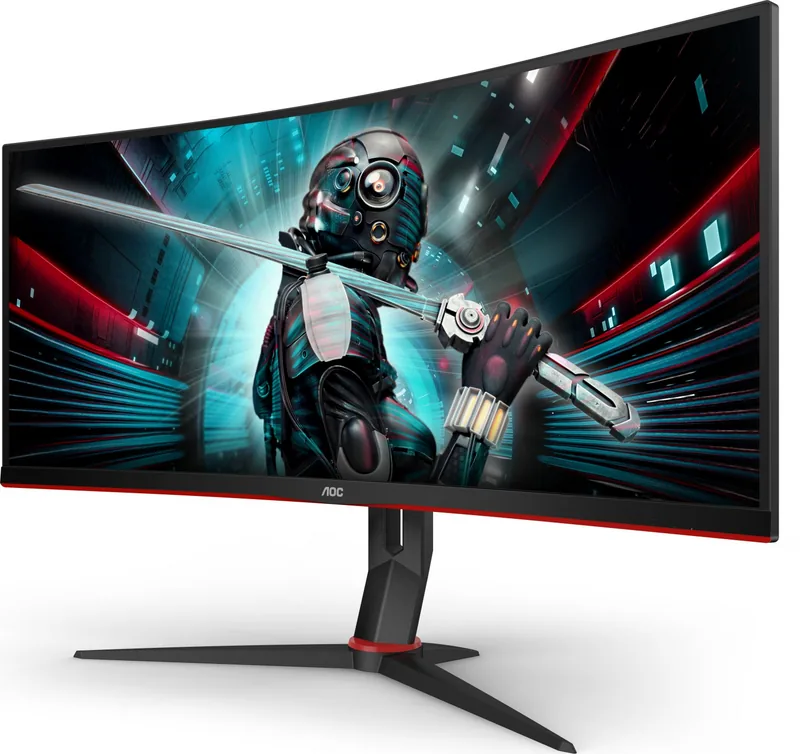
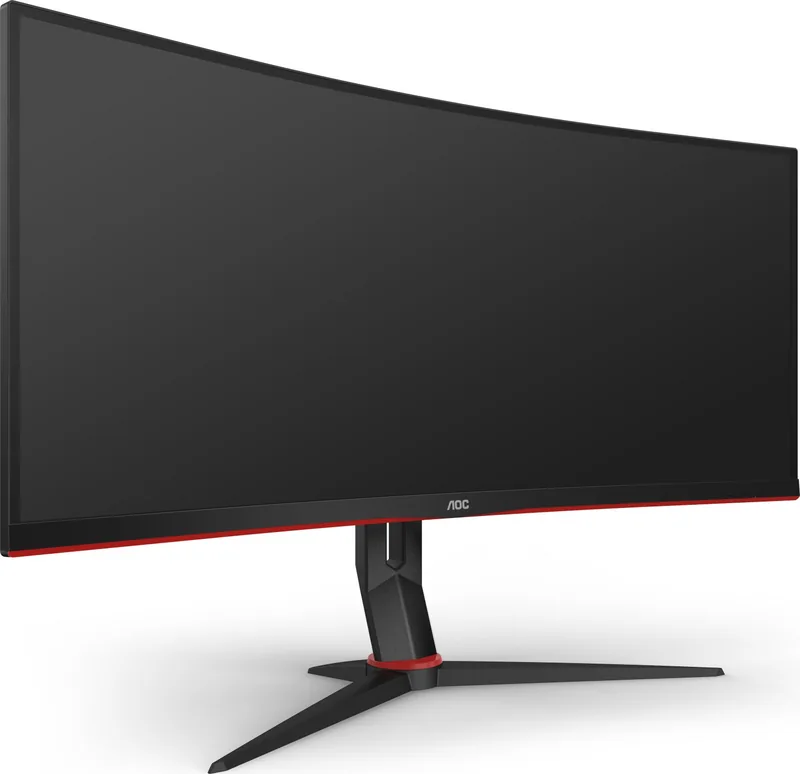
curved, 1500R/59.06in
Viewing angle
178°/178°
Coating
non-glare (matte)
Color depth
8bit (16.7 million colors)
FRC
N/A (8bit native)
sRGB
119%
Adobe RGB
88%
Operation
mechanical buttons
Ergonomics
with stand, height-adjustable (5.12in), Pivot N/A, rotatable (±130°), tiltable (+22°/-4°)
VESA
100x100 (occupied)
Power consumption
73W (typical), 0.5W (Standby), 73W (old energy label A+++ to G)
Energy efficiency SDR (A to G)
42kWh/1000h (G)
Energy efficiency HDR (A to G)
65kWh/1000h (G)
Energy efficiency old (A+++ to G)
106.6kWh (C)
Special features
Security lock (Kensington Security Slot), Slim Bezel
Screen-to-Body-Ratio
89.58% (calculated)
Dimensions
31.81x15.67x9.33in (WxHxD) with stand compressed, 31.81x14.45x4.06in (WxHxD) without stand
Color
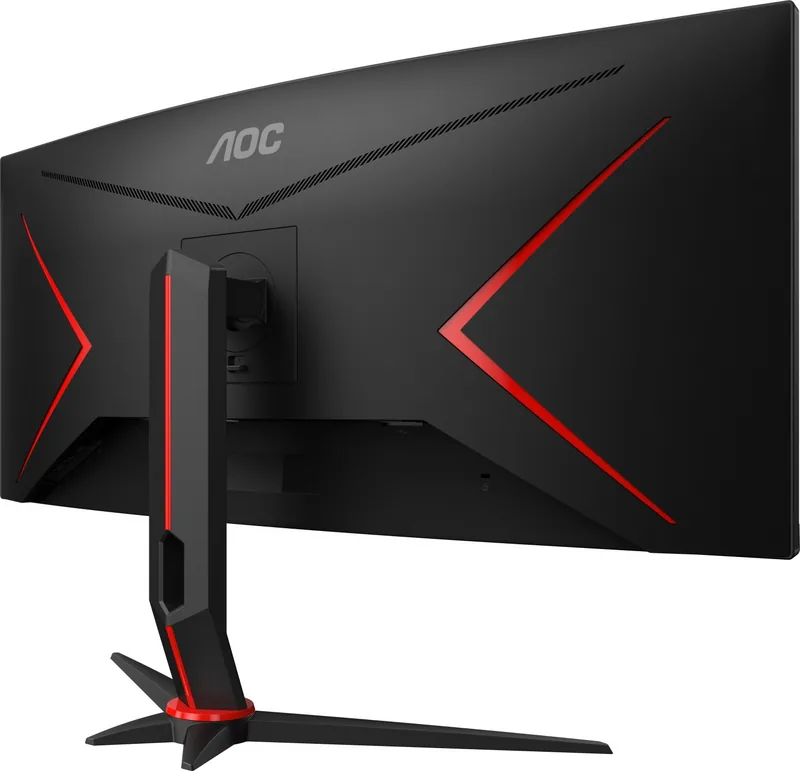
black (display frame) / black, red (bottom bezel) / black, red (stand) / black, red (rear)
Weight
17.86 lbs (with stand), 14.56 lbs (without stand)
Power supply
internal
Warranty
three years
USB notation
Link
Product Description
AOC CU34G2X/BK, 34" Manual - Gaming-Ready Ultrawide Comfort
The AOC CU34G2X/BK, 34" is an ultrawide LCD monitor built for smooth, immersive viewing and gaming-focused tuning. With a native 3440x1440 panel, it supports fast refresh rates up to 144 Hz over DisplayPort (DP), helping reduce motion blur during high-action gameplay. When you want a competitive edge, the monitor includes Adaptive-Sync (via DP) support and a set of game modes designed to match different genres.
Built for responsive gaming
Gaming performance is supported through features like FreeSync/Adaptive-Sync, low input lag, and adjustable response behavior. In the on-screen display (OSD), you can switch among presets such as FPS, RTS, Racing, and customizable Gamer profiles. Additional tools like Shadow Control and LowBlue Mode help you balance visibility, contrast, and comfort during long sessions.
Picture tuning and HDR-aware adjustments
For image quality, the CU34G2X/BK offers luminance controls (contrast, brightness, Eco mode), gamma selection, and dynamic contrast. HDR settings appear when HDR is detected, and the monitor can switch HDR modes for Picture, Movie, or Game viewing. You also get Picture Boost options, including a Bright Frame with adjustable brightness, contrast, and positioning to guide your attention on-screen.
Easy connectivity and multitasking options
The monitor includes HDMI and DisplayPort inputs plus a USB hub design (including USB 3.2 options and quick charging support) and an earphone-out connection. For multitasking, Picture-in-Picture (PIP) is available, letting you show a secondary source while you keep your main input active.
Key setup tips
- Use the monitor with compatible power outlets and do not defeat the grounded plug safety feature.
- Leave recommended ventilation space to avoid overheating.
- If you need Adaptive-Sync, ensure the display port capability is set correctly (DP1.2 is required for Adaptive-Sync).
Key pros
- Up to 144 Hz over DP for sharp, responsive gameplay at high refresh rates.
- Genre-focused Game Modes (FPS, RTS, Racing, and Gamer profiles) for quick tuning.
- PIP support for multitasking with a second input source.
- HDR controls appear when HDR is detected, enabling HDR-aware adjustments.
Key cons
- Adaptive-Sync depends on DP1.2 capability settings and compatible input selection.
- HDR-related adjustments are only available when HDR is actually detected.
- Some accessory cables may vary by region and must be confirmed locally.
Notes
If you see issues like "Input Not Supported" or flicker, recheck the signal source, supported resolution/refresh rate, and cable connections. For troubleshooting, follow the recommended reset and auto-adjust steps in the OSD.
Search for 67,706 Manuals online


Type-in Brand or Model
Candice Martin
8 months ago
I like the picture and features, but I also read about black screens or reliability issues after months. Does this monitor develop black-screen flickering, and what should I do if it happens?
Manual.ly
8 months ago
Some users reported brief black screens after extended use, so it is important to rule out simple causes first. Please check the display cable (use a different one if possible), reseat connections, and try another HDMI/DP port. Make sure the PC GPU driver and the monitor firmware are up to date. Also test with another device to confirm whether the issue is with the monitor itself. If the black screens persist, contact support for warranty options (replacement or repair depending on the case). With correct setup and working cables, many buyers report stable operation for years.