
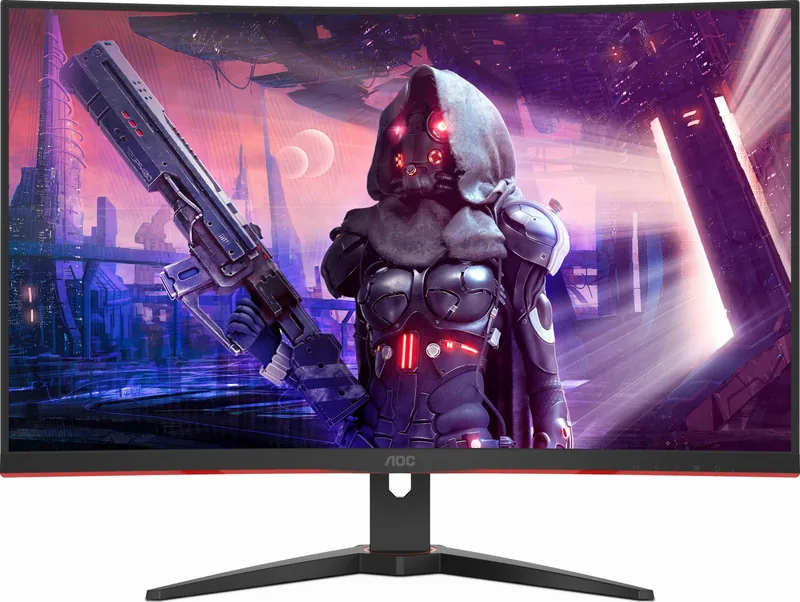
AOC CQ32G2SE/BK Manual
PDF manual · 27 Pages
English



Quick check
Incorrect answer, please try again.
Chat with your AOC CQ32G2SE/BK manual using AI
Get instant AI answers from your AOC CQ32G2SE/BK manual
Ask anything about the AOC CQ32G2SE/BK. Answers come from this manual, with the pages they are based on.
Ask a Question
Do you recommend CQ32G2SE/BK?
Yes No
Lina Schuster
8 months ago
Do I need to worry about ghosting, backlight bleeding, or dead pixels with this 32-inch curved gaming monitor?

Manual.ly
8 months ago
Some buyers mention ghosting or mild backlight bleeding. In most cases, it can be improved by using the right picture and response-time/overdrive settings and making sure refresh rate and VRR are enabled correctly (e.g., FreeSync/G-SYNC compatibility). Visual effects also vary by panel, so small differences between units can happen. If you notice a clear dead pixel, stuck pixel, or damage like scratches, treat it as a defect: contact the seller/support with proof of purchase and, if possible, photos or short videos. If you are still within the return window or warranty period, an exchange or repair should be arranged.
Frequently Asked Questions
The native resolution is 2560x1440 (QHD). The monitor supports up to 165Hz via DisplayPort and up to 144Hz via HDMI, depending on the connection and DP capability setting.
Is this answer helpful?
Adaptive-Sync works over DisplayPort and HDMI when supported. Ensure DP Capability is set to 1.2 in the OSD for DP Adaptive-Sync. Many AMD Radeon RX series GPUs (RX Vega, RX 500/400, R9/R7 series) are listed as compatible; refer to GPU vendor pages for confirmation.
Is this answer helpful?
The monitor includes two HDMI ports and one DisplayPort, plus a headphone out. For 165Hz at QHD, use DisplayPort with DP1.2 enabled in the OSD; HDMI supports lower maximum refresh rates.
Is this answer helpful?
When HDR Mode is enabled, several settings—such as contrast, brightness, gamma, color setup, Picture Boost, and some game options—may be locked or unavailable. Adjust HDR state to access those controls.
Is this answer helpful?
The included stand allows tilt adjustments from -5° to 23°. Height, swivel, and pivot adjustments are not provided; VESA mounting is available if different ergonomics are needed.
Is this answer helpful?
This indicates the video signal exceeds the monitor's supported resolution or refresh rate. Lower the output resolution or refresh rate in your GPU settings to a supported mode (e.g., 2560x1440 at 60–165Hz) or check the preset timings in the manual.
Is this answer helpful?
Enable Low Blue Mode or select reading/office-related ECO modes in the OSD to reduce blue light. Use break reminders, adjust brightness and contrast to comfortable levels, and ensure proper ambient lighting.
Is this answer helpful?
Advantages and Disadvantages
Advantages

- Large 31.5" QHD curved panel (2560x1440) for immersive visuals and sharp detail.
- High refresh rates: up to 165Hz via DisplayPort and 144Hz via HDMI for smooth gameplay.
- Adaptive-Sync support reduces screen tearing with compatible GPUs.
- Extensive OSD controls and game presets (FPS, RTS, Racing, Gamer 1-3) for tuning.
- Gaming features: Shadow Control, Low Blue Mode, Frame Counter, MBR and Overdrive options.
Disadvantages

- HDR adjustments and some color controls are locked when HDR mode is enabled.
- MBR and Overdrive Boost are limited when Adaptive-Sync is active or below certain Hz.
- Stand offers tilt only; limited ergonomic adjustments (no height or swivel).
- Maximum power draw can reach up to 77W at peak brightness and contrast.
- Some signal cables may not be included depending on region; check local package contents.
Product Specification
Function
Monitor (stationary)
Diagonal
31.5" (31.50in)
Resolution
2560x1440 (QHD), 16:9, 93ppi
Panel
VA
Backlight
LED, blue light filter, flicker-free
Brightness
250cd/m² (typical)
Contrast
3,000:1 (static), 80,000,000:1 (dynamic)
Response time
4ms (GtG), 1ms (MPRT)
Refresh rate
165Hz (2560x1440)
Variable Synchronization
Adaptive Sync, AMD FreeSync Premium certified (48-165Hz via DisplayPort, 48-144Hz via HDMI, with LFC support, without HDR)
Connections
2x HDMI 2.0, 1x DisplayPort 1.2, 1x 3.5mm jack (Line-Out), 1x DC-In hollow socket (Power connection)
Shape
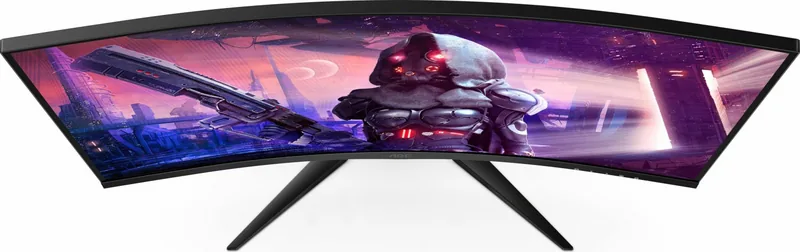
curved, 1500R/1.50m
Viewing angle
178°/178°
Coating
non-glare (matt)
Color depth
8bit (16.7 million colors)
FRC
unknown
sRGB
121%
Adobe RGB
90%
Speakers
Speakers (2x 5W)
Ergonomics
with stand, height adjustable N/A, Pivot N/A, swiveling N/A, tiltable (+22°/-5°)
VESA
100x100 (occupied)
Power consumption
49W (typical), 0.3W (Standby), 56W (Energy label old A+++ to G)
Energy efficiency SDR (A to G)
35kWh/1000h (G)
Energy efficiency old (A+++ to G)
81.8kWh (C)
Special features
Security lock (Kensington Security Slot), Slim Bezel
Screen-to-Body-Ratio
90.65% (calculated)
Dimensions
27.95x20.63x9.65in (WxHxD) with stand, 27.95x16.73x3.35in (WxHxD) without stand
Color
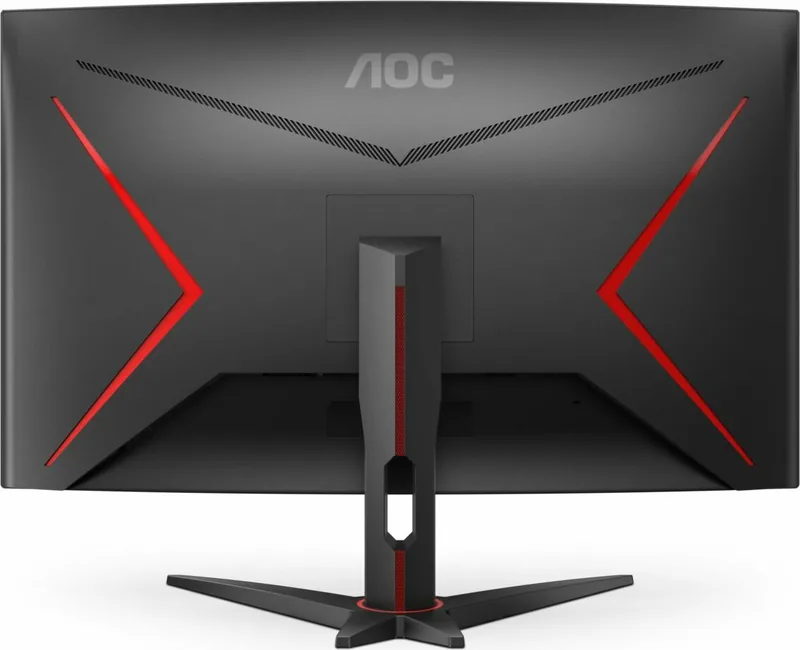
black (display frame) / black, red (lower bezel) / black (stand) / black, red (back)
Weight
16.32lb (with stand)
Power supply
external
Warranty
three years
USB notation
Link
Product Description
AOC CQ32G2SE/BK, 31.5" Manual Overview
The AOC CQ32G2SE/BK is a 31.5-inch curved gaming monitor designed to balance high refresh rates, vivid color, and practical ergonomics for gamers and power users. Built around a 2560x1440 QHD panel, it supports up to 165Hz via DisplayPort (144Hz via HDMI) and includes Adaptive-Sync to reduce tearing and stutter with compatible GPUs. The monitor provides a wide viewing area with a 31.5" diagonal, a 1500R curvature for immersive visuals, and a fast response time enabled by adjustable overdrive and motion blur reduction (MBR) features.
Design and Connectivity
This model offers a gaming-focused aesthetic with a sturdy stand that supports tilt adjustment (-5° to 23°) and straightforward setup. Connectors include two HDMI ports, one DisplayPort, and a 3.5mm headphone output. The monitor ships with a detachable power adapter, cables (region dependent), and a base. VESA mounting is supported for alternative mounting options.
Performance and Image Controls
The CQ32G2SE/BK delivers 16.7 million colors and a pixel pitch suitable for sharp QHD detail on 31.5". Its wide frequency support (up to 165Hz via DP) and low input-lag settings make it suitable for competitive play. Extensive on-screen display (OSD) controls let users tweak luminance, contrast, gamma, RGB gains, and multiple preset modes (Standard, Text, Game, Movie, etc.). HDR modes and dedicated gaming presets (FPS, RTS, Racing, three user-configurable Gamer slots) help tailor the image for content or personal taste.
Game-focused tools include Shadow Control for enhancing dark details, Low Blue Mode for reduced eye strain, a configurable frame counter, Adaptive-Sync toggling, and MBR adjustments. Some advanced features (MBR, Overdrive Boost) are restricted while Adaptive-Sync or HDR are active or dependent on refresh rate limits.
Usability and Safety
The monitor emphasizes safety and durability with ventilation guidance, cleaning recommendations, and a grounded power plug. Built-in white and amber LED indicators convey power states. Troubleshooting and a full specification section in the manual cover common issues, optimal resolutions and refresh rates, and supported preset timings.
Final Thoughts
AOC's CQ32G2SE/BK targets gamers who want a large curved QHD display with high refresh-rate capability and a flexible toolkit for image tuning. It combines solid connectivity, adaptive sync support, and detailed OSD options, making it a competitive choice for immersive gaming and general multimedia use.
Notes
- Optimal performance (165Hz) requires DisplayPort with DP1.2 selected in OSD.
- Some advanced features cannot be adjusted when HDR mode is active.
- Use recommended ventilation clearances and the supplied power adapter model (ADPC2090) for safety.
Search for 67,706 Manuals online


Type-in Brand or Model
rem96
8 months ago
I am considering this 32-inch QHD curved gaming monitor, but some reviews mention ghosting/bleeding and flickering, and that FreeSync Premium may not work. Does it have these issues, and how can I fix VRR problems with NVIDIA?
Manual.ly
8 months ago
Ghosting or “bleeding” can happen depending on settings, refresh rate, and the overdrive mode of the panel. In our experience, setting Overdrive appropriately (and running the monitor at its intended refresh rate) reduces perceived ghosting. For VRR, if you use an NVIDIA GPU, FreeSync Premium (AMD) may not be used directly. Instead, enable G-SYNC Compatible in the NVIDIA Control Panel and set it for fullscreen (or the relevant display mode). Make sure you use a proper cable (DP for best compatibility), enable the monitor's VRR feature, and update GPU drivers/monitor firmware if available. If you notice dead pixels or damage on arrival, contact support for warranty/RMA right away.