
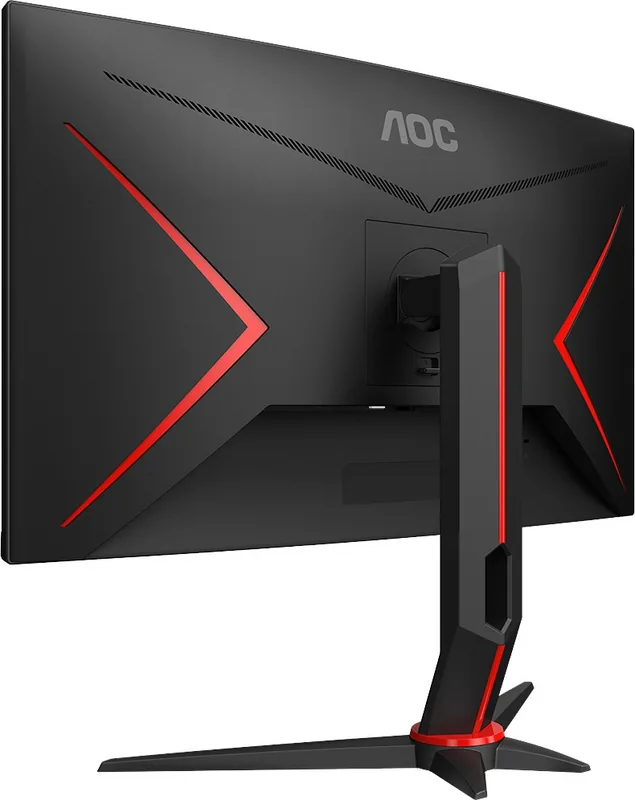
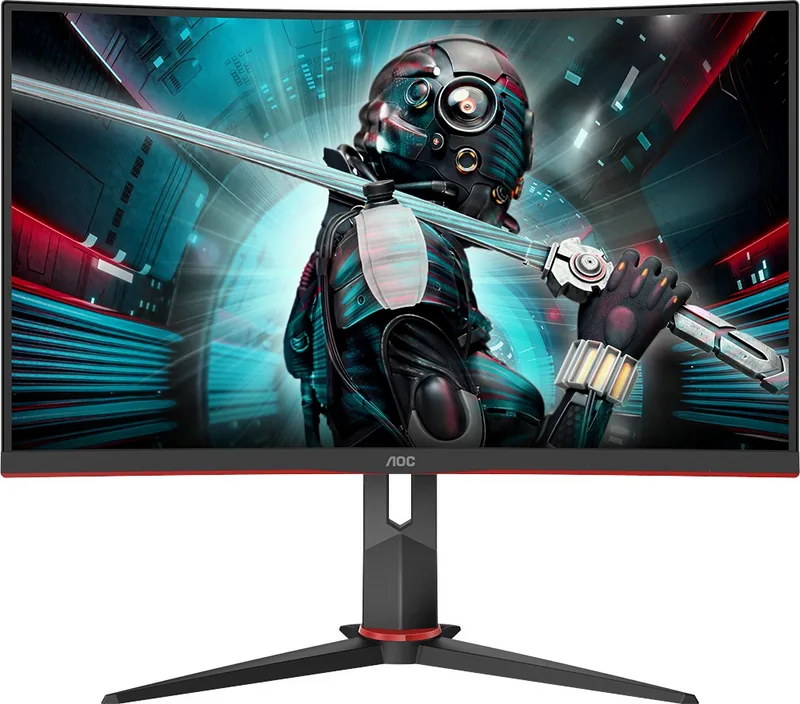
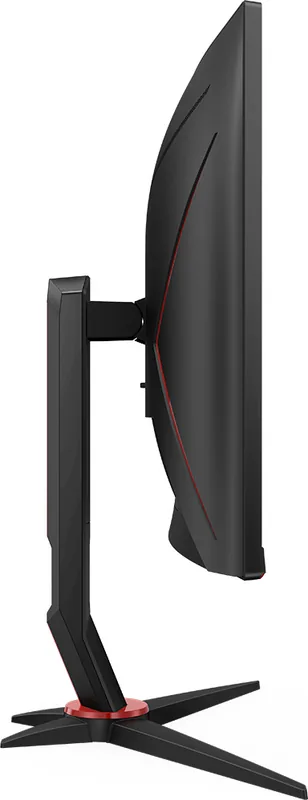
AOC CQ27G2U/BK Manual
PDF manual · 30 Pages
English



Quick check
Incorrect answer, please try again.
Chat with your AOC CQ27G2U/BK manual using AI
Get instant AI answers from your AOC CQ27G2U/BK manual
Ask anything about the AOC CQ27G2U/BK. Answers come from this manual, with the pages they are based on.
CQ27G2U/BK Maintenance Schedule
Clean the casing regularly with a cloth. For stubborn dirt, use a mild cleaning agent. Avoid aggressive cleaners.
Always disconnect the power cable before cleaning the product to ensure safety.
Free maintenance reminders
Timed to your purchase date. Always free, unsubscribe anytime.
Ask a Question
Do you recommend CQ27G2U/BK?
Yes No
kirsty17
9 months ago
Do the built-in speakers and the USB hub really work well, or is it better to use headphones/external speakers?

Manual.ly
8 months ago
The integrated speakers are designed only for basic audio. Most users find them too quiet and limited in volume and clarity, especially in louder environments. For movies, games, or calls with clear sound, it is recommended to use headphones or external speakers. The USB hub is functional, but some buyers report that it is not very practical during normal use (ports can be awkward to reach). If you plan to use USB devices regularly, consider connecting them directly to your PC or ensure you can access the monitor's USB ports comfortably.
Frequently Asked Questions
It starts with safety and basic usage. You are guided to use the correct power type, ensure the monitor is installed on stable stands or approved mounting kits, keep ventilation openings unobstructed, and unplug the device before cleaning.
Is this answer helpful?
The manual recommends powering off your PC and the monitor before connecting. Then attach HDMI or DisplayPort from the monitor to the graphics card, connect power, and turn on both devices. If no image appears, follow the troubleshooting steps for the specific cable type.
Is this answer helpful?
Adaptive-Sync and FreeSync are described as model-dependent features. They work with DP or HDMI and require compatible AMD Radeon graphics cards listed by the manual. The OSD menu notes DP capability selection (DP 1.1 vs DP 1.2) for correct VRR behavior.
Is this answer helpful?
Use the OSD Menu to access Luminance, Color Setup, Picture Boost, OSD Setup, and Game Setting. From Luminance you can control contrast, brightness, ECO mode, gamma, DCR, and HDR effects or HDR modes. From Color Setup you can select color temperature and RGB tuning.
Is this answer helpful?
Yes. Game Mode includes presets such as FPS, RTS, Racing, and Gamer 1 to Gamer 3. The manual also describes low blue options and response-related controls like Overdrive and Shadow Control to tailor contrast and clarity for different game scenes.
Is this answer helpful?
This message appears when the graphics card output exceeds the monitor's maximum resolution or refresh rate. The manual instructs you to lower resolution and adjust the frequency to values the monitor can handle, then check that AOC monitor drivers are installed.
Is this answer helpful?
Advantages and Disadvantages
Advantages

- 27-inch QHD clarity with 2560x1440 support, plus up to 144Hz over HDMI or DisplayPort for smoother motion.
- Game-focused controls: low input lag options, overdrive levels, Low Blue Mode, and genre presets like FPS and RTS.
- Rich OSD customization: contrast/brightness, gamma profiles, DCR, and HDR effect or mode selections.
- Color flexibility: Warm/Cool/sRGB and user RGB adjustments, plus DCB scene modes for different visual looks.
- Multiple connectivity support including HDMI and DP, with USB features and guided setup steps for stable operation.
Disadvantages

- Adaptive-Sync and FreeSync are available only on selected models and rely on compatible AMD GPUs and DP/HDMI setup.
- Some settings cannot be combined at the same time (for example, only one option among ECO mode, DCR, DCB Mode, and Picture Boost).
- MBR and Overdrive Boost are limited by conditions in the manual, including Adaptive-Sync/FreeSync being off and a VRR ceiling.
- Included signal cables are not guaranteed for every country, so you may need to confirm what comes with your region pack.
- Proper ventilation and safe placement are required; the manual stresses spacing around the monitor to avoid overheating.
Product Specification
Function
Monitor (stationary)
Diagonal
27" (68.6cm)
Resolution
2560x1440 (QHD), 16:9, 109ppi
Panel
VA
Backlight
LED, blue light filter, flicker-free
Brightness
250cd/m² (typical)
Contrast
3,000:1 (static), 80,000,000:1 (dynamic)
Response time
1ms (MPRT)
Refresh rate
144Hz (2560x1440)
Variable synchronization
Adaptive Sync, AMD FreeSync Premium certified (48-144Hz via DisplayPort, 48-144Hz via HDMI, with LFC support, without HDR)
Signal frequency
48-144Hz (V)
Connections
2x HDMI 2.0, 1x DisplayPort 1.2, 1x USB-B 3.0 (Upstream, 5Gb/s), 4x USB-A 3.0 (Downstream, 5Gb/s), 1x 3.5mm jack (Line-Out), 1x 3.5mm jack (Line-In), 1x AC-In C13 (Power connection)
Form
curved, 1500R/1.50m
Viewing angle
178°/178°
Coating
non-glare (matte)
Color depth
8bit (16.7 million colors)
FRC
unknown
sRGB
120%
DCI-P3
92%
Speakers
Speakers (2x 2W)
Controls
mechanical buttons
Ergonomics
with stand, height adjustable (130mm), Pivot N/A, rotatable (±30°), tiltable (+23°/-5°)
VESA
100x100 (occupied)
Power consumption
28W (typical), 0.5W (Standby)
Energy efficiency SDR (A to G)
28kWh/1000h (G)
Special features
Security lock (Kensington Security Slot), Slim Bezel
Screen-to-Body-Ratio
89.48% (calculated)
Dimensions
612x529x227mm (WxHxD) with stand (compressed), 612x367x73mm (WxHxD) without stand
Color
black (display frame) / black, red (lower bezel) / black, red (stand) / black, red (back)
Weight
5.40kg (with stand), 4.10kg (without stand)
Power supply
internal
Warranty
three years
USB notation
Link
Product Description
AOC CQ27G2U/BK, 27" Manual: A sharper 27-inch gaming-ready monitor
The AOC CQ27G2U/BK, 27" Manual highlights how this 27-inch display is designed for everyday clarity and smoother gameplay. With a native 2560x1440 (QHD) image and support for high refresh rates up to 144Hz via HDMI or DisplayPort, it targets users who want more detail than Full HD, plus responsive motion for competitive titles and fast scrolling work.
Beyond raw performance, the manual walks through practical setup steps and safe usage. It covers correct power use with the included adapter, proper installation on stable stands or recommended mounting kits, and leaving enough space around the monitor for ventilation. It also includes simple cleaning guidance so the screen stays scratch-free, emphasizing that you should unplug the power before wiping the housing or display surface.
For customization, the on-screen display (OSD) offers quick access via dedicated buttons and a menu system for fine-tuning picture quality. In Luminance settings you can adjust contrast, brightness, ECO mode, gamma profiles, and dynamic contrast (DCR). The monitor also supports HDR-related effects and selectable HDR modes for different use cases like movies or gaming.
Color tuning is equally flexible. The Color Setup section includes color temperature options such as Warm, Cool, and sRGB, plus a user mode for adjusting red, green, and blue gains. It also describes DCB modes and scene-oriented options such as nature skin and sky-blue tuning, allowing you to shift the look without complicated calibration.
When play takes priority, Game Setting provides features for lower perceived lag, reduced blue light, and overdrive choices for changing response behavior. You can select game genres like FPS, RTS, and Racing, or save preferences into Gamer 1 to Gamer 3. Adaptive-Sync or FreeSync options are presented as model-dependent features and require compatible DP/HDMI use and supported AMD graphics cards.
Finally, the manual includes troubleshooting tips and quick fixes, such as checking cable connections when no signal appears, adjusting resolution when the display reports unsupported input, and using automatic image adjustment for blur or ghosting. It also notes the LED status behavior, so you can quickly tell whether the monitor is active or in standby.
Notes
- Some advanced functions depend on model support (for example, Adaptive-Sync/FreeSync) and specific conditions listed in the menu.
- Several picture options are mutually exclusive, so the OSD will limit which modes you can combine.
- Included cables may vary by region, so check what is supplied before connecting.
Search for 67,706 Manuals online


Type-in Brand or Model
Sven Huber
10 months ago
Is the monitor too dark out of the box? My whites look yellowish and the brightness seems low even after changing settings. Can I adjust it properly for gaming and work?
Manual.ly
10 months ago
It can happen that the default picture mode ships with a lower brightness and a warm color temperature, so whites look yellowish and the image feels dim. In the OSD, set Brightness (and Contrast) closer to 100%, then switch Color Temperature to a cooler setting (for example Cool) and fine-tune Gamma and, if available, RGB values. If you use a Game mode, test Standard vs Game and keep the selected mode consistent for your input. Also confirm the correct input source (HDMI/DisplayPort) and that your PC output is set to the expected RGB range (PC/Full). If after tuning the backlight still feels unusually low, please contact us with your settings and serial number so we can check the unit under warranty.