
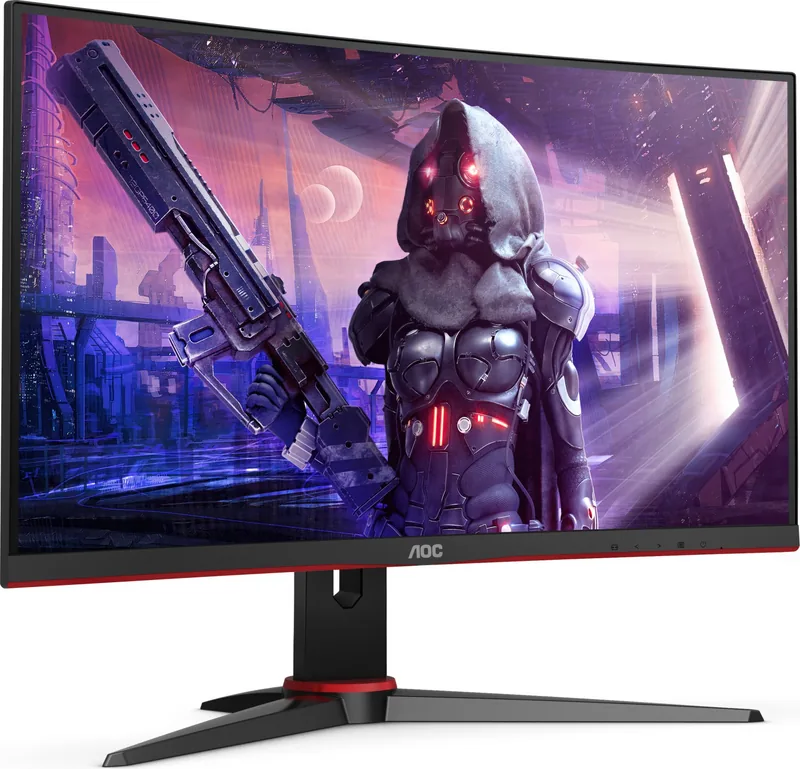
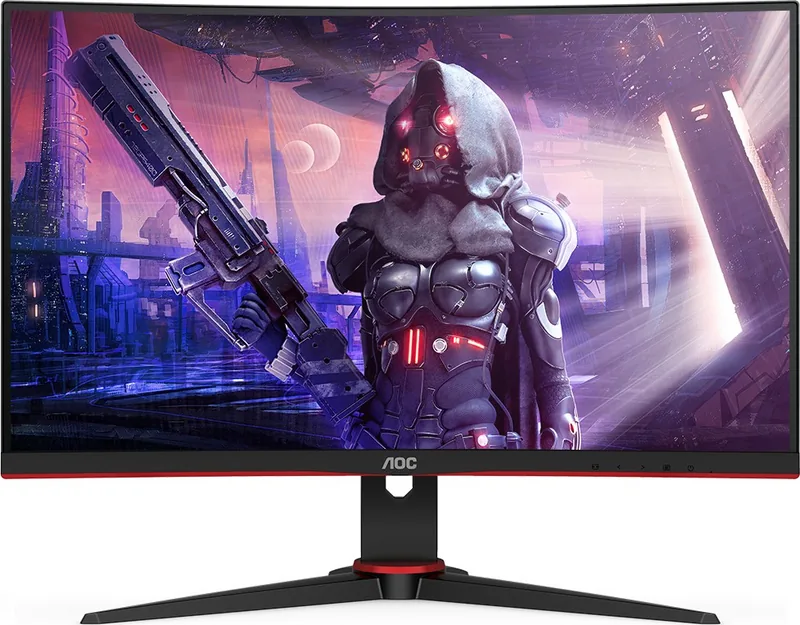
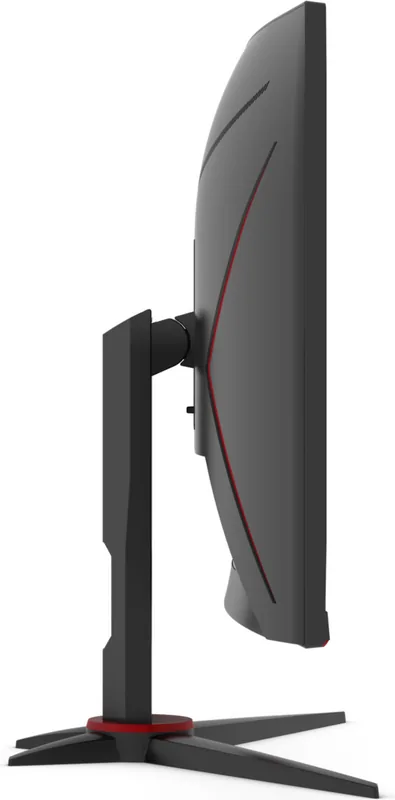
AOC C24G2 Manual
PDF manual · 29 Pages
English



Quick check
Incorrect answer, please try again.
Chat with your AOC C24G2 manual using AI
Get instant AI answers from your AOC C24G2 manual
Ask anything about the AOC C24G2. Answers come from this manual, with the pages they are based on.
C24G2 Maintenance Schedule
Wipe the casing regularly with a soft cloth. For stubborn dirt, use a mild cleaning agent; avoid aggressive cleaners that may damage the surface.
Ensure at least 30cm of space is left around the monitor for proper ventilation to prevent overheating and fire hazards.
Free maintenance reminders
Timed to your purchase date. Always free, unsubscribe anytime.
Ask a Question
Do you recommend C24G2?
Yes NoFrequently Asked Questions
Connect power cord and signal cable to PC. Turn on both devices. Use HDMI, DP, or VGA depending on availability. Use DisplayPort for 165Hz refresh rates.
Is this answer helpful?
Check power cord connection. Reboot computer. Check if input signal exceeds max resolution. Adjust frequency if needed. Verify cable is plugged into correct port.
Is this answer helpful?
Yes, use a wall mounting arm purchased separately. Remove base. Align VESA holes. Note some models may lack holes. Consult official department for confirmation.
Is this answer helpful?
1920x1080 up to 165Hz via DP, 144Hz via HDMI, and 60Hz via VGA. Ensure DP1.2 for Adaptive-Sync function to work properly with compatible graphics cards.
Is this answer helpful?
Use hotkeys for game mode. Press Menu for OSD. Select Game Setting tab. Choose FPS, RTS, or Racing modes to enhance visuals instantly for specific genres.
Is this answer helpful?
Use soft cloth. Do not use strong detergent. Disconnect power first. Avoid liquid entering vents. Do not press too hard to avoid LCD damage.
Is this answer helpful?
Disconnect power immediately. Contact Service Center. Do not continue operation. It indicates a serious electrical fault that requires professional inspection.
Is this answer helpful?
Advantages and Disadvantages
Advantages

- High refresh rate up to 165Hz on DisplayPort for smooth gaming.
- Adaptive-Sync compatible with Radeon cards for reduced screen tearing.
- Multiple input ports including HDMI, DP, and VGA for versatility.
- Dedicated OSD game modes for FPS, RTS, and Racing optimization.
- Built-in OSD for easy adjustment without mouse drivers required.
Disadvantages

- Brightness and contrast cannot be adjusted when HDR is active.
- Wall mounting requires separate arm and VESA holes may not exist.
- USB hub functionality is only available on C24G2U model variants.
- Manual adjustment of some settings is complex during live gaming.
- Color setup options are locked if HDR Mode is set to non-off.
Product Specification
Function
Monitor (stationary)
Diagonal
23.6" (23.6")
Resolution
1920x1080 (FHD), 16:9, 93 ppi
Panel
VA
Backlight
LED, Blue Light Filter, flicker-free
Brightness
250 cd/m2 (typical)
Contrast
3,000:1 (static), 80,000,000:1 (dynamic)
Response Time
1ms (MPRT)
Refresh Rate
165Hz (1920x1080)
Variable Synchronization
Adaptive Sync, AMD FreeSync Premium certified (48-165Hz via DisplayPort, 48-144Hz via HDMI, with LFC support, without HDR)
Signal Frequency
30-200kHz (H) / 48-165Hz (V)
Shape
Curved, 1500R/1.50m
Viewing Angle
178 deg/178 deg
Coating
non-glare (matte), Hardness 3H
Color Depth
8-bit (16.7 Million colors)
FRC
unknown
sRGB
120%
Adobe RGB
89%
Speakers
Speakers (2x 2W)
Controls
Mechanical buttons
VESA
100x100 (included)
Power Consumption
27W (typical), 0.3W (Standby), 32W (Old Energy Label A+++ to G)
Old Energy Efficiency (A+++ to G)
46.7kWh (B)
Features
Security Lock (Kensington Security Slot), Slim Bezel
Screen-to-Body Ratio
89.23% (calculated)
Color
black (display frame) / black, red (bottom bezel) / black, red (stand base) / black, red (back)
Power Supply
Internal
Warranty
3 years
USB Label
Link
Product Description
Experience High Performance Gaming with the AOC C24G2
Gamers looking for an affordable yet powerful display often stumble upon the AOC C24G2. This sleek monitor delivers an immersive visual experience tailored for competitive play. The design focuses on speed and clarity, ensuring you never miss a detail during intense matches. If you are diving into the setup process, referring to the AOC C24G2 Manual is highly recommended for optimal configuration and to understand the full potential of the hardware.
Display Quality and Connectivity
The panel boasts a crisp 1920x1080 resolution with high refresh rates reaching up to 165Hz via DisplayPort. HDMI connections support 144Hz, making it versatile for various setups. Adaptive-sync technology ensures smooth gameplay by reducing screen tearing significantly. You get multiple input options including dual HDMI and VGA, accommodating legacy and modern hardware alike. Color support reaches 16.7 million colors for vivid visuals. You can adjust gamma and brightness to suit your environment perfectly. Digital controls fine-tune the clock and phase to reduce noise on the image.
Physical Setup and Cleaning
Adjusting the viewing angle is straightforward, though you must hold the stand to prevent toppling the unit during movement. Wall mounting is possible using a separate arm, but verify VESA compatibility first as not all models include the holes. The monitor includes a USB hub on the C24G2U model for convenient peripheral connection. Cleaning requires a soft cloth and mild detergent to avoid damaging the screen surface permanently. Power supply demands a grounded outlet to prevent electrical shocks during operation. Ensure airflow around the unit to avoid overheating during long sessions.
Game Settings and Optimization
The On-Screen Display menu offers extensive customization for different genres. You can select presets like FPS or Racing modes to optimize performance instantly without manual tweaking. Shadow control helps reveal details in dark areas, enhancing visibility. Low Blue Mode protects your eyes during long sessions. Bright Frame highlights dark corners of your screen, improving visibility in competitive games. MBR and Overdrive settings allow further tuning of motion handling for smoother action. Frame counters display video frequency for timing analysis.
Power and Safety Guidelines
Safety is paramount when operating any electronic device in your home office. Ensure proper ventilation by leaving space around the unit to prevent overheating and potential fire hazards. The three-pronged grounded plug protects against electrical surges. During storms, unplug the unit to safeguard internal components. Power consumption varies between models, with the C24G2U consuming slightly more due to USB connectivity. Environmental factors like humidity and temperature must remain within operating limits.
Troubleshooting and Maintenance
If the power LED does not turn on, check the connection to the grounded power outlet. No image might result from incorrect cable connections. Picture bouncing can be resolved by adjusting refresh rates and signal cables. Always consult the AOC C24G2 Manual for specific troubleshooting steps regarding power LEDs and error messages. Proper configuration ensures longevity and peak performance for your gaming station. Regular cleaning keeps the screen clear for years. Resetting the menu to default can fix settings if corrupted.
Notes: 165Hz on DP only.
Search for 67,706 Manuals online


Type-in Brand or Model