
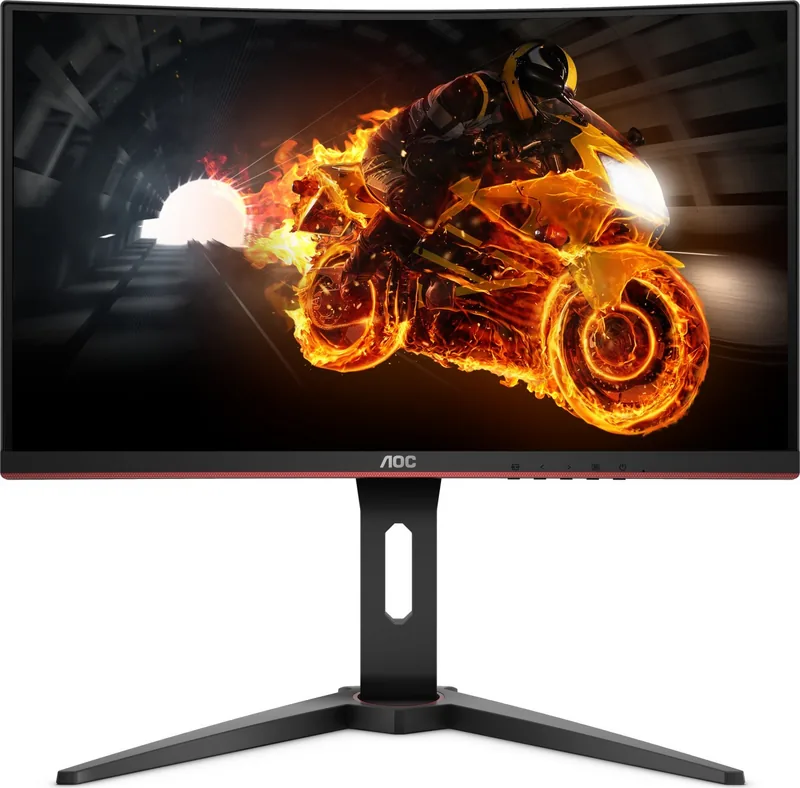
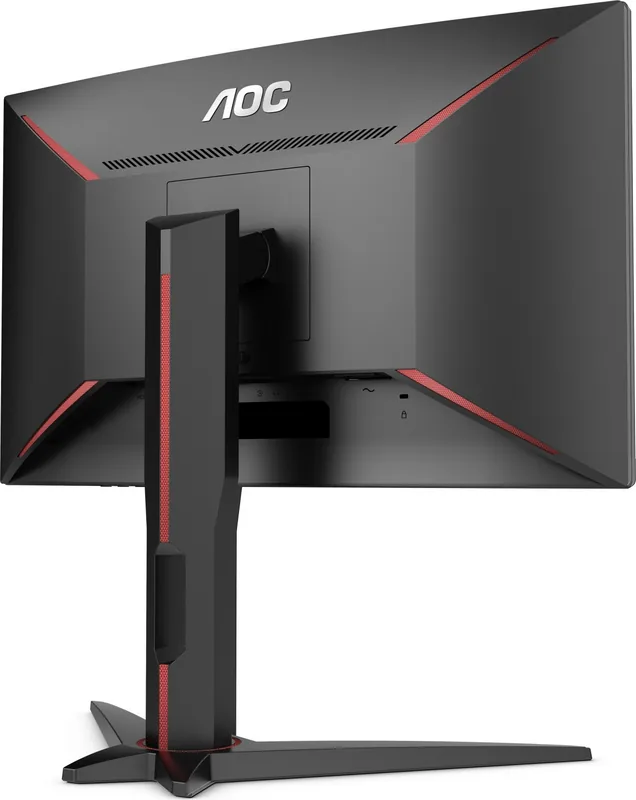
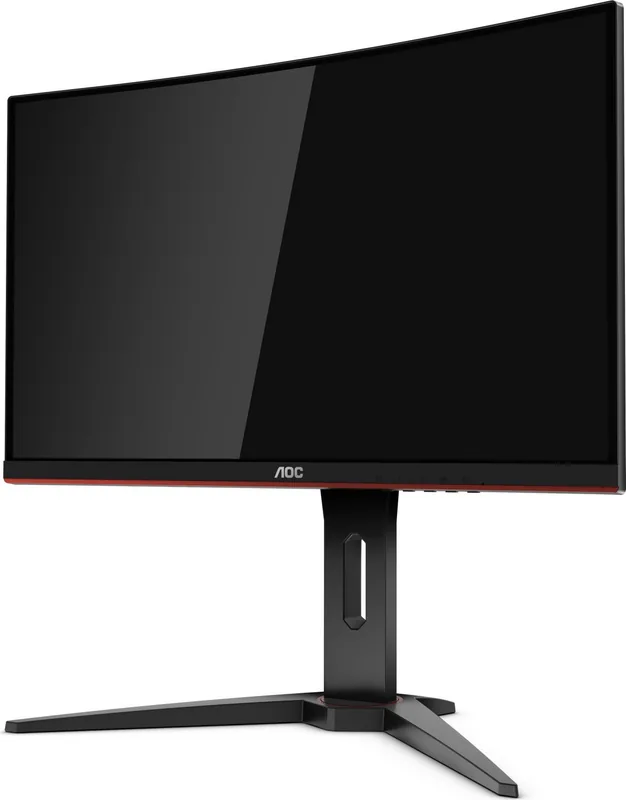
AOC C24G1 Manual
PDF manual · 66 Pages
English



Quick check
Incorrect answer, please try again.
Chat with your AOC C24G1 manual using AI
Get instant AI answers from your AOC C24G1 manual
Ask anything about the AOC C24G1. Answers come from this manual, with the pages they are based on.
Ask a Question
Do you recommend C24G1?
Yes No
Julia Schmidt
6 months ago
My monitor keeps defaulting to 60Hz instead of 144Hz after installation. How can I change this setting in Windows?

Manual.ly
6 months ago
Hello! To enable the full refresh rate, manually go to Windows Display Settings and click Advanced Display Settings. Select Adapter Properties, then the Monitor tab, and choose 144Hz from the refresh rate dropdown. Most users find this works with both HDMI and DisplayPort connections provided the graphics card supports it. If the option is greyed out, check your graphics driver settings or update the display drivers. Let us know if you need further assistance to get you back to gaming fast!
Vicky Walsh
6 months ago
Does this monitor support 144Hz, and how do I enable it?
Manual.ly
6 months ago
Yes, the AOC C24G1 supports a native refresh rate of 144Hz. To enable it, please go to your computer's display settings, select Advanced Display Settings, then Adapter Properties, and choose the Monitor tab. From there, you can select 144Hz from the Refresh Rate dropdown menu. Ensure you use the included DisplayPort or HDMI cable for the best performance.

jake31
6 months ago
Why is the text on the screen looking blurry or pixelated compared to other monitors?
Emily Morgan
3 months ago
How do I enable the full 144 Hz refresh rate, and which connection should I use for FreeSync or G-Sync compatibility?
Manual.ly
3 months ago
Set the monitor to 1920 x 1080 at 144 Hz in your operating system's advanced display settings or graphics control panel. DisplayPort is recommended for Adaptive-Sync, FreeSync, and G-Sync Compatible use. HDMI can also support 144 Hz on compatible devices, but adaptive-sync support may vary. Make sure your graphics card, cable, and game settings are configured accordingly.
Liam Parker
6 months ago
How do I enable the monitor's 144 Hz refresh rate on Windows, and which connection should I use?
Manual.ly
6 months ago
The monitor may initially run at 60 Hz. For the best experience, connect it via DisplayPort or a compatible HDMI cable, then open Windows Settings > System > Display > Advanced display and select 1920 x 1080 at 144 Hz. You can also confirm the setting in your graphics card control panel. Adaptive Sync features such as FreeSync or G-Sync Compatible support are generally most reliable through DisplayPort. Please ensure that your graphics card and cable support 144 Hz at Full HD.
Video Manual
AOC C24G1 Menu System (OSD)
Frequently Asked Questions
The AOC C24G1 uses a native Full HD resolution of 1920 x 1080. It supports 1920 x 1080 at up to 144 Hz when connected through HDMI or DisplayPort.
Is this answer helpful?
Yes. The monitor supports AMD FreeSync through DisplayPort, HDMI 1, and HDMI 2. A compatible graphics card and the appropriate connection are needed to use the feature.
Is this answer helpful?
The AOC C24G1 includes two HDMI inputs, one DisplayPort input, one D-Sub input, a headphone output, and a power connector.
Is this answer helpful?
Yes. The stand can be removed and the monitor can be attached to a separately purchased compatible wall mounting arm. Follow the mount manufacturer's instructions and use suitable hardware.
Is this answer helpful?
Available tools include FPS, RTS, Racing, and custom Gamer modes, plus Shadow Control, Game Color, Low Input Lag, Overdrive, FreeSync, Frame Counter, Motion Blur Reduction, and Dial Point.
Is this answer helpful?
Use the LowBlue Mode setting in the game menu. It provides Reading, Office, Internet, and Multimedia options that adjust color temperature to reduce blue-light output.
Is this answer helpful?
Advantages and Disadvantages
Advantages

- 23.6-inch Full HD panel supports up to 144 Hz over HDMI and DisplayPort for smoother fast-paced play.
- AMD FreeSync support can reduce screen tearing with compatible graphics hardware.
- Gaming tools include Low Input Lag, Overdrive, Motion Blur Reduction, Shadow Control, and genre presets.
- Two HDMI ports, DisplayPort, D-Sub, and headphone output support a variety of devices.
- Extensive OSD controls cover color, gamma, brightness, image ratio, timers, and LowBlue modes.
Disadvantages

- The maximum 144 Hz refresh rate is not available through the D-Sub connection.
- FreeSync benefits depend on using a compatible graphics card and a supported HDMI or DisplayPort connection.
- Wall mounting requires a separately purchased compatible mounting arm.
- Some advanced motion settings require a refresh rate above 75 Hz.
- Included signal cables may differ by country, region, or retailer.
Product Specification
Function
Monitor (desktop)
Diagonal
23.6 in (23.58 in)
Resolution
1920x1080 (FHD), 16:9, 93 ppi
Panel
VA, manufacturer: TP Vision (TPM236WF1-HP02)
Backlight
LED, blue light filter, flicker-free
Brightness
250 cd/m² (typical)
Contrast
3,000:1 (static), 80,000,000:1 (dynamic)
Response Time
4 ms (GtG), 1 ms (MPRT)
Refresh Rate
144 Hz (1920x1080)
Variable Synchronization
Adaptive Sync, AMD FreeSync Premium certified (48-144 Hz via DisplayPort, 48-144 Hz via HDMI, with LFC support, without HDR)
Signal Frequency
48-144 Hz (V)
Connections
1x VGA, 2x HDMI 1.4, 1x DisplayPort 1.2, 1x 3.5 mm jack (Line-Out), 1x DC-In barrel jack (power connection)
Shape
curved, 1500R/59.06 in
Viewing Angles
178°/178°
Coating
non-glare (matte)
Color Depth
8-bit (16.7 million colors)
FRC
unknown
sRGB
96%
Controls
mechanical buttons
Ergonomics
with stand, height-adjustable (5.12 in), pivot N/A, swivel (±34°), tilt (+22°/-5°)
VESA
3.94x3.94 in (occupied)
Power Consumption
20 W (typical), 0.5 W (standby)
SDR Energy Efficiency (A to G)
22 kWh/1,000 h (F)
Features
security lock (Kensington Security Slot), slim bezel
Screen-to-Body Ratio
Inf% (calculated)
Dimensions
21.14x20.2x9.65 in (WxHxD), with stand compressed
Color
black (display frame) / black, red (lower bezel) / black, red (stand) / black, red (rear)
Weight
9.83 lb (with stand)
Power Supply
external
Warranty
three years
USB Notation
Link
Product Description
AOC C24G1, 23.6" - Read, Download & Print Free
The AOC C24G1 is a 23.6-inch Full HD gaming monitor designed for players who want responsive motion, flexible connectivity, and detailed picture controls in a compact desktop format. Its 1920 x 1080 resolution delivers a familiar, practical level of sharpness for everyday gaming, streaming, browsing, and work. With support for refresh rates up to 144 Hz through HDMI and DisplayPort, the display is built to make fast action appear smoother than conventional 60 Hz screens.
Smooth gaming performance
A key feature of the AOC C24G1 is AMD FreeSync support through DisplayPort and HDMI inputs. When paired with a compatible graphics card, FreeSync can help synchronize the monitor refresh rate with game frame output, reducing distracting tearing and improving visual consistency. The monitor also offers Low Input Lag, Overdrive settings, and Motion Blur Reduction controls for users who want to tune responsiveness for different titles.
Dedicated game modes include FPS, RTS, Racing, and three customizable Gamer presets. These options adjust the image for particular genres, while Shadow Control can brighten darker areas to make scene details easier to spot. Game Color provides saturation adjustment, and the on-screen Dial Point feature can add a selectable aiming reticle for supported gameplay preferences.
Connections and display controls
The monitor includes two HDMI inputs, DisplayPort, D-Sub, a headphone output, and a power connection. This selection makes it convenient to connect a modern PC, console, or legacy device, although the highest 144 Hz setting is specified for HDMI and DisplayPort rather than D-Sub. The panel supports 16.7 million colors and provides a broad range of menu adjustments for brightness, contrast, gamma, sharpness, color temperature, and RGB levels.
Additional settings include preset Eco modes for text, internet, gaming, movies, and sports. LowBlue Mode offers Reading, Office, Internet, and Multimedia options intended to reduce blue-light output through color-temperature changes. A break reminder and off timer add useful convenience for longer sessions.
Setup and everyday use
The AOC C24G1 has a detachable stand and can be used with a separately purchased compatible wall arm. The viewing angle can be tilted for a more comfortable position. For the best experience, set the computer to the monitor's native 1920 x 1080 resolution and choose up to 144 Hz over HDMI or DisplayPort. AOC also provides optional i-Menu, e-Saver, and Screen+ utilities for menu control, power management, and desktop organization.
Notes
- FreeSync requires a compatible graphics card and is supported through HDMI or DisplayPort.
- Motion Blur Reduction and Boost require a refresh rate above 75 Hz.
- Actual included cables can vary by country or retailer.
- Use a stable surface, keep ventilation openings clear, and disconnect power before cleaning.
Search for 67,706 Manuals online


Type-in Brand or Model
Marc Turner
9 months ago
When I connect this AOC C24G1, my refresh rate stays at 60Hz. How can I set it to 144Hz in Windows?
Manual.ly
9 months ago
To switch from 60Hz to 144Hz in Windows: Right-click the desktop and open Display settings. Scroll to Advanced display settings, then open Adapter properties for Display 1 (or your monitor). In the Monitor tab, use Screen refresh rate and select 144 Hz, then Apply/OK. Also make sure you are using the correct cable and resolution (1920x1080). If 144 Hz is not listed, try the included DisplayPort cable (recommended for 144Hz), or ensure your HDMI port supports 144Hz, and reconnect the monitor after changing settings. Updating your GPU drivers can also help. If needed, reinstall the monitor driver from the monitor support page and restart your PC.