
AOC 27G2ZNE/BK Manual
PDF manual · 28 Pages
English



Quick check
Incorrect answer, please try again.
Chat with your AOC 27G2ZNE/BK manual using AI
Get instant AI answers from your AOC 27G2ZNE/BK manual
Ask anything about the AOC 27G2ZNE/BK. Answers come from this manual, with the pages they are based on.
Ask a Question
Do you recommend 27G2ZNE/BK?
Yes NoFrequently Asked Questions
The AOC 27G2ZNE/BK supports a maximum refresh rate of 240Hz at 1920x1080 resolution which provides very smooth motion for competitive gaming scenarios.
Is this answer helpful?
You can use two HDMI cables or one DisplayPort cable to connect your GPU to the monitor ports located on the back of the unit for signal transmission.
Is this answer helpful?
Yes the monitor supports VESA wall mounting provided you purchase a compatible wall arm separately and follow the installation instructions for mounting holes.
Is this answer helpful?
Use a soft damp cotton or microfiber cloth to clean the cabinet but do not spray liquid directly on the screen to avoid damaging the panel.
Is this answer helpful?
You can adjust the tilt angle but ensure it does not tilt downward more than five degrees to prevent panel peeling and maintain warranty coverage.
Is this answer helpful?
Typical power consumption is 27W under default settings while maximum usage reaches up to 44W depending on brightness and contrast levels.
Is this answer helpful?
Advantages and Disadvantages
Advantages

- High 240Hz refresh rate for ultra smooth gameplay
- AMD FreeSync Premium support for reduced tearing
- Dual HDMI and DisplayPort connectivity options
Disadvantages

- 1080p resolution may show pixels on 27 inch screen
- No built-in speakers included on the display
- Standalone base limits height adjustment options
Product Specification
Function
Monitor (stationary)
Diagonal
27 inches
Resolution
1920x1080 (FHD), 16:9, 82 ppi
Panel
VA
Backlight
LED, Blue Light Filter, flicker-free
Brightness
250cd/m2 (typical)
Contrast Ratio
3,000:1 (static), 80,000,000:1 (dynamic)
Response Time
4ms (GtG), 1ms (MPRT)
Refresh Rate
240Hz (1920x1080)
Variable Synchronization
Adaptive Sync
Signal Frequency
30-255kHz (H) / 48-240Hz (V)
Connectors
2x HDMI 2.0 (240Hz@1920x1080), 1x DisplayPort 1.2 (240Hz@1920x1080), 1x 3.5mm Jack (Line-Out), 1x AC-In C13 (Power Input)
Shape
Straight
Viewing Angle
178deg/178deg
Coating
non-glare (matte), Hardness 3H
Color Depth
8bit (16.7 Million colors)
Frame Rate Control
Unknown
sRGB
100%
DCI-P3
92%
Operation
Mechanical Buttons
Ergonomics
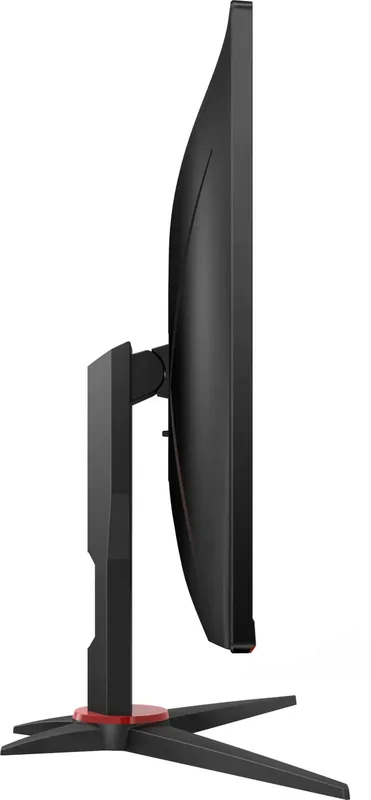
with base, height adjustable N/A, Pivot N/A, rotatable (+/-30deg), tiltable (+23deg/-5deg)
VESA
100x100 (used)
Power Consumption
44W (max), 27W (typ), 0.5W (standby)
Features
Security Lock (Kensington Security Slot), Slim Bezel
Screen-to-Body Ratio
Inf% (calculated)
Color
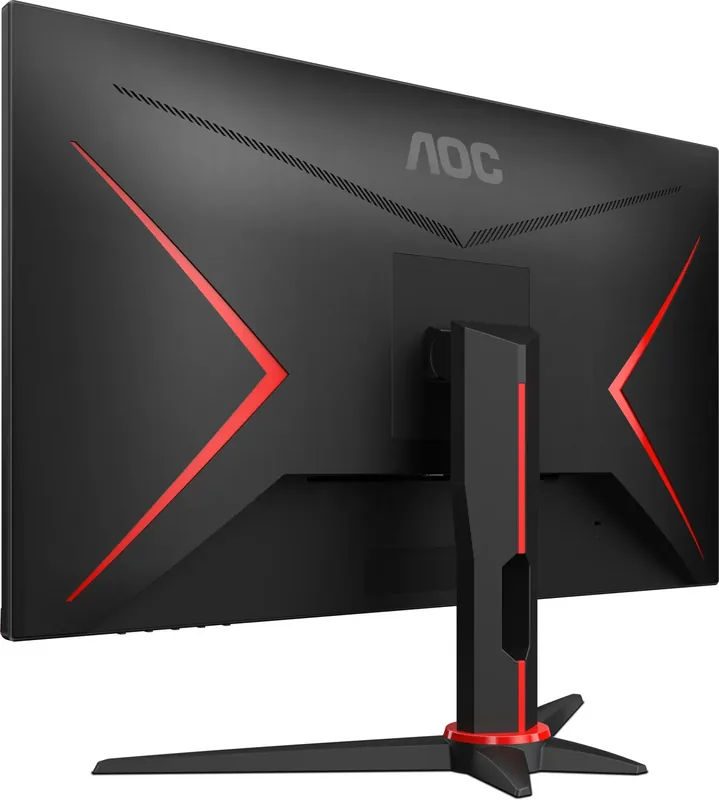
black (display bezel) / black, red (lower bezel) / black, red (base) / black, red (back)
Weight
9.35 lbs (with base)
Power Supply
Internal
Warranty
3 years
USB Naming
Link
Product Description
Introduction to the AOC 27G2ZNE/BK
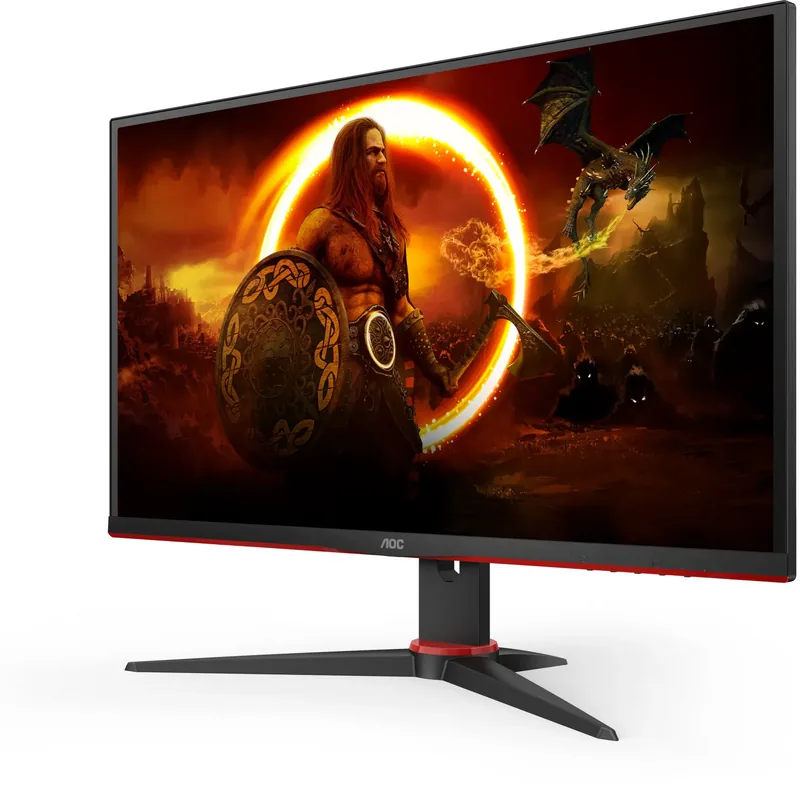
The 27 inch gaming monitor known as the AOC 27G2ZNE/BK offers a compelling package for enthusiasts. This model features a Full HD panel with a high refresh rate suitable for fast paced action. The display delivers vibrant colors and sharp details ideal for immersive experiences. Users appreciate the responsive performance driven by the TN panel technology which prioritizes speed over contrast ratios. It supports AMD FreeSync Premium for smooth frame delivery without tearing. The stand design allows flexible viewing angles including tilt adjustments for ergonomic comfort. Safety conventions are strictly followed to ensure user well-being during operation.
Connectivity and Setup
Installation involves connecting the power cable and video inputs carefully. The monitor provides two HDMI ports and one DisplayPort cable support. An audio jack is included for direct headphone connection without relying on PC audio. The box contains the stand base, power cable, and warranty card. Signal cables like DisplayPort and HDMI might vary by region. Users should ensure proper ventilation around the unit to prevent overheating during long sessions. Wall mounting is an option for those preferring a clean desk aesthetic. Always turn off power before connecting cables to protect equipment. This ensures no shorts or damage occurs during the initial setup phase.
Customization and Controls
The On Screen Display menu provides extensive control over image parameters. Settings include brightness, contrast, and gamma adjustments for optimal viewing. Game modes allow customization for FPS, RTS, and Racing genres specifically. Shadow control helps visibility in dark game scenes without overexposing bright areas. Low Blue Mode reduces eye strain during extended usage. Users can lock the OSD menu to prevent accidental changes by competitors or children. The LED indicator confirms power status easily at a glance. Picture Boost allows focus on specific screen areas to improve visual clarity during intense gameplay. Bright Frame feature helps highlight key game elements for better reaction times.
Technical Specifications and Power
This device operates efficiently with typical power consumption around 27 watts. Max power usage stays under 44 watts under full load conditions. It handles input signals ranging from 50 to 240 Hz vertical frequencies. The optimal resolution is set at 1920 by 1080 pixels. The panel supports 16.7 million colors for rich imagery. Input lag is minimized for competitive advantage in fast reactions. Overdrive settings allow users to adjust response times for clarity. Frame counters help track performance metrics accurately on screen.
Safety and Maintenance
Cleaning the cabinet requires a soft cloth dampened with water. Avoid spraying liquid directly onto the screen to prevent damage. Power should be disconnected before any maintenance activities take place. The manual advises against tilting downward more than five degrees to protect the panel. Overloading power strips should be avoided to ensure safety. Adhering to these guidelines extends the lifespan of the display significantly. If strange smoke or smell occurs disconnect power immediately. Troubleshooting guides help resolve fuzzy images or flickering lights efficiently by checking cable connections or software settings. Environmental limits dictate operation between zero forty degrees Celsius. Proper ventilation ensures air circulation prevents overheating. This comprehensive guide covers all necessary steps for a successful user experience.
Search for 67,706 Manuals online


Type-in Brand or Model