
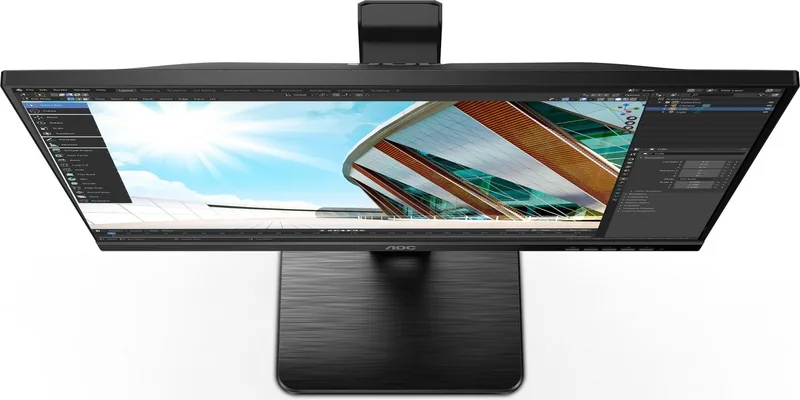
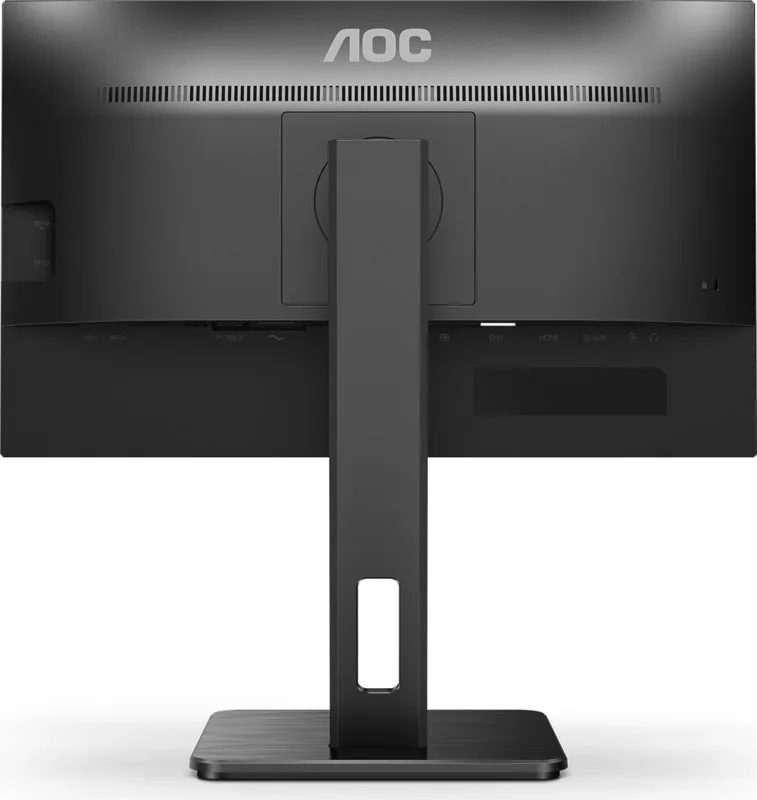
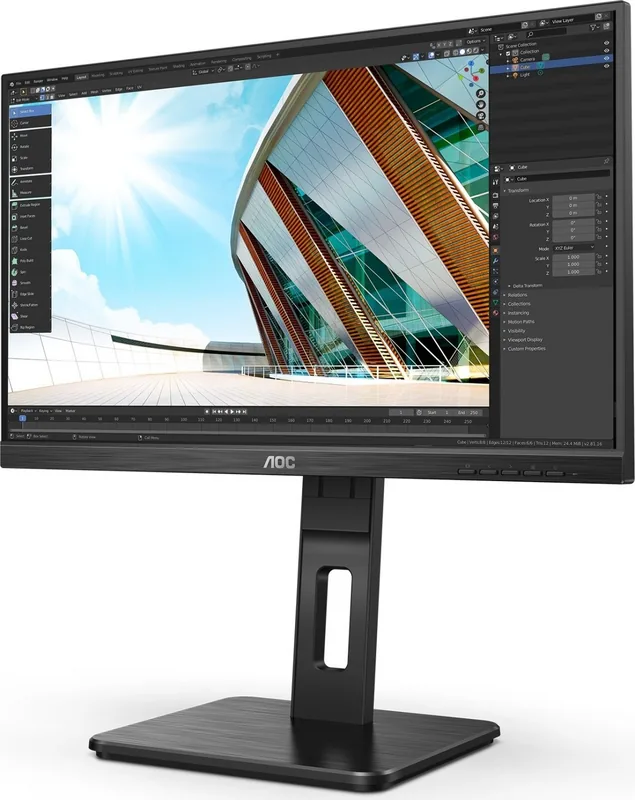
AOC 22P2Q Manual
PDF manual · 33 Pages
English



Quick check
Incorrect answer, please try again.
Chat with your AOC 22P2Q manual using AI
Get instant AI answers from your AOC 22P2Q manual
Ask anything about the AOC 22P2Q. Answers come from this manual, with the pages they are based on.
Ask a Question
Do you recommend 22P2Q?
Yes NoFrequently Asked Questions
The optimum resolution is 1920 by 1080 at 60Hz. The monitor also supports up to 75Hz at Full HD for smoother motion when using compatible HDMI or DisplayPort connections.
Is this answer helpful?
Yes, the monitor supports wall mounting. You can attach it to a wall mount arm using the VESA mounting holes on the back. Ensure you use a compatible arm.
Is this answer helpful?
Yes, the monitor features a Low Blue Light mode. This helps reduce eye strain by decreasing the amount of blue light emitted from the screen, which is beneficial for long work sessions.
Is this answer helpful?
The package typically includes Video cables such as DVI, VGA, HDMI, and DP, along with USB and Audio cables. Availability may vary by region and specific model version.
Is this answer helpful?
To turn off the power, press the Power button located on the monitor. It is recommended to use the power switch to disconnect completely instead of pulling the plug.
Is this answer helpful?
Yes, the monitor is compatible with AMD GPUs for Adaptive-Sync function. Several Radeon series are recommended for optimal performance with this feature enabled.
Is this answer helpful?
You can reset the settings by accessing the OSD Setup menu and selecting the Reset option. This restores factory defaults for brightness, color, and game modes.
Is this answer helpful?
Advantages and Disadvantages
Advantages

- Full HD resolution provides clear text and images suitable for professional tasks.
- Multiple input ports including HDMI, DP, DVI, and VGA allow broad device compatibility.
- Adaptive-Sync reduces screen tearing for smoother gaming experiences.
- Low Blue Light mode protects users from eye strain during extended use.
- Wall mounting support enables flexible desk placement and space saving.
Disadvantages

- Maximum power consumption can reach 58 Watts which may be high for eco-conscious users.
- Some port combinations vary between 22P2ES, 22P2DU, and 22P2Q models slightly.
- Volume adjustment keys are only available on models equipped with speakers.
- No automatic tilt adjustment means manual adjustment is required for comfort.
- External power supply cable must be separated and requires specific grounding.
Product Specification
Function
Monitor (Stationary)
Screen Size
21.5 inch
Resolution
1920x1080 (FHD), 16:9, 102 ppi
Panel
IPS
Backlight
LED, Blue Light Filter, Flicker-Free
Brightness
250 cd/m2 (Typical)
Contrast
1,000:1 (Static), 50,000,000:1 (Dynamic)
Response Time
4ms (GtG)
Refresh Rate
75 Hz (1920x1080)
Frequency Range
30-85 kHz (H), 48-75 Hz (V)
Connections
1x VGA, 1x HDMI 1.4, 1x DisplayPort 1.2, 1x DVI, 1x USB-B 3.0 (Upstream, 5 Gb/s), 4x USB-A 3.0 (Downstream, 5 Gb/s), 1x 3.5mm Jack (Line-Out), 1x 3.5mm Jack (Line-In), 1x AC-In C13 (Power In)
Shape
Flat
Viewing Angles
178 deg / 178 deg
Coating
Non-glare (Matte), Hardness 3H
Color Depth
8-bit (16.7 Million Colors)
FRC
Unknown
sRGB
102%
Adobe RGB
76%
DCI-P3
75%
Certifications/Standards
TCO 9
Speakers
Built-in Speakers (2 x 2W)
Controls
Mechanical Buttons
Ergonomics
With Stand, Height Adjustable (5.91 inch), Pivot (+90 deg), Rotatable (+/- 180 deg), Tilt (+35 deg / -5 deg)
VESA
100x100 (Included)
Power Consumption
17W (Typical), 0.3W (Standby)
Energy Efficiency SDR (A-G)
16 kWh/1000h (E)
Features
Security Lock (Kensington Security Slot), Slim Bezel
Screen-to-Body Ratio
88.22% (Calculated)
Dimensions
19.21 x 18.74 x 7.87 in (WxHxD) With Stand, 19.21 x 11.65 x 1.97 in (WxHxD) Without Stand
Color
Black (Screen Bezel), Black (Lower Bezel), Black (Stand), Black (Rear)
Weight
9.17 lbs (With Stand)
Power Supply
Internal
Warranty
3 Years
USB Label
Link
Product Description
Discover the AOC 22P2Q, 21.5" Display Experience
When choosing a monitor for your desk, the AOC 22P2Q offers a solid 21.5 inch screen that fits most setups perfectly. This Full HD display delivers sharp visuals with a resolution of 1920 times 1080 pixels. The TFT color LCD panel ensures vibrant colors for both work and entertainment. It supports 16.7 million colors to reproduce images accurately across the screen.
Versatile Connectivity Options
Connectivity is key for modern users. This unit includes HDMI, DisplayPort, D-Sub, and DVI ports. This variety allows you to connect older and newer devices without needing extra adapters. The inclusion of a USB 3.2 port adds convenience for peripherals. Audio jacks are present so users can connect headphones easily. Power consumption is typically 17W but can reach 58W at maximum settings. Energy Star compatibility is noted for certain models to save electricity during operation.
Gaming and Productivity Features
Gamers will appreciate the Adaptive-Sync function which reduces screen tearing during fast action sequences. The OSD menu offers detailed game settings like shadow control and overdrive. Adjusting the low blue light mode protects your eyes during long sessions. Clear Vision technology can convert low resolution images into clearer pictures if needed for viewing content. There are multiple picture modes including Movie, Game, Sports, and Reading modes for different tasks.
Installation and Ergonomics
Setting up the monitor is straightforward for most users. You can adjust the tilt angle or mount it on a wall using standard VESA mounts. Ensure ventilation space around the device to prevent overheating issues. A soft cloth is recommended for cleaning to avoid scratches on the surface. Never insert foreign objects into the vents. Safety warnings recommend using a grounded three-pole plug always.
Technical Specifications
The horizontal scanning frequency ranges from 30 to 85kHz for reliable operation. Vertical frequency is between 48 and 75Hz depending on the signal. The optimum resolution is 1920 by 1080 at 60Hz for standard use. Wall mounting requires a separate arm purchased locally. Cable lengths for connection should be sufficient for your setup. Troubleshooting tips suggest checking cable connections first if no picture appears.
Maintenance and Safety
Regular cleaning helps maintain the screen quality over time. Use mild detergent for stubborn stains but avoid harsh chemicals. Do not pull the power cord without unplugging the device first. If smoke or strange odor appears, cut power immediately and contact support. The monitor should be unplugged during severe storms to prevent damage. Keep the ventilation holes clear from curtains or furniture to ensure airflow.
Usage Guidelines
Regarding navigation, users press the Menu button to show the on-screen display. With the left and right arrow buttons, you can navigate through the different functions available. Once the desired function is highlighted, press the menu button to activate it. You can change settings with the same arrow buttons. Press the exit button to leave the menu. Security settings allow you to lock the menu to prevent unauthorized changes. For installation on a cart, move with care and do not place it on unstable surfaces. Keep liquids away from the device to prevent damage.
Notes: Always use a grounded power plug. Check the compatibility with your graphics card. Do not leave the power cable disconnected during storms to ensure longevity.
Search for 67,706 Manuals online


Type-in Brand or Model