
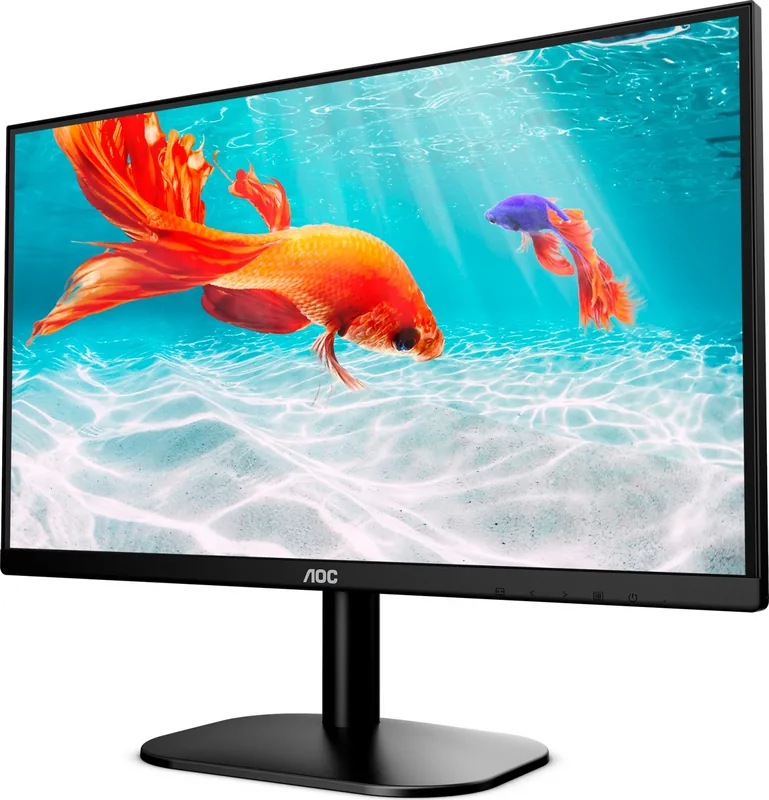
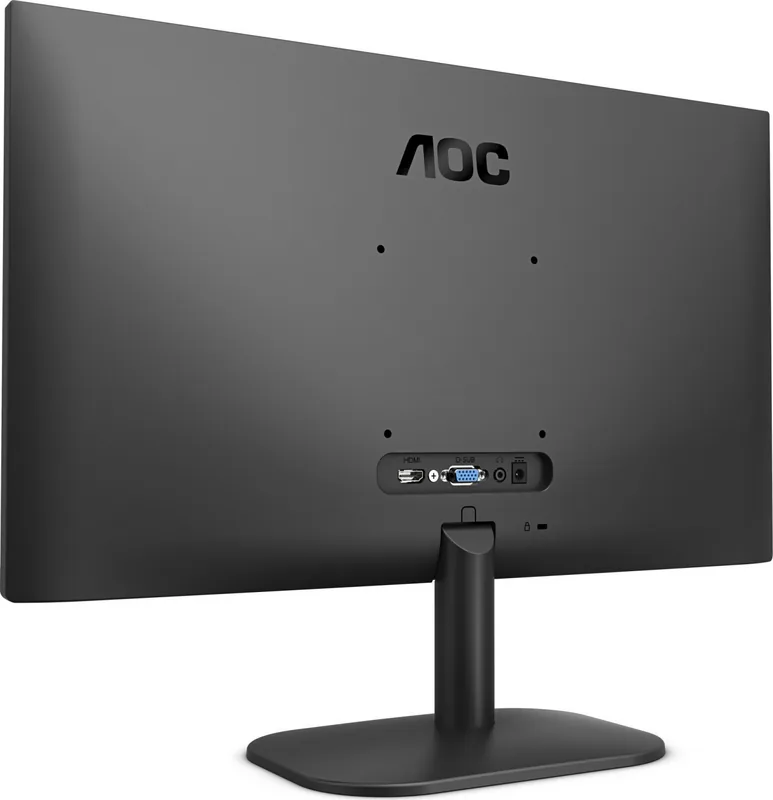
AOC 22B2H Manual
PDF manual · 31 Pages
English



Quick check
Incorrect answer, please try again.
Chat with your AOC 22B2H manual using AI
Get instant AI answers from your AOC 22B2H manual
Ask anything about the AOC 22B2H. Answers come from this manual, with the pages they are based on.
Ask a Question
Do you recommend 22B2H?
Yes NoFrequently Asked Questions
You can connect using the included HDMI or D-Sub VGA cables. Place the cables behind the monitor and secure the connectors. Ensure the power adapter is plugged into a grounded outlet before turning the unit on.
Is this answer helpful?
Clear Vision is a feature that converts low resolution and blurry images into clear and vivid images. You can enable it using the hotkeys when no OSD is visible.
Is this answer helpful?
Press the MENU button to access OSD settings. Navigate to Luminance using the arrow keys. Use the arrow keys to change the value from 0 to 100. Press AUTO to exit the menu.
Is this answer helpful?
Yes, e-Saver manages power by shutting down the monitor when the PC is off or in sleep mode. Install the software from the provided CD or AOC website to configure timing.
Is this answer helpful?
Check if the power cord is connected and the power button is pressed. Verify the video cable connection. If the monitor is on, try rebooting the computer or adjusting the video frequency settings.
Is this answer helpful?
Yes, provided you follow ventilation guidelines. Ensure air circulation remains adequate around the unit to prevent overheating. Do not block ventilating openings with curtains.
Is this answer helpful?
Advantages and Disadvantages
Advantages

- 21.5 inch LED backlight for sharp 1920x1080 resolution visuals.
- HDMI and D-Sub VGA connectivity options for flexibility.
- Clear Vision feature enhances low resolution images to make them vivid.
- LowBlue Mode option significantly reduces eye strain from blue light.
- Compatible with AOC desktop software tools for easy management.
Disadvantages

- No built-in speakers, requires external audio output via jack.
- Stand mechanism does not support height adjustment, only tilt.
- OSD adjustments require physical button presses on the monitor.
- Maximum viewing angle adjustment limited to 20 degrees.
- Video card compatibility varies depending on signal resolution support.
Product Specification
Function
Monitor (Stationary)
Diagonal
21.5" (21.5 in)
Resolution
1920x1080 (FHD), 16:9, 102ppi
Panel
VA
Backlight
LED, Blue Light Filter, flicker-free
Brightness
200 cd/m2 (Typical)
Contrast
200,000,000:1 (Dynamic)
Response Time
6.5ms (GtG)
Refresh Rate
75Hz (1920x1080)
Signal Frequency
30-83kHz (H) / 50-76Hz (V)
Ports
1x VGA, 1x HDMI 1.4, 1x DC-In Jack (Power Connection)
Shape
Flat
Viewing Angle
178° / 178°
Coating
Non-glare (Matte)
Color Depth
8-bit (16.7 Million Colors)
FRC
Unknown
Ergonomics
with Stand, Height Adjustable N/A, Pivot N/A, Rotatable N/A, Tiltable (+22° / -4°)
VESA
100x100 (Free)
Power Consumption
0.5W (Standby)
Energy Efficiency SDR (A to G)
16kWh/1000h (E)
Features
Security Lock (Kensington Security Slot), Slim Bezel
Screen-to-Body Ratio
Inf% (Calculated)
Color
Black (Bezel) / Black (Lower Bezel) / Black (Stand) / Black (Back)
Weight
4.81 lbs (without Stand)
Power Supply
External
Warranty
3 Years
USB Orientation
Left
Product Description
Comprehensive Overview of the AOC 22B2H 21.5 Monitor
Navigating the features of your display requires the AOC 22B2H 21.5 Manual as your primary resource. This guide ensures you utilize the best settings for productivity and entertainment tasks. The monitor utilizes LED backlighting technology for superior energy efficiency and crisp, vivid visuals suitable for gaming or work. Understanding the physical installation process prevents hardware damage and ensures safety compliance.
Connecting Your Display Properly
The device supports multiple input methods via D-Sub VGA and HDMI ports for versatile connectivity. You may also use the dedicated earphone jack for sound output when necessary. Secure power connections are vital for safety and stable operation. Do not place the monitor on unstable surfaces like loose carts. Maintain recommended ventilation gaps to avoid overheating during continuous operation. This routine ensures longevity during extended daily use sessions.
Customizing Your View with OSD
The On-Screen Display menu allows detailed adjustments without software. You can modify brightness, contrast, and gamma levels manually. Luminance settings adapt easily to changing ambient environments throughout the day. Color setup offers pre-defined options for warm, normal, or cool tones. Picture Boost helps in scenes with high brightness differences. Clear Vision improves blurry low-resolution images significantly using internal settings. LowBlue Mode reduces harmful blue light waves to protect eye health comfortably.
Software Integration and Tools
AOC provides the i-Menu software for direct control from the desktop OS interface. The e-Saver feature handles automatic power shutdown based on your PC status. You can schedule shutdown times during sleep or off modes effectively. Screen+ offers a desktop splitting tool for advanced multitasking workflows. These tools enhance the user experience beyond physical buttons and improve efficiency significantly.
Maintenance and Safety Protocols
Clean the cabinet and screen with a soft cloth regularly to remove dust. Do not use strong detergents that might damage the protective finish or coating. Unplug the unit during lightning storms to protect against power surges. If strange sounds occur, disconnect immediately to ensure safety. Refer to troubleshooting sections for common issues like fuzzy images or black screens. Adjust frequency settings for proper signal handling to avoid artifacts.
Safety Notes
Read all safety warnings before connecting power sources. Keep this documentation for future reference regarding specific model requirements and care instructions for best performance over years of use. Ensure ventilation openings are never obstructed by furniture to prevent excessive heat build-up.
Search for 67,706 Manuals online


Type-in Brand or Model
Andreas Fischer
5 months ago
Is the 178 degrees viewing angle accurate? Reviews mention darker edges at an angle.
Manual.ly
5 months ago
While the monitor provides excellent value for the price with strong colors, user feedback suggests the 178 degrees viewing angle is optimistic. Some customers reported reduced contrast and brightness at the left and right edges when viewing from the side. Despite this, the image quality is praised directly in front, and the panel is considered suitable for gaming.