
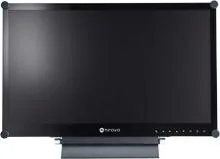
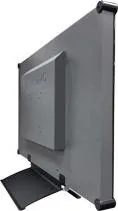

AG Neovo X-22E Manual
PDF manual · 47 Pages
English



Quick check
Incorrect answer, please try again.
Chat with your AG Neovo X-22E manual using AI
Get instant AI answers from your AG Neovo X-22E manual
Ask anything about the AG Neovo X-22E. Answers come from this manual, with the pages they are based on.
X-22E Maintenance Schedule
Use a soft cloth lightly moistened with mild detergent to clean glass and housing. Do not rub with sharp items.
Use screen savers, turn off display when idle, or switch backgrounds regularly to avoid burn-in.
Ask a Question
Do you recommend X-22E?
Yes NoFrequently Asked Questions
Connect the appropriate cable from your computer to the rear ports on the display. You can use VGA, DVI, HDMI, or DisplayPort cables depending on your device. Select the corresponding input source using the SOURCE button on the keypad to receive the signal.
Is this answer helpful?
The Anti-Burn-In function prevents static images from leaving permanent marks on the LCD screen. You can enable this in the OSD menu settings to automatically adjust pixels after a set interval of time. This protects the display when using static software or dashboards for long periods.
Is this answer helpful?
Yes, the display supports wall mounting using VESA compatible holes on the rear. You must remove the base stand first using the provided screws. Ensure the wall is strong enough to bear the weight and avoid ceiling mounting to prevent safety risks.
Is this answer helpful?
First check if the computer is turned on and in standby mode. Verify that the signal cable is securely connected to both the PC and the display. Try a different input source selection or cable if the issue persists to isolate the hardware problem.
Is this answer helpful?
Enable the ECO Smart feature in the OSD menu system. This sensor detects ambient light levels and adjusts the backlight brightness automatically. You can choose between Auto or User modes for manual adjustments depending on your preference.
Is this answer helpful?
Yes, the device complies with FCC Class B regulations and WEEE guidelines. It meets safety standards for interference and disposal. Ensure you do not open the casing yourself to avoid electric shock and voiding the warranty as indicated in the safety information.
Is this answer helpful?
Yes, the PIP feature allows viewing two input sources simultaneously. Navigate to the PIP Setting menu in the OSD to enable this. You can swap main and sub sources and adjust the size using the keypad buttons.
Is this answer helpful?
Advantages and Disadvantages
Advantages

- Full HD 1920x1080 resolution for sharp visuals
- Multiple input ports including HDMI and DisplayPort
- ECO Smart sensor for energy efficiency
- Anti-Burn-In feature prevents image retention
- VESA wall mount support for space saving
Disadvantages

- Speakers are not powerful enough for large rooms
- 3ms response time might lag for competitive gamers
- OSD menu system is complex for beginners
- No USB hub included for peripheral connectivity
- External power adapter reduces internal cable management
Product Specification
Function
Monitor (stationary)
Diagonal
21.5" (21.5 inches)
Resolution
1920x1080 (FHD), 16:9, 102 ppi
Panel
TN
Backlight
LED
Brightness
250 nits (typical)
Contrast
2,000,000:1 (dynamic)
Response Time
5ms (GtG)
Refresh Rate
60Hz (1920x1080)
Signal Frequency
24-82 kHz (H) / 50-75 Hz (V)
Ports
1x VGA (60Hz@1920x1080), 1x HDMI 1.4, 1x DisplayPort 1.2, 1x DVI, 1x RCA Stereo L+R Line-In, 1x 3.5mm Jack (Line-In), 1x DC-In Socket (Power)
Form
Straight (flat)
Viewing Angle
170° / 160°
Coating
Protective Glass
Color Depth
8-bit (16.7 million colors)
FRC
Unknown
Speakers
Speakers (2x 1W)
Ergonomics
with Stand, Height Adjustable N/A, Pivot N/A, Swivel N/A
VESA
100x100 / 75x75 (Included)
Power Consumption
28W (max), 17W (typical)
Energy Efficiency SDR (A to G)
15kWh/1000h (E)
Features
Light Sensor
Screen-to-Body-Ratio
76.67% (calculated)
Dimensions
20.20x14.53x6.10" (WxHxD) with stand compressed, 20.20x12.76x2.13" (WxHxD) without stand
Color
black (Display Frame) / black (bottom Bezel) / black (Stand)
Weight
15.21 lbs (with Stand), 13.89 lbs (without Stand)
Power Supply
External
USB Style
Link
Product Description
Discover the AG neovo X-22E black, 21.5" Manual Insights
If you are searching for a dependable display solution that balances performance with affordability, the AG neovo X-22E black, 21.5" Manual provides essential guidance on maximizing your hardware investment. This LED-backlit monitor delivers a crisp Full HD resolution that enhances visual clarity for daily tasks and media consumption. Its sleek matte black design ensures it blends seamlessly into professional workspaces without drawing excessive attention away from the content on screen.
Performance and Connectivity
Performance and connectivity remain top priorities for this equipment. Features a 3 millisecond response time to reduce motion blur. Connectivity options are diverse, supporting VGA, DVI, HDMI, and DisplayPort cables for various input sources. This versatility makes it ideal for connecting laptops, desktop PCs, and gaming consoles. The OSD menu system allows detailed customization of brightness, contrast, and color temperature settings. Users can adjust gamma and saturation levels to match specific lighting conditions in the room. Audio output is managed through a built-in stereo speaker system, though an external audio cable is also supported for better sound quality.
Safety and Maintenance
Safety is paramount when operating electronic equipment near heat sources or in dusty environments. The design includes ventilation holes that should never be blocked to prevent overheating. To maintain the LCD panel, use a soft cloth with mild detergent. Avoid tapping the glass surface with sharp objects. If the unit is moved from a cold room to a hot one, wait for condensation to clear before powering on. The Anti-Burn-In feature prevents static images from leaving permanent marks on the screen over time. Register online to protect consumer rights and do not remove warranty stickers.
Power and Installation
Power consumption is kept low with an ECO Smart feature that optimizes energy usage based on ambient light levels. The display supports wall mounting for users who prefer a space-saving setup using VESA compatible holes. Removing the base stand is a straightforward process if vertical installation is chosen. A warning exists regarding ceiling mount installations which should be avoided to prevent injury from falling equipment. Proper disposal follows regional guidelines to protect the environment.
Support and Specifications
Troubleshooting and support are handled through the OSD system. Common issues like no signal or blurry text can often be resolved by checking cable connections or adjusting input settings. If the OSD is locked, specific button combinations on the keypad can unlock the menu for further adjustments. The unit complies with Class B digital service regulations ensuring it does not cause harmful interference to radio signals. For optimal performance, ensure the resolution matches the display specifications.
Search for 67,706 Manuals online


Type-in Brand or Model