Manual.ly Logo

Adonit Dash 4 Manual

0.0 · 0 Ratings

PDF manual · 2 Pages

English

M: QW-35-FL
page

/ 2

Loading...
9ee088280eed8f031592b33e36a16c56a8d5 page 1
OVERVIEW
Power / Switch Mode Button
Power/Switch-Modus-Taste | Bouton
d'alimentation / de mode de commutation |
Tecla de encendido / modo de conmutación |
電源/切換模式鈕 | 电源/切换模式按钮 |
電源/スイッチモードボタン | 
 | 
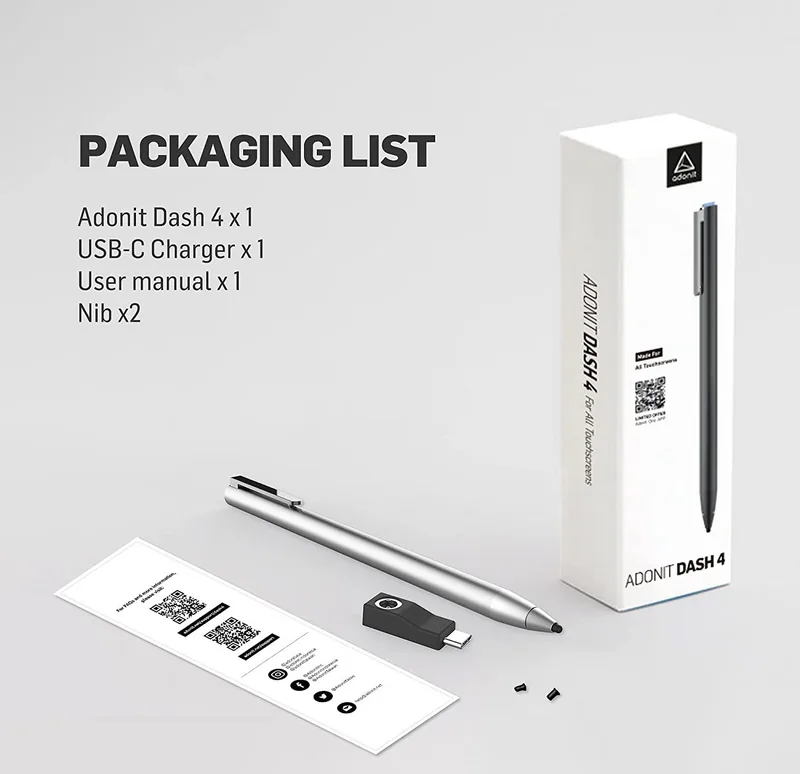
1. Adonit Dash 4 x 1
2. USB-C Charger x 1 | USB-C Ladegerät x 1 |
Chargeur USB-C x 1 | Cargador USB-C x 1 |
USB-C 充電座 x 1 | USB-C 充电座 x 1 | USB-C
充電器 x 1 |  |
3. User manual x 1 | Bedienungsanleitung x 1 |
Guide de l'utilisateur x 1 | Manual del
usuario x 1 | 說明書 x 1 | 说明书 x 1 | ユーザ
ーマ ニュアル x 1 |  |
4. Nib x 2 | Feder x 2 | Plume x 2 | Punta x 2 |
筆尖 x 2 | 笔尖 x 2 | ペン先x2 |  |
Bedienungsanleitung | Guide de
l'utilisateur | Manual del usuario |
用戶指南 | 用户指南 | ユーザーマニュアル
|

D
B
C
A
A
LED Indication Light (Power / Switch Mode)
LED-Anzeige | Voyant lumineux à LED | Luz
indicadora LED | LED 指示燈 | LED指示灯 |
LED表示ライト |  |

B
USB-C Charger Area
USB-C Ladezone | Zone du chargeur USB-C |
Area de cargador USB-C | USB-C 充電區 |
USB-C 充电区 | USB-C充電エリア | 
 |
C
Replaceable Nib
Auswechselbare Spitze | Pointe remplaçable
| Punta reemplazable | 可替換筆頭 | 可替换
笔头 | 交換可能なペン先 |
 |
D
PACKAGING LIST
Verpackungsinhalt | Liste du contenu
| Listado de contenido | 包裝淸單 | 包
装淸单 | パッケージ内 容 | 
 |
QUICK GUIDE
Kurzanleitung | guide de consultation
rapide | Guía rápida | 快速指南 |
快速指南 | クイックガ イド | 
 |
EN Switch between iPhone/iPad Devices
The green light (for all touchscreen) is
the default mode after turning the stylus
pen on. Press A again to switch to the
LED blue light (for the new iPad series).
* Please use the green light for 2017 iPad
series and earlier versions.
DE Umschalten zwischen iPhone /
iPad-Geräten
"Grünes Licht" (für alle Touchscreens) ist
Überblick | Aperçu | Vista general |
總覽 | 总览 | 概要 |  |
2
长按 A 键3秒,或是静置15分钟,触控笔及
录音功能同时关闭。
JP 電源を切ります
「A」ボタンを3秒間押すか、15分間何もしな
いとスタイラスの電源がオフになります。
VN Tắt công tắc


AR ﻞﻴﻐﺸﺘﻟا فﺎﻘﻳإ





User Manual
Adonit Dash 4
1
EN Switch Off
Press the "A" button for 3 seconds or leave
idle for 15 minutes to turn off the stylus.
DE Ausschalten
Halten Sie die Taste "A" 3 Sekunden lang
gedrückt oder lassen Sie den Stift 15
Minuten lang inaktiv, um ihn auszuschalten.
FR Éteindre
Appuyez sur le bouton "A" pendant 3
secondes ou laissez inactif pendant 15
minutes pour éteindre le stylet.
ES Apagar
Pulse la tecla "A" durante 3 segundos o deje
el puntero inactivo durante 15 minutos para
apagarlo.
TW 關機
長按 A 鍵3秒,或是靜置15分鐘,觸控筆及
錄音功能同時關閉。
CN 关机



x1

Standardmodus nach dem Einschalten des
Eingabestifts. Drücken Sie erneut A, um auf
das blaue LED-Licht umzuschalten (für die
neue iPad-Serie).
* Bitte verwenden Sie das grüne Licht für
die iPad-Serie 2017 und frühere Versionen."
FR Changez entre le mode iPhone/iPad
lumière verte (pour tous les écrans tactiles)
est le mode par défaut après avoir allumé le
stylet. Appuyez à nouveau sur A pour passer
à la lumière bleue LED (pour la nouvelle
série d'iPad).
* Veuillez utiliser la lumière verte pour la
série 2017 d'iPad et les versions antérieures.
ES Alterne entre modo iPhone/iPad
La luz verde (para todas las pantallas
táctiles) es el modo por defecto después de
encender el lápiz óptico. Pulse A de nuevo
para cambiar a la luz azul LED (para la
nueva serie de iPad).
* Por favor, utilice la luz verde para la serie
de iPad de 2017 y versiones anteriores.
TW 切換iPhone/iPad裝置
開機後為綠燈 (所有觸控螢幕皆可使用),再
按A鍵一次切換藍燈(新版iPad專用)。
*2017年及更早期的iPad,請切換成綠燈模
式。
CN 切换iPhone/iPad装置
开机后为绿灯(所有触控萤幕皆可使用),再
按A键一次切换蓝灯(新版iPad专用)。
*2017年及更早期的iPad,请切换成绿灯模
式。
JP iPhoneまたはiPadの端末切り換え
スタイラスの電源を入れた後、初期設定で緑
色のライト(各タッチスクリーン用)が表示さ
れます。Aボタンを一度押すとLEDが青色(新
型iPad用)に切り換わります。
*2017年以前のiPadの場合、緑色のライトを
ご使用ください。
VN Chuyển đổi giữa thiết bị iPhone /
iPad






AR ﻲﻌﺿو ﻦﻴﺑ ﻞﻳﺪﺒﺘﻟﺎﺑ ﻢ
ُ
ﻗ iPhone/iPad






EN Nib Replacement
To remove the tip, unscrew it in a
counter-clockwise direction. Place the tip
upright facing upwards. The nib will
automatically slide out. Remove the old nib
then insert the new nib into the barrel of the
pen. Screw the tip back in a clockwise
direction to secure.
DE Wechseln der Spitze
Sie können Sie Spitze entfernen, indem Sie
sie gegen den Uhrzeigersinn drehen.Halten
Sie die Spitze aufrecht nach oben.Die Feder
gleitet automatisch heraus.Entfernen Sie
die alte Feder und setzen Sie die neue Feder
in den Lauf des Stifts ein.Schrauben Sie die
Spitze im Uhrzeigersinn wieder auf, um sie
zu sichern.
FR Changement de la pointe
Pour retirer la pointe, dévissez-la dans le
sens inverse des aiguilles d'une
montre.Placez la pointe à la verticale vers
le haut.La pointe glisse automatiquement
vers l'extérieur.Retirez l'ancienne pointe,
puis insérez la nouvelle pointe dans le corps
3

 



Chat with your Adonit Dash 4 manual using AI

Get instant AI answers from your Adonit Dash 4 manual

Ask anything about the Adonit Dash 4. Answers come from this manual, with the pages they are based on.

Ask a Question

0/1000

Do you recommend Dash 4?

Yes No

Frequently Asked Questions

A

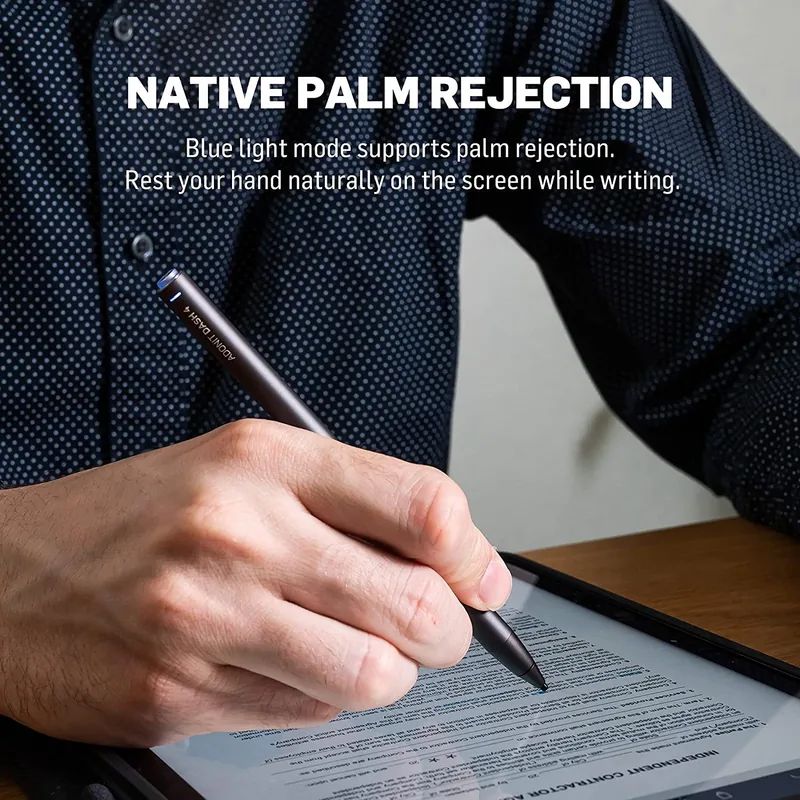
Turn on the stylus to see a green light for default mode on all screens. Press the A button once to switch to blue light mode, which is designed for new iPad series. Use green light for iPads from 2017 and older versions.

Is this answer helpful?

A

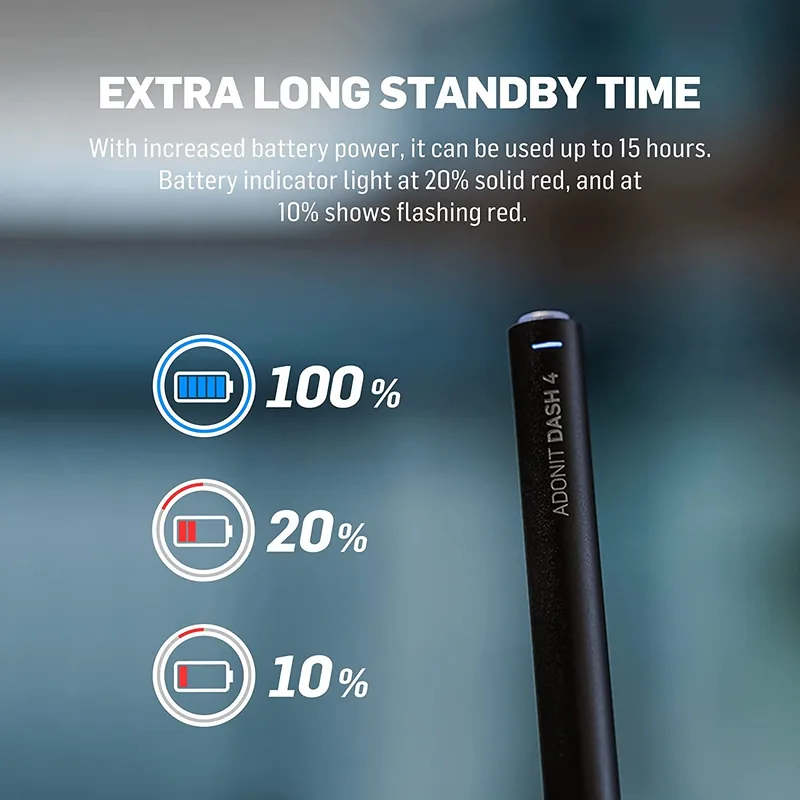
The LED indicator at the tip will flash red. Connect the USB-C cable to the charging port to begin recharging. The light will stay solid red while charging and turn green when full.

Is this answer helpful?

A

Unscrew the current nib counter-clockwise until it comes loose. Keep it upright so it slides out naturally. Remove the old part, insert the new nib into the barrel, and screw it back in clockwise to secure.

Is this answer helpful?

A

Yes. If left idle for 15 minutes, the stylus will automatically turn off. You can also manually turn it off by holding the A button for three seconds.

Is this answer helpful?

A

It works with all touchscreens using the green light mode. For the newest iPad series, use the blue light mode by pressing the A button. Older iPads (2017 and prior) should use the green light setting.

Is this answer helpful?

A

The package contains one Adonit Dash 4 stylus, one USB-C charger, two replacement nibs, and a user manual in multiple languages.

Is this answer helpful?

M: QW-35-FL

Advantages and Disadvantages

Advantages

  • Automatic device switching between iPhone and new iPad series via LED color
  • Includes USB-C charger and two extra replaceable nibs
  • Intuitive LED indicators for battery status and active mode
  • Seamless compatibility with all major touchscreen devices
  • Auto-power off feature saves battery life effectively
VS

Disadvantages

  • Nib replacement requires manual unscrewing which may be tricky for some
  • Blue light mode is incompatible with iPads from 2017 and earlier
  • Charging port location at the tip may require precise alignment
  • No palm rejection technology mentioned in specifications
  • LED indicators can be distracting in very dark environments
M: QW-35-FL

Product Specification

Suitable for

all Apple and Android devices

Type

active stylus

Power supply

battery, inductive charging (via USB-C charging station)

Tip

fine

Grip

non-recessed, metal

Shaft

round, metal

Size

0.35x5.91in (diameter x length)

Weight

0.53oz

Features

clip, replaceable tip, tip set included, LED status indicator, includes charging station (USB-C)

M: QW-35-FL

Product Description

Adonit Dash 4 Schwarz: The Ultimate Digital Writing Experience

The Adonit Dash 4 schwarz is a premium stylus designed for professionals and creatives who demand precision on their mobile devices. This sleek black tool seamlessly bridges the gap between digital tablets and traditional pen-and-paper workflows. Whether you are sketching intricate designs, signing documents, or taking detailed notes during meetings, this device offers a responsive and natural feel that mimics real ink on paper.

One of the standout features of the Adonit Dash 4 schwarz is its intuitive LED indicator system. Upon powering on, the stylus defaults to a green light mode, ensuring compatibility with all standard touchscreens including iPhones and older iPad models. With a simple press of the A button, users can switch to a blue LED mode specifically optimized for newer iPad series, enhancing performance on the latest hardware. This dual-mode capability ensures that your workflow remains uninterrupted regardless of your device generation.

Battery management is straightforward and efficient. When the power runs low, a red flickering light alerts you to recharge. Simply connect the included USB-C charger to the port at the tip of the pen. During charging, the LED stays solid red, turning green only when fully powered. Once the cable is removed, the device automatically powers off to conserve energy. The package includes two replacement nibs, allowing for easy maintenance and ensuring consistent writing pressure over time.

Important Usage Notes

  • Always unscrew the nib counter-clockwise to remove it safely.
  • Hold the nib upright facing up so it slides out automatically.
  • Insert the new nib and screw clockwise to secure.
  • The stylus turns off automatically after 15 minutes of inactivity.
  • Long-press the A button for three seconds to manually shut down immediately.
M: QW-35-FL

© Copyright 2026 Manual.ly