
3Dconnexion CadMouse Compact Wireless Manual
PDF manual · 14 Pages
English



Quick check
Incorrect answer, please try again.
Chat with your 3Dconnexion CadMouse Compact Wireless manual using AI
Get instant AI answers from your 3Dconnexion CadMouse Compact Wireless manual
Ask anything about the 3Dconnexion CadMouse Compact Wireless. Answers come from this manual, with the pages they are based on.
Ask a Question
Do you recommend CadMouse Compact Wireless?
Yes NoFrequently Asked Questions
Install 3DxWare 10.8.8 or later to access full functionality, including application-aware commands, programmable buttons, macros, radial menus, the on-screen display, and device settings.
Is this answer helpful?
It can connect through the included 3Dconnexion Universal Receiver, Bluetooth, a compatible 3Dconnexion Keyboard Pro, or the included USB-A to USB-C cable.
Is this answer helpful?
In CAD applications it supports navigation actions such as pan, zoom, and orbit. In browsers it can open links in new tabs or close tabs. Its command can also be customized for other applications.
Is this answer helpful?
The thumb buttons can zoom in and out around the cursor in CAD software, move to the start or end of documents, navigate browser history, or run custom commands assigned in 3Dconnexion Settings.
Is this answer helpful?
Connect the mouse to a computer charging port using the supplied USB cable. A flashing green status LED means charging is in progress, while a solid green LED means the battery is fully charged.
Is this answer helpful?
Smart Scrolling is an adaptive wheel behavior with inertia. It helps users move quickly through long documents or web pages while allowing controlled, incremental scrolling when reading or making precise adjustments.
Is this answer helpful?
Advantages and Disadvantages
Advantages

- Multiple connection options: Universal Receiver, Bluetooth, Keyboard Pro pairing, and USB-C cable use.
- Dedicated middle button, thumb buttons, and radial menu button support efficient CAD navigation and shortcuts.
- Application-specific button mapping, macros, and radial menus enable highly customized workflows.
- Smart Scrolling combines fast inertial movement with precise click-by-click control.
- Compact 110 g design includes a travel case and rechargeable 1,100 mAh battery.
Disadvantages

- Full button customization and application-aware features require 3DxWare software.
- The compact right-handed shape may not suit users who prefer large or ambidextrous mice.
- Some advanced pairing and configuration steps are primarily described for Windows.
- Mouse acceleration is available but is not the recommended setting for precise control.
Product Specification
Suitability
right hand
Buttons
7 (total), 3 (main), 1 (top), 2 (left), 1 (scroll wheel click)
Scroll wheel
1x 2-way, free-spin (automatic)
Sensor
red LED/IR
Resolution
7,200 DPI
Polling rate
1,000 Hz
Connection
wired (4.92 ft), USB-A 2.0 or wireless (2.40 GHz), USB-A (USB-A receiver) or wireless (Bluetooth LE), detachable cable (USB-C port)
Power supply
rechargeable battery (built-in), charging cable (USB-C)
Dimensions (W x H x D)
2.64 x 1.50 x 4.33 in
Approximate volume
4.45 in3 (approximate shape)
Weight
3.88 oz
Color
multicolored, black/silver, logo
Features
thumb rest, dynamic scroll wheel (software-controlled free-spin), includes carrying case
Product Description
3Dconnexion CadMouse Compact Wireless, USB-C, USB/Bluetooth Manual
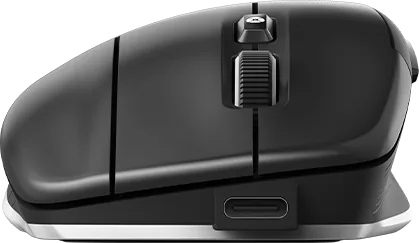
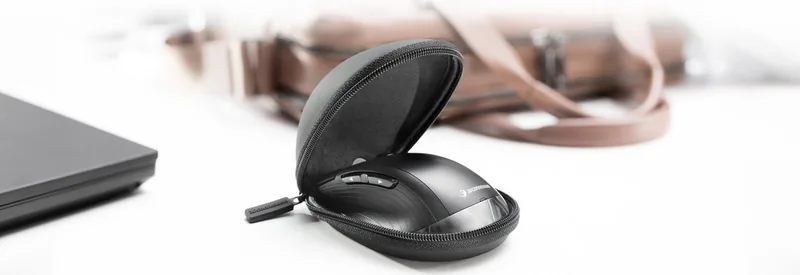
The 3Dconnexion CadMouse Compact Wireless is a compact productivity mouse designed for CAD professionals, engineers, designers, and anyone who values precise navigation. Its ergonomic right-handed shape fits comfortably beside a keyboard while keeping essential controls close at hand. At 110 mm long and weighing 110 g, it is built for mobile and desk-based workflows alike, with a travel case included for convenient transport.
Flexible connectivity for modern workstations
This mouse supports several connection methods to suit different setups. Use the included 3Dconnexion Universal Receiver for a dedicated wireless connection, pair it through Bluetooth, connect it to a compatible 3Dconnexion Keyboard Pro, or use the supplied braided USB-A to USB-C cable. The rechargeable 1,100 mAh lithium-polymer battery is easy to monitor through the status LED: red indicates low charge, flashing green indicates charging, and solid green confirms a full battery.
For best results, install 3DxWare 10.8.8 or later. The software unlocks the full range of device controls and provides application-aware button assignments. It also displays the active connection mode and battery level, making daily management straightforward.
Controls tailored to CAD and everyday tasks
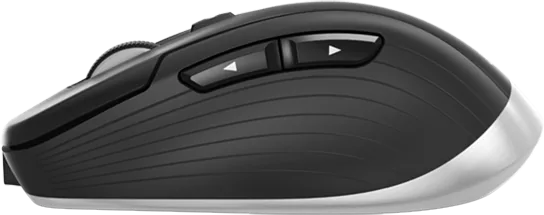
A dedicated middle mouse button gives direct access to key commands. In CAD software, it supports familiar navigation actions such as pan, zoom, and orbit. In web browsers, it can open links in new tabs or close existing tabs. The two thumb buttons provide quick zooming in CAD, document navigation in text and spreadsheet software, and back/forward browsing controls.
The mouse wheel combines click-to-click precision with Smart Scrolling. This adaptive scrolling behavior adds inertia for rapidly moving through long documents and web pages while retaining controlled movement when precision matters. The radial menu button opens a context-sensitive menu, placing frequently used commands within a quick mouse gesture.
Personalize every workflow
The 3Dconnexion CadMouse Compact Wireless, USB-C, USB/Bluetooth Manual highlights extensive customization through 3Dconnexion Settings. Users can adjust cursor speed, wired sensor polling rate, wheel behavior, and system-wide movement options. Programmable buttons can receive application commands, keyboard shortcuts, Quick Macros, custom macros, or radial menus.
Settings can be assigned per application, so the mouse can behave differently in CAD tools, office software, browsers, and other programs. The optional on-screen display shows current button assignments and can be repositioned for easy reference. 3Dconnexion Home also provides access to settings, supported-model viewing tools, training resources, demos, videos, and product registration.
Note: Disabling mouse acceleration is the recommended setting for predictable cursor control. Full programmable functionality requires the 3DxWare driver.
Search for 67,706 Manuals online


Type-in Brand or Model