Manual.ly Logo

Zyxel XGN100C Manual

0.0 · 0 Ratings

PDF manual · 4 Pages

English

M: QW-35-FL
page

/ 4

Loading...
538f2920a00de1d0c41c0ea9a1c4ca7d537e page 1
XGN100C
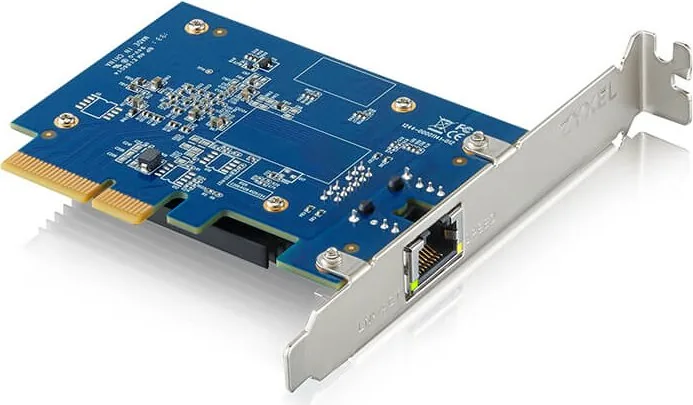
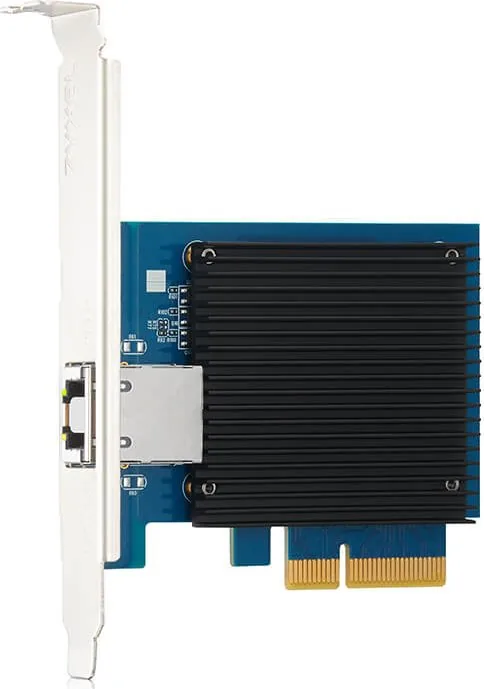
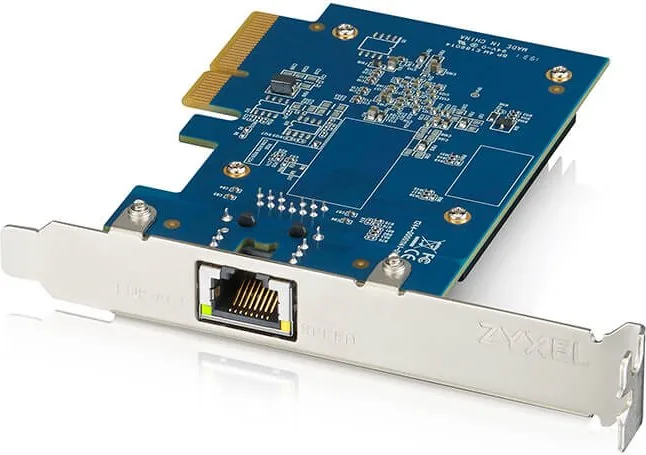
10G Network Adapter PCIe Card with
Single RJ-45 Port
Quick Start Guide
Low Profile Bracket
XGN100C
Package Contents
LEDs
SPEED
Green
100 Mbps / 1 Gbps / 2.5 Gbps /
5 Gbps connection ready.
LNK/ACT
Blinking - Data receiving/transmitting.
Steady On - No data receiving/
transmitting.
Off - No cable connection.
Requirements
Troubleshooting
•
•
•
•
Make sure your computer is using a supported operating system.
Manually install the card driver. If a supported operating system
does not automatically install the driver, go to
https://www.zyxel.com/support/download_landing.shtml and
search for XGN100C. Download the driver, and install it.
Make sure you are using a Cat5e or better Ethernet cable.
For 10 Gbps speeds, make sure your computer is within range of
the connected device.
Cable Maximum Distance
Cat5e
Cat6
Cat6a
33 m
55 m
100 m
Green
Amber
10 Gbps connection ready.
Hardware Installation
1
2
3
4
5
CloseBack
LEDs
SPEED
Green
100 Mbps / 1 Gbps / 2.5 Gbps /
5 Gbps connection ready.
LNK/ACT
Blinking - Data receiving/transmitting.
Steady On - No data receiving/
transmitting.
Off - No cable connection.
Cat5e
Cat6
Cat6a
33 m
55 m
100 m
Green
Amber
10 Gbps connection ready.
Hardware Installation
1
2
3
4
5
CloseBack
Finish
Declaration of Conformity
Safety Warnings
DoC
A computer with an available PCI Express 2.0 slot using one
of the following operating systems:
Cat5e or better Ethernet cable
FCC
This device complies with Part 15 of the FCC Rules. Operation is
subject to the following two conditions:
(1) This device may not cause harmful interference, and
(2) This device must accept any interference received, including
Interference that may cause undesired operation.
• Windows 7, 8.0, 8.1, 10 or Server 2012
• Linux 3.11, 4.13, 4.15, 3.16, 4.20 or 4.40
Support Information
USA
+ 1 800 255 4101
EU
https://support.zyxel.eu
Copyright © 2020 Zyxel Communications Corp. All Rights Reserved.
EU Importer
Zyxel Communications A/S
Gladsaxevej 378, 2. th. 2860 Søborg, Denmark
US Importer
Zyxel Communications, Inc
1130 North Miller Street Anaheim, CA 92806-2001
https://www.zyxel.com/us/en/
https://www.zyxel.com/dk/da/
Quick Start Guide
ENGLISH | DEUTSCH | ESPAÑOL | FRANÇAIS
ITALIANO
1
2
EN
ES
FR
IT
DE
Turn off your computer, disconnect its power cord, and remove the
computer case.
Insert the XGN100C firmly into an available PCIe slot, and then
secure its back bracket.
Schalten Sie Ihren Computer aus, ziehen Sie das Netzkabel ab und
entfernen Sie das Computergehäuse.
Stecken Sie den XGN100C fest in einen freien PCIe-Steckplatz und
befestigen Sie dann die hintere Halterung.
Apague su ordenador, desconecte el cable de alimentación y retire
la carcasa.
Introduzca bien el XGN100C en una ranura PCIe disponible y a
continuación asegure su soporte posterior.
Éteignez votre ordinateur, débranchez son cordon d'alimentation et
retirez le boîtier de l'ordinateur.
Insérez fermement le XGN100C dans un emplacement PCIe
disponible, puis fixez son support arrière.
Spegni il computer, disconnetti l’alimentatore, e rimuovi la
copertura del computer.
Inserisci l’XGN100C nell’inserto PCIe, premendo bene, e poi
aggancia la staffa posteriore.
3
4
EN
ES
FR
IT
DE
Put back the computer case, connect the computer power cord,
and turn the computer back on.
A supported operating system will automatically install the driver,
and prompt you when completed.
Use a Cat5e or better Ethernet cable to connect the Ethernet port
on the installed XGN100C to a suitable device such as a 2.5 Gbps / 5
Gbps router/AP or 10G switch, or 10G NAS.
Bringen Sie das Computergehäuse wieder an, schließen Sie das
Netzkabel des Computers an und schalten Sie den Computer
wieder ein.
Ein unterstütztes Betriebssystem installiert den Treiber automa-
tisch und wird nach Fertigstellung eine Meldung anzeigen.
Verwenden Sie ein Cat5e oder besseres Ethernet-Kabel, um den
Ethernet-Anschluss des installierten XGN100C mit einem
geeigneten Gerät wie einem 2,5 Gbps / 5 Gbps Router/AP oder 10G
Switch oder 10G NAS zu verbinden.
Vuelva a colocar la carcasa del ordenador, conecte el cable de
alimentación y enciéndalo.
Un sistema operativo compatible instalará automáticamente el
controlador y le avisará cuando haya finalizado.
Utilice un cable Ethernet Cat5e o superior para conectar el puerto
Ethernet en el XGN100C instalado a un dispositivo adecuado, como
un router/AP de 2,5/5 Gb/s o un conmutador 10G o 10G NAS.
Remettez le boîtier de l'ordinateur, branchez le cordon d'alimenta-
tion de l'ordinateur et remettez l'ordinateur sous tension.
Un système d'exploitation pris en charge installe automatiquement
le pilote et vous avertit lorsque l’opération est terminée.
Utilisez un câble Ethernet Cat5e ou supérieur pour connecter le
port Ethernet du XGN100C installé à un périphérique approprié tel
qu'un routeur/AP 2,5 Gbps / 5 Gbps ou un commutateur 10G ou un
NAS 10G.
Rimonta la copertura del computer, connetti l’alimentatore, e
riaccendi il computer.
Il sistema operativo installerà automaticamente il driver, e ti
avviserà a installazione completata.
Usa un cavo Ethernet Cat5e o migliore per connettere la porta
Ethernet sull’XGN100C installato a un dispositivo adatto, come un
router/AP da 2,5 Gbps / 5 Gbps o un interruttore 10G, o un NAS 10G.
5
1
2
1
2
3
4
5
3
4
5
1
2
3
4
5
1
2
3
4
5

Chat with your Zyxel XGN100C manual using AI

Get instant AI answers from your Zyxel XGN100C manual

Ask anything about the Zyxel XGN100C. Answers come from this manual, with the pages they are based on.

Ask a Question

0/1000

Do you recommend XGN100C?

Yes No

Frequently Asked Questions

A

It supports 10 Gbps, 5 Gbps, 2.5 Gbps, 1 Gbps, and 100 Mbps connections.

Is this answer helpful?

A

Power off PC, insert PCIe, secure bracket, reinstall chassis, and install drivers.

Is this answer helpful?

A

A Cat5e or better Ethernet cable is required for proper functionality.

Is this answer helpful?

A

Yes, Windows 7, 8.0, 8.1, 10, and Server 2012 are supported.

Is this answer helpful?

A

Download them from the ZyXel support website search page.

Is this answer helpful?

A

Green shows connection ready, blinking shows activity, amber/green indicates 10 Gbps.

Is this answer helpful?

A

Cat5e allows 33 m, Cat6 allows 55 m, and Cat6a allows 100 m.

Is this answer helpful?

M: QW-35-FL

Advantages and Disadvantages

Advantages

  • Supports up to 10 Gbps speeds
  • Compatible with Windows and Linux OS
  • Includes low profile bracket
  • Simple installation process
  • Dual color LED indicators
VS

Disadvantages

  • Cable distance limits for 10G speeds
  • Requires compatible PCIe slot
  • Manual driver install sometimes needed
  • Limited to single RJ-45 port
  • No Wake-on-LAN info in text
M: QW-35-FL

Product Specification

Type

LAN Adapter

Form Factor

1x PCIe Card (interchangeable bracket: full height and low profile bracket included)

Interface

1x PCIe 3.0 x4

Port

1x RJ-45

Transmission

1x RJ-45 (100/1000/2.5G/5G/10GBase-T)

Power Supply

Power supply only via connection

Chipset

Marvell Aquantia AQtion AQC107 (LAN Adapter, RJ-45)

Dimensions

3.23x2.68x0.71in (WxHxD)

Weight

2.75oz

Compatibility

universal

Features

VLAN, PXE Boot ROM, 16KB Jumbo Frames

Manufacturer Warranty

2 years

M: QW-35-FL

Product Description

Upgrade Connectivity with the ZyXEL XGN100C Network Adapter

Modern computing demands faster connections than ever before. Legacy systems often struggle with current bandwidth requirements. The ZyXEL XGN100C addresses this challenge by providing a robust upgrade path for desktop computers. This PCIe network adapter features a single RJ-45 port capable of handling extremely fast data rates. Users aiming for peak performance should refer to the ZyXEL XGN100C Manual for complete installation specifications and troubleshooting steps. The card fits into standard PCI Express 2.0 expansion slots found in most towers.

Installation requires basic technical skill. First, turn off the computer and disconnect power safely. Open the case and locate an empty PCIe slot. Slide the card firmly into place and secure the back bracket using screws. The product box comes with a low profile bracket option for Slim PCs. After reassembling the chassis, connect the Ethernet cable to the port. A Cat5e cable is the minimum requirement. Using Cat6 or Cat6a is recommended for long runs at high speeds. Distance limitations apply based on cable quality, with Cat6a allowing full 100 meter lengths at 10 Gbps.

Operating system compatibility covers major platforms. Microsoft Windows 7 through 10 plus Server 2012 work well. Linux distributions running specific kernels such as 4.20 or 4.40 are also validated. In some cases, the OS installs drivers automatically upon boot. If not, visit the support website to find the correct software version. Download and run the installer to enable full functionality. LED indicators on the card give real-time feedback. Green lights show 1G to 5G connectivity status while amber or mixed colors confirm 10 Gbps links. Blinking means data transfer occurs currently. Steady light means active but idle. Off means no physical link established.

Safety standards ensure the device operates reliably without interference. Compliance with FCC Part 15 rules guarantees electromagnetic safety. Troubleshooting tips suggest verifying cable connections and checking for driver errors. Global support contacts are available for importers in North America and Europe. Whether for professional workstations or home media servers, this adapter improves throughput efficiency significantly. Always ensure your network equipment matches the adapter capabilities to realize maximum benefits in your daily workflow effectively now.

Additional troubleshooting steps help resolve common issues quickly. Verify that the computer uses a supported operating system first. Manually install the driver if automatic detection fails. Search the support page for XGN100C specifically. Ensure you utilize a Category 5e or higher Ethernet cable throughout the setup process. For ten gigabit speeds, proximity to the connected device matters. Maximum distance varies by wire standard used. Cat5e works for thirty three meters, Cat6 extends to fifty five meters. Cat6a reaches the full hundred meters without loss. If problems persist, review power management settings. Restart the system to refresh the connection state. Contact local support teams if hardware appears defective after proper testing.

Notes: Keep drivers updated for best stability. Check BIOS settings if card not detected initially. Ensure power supply unit provides enough wattage for card function.

M: QW-35-FL

© Copyright 2026 Manual.ly