
Zyxel WRE6605 Manual
PDF manual · 54 Pages
English


Quick check
Incorrect answer, please try again.
Chat with your Zyxel WRE6605 manual using AI
Get instant AI answers from your Zyxel WRE6605 manual
Ask anything about the Zyxel WRE6605. Answers come from this manual, with the pages they are based on.
Ask a Question
Do you recommend WRE6605?
Yes NoFrequently Asked Questions
The WRE6605 supports Repeater mode (acts as both wireless client and AP to extend an existing network) and Access Point mode (bridges a wired LAN to a wireless LAN, creating a new Wi‑Fi access point).
Is this answer helpful?
Connect a computer to the extender (same subnet), browse to http://192.168.1.2 and press the Smart Push Button for 2 seconds to authenticate. You will be prompted to change the default password on first login.
Is this answer helpful?
Use the Smart Push Button to authenticate for login if possible. If that fails, press and hold the Smart Push Button for more than 10 seconds to restore factory defaults; the LAN IP resets to 192.168.1.2 and all settings are erased.
Is this answer helpful?
Behavior depends on uplink links: a single-band uplink will propagate that SSID to both downlink bands; separate 2.4G/5G uplinks keep distinct SSIDs; a dual-band uplink with single SSID uses that one for both downlinks.
Is this answer helpful?
If the extender receives a new IP from your router you can use ZyXEL’s FindMe service at https://findme.zyxel.com while connected to the same network, then press the Smart Push Button within two minutes to discover and access the admin page.
Is this answer helpful?
You can manage the WRE6605 via the Smart Push Button for quick links, the Easy Link mobile app for guided setup and signal checks, or the browser-based Web Configurator for full configuration and firmware updates.
Is this answer helpful?
Place the extender where its Wi‑Fi LED indicates a green/good connection to the router; avoid sources of interference (microwaves, overlapping networks) and prefer locations that balance proximity to the router and the areas needing coverage.
Is this answer helpful?
Advantages and Disadvantages
Advantages

- Dual-band operation enables simultaneous 2.4 GHz and 5 GHz use for flexible traffic separation.
- Simple physical Smart Push Button and LED indicators make setup and placement easy.
- Supports both Repeater and Access Point modes for versatile deployment options.
- Web Configurator and Easy Link app provide multiple management and configuration methods.
- Compact plug-in form factor with a LAN port allows wired client connectivity or AP uplink.
Disadvantages

- Default LAN IP requires manual static IP on initial setup if your PC is not in the same subnet.
- When linked to a router the device IP can change, requiring FindMe to locate the Web UI.
- Smart Push Button/WPS connections require the peer device to support WPS for one-click setup.
- Some advanced settings and multilingual Web UI may be limited by browser compatibility requirements.
- Factory reset clears all settings and forces reconfiguration, which can be inconvenient.
Product Specification
LAN
1x 100Base-TX
Wireless
WLAN 802.11a/b/g/n/ac (Wi-Fi 5), simultaneous
Transfer Rate
300Mbps (2.4GHz), 867Mbps (5GHz)
Security
64/128bit WEP, WPA, WPA2, WPS
Antennas
internal
Ports
N/A
Power Consumption
not specified (consumption, operation), not specified (max. power supply output)
Dimensions
3.58x2.44x1.85in
Band Capability
Dual Band (simultaneous)
Manufacturer Warranty
three years
Product Description
ZyXEL WRE6605 — Powerful Dual-Band Wi‑Fi Extender
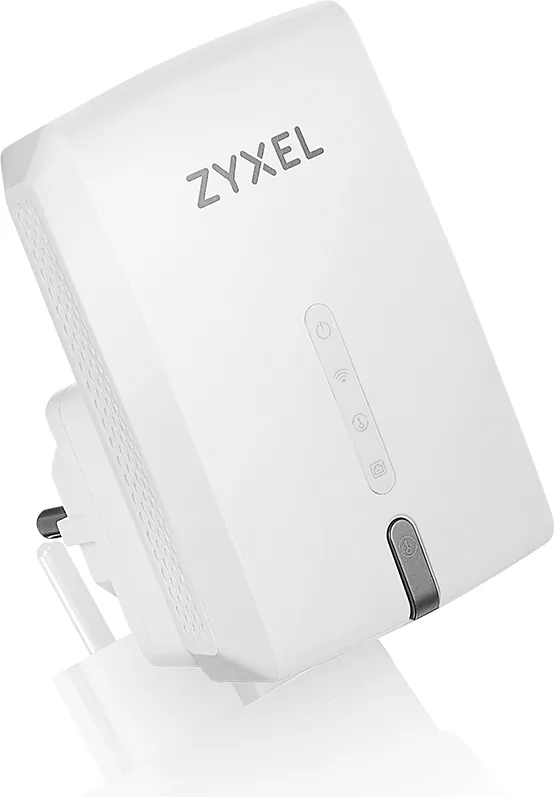
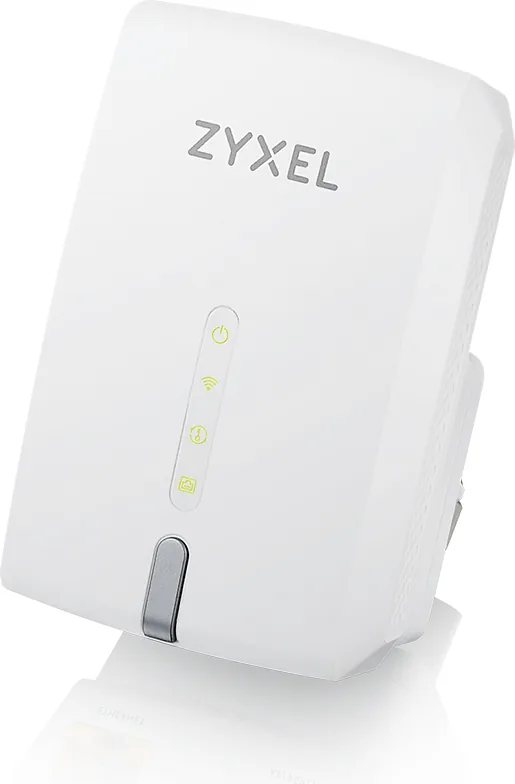
The ZyXEL WRE6605 is a compact dual-band Wi‑Fi extender designed to broaden wireless coverage and improve connection reliability for homes and small offices. It supports both 2.4 GHz and 5 GHz bands, enabling simultaneous uplink and downlink on different bands so you can allocate everyday browsing to 2.4 GHz while reserving 5 GHz for low-latency tasks like HD streaming and large file transfers. The unit plugs directly into a power outlet and uses an LED signal-strength indicator to help find the best placement for optimal coverage.
Key features and operation
The WRE6605 can operate in two main modes: Repeater and Access Point. In Repeater mode it connects wirelessly to an existing router or AP and extends that network to nearby clients. In Access Point mode it bridges a wired LAN to a wireless LAN, creating a new Wi‑Fi access point from a wired connection. Mode selection is handled with a physical AP/Repeater switch on the device.
Management options include a one‑click Smart Push Button (WPS-like behavior) for quick secure connections, the Easy Link mobile app for guided setup and signal checks, and a browser-based Web Configurator for full configuration. The Web Configurator supports multiple languages and provides screens for scanning nearby networks, editing SSIDs and passwords for both bands, firmware updates, device info (CPU/memory usage, firmware version, LAN IP), and client lists.
Security and maintenance are straightforward: change the default password during initial setup, use the Smart Push Button for authenticated local login, and reset to factory defaults by pressing and holding the Smart Push Button for over 10 seconds (this restores the LAN IP to 192.168.1.2). When the extender associates to an upstream router it may receive a new IP; ZyXEL’s FindMe service helps locate the device in that case.
Hardware highlights include LEDs for power, Wi‑Fi (with color-based signal feedback), LAN, and Smart Push status; an Ethernet port for wired clients or AP mode uplink; and simple physical controls. The product documentation covers detailed procedures for initial IP setup, browser language settings, troubleshooting common connectivity and login issues, and regulatory/safety information.
Practical use scenarios
- Extend weak Wi‑Fi in dead spots without replacing your router.
- Create a new wireless access point from a wired LAN drop in AP mode.
- Prioritize 5 GHz uplinks when the router/AP supports dual‑band connections for better throughput.
Notes:
- Place the WRE6605 where the LED indicates good signal strength; red indicates weak link to the router.
- After linking to a router, the device often adopts the router’s SSID behavior depending on uplink bands—clients may see a single SSID for both bands or separate ones.
- If you forget the password, use the Smart Push Button to log in locally or perform a factory reset.
Search for 67,732 Manuals online


Type-in Brand or Model