
ZTE MF289F Manual
PDF manual · 7 Pages
English



Quick check
Incorrect answer, please try again.
Chat with your ZTE MF289F manual using AI
Get instant AI answers from your ZTE MF289F manual
Ask anything about the ZTE MF289F. Answers come from this manual, with the pages they are based on.
Ask a Question
Do you recommend MF289F?
Yes No
Lars Fischer
5 months ago
Is this ZTE model the recommended choice for 4G, and does it support 5G networks?

Manual.ly
5 months ago
Based on current user reviews, this unit is widely regarded as the best 4G CAT20 router available. Users prefer this ZTE device over Huawei alternatives for stability and satisfaction. However, please note that for 5G connectivity, the MC888 is the recommended model instead of this specific 4G unit. Please check your local network compatibility before purchasing.
Titus Hand
4 months ago
Is this a good choice for fast and reliable 4G internet?
Manual.ly
4 months ago
Yes. Reviewers rate it highly as a CAT20 4G router, with strong performance and reliable operation. If you specifically need 5G connectivity, consider a 5G model such as the ZTE MC888 instead.

Sienna Richardson
4 months ago
Is this ZTE router a good choice for fast 4G mobile internet?
Manual.ly
4 months ago
Yes. Reviewers rate it as an excellent CAT20 4G router and consider it one of the best options currently available for high-speed 4G connections. If you specifically need 5G, the ZTE MC888 may be a more suitable alternative.
Frequently Asked Questions
The ZTE MF289F is a mobile broadband router. It connects to a cellular network through a nano-SIM card and shares internet access with devices through Wi-Fi and Ethernet ports.
Is this answer helpful?
Insert a valid nano-SIM card, connect the power adapter, and wait briefly for startup and network registration. Then connect using the Wi-Fi name and password printed on the device label, or use an Ethernet cable.
Is this answer helpful?
A steady white network light means the router is registered on a 4G/LTE network. A flashing white light means it is connected to 4G/LTE and transferring data.
Is this answer helpful?
Red can indicate that the router is not registered on the mobile network, no nano-SIM card is installed, or no network service is available. Check the SIM card, coverage, and network status.
Is this answer helpful?
Connect to the router, open a browser, and enter the web interface address shown on the product label. Sign in with the administrator password, then update the Wi-Fi name, password, or other settings.
Is this answer helpful?
Yes. The router has external antenna connectors. Suitable compatible antennas may improve mobile signal reception in locations where coverage is weak or inconsistent.
Is this answer helpful?
Use the reset opening and hold the reset control for about three seconds to restore factory settings. You will need to reconnect using the default credentials and reapply any custom settings afterward.
Is this answer helpful?
Advantages and Disadvantages
Advantages

- Uses a nano-SIM card to provide 4G/LTE internet without requiring a fixed broadband line.
- Offers Wi-Fi plus two Ethernet connections for flexible wireless and wired device access.
- Includes WPS for quick pairing of compatible clients without typing the Wi-Fi password.
- External antenna ports can help improve mobile reception in challenging locations.
- Web-based controls let users change Wi-Fi and administrator settings easily.
Disadvantages

- Connection speed depends on local signal strength, network type, and mobile service availability.
- A red network indicator can mean no SIM card, no registration, or no available network service.
- Factory resetting after forgotten passwords removes customized settings.
- The router is intended for indoor use only and requires suitable ventilation.
- Automatic update checks may consume mobile data on limited data plans.
Product Specification
Note
Equivalent to Vodafone GigaCube MF289F. Open-DD-WRT may only be available for certain revisions; please see further links.
Modem
GSM (900/1800), UMTS (900/2100), LTE (B1/B3/B7/B8/B20/B28/B32/B38)
Network standards
GPRS, EDGE, HSDPA, HSUPA, HSPA+, LTE-A
Bandwidth
2 Gbps/150 Mbps (LTE)
Interfaces
Wi-Fi 5 (WLAN 802.11a/b/g/n/ac), 2x Gb LAN (1x shared), 1x Gb WAN (shared), 1x RJ-11
Dimensions
7.54 x 5.20 x 3.07 in
Weight
1.04 lb
SIM form factor
Nano-SIM
Power supply
External power adapter
Features
Hotspot (64 devices), antenna connector (cellular)
Product Description
ZTE MF289F Manual: Flexible 4G Home Internet with GigaCube
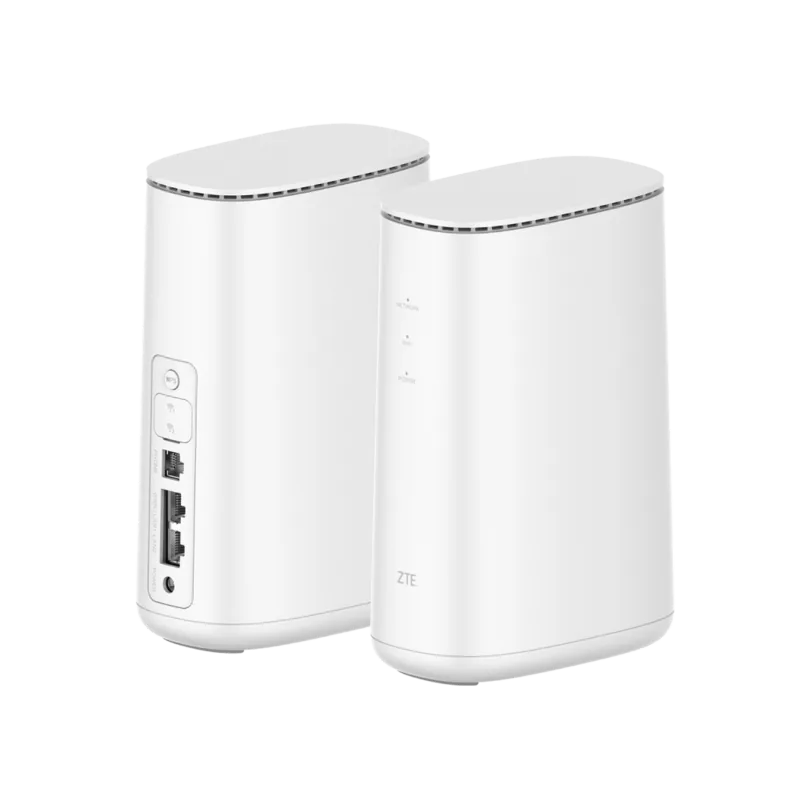
The ZTE MF289F is a 4G LTE router designed to bring mobile broadband to homes, small offices, and temporary workspaces. Often supplied as a GigaCube, it uses a nano-SIM card to connect to a mobile network and shares that connection through Wi-Fi or wired Ethernet. This makes it a practical alternative where fixed broadband is unavailable, unreliable, or not yet installed.
Quick setup for everyday connectivity
Getting started is straightforward. Insert a valid nano-SIM card into the slot on the underside of the router, connect the supplied power adapter, and allow the device a short time to initialize and register on the mobile network. Default Wi-Fi credentials and access details are printed on the product label, allowing compatible phones, tablets, laptops, and other devices to join the wireless network quickly.
For wired equipment, the ZTE MF289F includes a WAN/LAN1 port and a LAN2 port. These connections are useful for desktop computers, smart TVs, game consoles, or devices that benefit from a stable cable connection. WAN/LAN1 can also be used for cable broadband mode, adding flexibility to the router's network role.
Wireless, wired, and expandable options
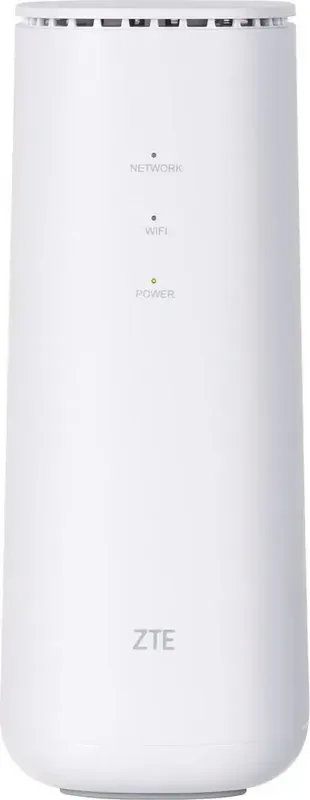
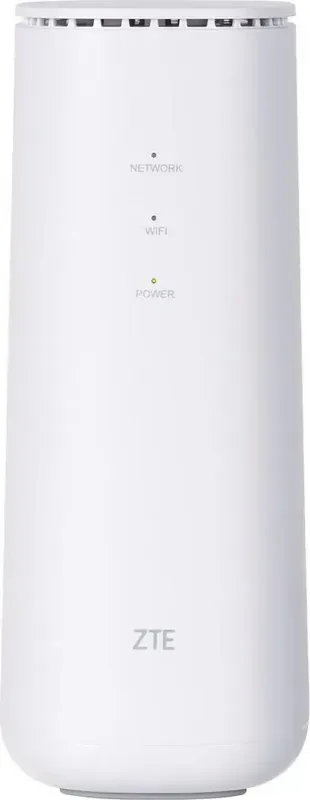
The router supports Wi-Fi connectivity and a WPS button for pairing compatible client devices without manually entering the wireless password. Its status lights provide useful feedback: the power indicator confirms operation, the Wi-Fi light shows wireless activity or WPS status, and the network light identifies mobile-network registration and data transfer. White network lighting indicates 4G/LTE registration, while green represents 2G or 3G connectivity.
External antenna connectors offer an important option for installations with weak mobile signal coverage. Connecting suitable external antennas may help improve reception depending on location and network conditions. The device also includes a telephone port, enabling connection of a telephone where supported by the service configuration.
Manage settings securely
The ZTE MF289F Manual highlights browser-based management for changing the Wi-Fi name, wireless password, administrator password, and other router settings. Use the web interface address shown on the device label, sign in with the listed GigaCube password, and update the default administrator password immediately. This helps prevent unauthorized changes to the network configuration.
A reset opening is available if access credentials are forgotten. Holding the reset control for around three seconds restores factory settings, so custom network details will need to be configured again afterward.
Note: Place the router indoors in a ventilated area, away from moisture, direct heat, and sources of electronic interference. Maintain at least 20 cm of distance from people during operation. Actual internet speed depends on local signal strength, network technology, and service availability.
Note: Automatic software updates can deliver security fixes and improvements. They may use mobile data, so review update settings if your tariff has a limited allowance.
Search for 67,732 Manuals online


Type-in Brand or Model
Markus Schmidt
7 months ago
Does this CAT20 model support 5G or should I look at the MC888 for better speeds?
Manual.ly
7 months ago
The CAT20 router is optimized for 4G LTE networks. For 5G connectivity, we suggest checking out the MC888 model which is recommended for faster next generation speeds.