
XYZprinting da Vinci miniMaker Manual
PDF manual · 16 Pages
English



Quick check
Incorrect answer, please try again.
Chat with your XYZprinting da Vinci miniMaker manual using AI
Get instant AI answers from your XYZprinting da Vinci miniMaker manual
Ask anything about the XYZprinting da Vinci miniMaker. Answers come from this manual, with the pages they are based on.
da Vinci miniMaker Maintenance Schedule
Use the nozzle cleaning wire carefully to remove residual filament and prevent poor discharge and print-quality issues.
After cleaning the nozzle, switch off power, open the feed module cover, and clean the gears with the gear cleaning brush.
Ask a Question
Do you recommend da Vinci miniMaker?
Yes NoVideo Manual
da Vinci Color Unpacking Instructions
Frequently Asked Questions
The printer uses PLA filament with a 1.75 mm diameter. It ships with a bundled filament spool and a spool ring; insert the sensor chip correctly and load the filament following the guide for reliable extrusion.
Is this answer helpful?
Install XYZware on your computer, connect the printer via supplied USB cable, power it on, and register for updates. Use Printer Monitor to view progress, pause/cancel jobs, and access Wi‑Fi setup on the Mini w. Reconnect the USB to monitor real‑time status after file transfer.
Is this answer helpful?
Nozzle cleaning is recommended approximately every 25 hours of printing. Use the provided cleaning wire, brush, and nozzle-cleaning routine in software. Unload filament before cleaning and follow instructions to avoid burns or damage.
Is this answer helpful?
Refer to the error code table in the manual. Common fixes include reinstalling or replacing filament (codes 0007/0008/0029), checking motor/sensor connections for motor errors, rebooting for memory errors, or contacting customer service for persistent heating or hardware faults.
Is this answer helpful?
Use Jog Mode and Home Axes to position the Z‑axis, then use the leveling tool and adjustment screws as directed. Z‑offset can be adjusted in 0.05 mm steps to fine-tune first-layer distance; follow software prompts and calibration instructions for best adhesion.
Is this answer helpful?
The base miniMaker uses USB 2.0. Wi‑Fi printing is available only on the da Vinci Mini w; both printer and computer must be on the same 20 MHz wireless network and support WEP/WPA/WPA2 security. Use XYZware’s Wi‑Fi setup wizard to connect.
Is this answer helpful?
Operate indoors on a stable surface, avoid touching moving or hot parts during prints, keep tools and small parts away from children, and power off the printer before performing maintenance or installing the extruder module.
Is this answer helpful?
Advantages and Disadvantages
Advantages

- Compact, lightweight design (400 x 336 x 362 mm; ~8 kg) suited for beginners and limited workspaces.
- Simple setup with included accessories: extruder module, spool ring, tape, scraper, cleaning tools.
- Supports standard 1.75 mm PLA and common resolutions (0.1–0.4 mm) for versatile prints.
- XYZware provides slicing, conversion, and Printer Monitor for basic print management.
- Wi‑Fi available on Mini w model; clear LED status indicators and step-by-step guidance.
Disadvantages

- Small build volume (150 x 150 x 150 mm) limits larger print projects.
- Limited to PLA material—no advanced filament compatibility by default.
- Some manual calibration and maintenance required (nozzle cleaning, Z‑offset tuning).
- USB-only connectivity on miniMaker model; wireless requires Mini w variant and network setup.
- Repair shipping may require original packaging or incur fees if improperly packed.
Product Specification
Process
Fused Filament Fabrication FFF
Manufacturer's Recommended Materials
0.07in Filament
Print Size
5.91x5.91x5.91in (WxHxD)
Layer Height
0.0039-0.0157in
Interfaces
USB 2.0
Dimensions
15.75x14.25x13.23in (WxHxD)
Weight
25.36lb (empty)
Product Description
XYZprinting da Vinci miniMaker Manual — Quick Overview
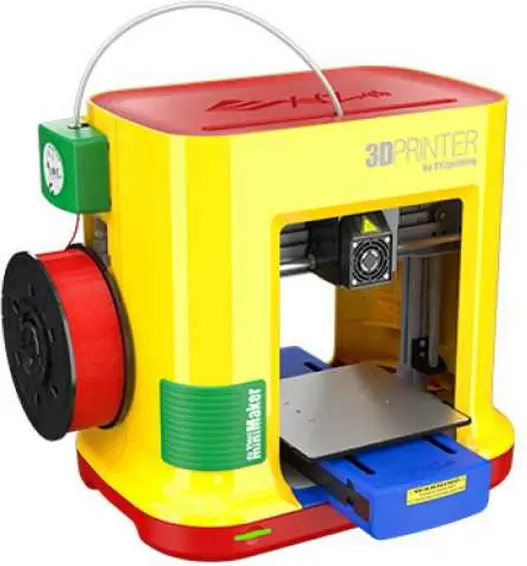
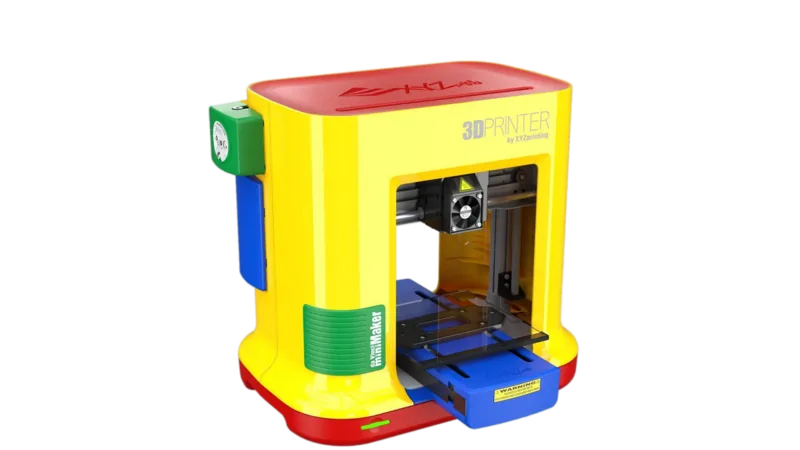
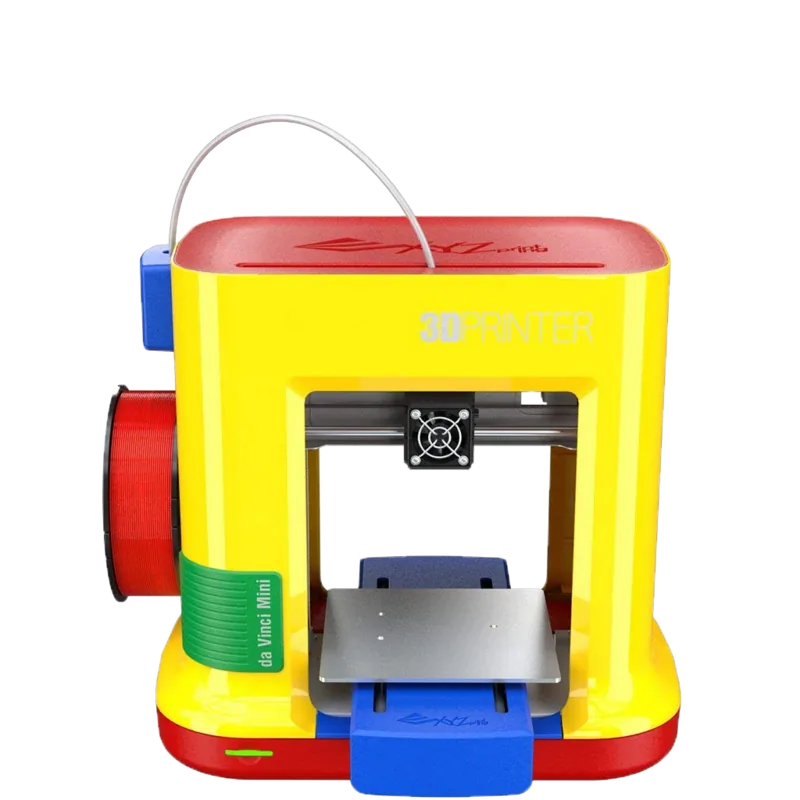
The XYZprinting da Vinci miniMaker is an entry-level FFF 3D printer designed for hobbyists, students, and anyone starting with desktop 3D printing. Compact and lightweight at around 8 kg with a 150 x 150 x 150 mm build volume, the miniMaker supports 1.75 mm PLA filament and uses a 0.4 mm nozzle for reliable, fine-detail prints. Connectivity on the miniMaker model is via USB 2.0 and the optional da Vinci Mini w adds Wi‑Fi capability. The bundled software, XYZware, streamlines slicing, print monitoring, and basic calibration tasks.
Key Features and Workflow
The printer emphasizes ease of use: a single multifunction button with colored LED indicators guides users through states like standby, printing, paused, or error. The package includes essential accessories such as a power adapter, USB cable, extruder module, filament spool with spool ring, scraper, cleaning tools, leveling tool, and protective PET cover. Setup steps cover installing the extruder and guide tube, mounting the filament spool (including sensor chip orientation), loading filament, and applying reusable bed tape for adhesion. Helpful tips include cutting filament tips at 45° and applying glue for low-temperature rooms.
XYZware handles importing STL/3W files, converting and saving, adjusting print preferences, and activating Printer Monitor for status updates. The software also manages Wi‑Fi setup on the Mini w, requires the computer and printer to be on the same network, and supports common wireless encryptions (WEP/WPA/WPA2) with 20 MHz channel width.
Calibration and Maintenance
The manual covers platform calibration, Z‑offset adjustments in 0.05 mm steps, and automatic horizontal calibration (default ON). Regular maintenance procedures include nozzle cleaning every ~25 hours, using cleaning wires and brushes for the feeding path and gearwheel, and unloading filament before cleaning. Detailed troubleshooting codes are provided for filament, heating, motors, memory, and connection issues—each with recommended actions such as reinstalling filament, replacing nozzles, or contacting service.
Safety and Support
Safety reminders stress using the printer indoors on a stable surface, avoiding contact with moving/high-temperature parts during printing, and keeping maintenance tools away from children. Retain original packaging for warranty repairs; improper packing may incur repair charges. For unresolved issues, the manual points users to XYZprinting customer support and provides error code explanations for preliminary diagnostics.
Notes
- Recommended bed temperature practices and registration via XYZware improve support and firmware updates.
- PET protection and double-sided tape require careful handling to maintain adhesion.
- Keep cleaning supplies handy to maintain filament feed reliability and print quality.
Search for 67,706 Manuals online


Type-in Brand or Model