
XP-Pen Deco Pro S Manual
PDF manual · 24 Pages
English



Quick check
Incorrect answer, please try again.
Chat with your XP-Pen Deco Pro S manual using AI
Get instant AI answers from your XP-Pen Deco Pro S manual
Ask anything about the XP-Pen Deco Pro S. Answers come from this manual, with the pages they are based on.
Ask a Question
Do you recommend Deco Pro S?
Yes NoFrequently Asked Questions
The XP-Pen Deco Pro S is designed for digital drawing, illustration, photo editing, and other precision-based creative tasks. Its stylus input, shortcut keys, dial, and touch controls can be customized to support a faster and more comfortable workflow.
Is this answer helpful?
The listed compatibility includes Windows 7, Windows 8, Windows 10, and macOS 10.8 or later. Installing the latest XP-Pen driver is recommended to access pen settings, shortcut customization, display mapping, and other tablet functions.
Is this answer helpful?
Yes. The tablet can be configured for a single display or a dual-monitor setup. You can map the active tablet area to one chosen screen, use a custom display region, or adjust the working area to fit your monitor arrangement.
Is this answer helpful?
Yes. The express keys, pen buttons, dial, and related controls can be assigned to preferred commands. You can also create separate shortcut settings for individual software applications, allowing different controls for drawing, editing, or design programs.
Is this answer helpful?
Open the tablet driver settings and use the pen pressure controls to adjust the response. The settings include a current pressure test area, which helps you check how the stylus reacts while changing the sensitivity level.
Is this answer helpful?
Older tablet software can conflict with the Deco Pro S driver or interfere with installation. Remove previous tablet drivers, restart the computer, and then install the current XP-Pen driver for a cleaner setup and more reliable operation.
Is this answer helpful?
Advantages and Disadvantages
Advantages

- Customizable pen buttons, express keys, dial, and touch controls support efficient creative workflows.
- Supports pen pressure testing and adjustable response settings for more personalized strokes.
- Works with single or dual monitors, custom display areas, and multiple screen orientations.
- Profiles can be imported or exported to preserve shortcut and pen configurations.
- Compatible with Windows 7, 8, and 10, plus macOS 10.8 or later.
Disadvantages

- Existing tablet drivers should be removed first to avoid software conflicts during setup.
- Express key defaults are based on US English keyboard layouts and may need adjustment elsewhere.
- Driver installation and configuration are required before advanced controls can be fully used.
- Some pen and erase switching features depend on compatibility with the chosen drawing software.
Product Specification
Type
Graphics tablet
Active area
9.09 x 5.12 in
Pen
wireless, tip, 2 buttons, eraser function
Resolution
5,080 lpi
Pressure sensitivity levels
8,192
Tilt range
60 degrees
Max. pen distance
0.39 in
Display
N/A
Signal input
N/A
Brightness
N/A
Contrast
N/A
Response time
N/A
Buttons
8 buttons, 1 touch ring
CPU
N/A
RAM
N/A
Storage
N/A
Graphics
N/A
Host connection
USB-C
Other connections
N/A
Wireless
N/A
Card reader
N/A
Webcam
N/A
Operating system
N/A
Dimensions
13.82 x 7.87 x 0.65 in
Package contents
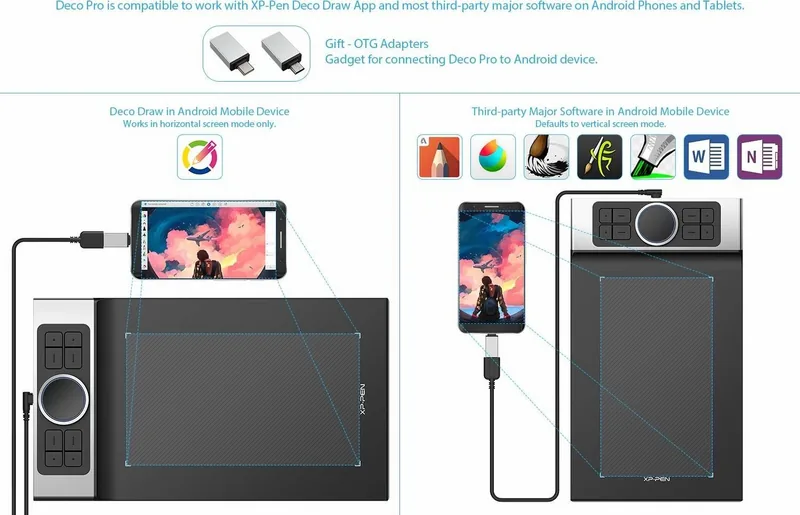
Main unit, pen, 8 replacement tips, pen holder, USB-C to USB-A cable, USB-C adapter, USB 2.0 Micro-B adapter, glove
Product Description
XP-Pen Deco Pro S - Read, Download & Print Free
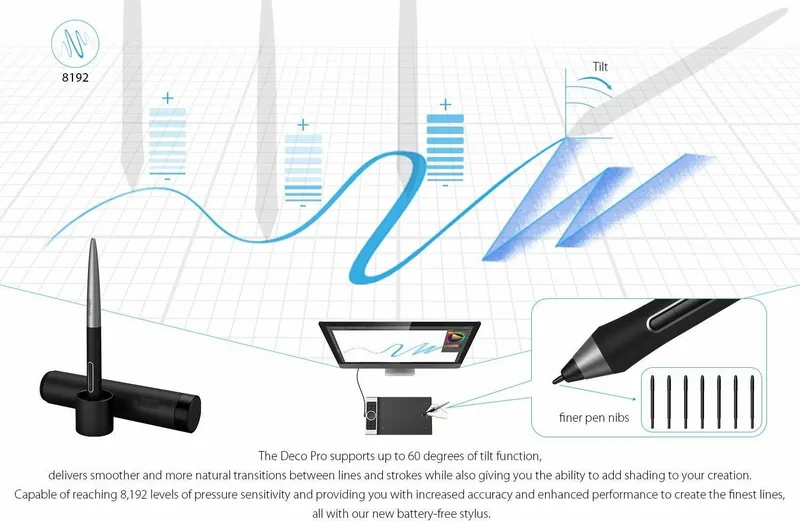
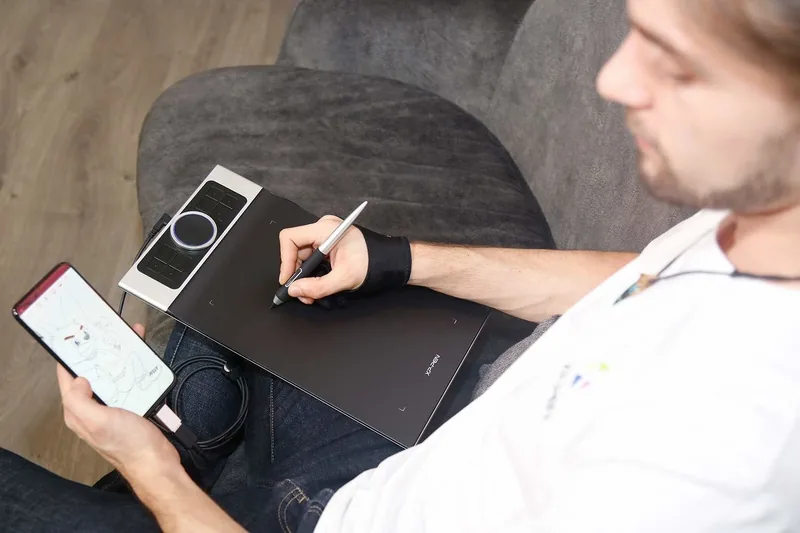
The XP-Pen Deco Pro S is a compact pen tablet designed for digital artists, illustrators, photo editors, and creative users who want precise control without sacrificing desk space. Its streamlined layout combines an active drawing area with customizable shortcut keys, a dial control, and a touch pad, creating a flexible workspace for drawing, retouching, navigation, and everyday creative tasks.
Designed for a Personalized Workflow
A major strength of the Deco Pro S is its configurable control system. The pen buttons, express keys, dial, and touch functions can be assigned to preferred commands, helping users keep common actions close at hand. Zooming, brush resizing, rotating a canvas, undoing changes, and switching tools can be adapted to individual habits. Program-specific shortcuts are also supported, so users can create different control layouts for separate creative applications.
The tablet supports both absolute pen mode and relative mouse mode. Absolute mode maps each point of the tablet surface directly to a point on the display, which is ideal for drawing and detailed editing. Relative mode behaves more like a conventional mouse, offering an alternative for users who prefer familiar cursor movement. The working area can also be adjusted for one or two monitors, selected display regions, screen orientation, and left-handed or right-handed use.
Pen Pressure and Display Control
Pressure settings allow users to tailor how the stylus responds to contact. This can help achieve lighter sketch lines, stronger strokes, or a response that feels more natural for the artist's technique. A pressure test area provides a practical way to check the current response while making adjustments. The pen can also be configured to switch between drawing and erasing functions in compatible software.
For multi-display setups, the Deco Pro S can be assigned to a chosen monitor or a custom screen area. Users can match the tablet area to their display proportions, maximize the available workspace, or set a custom mapping. Rotation options support flexible desk arrangements, while LED settings for the wheel and tablet can be adjusted to suit the workspace.
Simple Driver Management
The Deco Pro S is compatible with Windows 7, 8, and 10, plus macOS 10.8 or later. For the smoothest setup, remove existing tablet drivers before installing the XP-Pen driver. Once configured, profiles can be imported or exported, making it easier to save preferred pen and shortcut settings. Windows Ink support can be enabled when needed for compatible applications.
Notes
- Use the latest XP-Pen driver for the best compatibility and feature access.
- Restart the computer after removing an older driver before installing a new one.
- Express keys are designed around US English keyboard layouts, so shortcuts may need adjustment on other layouts.
- Test pen response after setup to confirm pressure sensitivity and cursor control are working correctly.
Search for 67,706 Manuals online


Type-in Brand or Model