
XP-Pen Deco Pro MW Manual
PDF manual · 10 Pages
English



Quick check
Incorrect answer, please try again.
Chat with your XP-Pen Deco Pro MW manual using AI
Get instant AI answers from your XP-Pen Deco Pro MW manual
Ask anything about the XP-Pen Deco Pro MW. Answers come from this manual, with the pages they are based on.
Ask a Question
Do you recommend Deco Pro MW?
Yes NoFrequently Asked Questions
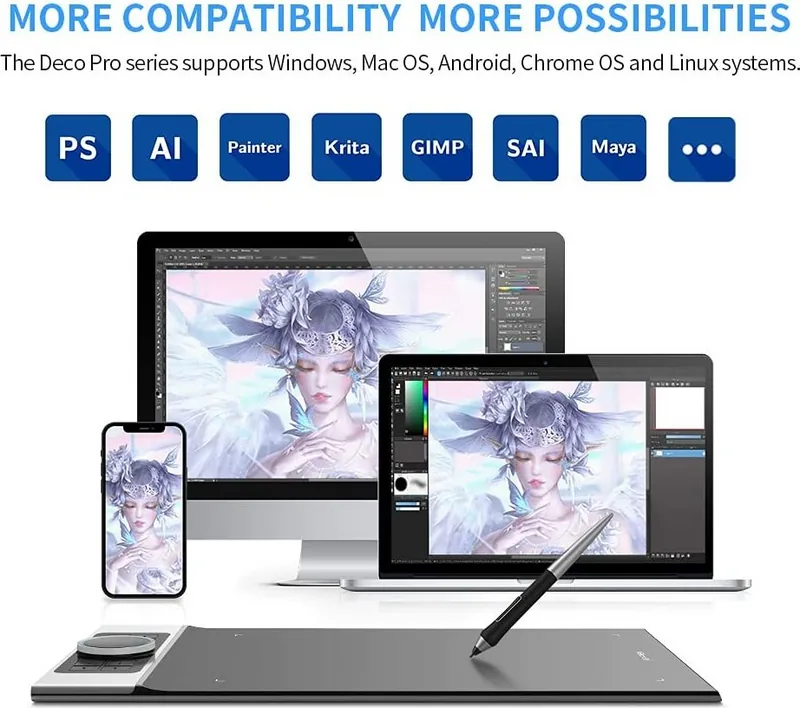
It supports Windows 7/8/10 and macOS 10.10 or later. Certain models also support Android 6.0+ and Chrome OS 88+, but check official compatibility pages for specific device support.
Is this answer helpful?
Download the correct driver from the XP-Pen website, unzip it, then run the .exe (Windows) or .dmg (Mac) file and follow prompts. Close antivirus/firewall and uninstall other tablet drivers before installation, then restart your computer after completion.
Is this answer helpful?
In duplicate mode the tablet maps to all monitors. In extended mode, choose the target monitor in the driver’s work area settings, then set full screen, manually select screen area, or enter custom coordinates to map precisely.
Is this answer helpful?
Open the driver, select pen settings, and choose functions or Customize to assign mouse controls or keyboard shortcuts. You can create app-specific profiles by adding applications to the driver and saving configurations.
Is this answer helpful?
Precision mode confines the active tablet area to a smaller region for detailed work. Pressure adjustment uses curves and sliders to tune the pen’s sensitivity; test pressure in the driver to find a comfortable response.
Is this answer helpful?
After making changes in the driver, click the OK/save button on the driver interface. A confirmation prompt indicates successful saving; otherwise changes apply only to the current session.
Is this answer helpful?
Use the driver’s diagnostic tool to identify issues. Ensure antivirus is temporarily disabled during installation, uninstall conflicting drivers, and consider importing a known-good configuration if available.
Is this answer helpful?
Advantages and Disadvantages
Advantages

- Bluetooth connectivity for cable-free use across supported devices.
- Highly customizable driver: per-app profiles, shortcut keys, and roller/touch settings.
- Good pen performance with pressure sensitivity, tilt support, and adjustable pressure curves.
- Flexible screen mapping: full, custom area, and multi-monitor support with rotation/left-hand mode.
- Import/export and diagnostic tools simplify configuration management and troubleshooting.
Disadvantages

- Driver installation may require temporarily disabling antivirus and removing other tablet drivers.
- Some features depend on the specific model and OS; Android/Chrome OS support varies.
- Multiple monitors require manual mapping in extended mode, which can be confusing initially.
- Relative (mouse) mode and absolute (pen) mode differences may require switching for some workflows.
- Saving configurations requires explicitly clicking OK in the driver; unsaved changes can be lost.
Product Specification
Type
Graphics tablet
Active area
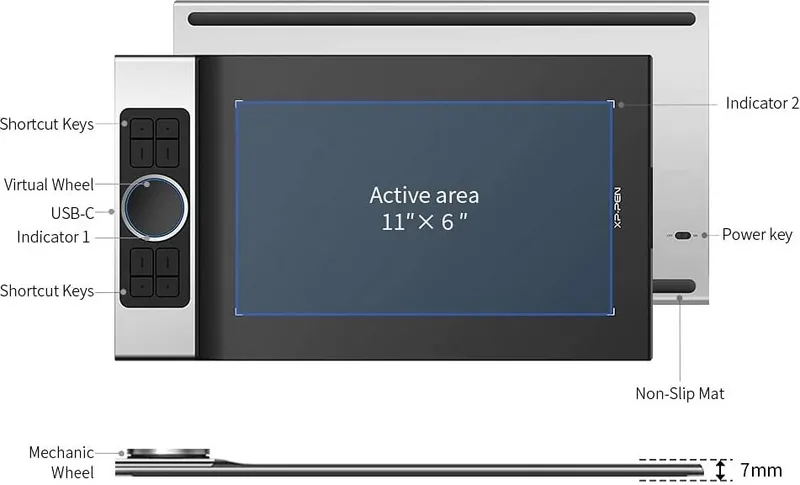
10.98x6.18in
Pen
wireless, tip, 2 buttons, eraser function
Resolution
5080lpi
Sensitivity levels
8192
Tilt range
60°
Max. pen distance
0.39in
Display
N/A
Signal input
N/A
Brightness
N/A
Contrast
N/A
Response time
N/A
Buttons
8x button, 1x touch ring
CPU
N/A
RAM
N/A
Storage
N/A
Graphics
N/A
Host connection
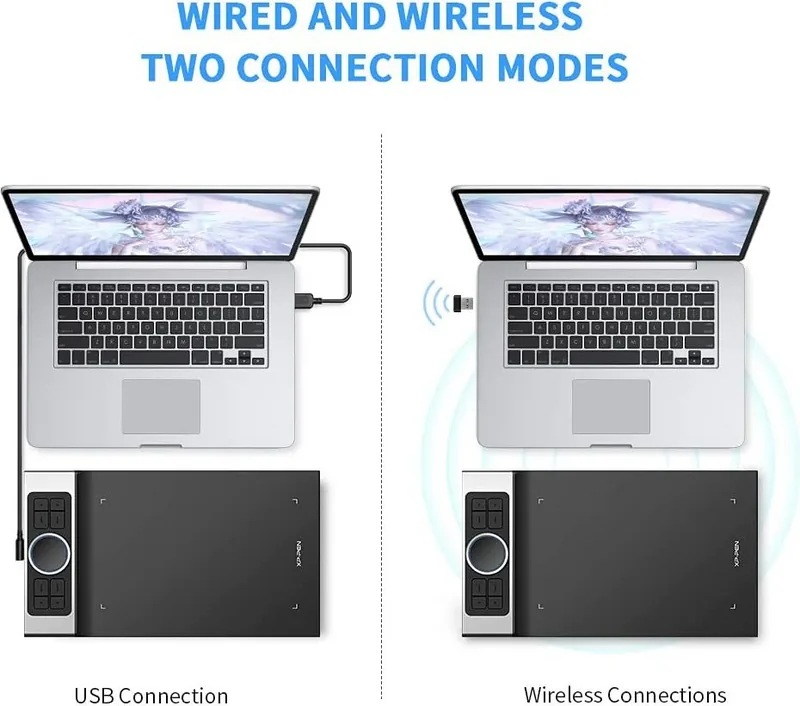
USB-C, Bluetooth 5.0
Other connections
N/A
Wireless
N/A
Card reader
N/A
Webcam
N/A
Operating system
N/A
Battery
Li-ion, 5.55Wh, up to 12h runtime, 2h charging time
Dimensions
15.75x10.91x0.65in
Scope of delivery
Main unit, pen, 10x replacement tips, pen holder, USB-C to USB-C cable, USB-C to USB-A cable, Micro USB adapter, glove
Product Description
XP-Pen Deco Pro MW Bluetooth — Smart, Responsive, Portable
The XP-Pen Deco Pro MW Bluetooth is a versatile drawing tablet designed for creators who need precision, portability, and reliable wireless connectivity. Combining a low-latency Bluetooth connection with a comfortable pen and a responsive surface, this tablet aims to bridge the gap between compact form factor and professional features. It supports mainstream operating systems and offers flexible mapping and customization through its driver, so you can shape the tablet to your workflow.
Key features and experience
The Deco Pro MW Bluetooth pairs easily with Windows, macOS, and supported Android or Chrome OS devices. Once connected, the XP-Pen driver gives you comprehensive control over screen mapping, pen behavior, and shortcuts. You can map the tablet to single or multiple displays, choose full-area or custom work areas, and rotate the tablet for left-handed use. Pressure sensitivity and tilt support deliver natural brush dynamics, while an adjustable pressure curve and a precision mode let you fine-tune responsiveness for detailed work.
Customization is a highlight: the driver lets you assign pen buttons, shortcut keys, roller or touch functions, and application-specific profiles. Add frequently used apps, assign tailored shortcuts per app, and save or export configurations for quick restoration. The Deco Pro MW Bluetooth also supports absolute (pen) and relative (mouse) modes, Windows Ink, and configurable cursor speed in mouse mode.
Hardware controls such as programmable shortcut keys, a roller/touch control, and a responsive stylus make navigation and workflow faster. The diagnostic tool and import/export features help maintain and transfer your setup between machines. The manufacturer recommends closing antivirus software and uninstalling other tablet drivers before installation to ensure a smooth setup.
Practical notes
- Install the correct driver from the XP-Pen website and restart your computer after installation.
- If you use multiple monitors in extended mode, explicitly map the tablet area to the desired display.
- Save settings using the driver’s OK/save button so configurations persist.
Notes
- Some features vary by device model; check product compatibility for Android and Chrome OS.
- Disable or re-enable Windows Ink depending on software compatibility.
- Use the diagnostic tool if drivers misbehave.
Search for 67,706 Manuals online


Type-in Brand or Model