
XP-Pen Artist 16 (2nd Generation) Manual
PDF manual · 25 Pages
English



Quick check
Incorrect answer, please try again.
Chat with your XP-Pen Artist 16 (2nd Generation) manual using AI
Get instant AI answers from your XP-Pen Artist 16 (2nd Generation) manual
Ask anything about the XP-Pen Artist 16 (2nd Generation). Answers come from this manual, with the pages they are based on.
Ask a Question
Do you recommend Artist 16 (2nd Generation)?
Yes NoFrequently Asked Questions
Check power connection and verify the indicator light is blue. Inspect cable stability and restart the device. Ensure the monitor input source matches the display signal correctly.
Is this answer helpful?
Verify the USB port is functional by testing another peripheral. Try a different USB connection on your computer. Ensure the driver is installed correctly before connecting the device.
Is this answer helpful?
Confirm the software supports pressure sensitivity. Download the latest driver from the official website. Disable antivirus software temporarily during driver installation to prevent conflicts.
Is this answer helpful?
Calibrate the stylus using the driver software by clicking the center crosshairs accurately. Adjust screen mapping coordinates manually if necessary. Update graphics drivers to ensure compatibility.
Is this answer helpful?
Check if CPU and GPU meet recommended requirements for your drawing application. Optimize software settings according to official guidelines. Close background applications to free up resources.
Is this answer helpful?
Yes, it supports compatible Android tablets with USB3.1 and DP1.2 capabilities. Visit the website to verify specific phone models for maximum compatibility before purchase.
Is this answer helpful?
On Windows go to Settings Apps and search Pentablet to uninstall. On Mac locate the application folder and follow uninstaller prompts. For Linux use command line removal tools.
Is this answer helpful?
Advantages and Disadvantages
Advantages

- Supports multiple operating systems including Windows Mac Linux Android and ChromeOS for versatile connectivity.
- Advanced driver settings allow custom screen mapping and pressure sensitivity adjustments for precise work.
- Built-in quick access keys enable rapid tool switching to enhance creative workflow efficiency.
- Includes protective gloves and spare nibs to maintain equipment health and user comfort during use.
Disadvantages

- Certain cables and power adapters may need to be purchased separately depending on the specific model variant.
- Initial screen calibration and driver setup require careful navigation especially on Linux or Mac systems.
- Color temperature settings offer limited presets compared to professional standalone monitors in the market.
Product Specification
Type
Graphics Tablet with Display
Active Area
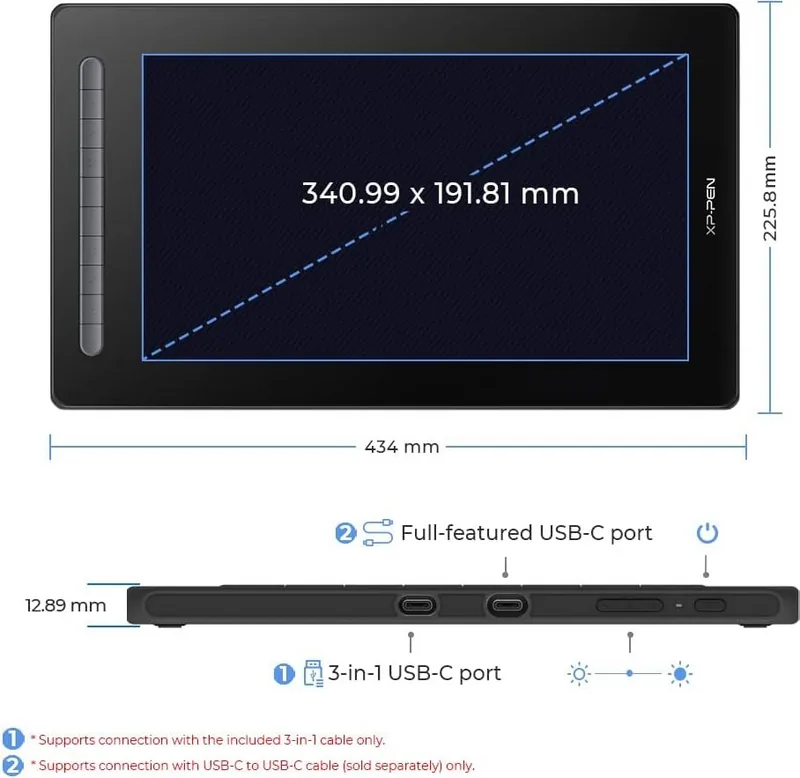
13.42 x 7.55 in
Pen
Wireless, Tip, 2 Buttons, Eraser
Resolution
5080 lpi
Sensitivity Levels
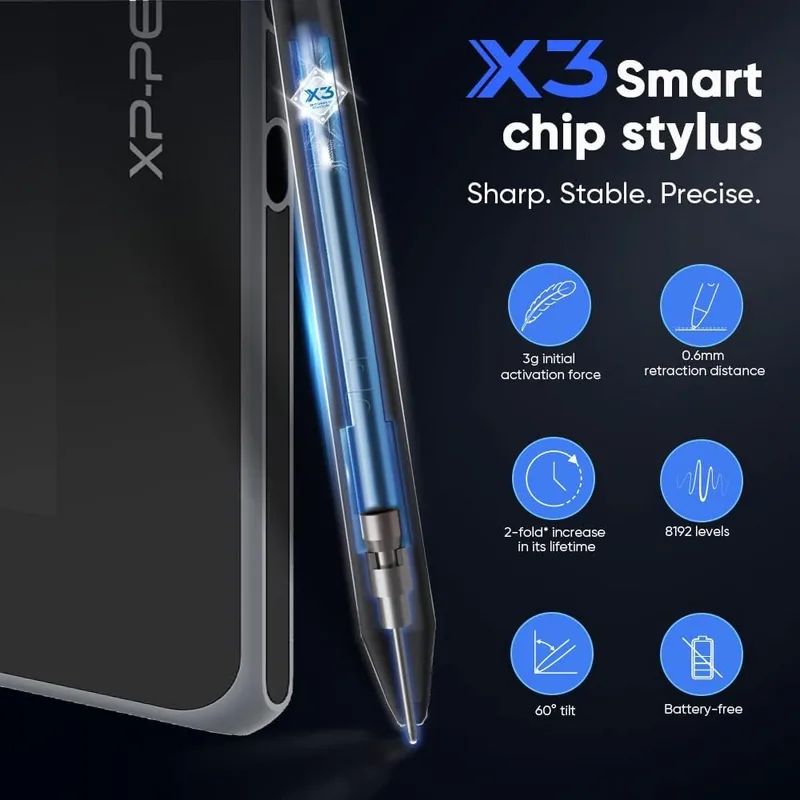
8192
Tilt Range
60°
Max. Pen Height
0.39 in
Display
15.4", 1920x1080, IPS
Signal Input
USB-C 3.0 with DisplayPort 1.2
Brightness
220 cd/m^2
Contrast
1000:1
Keys
10 Keys
CPU
N/A
RAM
N/A
Storage
N/A
Graphics
N/A
Host Ports
USB-C or HDMI, USB-A
Other Connections
USB-C
Wireless
N/A
Card Reader
N/A
Webcam
N/A
Operating System
N/A
Power Consumption
5W (typical), 0.5W (standby), 0.1W (sleep)
Battery
N/A
Dimensions
17.09 x 10.07 x 0.51 in
Energy Efficiency Class SDR (A-G)
B
Energy Consumption SDR
5 kWh / 1000 h
Product Description
Discover the Power of Digital Art
The XP-Pen Artist 16 (2nd Generation) stands out as a premier choice for illustrators and designers seeking precision and versatility in their work. This digital drawing tablet combines high-quality visual feedback with intuitive control mechanisms designed to streamline your daily creative workflow effectively. With vibrant colors and accurate resolution, users find that their intricate digital sketches come to life on the spacious and responsive workspace available for all tasks.
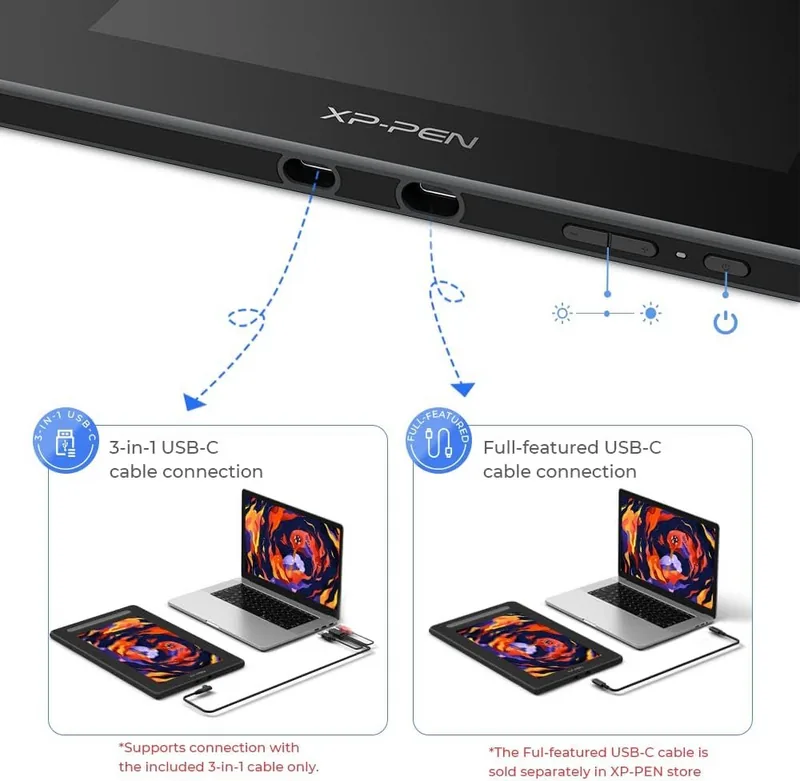
Connectivity remains a top priority in this updated model featuring advanced USB-C technology standards. You can connect seamlessly to various operating systems including Windows macOS Linux Android tablets and ChromeOS environments easily. This massive flexibility ensures that whether you are creating art at home or traveling to client meetings your essential equipment adapts to your current environment very effectively. The inclusion of programmable quick access keys allows for rapid switching between frequently used tools enhancing overall efficiency during complex professional projects significantly.
Driver software plays a crucial role in maximizing hardware performance across different platforms. Advanced settings enable you to calibrate the screen area matching your external monitor layout perfectly without manual guesswork. Customizable pressure sensitivity ensures lines react exactly as intended under the stylus tip. Additionally, specific user profiles can be saved for different applications allowing seamless transitions between Adobe Photoshop Corel Painter and other creative suites without interruption or lag time.
Physical design considerations include robust build quality and ergonomic positioning options for long session comfort. The dedicated power button features a clear LED indicator to show system status at a glance whether ready to use or in standby mode safely. Cable management is simplified through organized side ports reducing unnecessary clutter on your primary desk setup completely. For those requiring extended drawing sessions comfort is prioritized with included accessories designed to support natural hand usage and protect sensitive surfaces from accidental damage during production.
Ultimately this display represents a significant step forward for modern digital creators who demand absolute reliability from their gear. Integrating cutting-edge technology with classic drawing ergonomics provides an unmatched user experience every single time. Whether you are sketching concept art or professionally retouching photographs the visual results speak for themselves through exceptional clarity and instant responsiveness. Continuous software support and regular driver updates further cement its strong reputation in the competitive market ensuring long-term satisfaction for every individual user engaging with this powerful artistic tool consistently. Remember to keep the driver software current to maintain stability.
Search for 67,706 Manuals online


Type-in Brand or Model