
XP-Pen Artist 12 Pro Manual
PDF manual · 28 Pages
English



Quick check
Incorrect answer, please try again.
Chat with your XP-Pen Artist 12 Pro manual using AI
Get instant AI answers from your XP-Pen Artist 12 Pro manual
Ask anything about the XP-Pen Artist 12 Pro. Answers come from this manual, with the pages they are based on.
Ask a Question
Do you recommend Artist 12 Pro?
Yes NoFrequently Asked Questions
You can download the latest drivers for the Artist Display 12 Pro from the official XP-Pen website. Navigate to the download section and select the appropriate version for your operating system.
Is this answer helpful?
Ensure the device is powered on and connected properly. Reinstall the driver if necessary, check that antivirus software is not blocking the connection, and verify that the stylus is functioning before installing software.
Is this answer helpful?
After successful installation, a tablet icon should appear in your Windows notification bar or on the Mac desktop. You should also be able to control the cursor with the pen and test pressure sensitivity.
Is this answer helpful?
Pressure sensitivity depends on the application supporting it. Ensure you have the latest driver installed, enable Windows Ink in settings, and verify the app supports pressure input features.
Is this answer helpful?
The maximum resolution supported by the Artist Display 12 Pro is 1920x1080 pixels, providing a clear and detailed workspace for your creative projects.
Is this answer helpful?
On Windows, go to Settings > Apps & Features, find Pentablet, and click Uninstall. On Mac, open Finder > Applications > Pen Tablet and run the Uninstall Pen Tablet utility.
Is this answer helpful?
Advantages and Disadvantages
Advantages

- High-quality 13.3-inch Full HD display provides accurate color reproduction and sharp details.
- Customizable express keys and roller wheel streamline workflow and improve productivity.
- Compatible with major operating systems including Windows 7/8/10 and Mac OS X 10.10 or higher.
- Supports Windows Ink for enhanced compatibility with professional drawing applications.
Disadvantages

- Requires manual driver installation and configuration which may be complex for beginners.
- Does not support Type-C to Type-C direct connection without additional adapters.
- Desktop users must ensure HDMI is connected to the dedicated graphics card for best performance.
- No built-in battery requires constant connection to a power source via USB or adapter.
Product Specification
Type
Graphics tablet with screen
Active area
10.08x5.67 in
Pen
wireless, tip, 2 buttons, eraser function
Resolution
5080 lpi
Pressure levels
8192
Tilt range
60 deg
Max pen distance
0.39 in
Display
11.6 in, 1920x1080, IPS
Signal input
USB-C
Contrast
1000:1
Response time
14 ms
Keys
8 keys, 1 touch ring
CPU
N/A
RAM
N/A
Storage
N/A
Graphics
N/A
Host connection
HDMI, USB 2.0
Other connections
N/A
Wireless
N/A
Card reader
N/A
Webcam
N/A
Operating system
N/A
Power consumption
5W (typical), 0.5W (standby), 0.1W (sleep)
Battery
N/A
Dimensions
13.86x8.86x0.51 in
Package contents
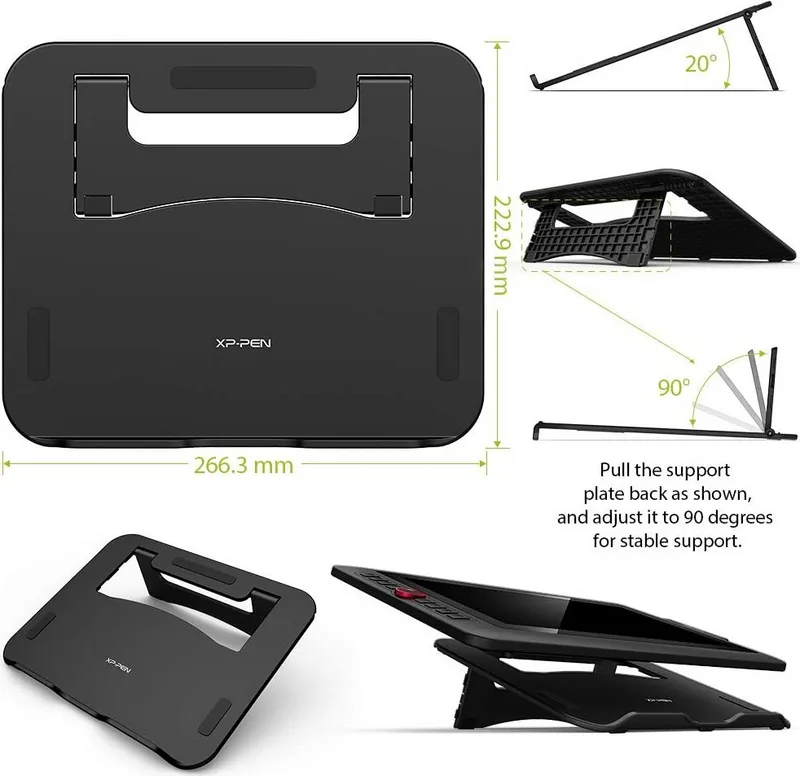
Main unit, pen (PA2), 8 replacement tips, pen holder, stand (AC42), 3-in-1 cable, glove, cleaning cloth
Energy efficiency class SDR (A to G)
B
SDR energy consumption
5 kWh/1000h
Product Description
XP-Pen Artist Display 12 Pro: A Creative Powerhouse
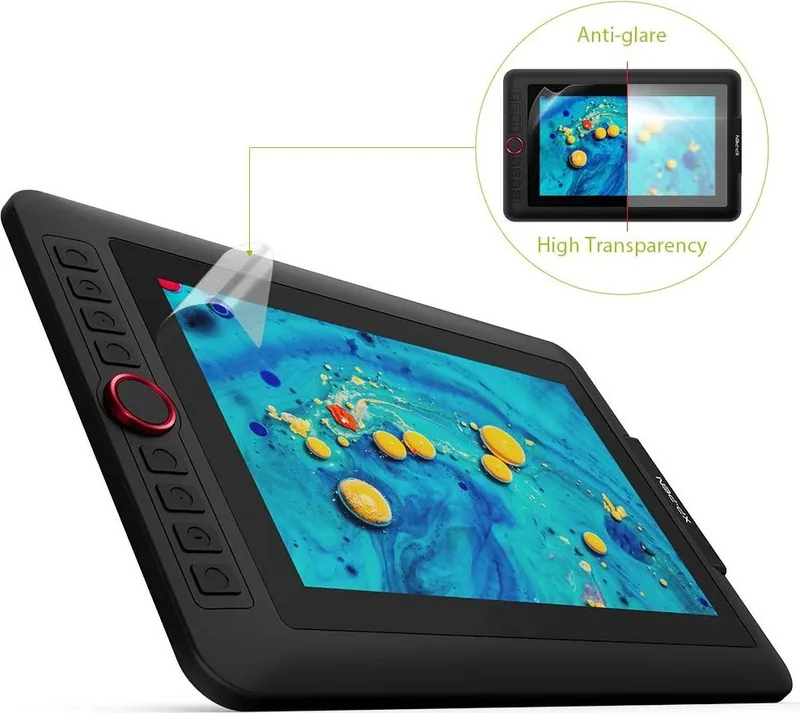
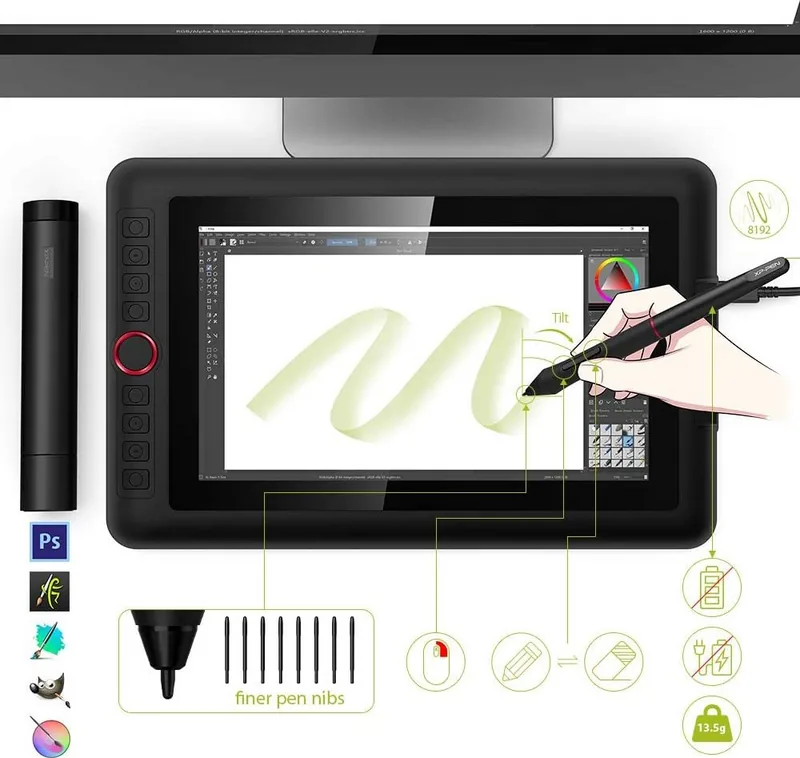
The XP-Pen Artist Display 12 Pro is a versatile graphics tablet monitor designed to elevate your digital art workflow. With its 13.3-inch Full HD display, this device offers a seamless blend of screen and drawing surface, allowing artists to create directly on the canvas without eye-hand separation issues. The unit features a sleek design equipped with six customizable express keys and a multi-function roller wheel for quick access to essential tools.
Setup and Connectivity
Getting started with the Artist Display 12 Pro is straightforward. The device supports both Windows and Mac operating systems, requiring specific driver installations to unlock full functionality. Users can connect the tablet via HDMI and USB cables, ensuring stable data transmission and power delivery. For desktop users, connecting the HDMI cable to the dedicated graphics card port is recommended to avoid performance bottlenecks. The installation process involves downloading the latest drivers from the official XP-Pen website, extracting the files, and running the setup as an administrator. Once installed, the system recognizes the tablet immediately, displaying a status icon in the notification area.
Customization and Control
One of the standout features of the XP-Pen Artist Display 12 Pro is its deep customization options. Through the dedicated driver software, artists can adjust pen pressure sensitivity, configure button mappings for specific applications like Photoshop or Clip Studio Paint, and calibrate the screen for precise cursor alignment. The software also allows for profile management, enabling users to save and switch between different settings for various creative tasks. Whether you are sketching, painting, or photo editing, the ability to tailor the interface ensures a personalized and efficient experience.
Important Notes
- Always disable antivirus software during driver installation to prevent conflicts.
- Use the provided USB cables; Type-C to Type-C connections may not work correctly.
- Ensure the resolution is set to 1920x1080 for optimal clarity.
- Calibrate the screen regularly to maintain accuracy.
Search for 67,706 Manuals online


Type-in Brand or Model