
Vodafone K5150 Manual
PDF manual · 16 Pages
English



Quick check
Incorrect answer, please try again.
Chat with your Vodafone K5150 manual using AI
Get instant AI answers from your Vodafone K5150 manual
Ask anything about the Vodafone K5150. Answers come from this manual, with the pages they are based on.
Ask a Question
Do you recommend K5150?
Yes NoFrequently Asked Questions
The K5150 supports Windows (XP SP3 and later, including Windows 7 and 8), macOS (OS X 10.5+ on Intel), and many Linux distributions such as Ubuntu, openSUSE, Fedora, Debian, Mandriva, and others listed in Vodafone support.
Is this answer helpful?
On Windows the installer typically launches automatically when you plug in the stick; if not, open the USB drive and run setup. On macOS double-click the app icon to install. For Linux follow the QuickStart installation guidance on Vodafone’s support site.
Is this answer helpful?
LED colors indicate network type and connection: green blinking/solid for GPRS, blue blinking/solid for 3G, light blue solid for 3G Broadband (HSPA), and purple solid for 4G LTE. The dashboard shows signal bars for strength.
Is this answer helpful?
Try moving to improve signal, use the app’s network search to select a network, restart the app or computer, set connection preferences (e.g., 3G only), and confirm roaming or data services are enabled on your account. If problems persist, contact support.
Is this answer helpful?
Uninstall older Vodafone Mobile Broadband versions, download and run the Vodafone Mobile Broadband Cleanup utility to remove settings and device registration, restart the PC, and then plug in the K5150 so the correct app can install automatically.
Is this answer helpful?
Yes for many account types—contract customers can send and receive SMS via the desktop app. PAYG customers typically receive network notifications but may not be able to send or receive SMS messages.
Is this answer helpful?
Yes, the device accepts a microSD card for additional storage alongside its mobile broadband functionality.
Is this answer helpful?
Advantages and Disadvantages
Advantages

- Wide OS compatibility: Windows, macOS, and many Linux distributions supported.
- Multi-bearer support: works with GPRS, 3G, HSPA (3G Broadband), and 4G LTE.
- Simple setup: plug-in installation with dashboard for connection management.
- Signal and network type LED indicators provide at-a-glance status.
- Includes diagnostics and account management features in the app.
Disadvantages

- SMS capability limited or unavailable on some PAYG accounts.
- Performance depends heavily on local signal strength and network availability.
- May require cleanup of old Vodafone software to avoid install issues.
- Micro USB stick form factor occupies a USB port and can protrude from laptops.
- Advanced VPN or network setups may require additional configuration.
Product Specification
Modem
GSM (850/900/1800/1900), UMTS (900/2100), LTE (B3/B7/B20)
Network Standards
GPRS, EDGE, HSDPA, HSUPA, HSPA+
Bandwidth
150Mbps/50Mbps (LTE), 42Mbps/5.76Mbps (UMTS)
Interfaces
USB 2.0
Dimensions
3.76x1.31x1.06in
Weight
0.08 lb
SIM Form Factor
Mini-SIM
Special Features
microSD slot, Antenna connector (mobile)
Product Description
Vodafone K5150 — Mobile Broadband USB Stick
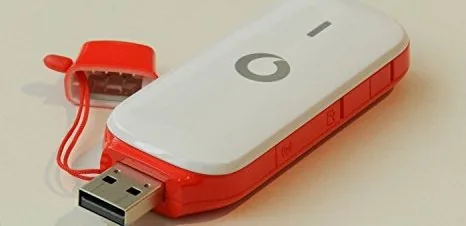
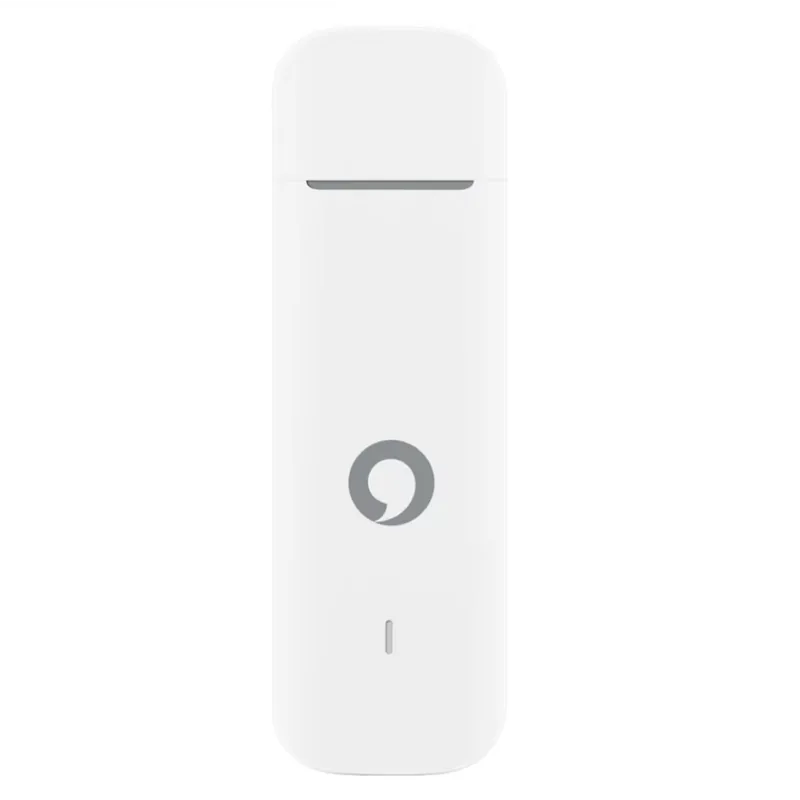
The Vodafone K5150 is a compact mobile broadband USB stick designed to give you reliable internet access wherever there's mobile network coverage. It supports multiple mobile bearers including GPRS, 3G, 3G Broadband (HSPA), and 4G LTE, and is compatible with a wide range of operating systems such as Windows (XP SP3 and later), macOS (OS X 10.5+ on Intel), and many popular Linux distributions. The stick accepts a SIM card for cellular connectivity and a microSD card for extra storage, and its LED indicator shows network type and connection status at a glance.
Key features and usage
The K5150 is plug-and-play on most platforms: on Windows the Vodafone Mobile Broadband application usually launches automatically, while macOS users install and run the app directly, and Linux users can follow platform-specific QuickStart instructions. The device dashboard lets you connect or disconnect, monitor signal strength, manage SMS (where supported), check account status, and configure connection preferences like forcing 3G-only mode. The LED color codes—green for GPRS, blue for 3G, light blue for 3G Broadband, and purple for 4G LTE—help identify available network types and connection state.
Practical setup is straightforward: insert the SIM, plug into a USB port, and follow the on-screen installer or OS-specific connectivity settings. Troubleshooting tips include repositioning for better signal (near windows or outdoors), using the app’s network search feature, restarting the app or PC, and ensuring correct account/roaming settings when abroad. For older Vodafone app installs, a cleanup utility is recommended to fully remove legacy versions before using the K5150.
Performance and reliability
Connection speed on the K5150 depends on both signal strength and network technology: 4G and 3G Broadband provide much higher throughput than GPRS. The dashboard’s signal bars help gauge real-world quality; at least one bar is required to connect. The device supports common diagnostics and account management through the Vodafone Mobile Broadband software and includes guidance for resolving installation and connectivity issues.
Notes
- SMS sending may be limited by account type (contract vs PAYG).
- Ensure you accept the Vodafone Mobile Broadband EULA before use.
- Use the official cleanup tool if previous Vodafone software causes detection or installation problems.
Search for 67,706 Manuals online


Type-in Brand or Model