

VivoLink VLCAM100 Manual
PDF manual · 22 Pages
English



Quick check
Incorrect answer, please try again.
Chat with your VivoLink VLCAM100 manual using AI
Get instant AI answers from your VivoLink VLCAM100 manual
Ask anything about the VivoLink VLCAM100. Answers come from this manual, with the pages they are based on.
VLCAM100 Maintenance Schedule
Use a soft cloth or tissue to clean the camera cover. Wipe the lens with a soft, dry cloth; use mild detergent gently if needed.
Please disconnect the camera if it is not used for a long time.
Ask a Question
Do you recommend VLCAM100?
Yes NoFrequently Asked Questions
The VivoLink VLCAM100 supports main stream up to 3840×2160@30fps and also supports 1920×1080 and 1280×720 modes. Sub-stream options include 1280×720, 640×480, and 320×172 at 25/30fps depending on format.
Is this answer helpful?
Connect the camera via the supplied USB 3.0 Type-B cable to a USB 3.0 host port for 4K performance. The device uses standard UVC/UAC, so most Windows, macOS, and Linux systems will recognize it as a plug-and-play webcam; ensure your system meets hardware requirements for 4K streaming.
Is this answer helpful?
Auto Framing uses built-in facial detection algorithms to identify meeting participants, automatically adjusting EPTZ and zoom so people are centered in the scene. It can be enabled or disabled and has sensitivity settings in the OSD menu to suit different room arrangements.
Is this answer helpful?
To pair, press and hold SET + * for 5 seconds until the remote indicator lights, then power the camera on when blinking. If the remote fails, check batteries, re-match via the same sequence, confirm the camera address (set to 1 if needed), and ensure the camera isn’t in a non-supported compression mode for menu access.
Is this answer helpful?
The camera has two built-in microphones with an antique noise suppression algorithm and a pickup range up to roughly 5 meters. It supports audio over USB3.0 (UAC), delivering integrated audio to conferencing software without separate microphone wiring.
Is this answer helpful?
Yes. The OSD menu provides rich image controls: auto/manual/one-push white balance, exposure modes (auto/manual/shutter/iris/brightness priority), gain limits, shutter speeds, saturation, sharpness, DNR, WDR, and flip options to tailor image quality to your environment.
Is this answer helpful?
Check that the USB cable is firmly connected and the power indicator is on. Restart the camera and host PC, confirm the camera is recognized by the operating system, and ensure the USB port supports the required bandwidth (USB 3.0 recommended for 4K).
Is this answer helpful?
Advantages and Disadvantages
Advantages

- True 4K UHD capture at up to 3840×2160@30fps with compatibility for 1080p and 720p.
- Auto framing with AI facial detection automatically centers participants and adjusts zoom.
- Dual built-in microphones with noise suppression and effective pickup up to 5 meters.
- Dual-stream USB 3.0 output for simultaneous main and sub-stream workflows.
- Wide 120° field of view and 4x digital zoom for flexible coverage without mechanical PTZ.
Disadvantages

- Digital 4x zoom (EPTZ) lacks optical zoom, which can reduce detail when zoomed in.
- Class A device may cause radio interference in residential environments without mitigation.
- Limited physical controls; many advanced settings require remote or OSD navigation.
- Performance for 4K requires USB 3.0 and sufficient host hardware; older systems may be limited.
- No user-serviceable parts; disassembly voids warranty and repairs require qualified technicians.
Product Specification
Type
Conference camera (videobar)
Image sensor
1x 1/2.5" CMOS 8.3 MP
Resolution
3840x2160 Pixels (30fps)
Lens
0.11in (F2.5)
Light sensitivity
0.1 Lux (B/W)
Viewing angle
120°
Zoom function
4x digital
Compression/Codecs
MJPEG, YUY2, H.264, H.265
Connections
1x USB-B 3.0 (5Gb/s, Female)
Focusing
Autofocus, manual
Camera cover
N/A
Microphone
integrated (stereo, omnidirectional), 9.84 ft range
Speaker
N/A
Lighting
N/A
Power supply
via USB
Mounting
Clamp stand, with 1/4" thread
Dimensions
8.74x3.66x2.24in
Weight
1.17 lb
Special features
Remote control, Multistreaming
Manufacturer's warranty
2 years
Product Description
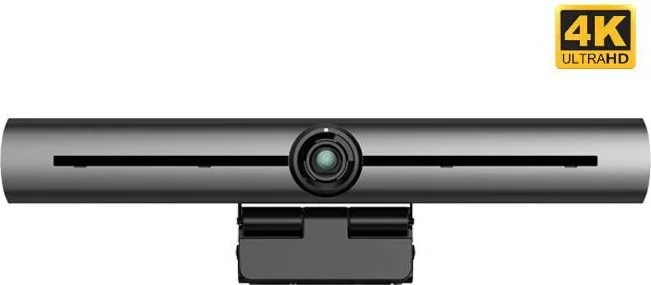
VivoLink VLCAM100 4K Camera, Videobar Manual
The VivoLink VLCAM100 is a 4K UHD videobar designed for modern video conferencing and unified collaboration. Featuring an 8.28MP 1/2.5" CMOS sensor and USB 3.0 connectivity, it delivers crisp 3840×2160@30fps video while remaining compatible with 1080p and 720p streams. The VLCAM100 combines ePTZ (electronic pan/tilt/zoom) and a 4x digital zoom to give flexible framing without mechanical wear. A 120° wide-angle lens captures more participants with minimal distortion, and advanced ISP processing ensures vibrant color, even brightness, and strong layering for natural-looking video.
Built-in dual microphones and noise suppression extend clear voice pickup up to about 5 meters, and the device supports dual-stream output over USB 3.0 for main and sub-stream workflows. Auto framing powered by facial detection centers meeting participants automatically, adjusting zoom and framing based on the number of people. The unit is plug-and-play (UVC/UAC) across Windows, macOS, and Linux, removing the need for driver installation for most setups.
Installation is straightforward: mount on an LCD, monitor, tripod, or place on a desktop. The package includes a wireless remote control, USB 3.0 cable, user manual, warranty card, and cushion. The remote controls pan/tilt/zoom, focus, presets (10 via remote), and menu navigation; key combinations enable pairing, address setting, and factory reset. The on-screen menu exposes image, exposure, color, focus, noise reduction, auto framing, and dual-stream options with granular adjustments (white balance modes, gain limits, shutter settings, DNR levels, and more).
Mechanically the design emphasizes stable mounting and care: avoid violent rotation of the camera head, ensure no obstacles within rotation range, and place on a level surface. Electrical and environmental specs call for 5V input, up to 5W consumption, and operation from -10°C to +50°C. The camera is Class A device and may require measures to mitigate electromagnetic interference in some environments.
Maintenance is simple: disconnect when unused, clean housing with a soft cloth, and clean lenses gently with mild detergent if necessary. Troubleshooting tips cover common issues—no video (check USB connection, power, recognition by host), intermittent image (cable quality, connections), zoom jitter (mount stability), and remote pairing or battery issues.
Notes:
- Supports UVC/UAC protocols for broad compatibility; USB 3.0 recommended for 4K performance.
- Auto framing and noise suppression enhance meeting focus and audio clarity.
- Keep firmware and camera address settings in mind when restoring defaults; remote address may need reconfiguration.
Search for 67,706 Manuals online


Type-in Brand or Model