
V7 L215E-2K Manual
PDF manual · 60 Pages
English



Quick check
Incorrect answer, please try again.
Chat with your V7 L215E-2K manual using AI
Get instant AI answers from your V7 L215E-2K manual
Ask anything about the V7 L215E-2K. Answers come from this manual, with the pages they are based on.
L215E-2K Maintenance Schedule
Always unplug the monitor from the power source before cleaning it to ensure safety.
Wipe the cabinet using a clean, dry cloth. Apply non-ammonia cleaner to the cloth, not directly on the screen.
Ask a Question
Do you recommend L215E-2K?
Yes NoFrequently Asked Questions
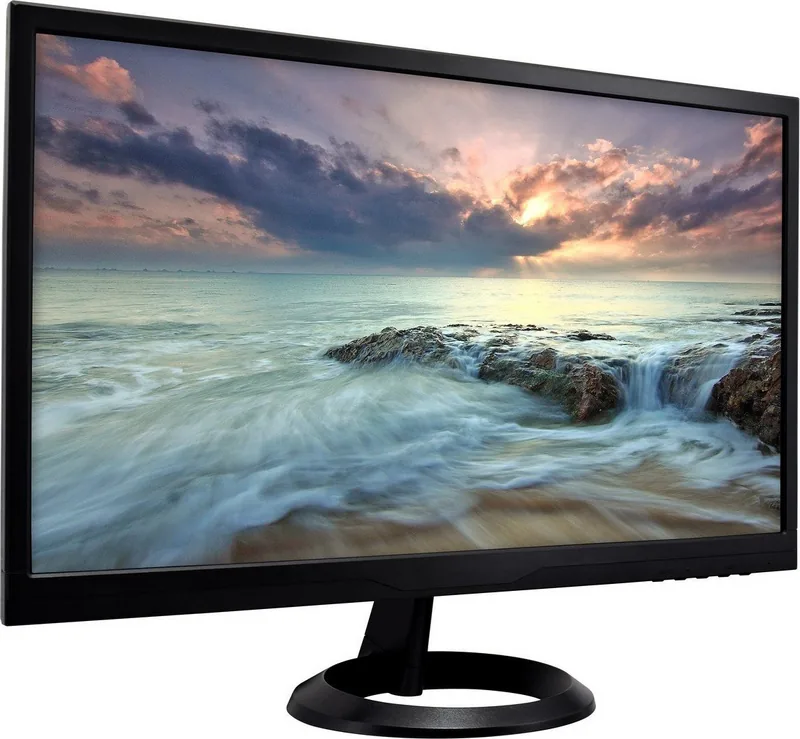
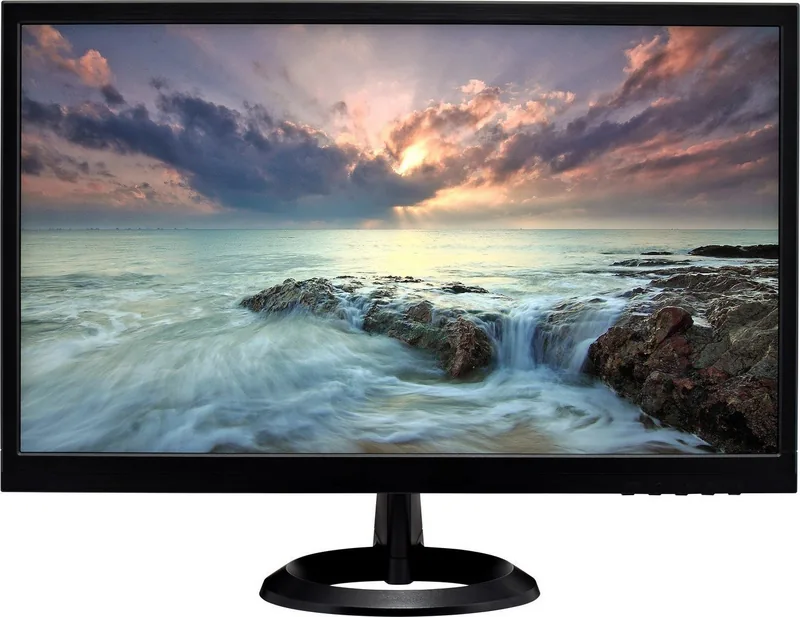
It features a 21.5-inch LED-backlit TFT panel, offering a widescreen layout that works well for general computing, reading, and media viewing.
Is this answer helpful?
The monitor supports Full HD resolution up to 1920 x 1080 with a maximum vertical frequency of 60 Hz, which is suitable for everyday desktop use.
Is this answer helpful?
The included items are the AC power cord, VGA cable, and quick start guide. The setup process is meant to be simple and fast.
Is this answer helpful?
Yes. You can control brightness, contrast, color balance, sharpness, image position, video mode, and picture presets through the on-screen display.
Is this answer helpful?
Yes. It supports VESA DPMS power management and uses less than 0.5 W in off mode, which helps keep power use low when not active.
Is this answer helpful?
Keep it in a dry, clean, well-ventilated area, away from direct sunlight, magnets, heat sources, and heavy objects. Always unplug it before cleaning.
Is this answer helpful?
Check the video cable, confirm the power connection, and adjust brightness if needed. If the issue continues, try another computer or cable to isolate the problem.
Is this answer helpful?
Advantages and Disadvantages
Advantages

- 21.5-inch Full HD LED panel delivers a sharp, practical viewing area for work and media.
- OSD shortcuts make it easy to adjust brightness, contrast, color, and image position.
- Multiple picture modes help match the display to tasks like text work, gaming, or video.
- Low-power off mode and VESA DPMS support help reduce energy use.
Disadvantages

- Connectivity is basic, so it is less suited to users needing advanced modern input options.
- Manual tuning may be needed to get the best image for different sources.
- The tilt range is helpful but limited compared with more flexible stands.
- It is built for everyday use, not for high-end color-critical or fast-action needs.
Product Specification
Function
Monitor (stationary)
Diagonal
21.5" (21.50in)
Resolution
1920x1080 (FHD), 16:9, 102ppi
Panel
TN
Backlight
LED
Brightness
200cd/m2 (typical)
Contrast
1.000:1 (static)
Response time
6ms (GtG)
Refresh rate
60Hz (1920x1080)
Signal frequency
82kHz (H) / 75Hz (V)
Connections
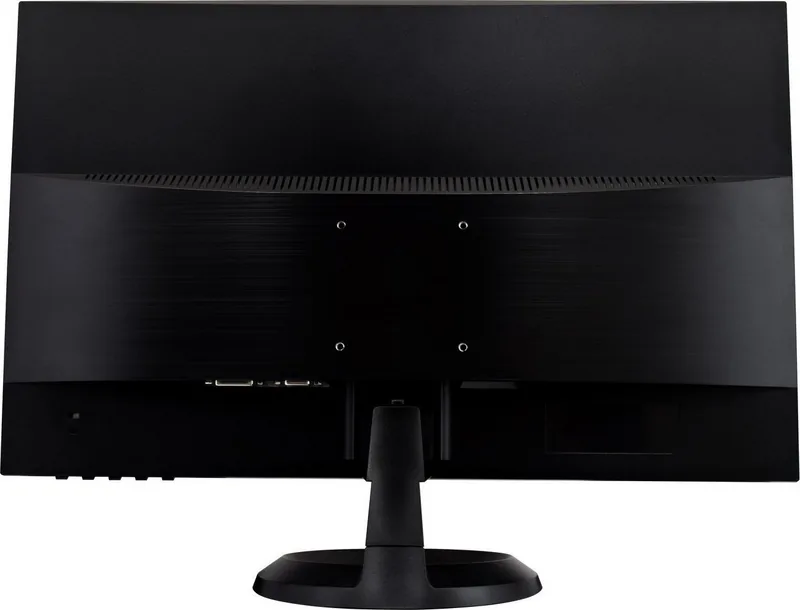
1x VGA (60Hz@1920x1080), 1x DVI, 1x AC-In C13 (Power connector)
Shape
straight (flat)
Viewing angle
90°/65°
Coating
non-glare (matte)
Color depth
8bit (16.7 million colors)
FRC
unknown
Controls
mechanical buttons
Ergonomics
with stand, height adjustable N/A, Pivot N/A, rotatable N/A, tiltable (+20°/-5°)
VESA
75x75 (free)
Power consumption
24W (typical), 0.5W (Standby)
Special features
Security lock (Kensington Security Slot)
Screen-to-Body-Ratio
Inf% (calculated)
Dimensions
19.88x12.25x1.85in (WxHxD) with stand
Color
black (display frame) / black (lower bezel) / black (stand) / black (back)
Weight
5.73lb (with stand)
Power supply
internal
Warranty
three years
USB notation
Link
Product Description
V7 L215E-2K 21.5 inch Manual: A Slim Monitor for Clear Everyday Viewing
The V7 L215E-2K 21.5 inch monitor is designed as a straightforward, practical display for users who want a clean setup and dependable image quality. Built around a 54.7 cm LED-backlit TFT panel, it delivers Full HD resolution up to 1920 x 1080 and supports 16.7 million colors, making it a solid choice for office work, web browsing, study sessions, and casual entertainment. Its widescreen format gives content more room to breathe, while the slim profile helps it fit neatly into modern desks and compact work areas.
One of the most appealing parts of the V7 L215E-2K 21.5 inch Manual is how easy it makes setup and day-to-day use. The package includes the essentials needed to get started, and the installation process is simple: attach the stand, connect the video and power cables, and power on the system. On the back, the monitor offers familiar connections and a practical control layout, so adjusting settings does not feel complicated. The on-screen display adds useful shortcuts for automatic image adjustment, contrast and brightness control, input switching, and color tuning.
For users who like to fine-tune their viewing experience, the monitor offers several image and picture options. You can adjust horizontal and vertical position, sharpness, clock settings, and video mode, then choose from presets such as Standard, Game, Video, Landscape, and Text. These modes help the display adapt to different tasks, whether you are reading long documents, watching clips, or working in a general desktop environment. The color options also make it easier to balance cool, normal, warm, or custom tones.
Beyond image controls, the monitor includes energy-conscious features and a practical safety profile. Power management is VESA DPMS compatible, and the off mode uses less than 0.5 W. The panel tilts between -3° and 18°, giving a bit of flexibility for comfortable viewing. Care instructions are simple: keep it in a dry, ventilated area, avoid direct sunlight, and never attempt internal repairs yourself. Troubleshooting guidance is also included for common issues like no power, no image, or unusual colors.
Notes
- Best suited for everyday productivity and general multimedia use.
- Offers useful manual controls without being overly complex.
- A sensible pick for users who value a tidy, reliable setup over flashy extras.
Search for 67,706 Manuals online


Type-in Brand or Model