


V7 CKW400 Manual
PDF manual · 1 Pages
English


Quick check
Incorrect answer, please try again.
Chat with your V7 CKW400 manual using AI
Get instant AI answers from your V7 CKW400 manual
Ask anything about the V7 CKW400. Answers come from this manual, with the pages they are based on.
Ask a Question
Do you recommend CKW400?
Yes NoFrequently Asked Questions
To reset the device, locate the small reset button usually found on the underside of the keyboard or mouse. Use a paperclip to press and hold the button for about five seconds until the LED indicator flashes. Re-pair the device with the USB receiver by pressing the connect button if necessary.
Is this answer helpful?
Yes, the V7 CKW400 is generally compatible with Mac computers via the USB receiver. However, some key mappings might differ slightly due to OS differences. You may need to adjust specific key functions within your system settings for optimal performance.
Is this answer helpful?
Both the keyboard and mouse typically use standard AAA batteries. Check the battery compartment on the bottom of each device to confirm the correct orientation. It is recommended to use high-quality alkaline batteries for longer lifespan and consistent performance.
Is this answer helpful?
The wireless range is suitable for typical office or home use, usually up to ten meters. Obstacles like walls or metal objects can reduce this range. For best results, keep the USB receiver close to the devices and avoid placing them near other electronic interference sources.
Is this answer helpful?
No, the V7 CKW400 model does not feature built-in backlighting. It relies on ambient light for visibility. If you work in low-light conditions, consider using an external monitor light or desk lamp to enhance visibility while typing.
Is this answer helpful?
Battery replacement frequency depends on usage patterns. With moderate daily use, batteries might last several months. If you notice lagging response times or dim indicators, it is time to replace them. Using rechargeable batteries can help reduce long-term costs.
Is this answer helpful?
Advantages and Disadvantages
Advantages

- Ergonomic design reduces hand and wrist strain during extended use
- Wireless connectivity eliminates cable clutter and increases mobility
- Plug-and-play USB setup requires no additional drivers or software
- UK layout supports local typing standards effectively
- Cost-effective solution offering good value for money
Disadvantages

- Battery life may vary depending on usage intensity and frequency
- Limited customization options for key functions compared to premium models
- Wireless range might be restricted in environments with heavy interference
- No dedicated media keys for advanced multimedia control
- Mouse lacks adjustable DPI settings for different precision needs
Product Specification
Package contents
Mouse, keyboard, numpad
Layout
UK
Connection
Wireless (2.40GHz)
Sensor (mouse)
LED-red/IR 1600dpi, reducible to 1200/800dpi
Features
Numpad
Product Description
Experience Comfort with the V7 CKW400 Ergonomic Wireless Keyboard and Mouse Combo
In today's fast-paced digital world, maintaining comfort during long hours of typing and navigation is essential for productivity. The V7 CKW400 Ergonomic Wireless Keyboard and Mouse Combo offers a seamless solution designed to reduce strain while delivering reliable performance. This UK layout device set connects effortlessly via USB, ensuring compatibility with a wide range of computers without the need for complex drivers or software installations.
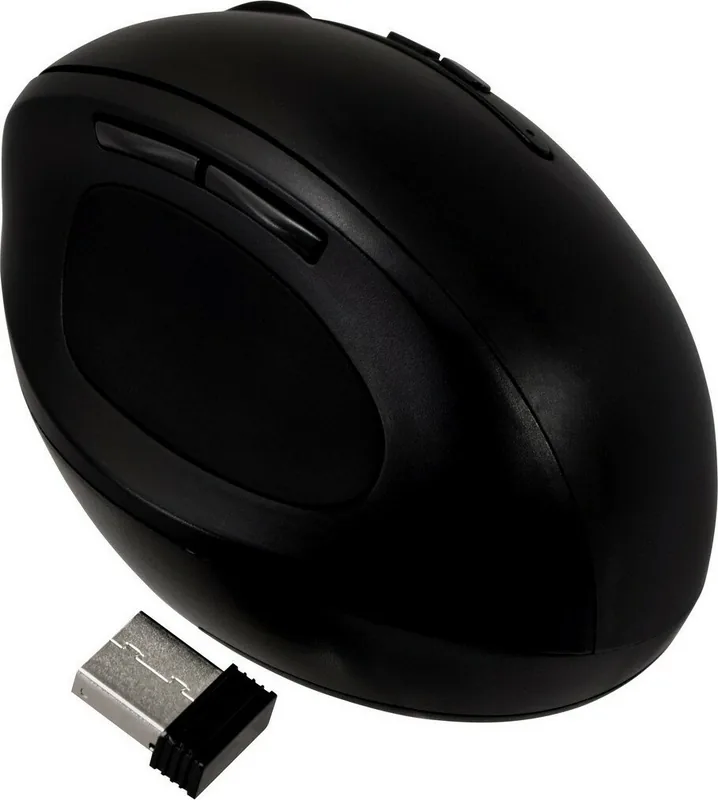
The ergonomic design of the keyboard features a gentle curve that aligns naturally with your hands, promoting a neutral wrist position to minimize fatigue. Combined with the wireless mouse, this combo provides a clutter-free workspace by eliminating tangled wires. The wireless technology allows you to move freely around your desk, enhancing mobility and flexibility. Whether you are working on documents, browsing the web, or managing emails, the responsive keys and smooth cursor control ensure an efficient workflow.
Setting up the V7 CKW400 is straightforward and user-friendly. Simply plug the USB receiver into your computer, and the devices will connect automatically. The included quick installation guide helps you get started immediately, covering reset procedures and basic connectivity checks in multiple languages. This ease of use makes it an ideal choice for both home offices and professional environments where time-saving setup is crucial.
While the V7 CKW400 focuses on functionality and comfort, it also brings a modern aesthetic to your desk setup. The sleek design complements various interior styles, making it a practical addition to any workstation. Users appreciate the balance between affordability and quality, as the device maintains consistent performance over extended periods. By prioritizing user ergonomics and wireless convenience, this product stands out as a smart investment for anyone seeking to improve their daily computing experience.
Important Notes
- Ensure the USB receiver is securely connected for optimal signal strength.
- Keep the devices away from direct sunlight to prevent overheating.
- Regularly clean the keys and mouse surface to maintain hygiene and performance.
Search for 67,706 Manuals online


Type-in Brand or Model