

UGEE M708 Manual
PDF manual · 41 Pages
English



Quick check
Incorrect answer, please try again.
Chat with your UGEE M708 manual using AI
Get instant AI answers from your UGEE M708 manual
Ask anything about the UGEE M708. Answers come from this manual, with the pages they are based on.
Ask a Question
Do you recommend M708?
Yes No
Sabrina König
10 months ago
Will a polarizing filter really improve my drone footage, or is it mainly just for protecting the lens?

Manual.ly
10 months ago
A polarizing (CPL) filter can improve image quality when there is glare or reflections, for example on water, glass, or glossy surfaces. It helps reduce reflected light and can increase contrast and color saturation, especially in bright daylight. However, the effect is not always dramatic: if the scene has little glare, you shoot from angles where reflections are minimal, or the lighting is flat, you may not notice large differences in video. In all cases, it still acts as a practical front-lens protection against dust and minor impacts, and it is typically easy to attach.
Video Manual
Ugee M708 Drawing Tablet How To Use The Pen & Tablet Settings
Frequently Asked Questions
If the cursor tracks your pen movement on the screen like a mouse, the tablet is functioning. If not, check the pen battery, ensure the driver is installed, and confirm the driver icon appears in the system tray or menu bar.
Is this answer helpful?
Open tablet settings and test pressure under the Pressure Sensitivity tab. If the tablet registers pressure there, the issue may be with your drawing software—try running it as Administrator or updating it. If pressure isn't detected in the driver, reinstall the tablet driver after removing leftover files.
Is this answer helpful?
Remove other tablet drivers or hidden device entries first, close unnecessary programs, disable antivirus, and run the installer as Administrator. Connect the tablet after installation. For Mac, delete related folders in Application Support/System Library if needed and restart after reinstalling.
Is this answer helpful?
Avoid liquids, extreme temperatures, heavy objects, and unstable surfaces. Do not disassemble the tablet or use alcohol-based cleaners. Keep small parts away from children and store the pen in its holder when not in use.
Is this answer helpful?
If the icon is missing, unplug and replug the USB, restart your computer, and, if necessary, reinstall the driver after removing any files from the initial attempt. Ensure installation was run with Administrator privileges.
Is this answer helpful?
Use the Scope or Monitor Settings in the tablet driver to resize and position the work area, choose full area or screen ratio to avoid distortion, and map the tablet to one or multiple monitors or specific screens.
Is this answer helpful?
Run your drawing software as Administrator, update it, close other programs, unplug external mice, and confirm no other tablet drivers are present. If issues persist, contact the software support or UGEE support for compatibility assistance.
Is this answer helpful?
Advantages and Disadvantages
Advantages

- Affordable tablet with pressure-sensitive pen suitable for beginners and hobbyists.
- Customizable express keys and pen buttons for improved workflow efficiency.
- Driver includes pressure test, work-area mapping, and multi-monitor support.
- Lightweight and portable with a comfortable active drawing area.
- Clear installation and uninstall instructions for Windows and macOS.
Disadvantages

- Pen requires a AAA battery which is not included and needs periodic replacement.
- May conflict with other tablet drivers—manual removal of hidden files can be required.
- Limited advanced features compared to high-end display tablets (no screen).
- Sensitive to extreme temperatures and liquids; requires careful handling and storage.
- Some software-specific pressure issues may require additional troubleshooting.
Product Specification
Type
Graphics tablet
Active area
10x5.98in
Pen
wireless, tip, eraser function, 2 buttons
Resolution
5080lpi
Sensitivity levels
2048
Max. pen distance
0.39in
Display
N/A
Signal input
N/A
Brightness
N/A
Contrast
N/A
Buttons
8x buttons
CPU
N/A
RAM
N/A
Storage
N/A
Graphics
N/A
Host interface
USB 2.0
Webcam
N/A
Operating system
N/A
Power consumption
0.5W
Dimensions
14.17x8.27x0.28in
Weight
0.67lb
Scope of delivery
USB cable, battery, 8x replacement tips, pen, main unit
Product Description
UGEE M708 Manual — UGEE M708
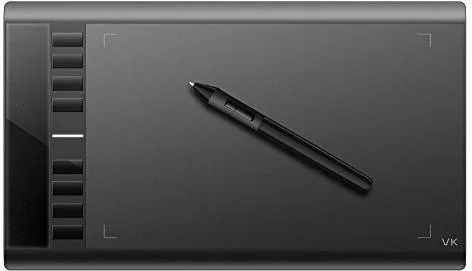
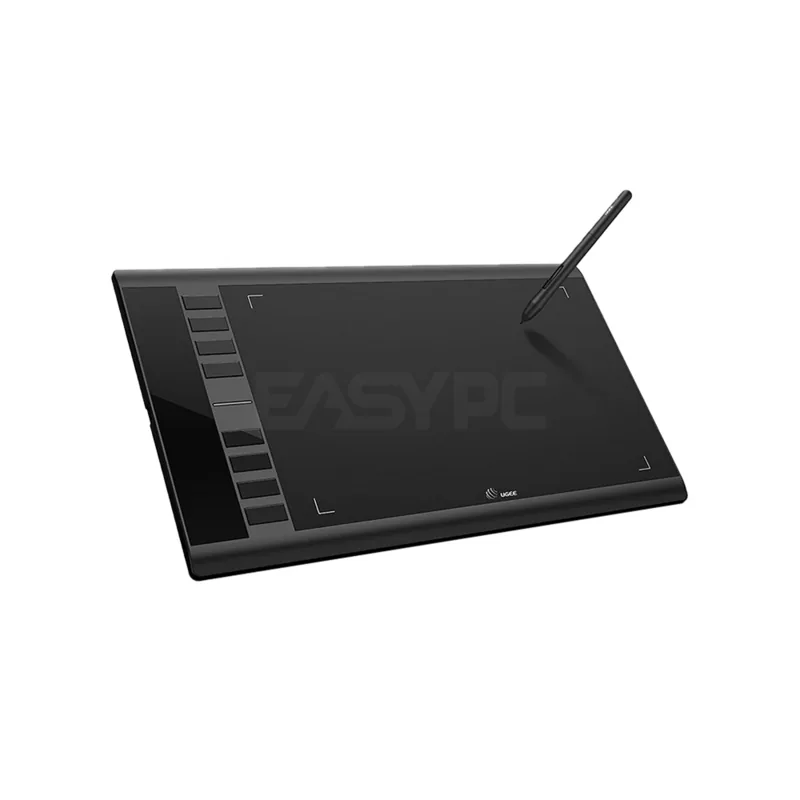
The UGEE M708 is a compact, affordable graphics tablet designed for digital artists, illustrators, and hobbyists who want a reliable, pressure-sensitive input device without a steep learning curve. Lightweight and intuitive, the M708 offers essential functionality: a responsive pen with pressure sensitivity, customizable express keys, and a sizeable active area for comfortable drawing and navigation. It’s geared toward users who need a dependable tablet for sketching, photo editing, and general creative workflows on Windows and macOS.
Setting up the M708 is straightforward: install the dedicated driver, map the tablet area to single or multiple monitors, and configure pen buttons and express keys to match your preferred shortcuts. The driver includes a pressure sensitivity test, work-area customization, and options to tweak double-click speed and eraser functions. The battery-powered pen (model P51 requires one AAA battery) supports left-click, double-click, drag, and scrolling gestures, and features replaceable nibs stored in the pen holder.
Safety and care are emphasized: avoid extreme temperatures and liquids, do not disassemble the device, and keep small parts away from children. Cleaning should avoid alcohol and harsh solvents, and the tablet should not be placed on unstable surfaces or have heavy objects placed on it. The manual highlights proper handling of the pen—avoid hitting it against hard objects and keep it free from dust and grime to preserve precision.
For optimal performance, the manual recommends removing conflicting tablet drivers, disabling unnecessary programs and antivirus during installation, and installing drivers with administrator privileges. After installing, the driver should appear as an icon in the system tray; if not, reconnect the USB or reinstall the driver. Uninstall routines are provided for both Windows and macOS, and guidance is given for dealing with hidden or leftover files.
The tablet settings let you map the working area to one or two monitors, reserve edges, set screen ratio to avoid distortion, and reposition the tablet orientation for left- or right-handed use. Pressure sensitivity can be calibrated using a built-in test area; adjusting sensitivity changes how much force is needed to register strokes. Express keys and pen button mappings can be personalized for quick access to common commands and workflows.
Overall, the UGEE M708 is aimed at users seeking a cost-effective, configurable tablet with the core features needed for digital art and editing. It balances portability with functional controls and offers clear driver-based customization to fit varied setups.
Notes
- The pen requires 1x AAA battery (not included); remove battery for long storage.
- Keep pen in its holder when not in use to avoid loss or damage.
- Visit UGEE support for drivers and updated FAQs: www.ugee.eu/support
Search for 67,706 Manuals online


Type-in Brand or Model
Lukas König
8 months ago
Will this accessory last and actually improve performance, or will it fail after a few weeks?
Manual.ly
8 months ago
Based on user feedback, performance depends on the use case. For a polarizing filter, glare is reduced mainly in specific lighting and camera angles, so some recordings may show only small differences, although it still acts as solid lens protection. For a stylus, reliability matters: if the tip stops registering pressure or input, do a quick check for physical damage and secure the tip properly, then contact support with your order details. If it fails within the warranty period, we will help arrange a replacement or resolution. Please avoid heavy pressure or impacts, and keep the accessory clean to prevent early wear.