
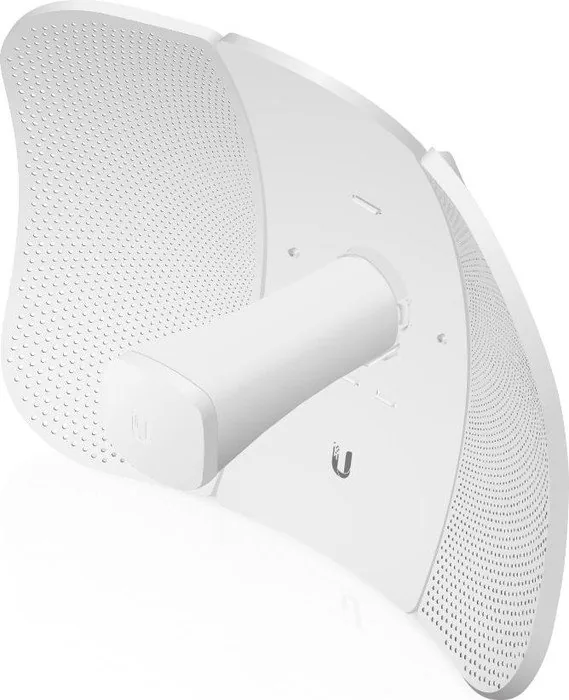
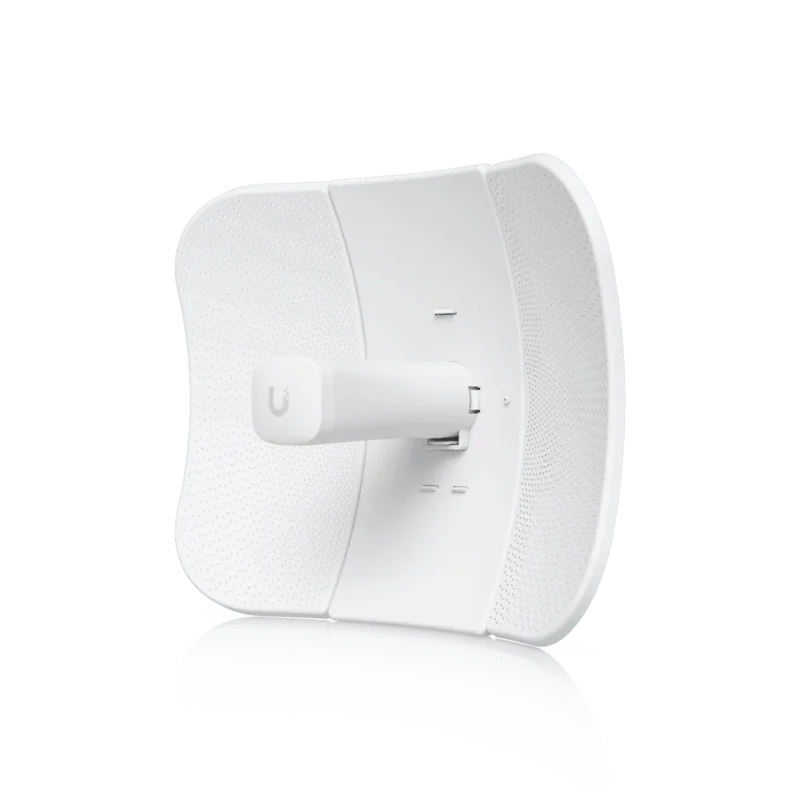
Ubiquiti LiteBeam 5AC Gen2 LBE-5AC-Gen2 Manual
PDF manual · 28 Pages
English



Quick check
Incorrect answer, please try again.
Chat with your Ubiquiti LiteBeam 5AC Gen2 LBE-5AC-Gen2 manual using AI
Get instant AI answers from your Ubiquiti LiteBeam 5AC Gen2 LBE-5AC-Gen2 manual
Ask anything about the Ubiquiti LiteBeam 5AC Gen2 LBE-5AC-Gen2. Answers come from this manual, with the pages they are based on.
Ask a Question
Do you recommend LiteBeam 5AC Gen2 LBE-5AC-Gen2?
Yes NoFrequently Asked Questions
It is mainly used for outdoor wireless bridging and directional networking over longer distances. The focused antenna design helps connect buildings, remote structures, or other sites where stable point-to-point performance matters more than broad coverage.
Is this answer helpful?
Yes. The package includes a 24V Gigabit PoE adapter, which supplies power and network connectivity through the Ethernet cable. This makes installation easier in outdoor settings where a separate power source may not be nearby.
Is this answer helpful?
You can access the device through the U Mobile app or a web browser shortly after powering it on. Connect to its temporary Wi-Fi SSID, then log in to airOS and adjust country, language, and network settings as needed.
Is this answer helpful?
It is designed for outdoor use and can handle tough conditions, including a wide temperature range and strong wind. However, it should not be submerged in water, and it should be installed with proper grounding and cable protection.
Is this answer helpful?
Use shielded Category 5 or better Ethernet cable, especially for outdoor installations. Grounding the cable is important for safety, warranty compliance, and protection against electrical noise or ESD events.
Is this answer helpful?
Yes. You can reset it to factory defaults by holding the Reset button for more than 10 seconds while the device is powered on. In some cases, a remote reset is also possible through the PoE adapter.
Is this answer helpful?
Advantages and Disadvantages
Advantages

- 23 dBi directional design helps deliver strong long-range outdoor links with focused signal coverage.
- Includes Gigabit Ethernet and passive PoE, keeping the installation simple and cable runs efficient.
- airOS setup is available through a mobile app or web browser for quick initial configuration.
- Built for harsh environments with wide temperature tolerance and strong wind survivability.
Disadvantages

- Requires professional installation and careful alignment, so it is less plug-and-play than indoor gear.
- Needs shielded cabling and grounding to meet warranty and safety expectations.
- Wi-Fi setup access is temporary after power-up, which can slow down commissioning.
- Must follow local frequency and DFS regulations, adding compliance complexity for some deployments.
Product Specification
LAN
1x 1000Base-T (PoE PD)
Wireless
5GHz (airMAX ac)
Transmission Rate
450Mbps (5GHz)
Antennas
1x external
Connections
WLAN Management Access
Power Consumption
7W (consumption, operation), no data (max. power supply output)
Dimensions
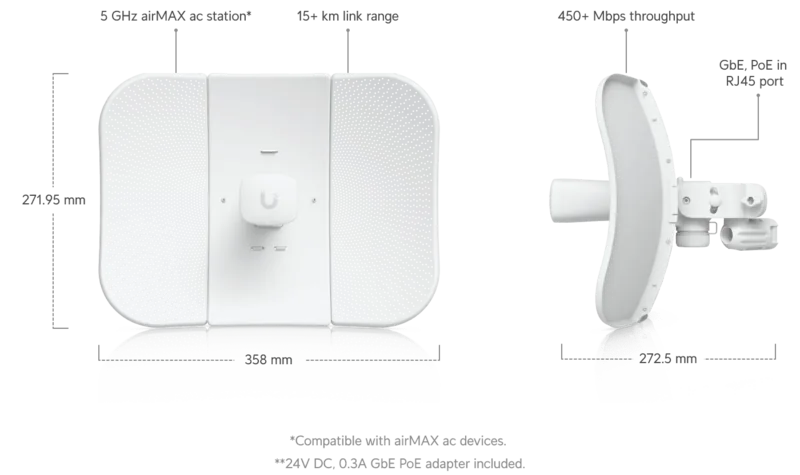
14.25x10.75x7.99in
Special Features
Outdoor
Band Capability
Single Band
Product Description
Ubiquiti LiteBeam ac Gen2 5 GHz: Compact Outdoor Wireless with Long-Range Focus
For anyone looking into the Ubiquiti LiteBeam ac Gen2 5 GHz Manual, the product stands out as a practical choice for building reliable outdoor wireless links. It is designed around a 5 GHz airMAX ac radio with InnerFeed technology, combining a directional antenna approach with a streamlined form factor that suits point-to-point and point-to-multipoint use cases.
Built for outdoor performance
The LiteBeam ac Gen2 is aimed at users who need stable connectivity over distance rather than wide-area blanket coverage. With a 23 dBi antenna gain and a directional reflector design, it helps concentrate signal energy where it is needed most. That makes it well suited for connecting buildings, extending network reach across open spaces, or creating a wireless bridge between remote locations.
Its outdoor-ready build is another major advantage. The unit is made for pole mounting and includes the hardware needed for assembly, aiming, and power delivery. A Gigabit Ethernet port with passive PoE support simplifies cabling, while the included 24V PoE adapter adds convenience for deployment. The device also supports airOS setup through a mobile app or web browser, making initial configuration more accessible for installers.
Installation and setup experience
A large part of the appeal is how methodical the installation process feels. The reflector panels, feed receiver, and antenna feed are assembled in a structured way, and the mount system allows for elevation and azimuth adjustments so the link can be aligned precisely. For best results, shielded Category 5 or better cable and proper grounding are strongly recommended, especially in outdoor environments where ESD and weather exposure matter.
The LiteBeam ac Gen2 also offers a practical balance of power and efficiency. It runs on low power consumption, supports a wide operating temperature range, and is built to withstand harsh wind conditions. In real-world use, that makes it attractive for farms, remote offices, hospitality sites, and other installations where cable runs are difficult or expensive.
Why it matters
The biggest value here is focus: the LiteBeam ac Gen2 is not trying to do everything, but what it does, it does well. It provides a compact, affordable path to long-range wireless connectivity with a clear emphasis on outdoor reliability, guided setup, and solid performance.
Notes
- Professional installation is recommended.
- Use shielded Ethernet cabling and proper earth grounding.
- Check local wireless regulations, output power limits, and DFS rules before deployment.
Search for 67,706 Manuals online


Type-in Brand or Model
cstamm80
9 months ago
Is there a way to turn off or dim the very bright blue LEDs on the device? It is distracting at night.
Manual.ly
9 months ago
Yes. The LEDs can usually be controlled in the device settings. Log into the web interface/app of the unit and look for an option like "LEDs", "Status LED" or "Lighting". From there you can switch the blue LED off or select a lower brightness / night mode (wording can vary by firmware). After changing the setting, save and reboot if the interface asks to apply updates. If you do not see any LED option in your menu, tell us your exact device model and firmware version and we can confirm whether LED control is supported on your hardware or if there is an alternative (for example, a later firmware update).