
Trust GXT 900 Kudos Manual
PDF manual · 78 Pages
English



Quick check
Incorrect answer, please try again.
Chat with your Trust GXT 900 Kudos manual using AI
Get instant AI answers from your Trust GXT 900 Kudos manual
Ask anything about the Trust GXT 900 Kudos. Answers come from this manual, with the pages they are based on.
Ask a Question
Do you recommend GXT 900 Kudos?
Yes NoFrequently Asked Questions
Open your internet browser and go to the Trust driver support page. Click the Download EXE button to save the file. Run the installer executable and follow the wizard prompts. Once finished, you can access the mouse configuration tool from your desktop shortcut.
Is this answer helpful?
Yes, navigate to the DPI Setting tab in the software. Use the checkbox to enable or disable specific DPI levels. Drag the bar to change the level and select an LED color for each setting before clicking Apply to update.
Is this answer helpful?
Yes, the Trust GXT 900 features a lighting tab to change the light mode. You can modify the animation speed and direction. Each DPI level can also be customized with a specific LED color.
Is this answer helpful?
There are three distinct profiles available by default. You can select, save, or load one of these profiles. You can also create a new profile by clicking the plus icon.
Is this answer helpful?
Yes, click the Polling Rate tab in the software. You can change the Polling rate by clicking on the respective frequency option available in the menu.
Is this answer helpful?
Double check that the TRUST GXT 900 mouse is connected to your computer. Try starting the software again. If the problem persists, check the help desk website for further assistance regarding driver issues.
Is this answer helpful?
Yes, click the Macro Editor button to create a new macro. Set the delay time and click Start record. Enter your sequence and click Stop record with a maximum of 168 actions before saving.
Is this answer helpful?
Advantages and Disadvantages
Advantages

- Sevens programmable buttons allow for extensive customization of key functions.
- Customizable RGB lighting with specific colors for different DPI settings.
- Supports up to 168 actions per macro for complex command recording.
- Three distinct user profiles enable quick switching between gaming scenarios.
- Adjustable Polling Rate and Mouse Parameters for precise performance tuning.
Disadvantages

- Requires proprietary software installation and setup wizard.
- Mouse updates can take up to 20 seconds depending on the system.
- At least one button must remain assigned as Left Click function.
- Wired USB connection limits placement freedom compared to wireless options.
- Software troubleshooting required if the driver fails to start properly.
Product Specification
Handedness
Right Hand
Buttons
7 (total), 2 (main), 2 (top), 2 (side), 1 (scroll wheel click)
Scroll Wheel
1x 2-Way
Tracking
LED-Red/IR
Resolution
15000dpi, adjustable down to 100dpi
Sensor
PixArt PMW 3360
Polling Rate
1000Hz, adjustable to 500/250/125Hz (wired USB)
Lighting
RGB
Connection
Wired (5.91 ft), USB
Power Supply
USB
Dimensions (WxHxD)
2.64 x 1.69 x 5.12 in
Approximate Volume
5.98 cu in (approximate shape)
Weight
3.70 oz
Color
Black
Features
Onboard memory, braided cable
Product Description
Elevate Your Gaming with the Trust Gaming GXT 900 Kudos RGB Gaming Mouse
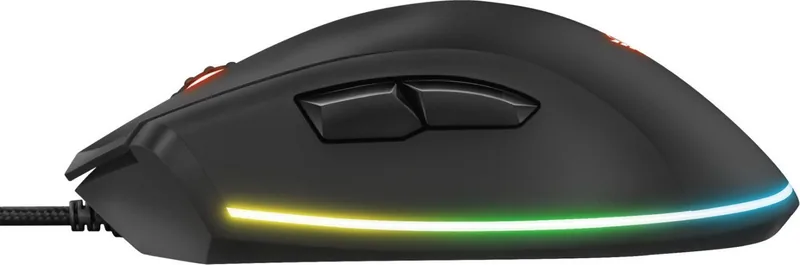
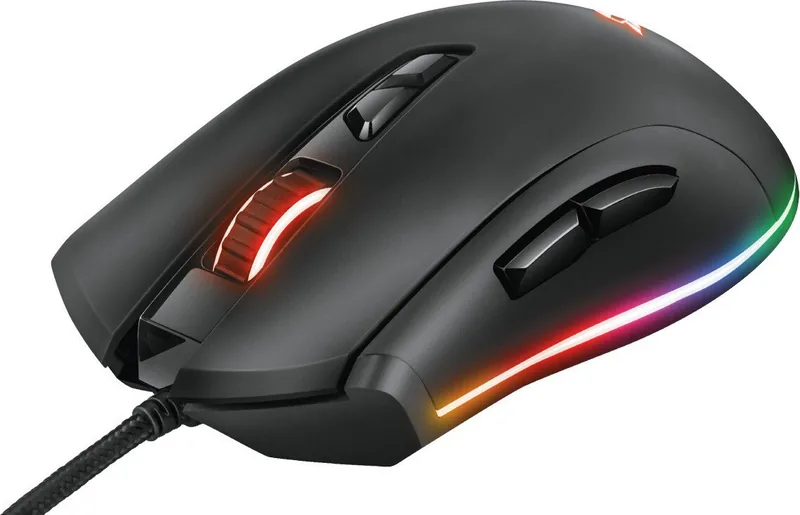
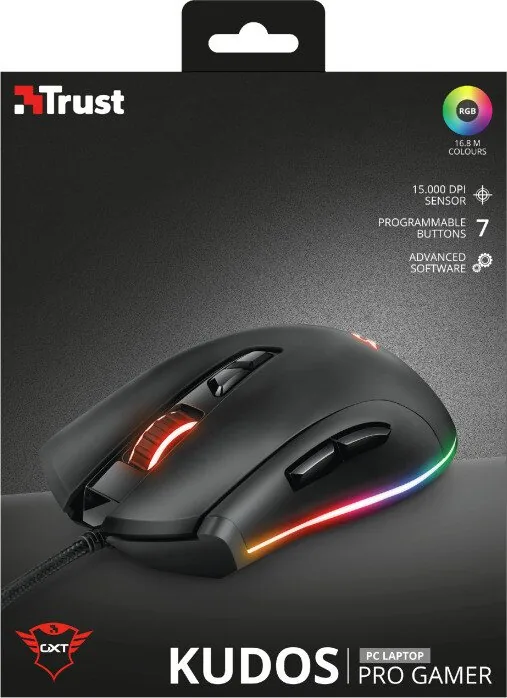
Start your next gaming session with precision and style using the Trust Gaming GXT 900 Kudos RGB Gaming Mouse. This sleek black mouse is designed to elevate your gameplay with customizable lighting and advanced button programming. Connecting via USB, it ensures a reliable wired connection for minimal latency during intense matches. The seven-button layout allows for extensive customization, giving you control over every aspect of your interaction with your system.
One standout feature is the RGB lighting system built directly into the device. You can choose specific colors for each DPI setting, adding a visual flair to your desk setup that matches your personality. The lighting tab within the software lets you adjust modes, speed, and direction of the animation effects. Whether you prefer a static glowing aesthetic or a dynamic wave effect, you control the look entirely through the configuration tool provided.
Performance adjustments are equally important for competitive gamers seeking an edge. The software supports multiple DPI levels to suit different tasks. You can enable or disable specific levels and view them as different colors on the mouse for immediate visual feedback. Changing the DPI level is done via a simple drag bar within the application, allowing quick adjustments. This ensures you always have the sensitivity you need for fast movements or precise aiming without interrupting your flow.
Furthermore, the Trust GXT 900 supports robust macro creation functionality. You can record sequences of up to 168 actions within the software. This is perfect for repetitive tasks or complex gaming combos that require speed. The macro editor requires starting a record, performing your actions, and stopping the record before saving. Saved macros are available under the Macro function and can be assigned to any button instantly.
Profile management is another key aspect of the user experience. There are three distinct profiles available for different games or scenarios. You can save your current setup or load a previous one easily. The software also allows exporting and importing profiles, making it easy to share settings with friends or create backups. You can change Windows acceleration, pointer speed, scroll speed, and double-click speed to match your comfort. You can also adjust the Polling Rate by clicking the respective frequency tab. Finally, if you encounter issues during setup, ensure the mouse is connected properly and try restarting the software. Updating the mouse takes about twenty seconds. Experience gaming excellence with this feature-rich device today.
Installation is straightforward for most users. You simply visit the support website and download the necessary driver files. Following the installation wizard guides you through the process. Once launched, the software interface allows you to connect and begin reassigning functions. You must assign at least one Mouse Button as Left Click to ensure functionality. The system updates the mouse firmware when you click Apply. This process keeps your settings synchronized perfectly.
Search for 67,732 Manuals online


Type-in Brand or Model