

Trust GXT 165 Celox Manual
PDF manual · 78 Pages
English



Quick check
Incorrect answer, please try again.
Chat with your Trust GXT 165 Celox manual using AI
Get instant AI answers from your Trust GXT 165 Celox manual
Ask anything about the Trust GXT 165 Celox. Answers come from this manual, with the pages they are based on.
Ask a Question
Do you recommend GXT 165 Celox?
Yes NoFrequently Asked Questions
You can remap buttons, adjust DPI levels, change polling rate, tune pointer behavior, set lighting effects, create macros, and save profiles. The software gives the mouse most of its flexibility.
Is this answer helpful?
The mouse includes eight configurable buttons. Their default roles cover left/right click, middle click, navigation, DPI control, and triple-fire, but most of them can be reassigned through the software.
Is this answer helpful?
Yes. The macro editor lets you record a sequence of actions, set delays between steps, and use repeat or loop behavior. Each macro can contain up to 32 actions.
Is this answer helpful?
There are three profiles available. You can select, save, export, import, and load them to keep different setups for different games or tasks.
Is this answer helpful?
Use the RESTORE option to reset the current profile to default settings. If needed, you can also reset all profiles back to factory defaults with the confirmation option.
Is this answer helpful?
Basic mouse use works normally, but the software is needed for advanced features like button remapping, DPI tuning, macros, lighting changes, and profile management.
Is this answer helpful?
Advantages and Disadvantages
Advantages

- Eight programmable buttons make the mouse adaptable for gaming, browsing, and everyday shortcuts.
- DPI levels can be adjusted for precise aiming or faster cursor movement.
- Lighting, animation speed, and wave direction can be personalized.
- Macros and three saved profiles help users switch setups quickly.
Disadvantages

- Full customization requires installing the companion software.
- Applying changes may take up to 20 seconds, which can slow adjustments.
- At least one button must remain assigned to left click.
- Macro recording is limited to 32 actions.
Product Specification
Handedness
right hand
Buttons
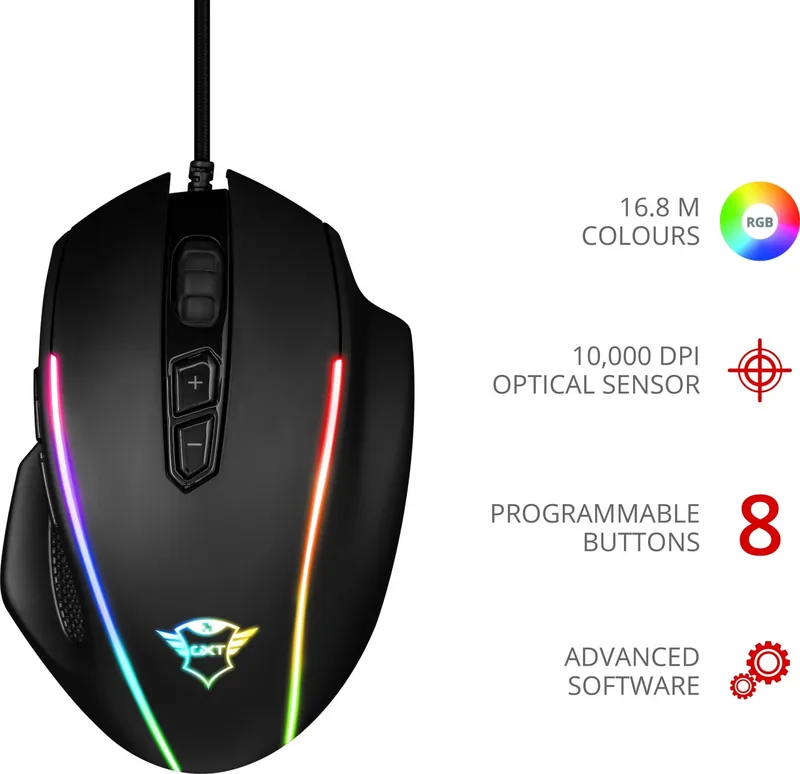
8 (total), 2 (main), 2 (top), 3 (left), 1 (scroll wheel click)
Scroll wheel
1x 2-way
Tracking
LED-red/IR
Resolution
10000dpi, reducible to 200dpi
Sensor
PixArt PMW 3325
Polling Rate
1000Hz, adjustable to 500/250/125Hz (wired USB)
Lighting
RGB
Connection
wired (70.87 in), USB
Power supply
USB
Dimensions (WxHxD)
3.27x1.69x5.00in
Approximate Volume
7.26in^3 (approximate shape)
Weight
0.35 lb
Special features
Thumb rest, Weight magazine, Onboard memory
Product Description
Trust Gaming GXT 165 Celox Gaming Mouse, USB Manual: A Customizable Tool for Fast Play
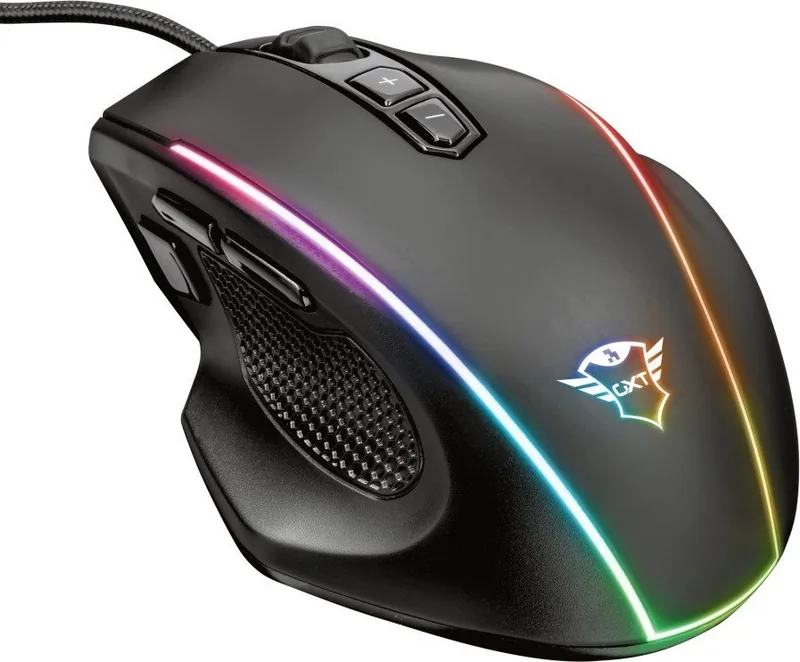
The Trust Gaming GXT 165 Celox Gaming Mouse, USB is designed for players who want responsive control and a setup that can be shaped to match their habits. It combines a practical eight-button layout with software-driven customization, so the mouse can adapt to fast-paced games, routine desktop work, or a mixed-use setup. Right away, the default controls cover the essentials: left and right click, middle click, forward and backward navigation, DPI up and down, and a dedicated triple-fire function for quick action.
What makes this mouse interesting is how much control the software adds. Buttons can be reassigned, DPI steps can be enabled or disabled, and sensitivity can be fine-tuned by dragging the level bars. The polling rate can also be adjusted, giving users another way to balance speed and stability. For many gamers, these options matter just as much as the hardware itself, because they let the mouse feel more personal and more precise.
The lighting system adds a visual layer without being purely decorative. Users can switch lighting modes, change animation speed, and even adjust wave direction. It is a small detail, but it helps the mouse fit into a themed gaming desk or a more understated work space. The companion software also includes pointer behavior settings such as acceleration, scroll speed, and double-click speed, which makes the device useful beyond gaming alone.
Macros and profiles round out the experience. The macro editor can record sequences of up to 32 actions, making repetitive tasks easier to manage. At the same time, the mouse supports three profiles, so different control setups can be saved and loaded quickly. If a custom setup goes too far, the restore option makes it easy to return to factory settings. For anyone looking at the Trust Gaming GXT 165 Celox Gaming Mouse, USB Manual as a guide to customization, the main takeaway is simple: this mouse is built to be tuned, saved, and reused in a way that fits the user.
Notes
- Full customization depends on installing the software first.
- Changes are applied through the software and may take a few seconds.
- At least one button must stay assigned to left click.
- Macro recording is limited, so plan complex actions carefully.
Search for 67,732 Manuals online


Type-in Brand or Model
Maxie Larkin
9 months ago
Do the included weights stay securely in the mouse for FPS gaming, or do they rattle and come loose?
Manual.ly
9 months ago
The weights should be seated firmly and not move during normal mouse use. If you notice they are loose or rattle (especially when you quickly move or “flick” the mouse), please stop using the mouse for competitive play and check that the weight compartment cover is fully closed and all parts are installed correctly. If the weights still do not stay fixed, it is not expected behavior. Contact the retailer or our support for a replacement or return under the warranty so you get a properly working unit.