
Trust GXT 121 Zeebo Manual
PDF manual · 37 Pages
English



Quick check
Incorrect answer, please try again.
Chat with your Trust GXT 121 Zeebo manual using AI
Get instant AI answers from your Trust GXT 121 Zeebo manual
Ask anything about the Trust GXT 121 Zeebo. Answers come from this manual, with the pages they are based on.
Ask a Question
Do you recommend GXT 121 Zeebo?
Yes NoFrequently Asked Questions
Download the configuration software from Trust’s support page at www.trust.com/23091/driver. Choose your operating system and click the 'Download EXE' button, then run the 23091_XX.exe installer and launch GXT 121.exe.
Is this answer helpful?
Open the software and go to 'Base Setting', click the button you want to reassign, choose the desired function, then click 'Apply' to update the mouse. At least one button must remain assigned as the Left Button.
Is this answer helpful?
You can assign up to four DPI stages with speeds adjustable between 1200 and 3200 DPI. LED colors are linked to the DPI bar so each selected DPI stage corresponds to an LED color; configure these in 'LED Setting' and click 'Apply'.
Is this answer helpful?
Yes. In the Macro section create a new macro, click 'Record' to capture up to 108 key entries, stop and save. Then assign it via 'Basic Setting' → choose button → 'Macro' → select macro → 'Apply'.
Is this answer helpful?
No. The GXT 121 has no onboard memory, so all settings are stored in the software on the host PC and will be lost when connecting the mouse to another device.
Is this answer helpful?
Open the software and click 'Reset'. This immediately restores factory settings; note this action cannot be undone and will delete all macros from the software.
Is this answer helpful?
Ensure the GXT 121 is connected, then retry launching the software. If it still fails, reinstall the downloaded EXE from www.trust.com/23091/driver or contact Trust support at www.trust.com/23091/faq for assistance.
Is this answer helpful?
Advantages and Disadvantages
Advantages

- Seven programmable buttons for remapping and macros
- Adjustable DPI up to 3200 with LED-linked indicators
- Macro recording (up to 108 entries) and button assignment
- Simple software interface for profiles, lighting and advanced settings
- Affordable wired USB connection with plug-and-play convenience
Disadvantages

- No onboard memory—settings lost when switching PCs
- Macros cannot be saved/loaded with profile export/import
- DPI range limited compared to higher-end gaming mice
- Requires Windows EXE software; limited standalone functionality
- Software updates may take ~10 seconds to apply, interrupting workflow
Product Specification
Hand Orientation
right hand
Buttons
7 (total), 2 (main), 2 (top), 2 (left), 1 (scroll wheel click)
Scroll Wheel
1x 2-way
Sensor Type
LED-red/IR
Resolution
3200dpi, reducible to 1200dpi
Polling Rate
125Hz (wired USB)
Lighting
red, blue, violet, pink
Connection
wired (70.87 in), USB
Power Supply
USB
Dimensions (WxHxD)
2.64x1.57x5.00 in
Approximate Volume
5.43 in^3 (approximate shape)
Weight
0.26 lb
Color
multicolor, black/red
Special Features
thumb rest
Product Description
Trust Gaming GXT 121 Zeebo Gaming Mouse, USB Manual
Overview
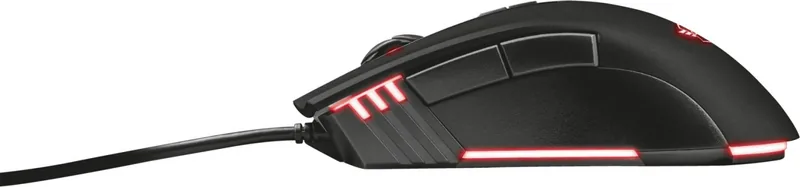
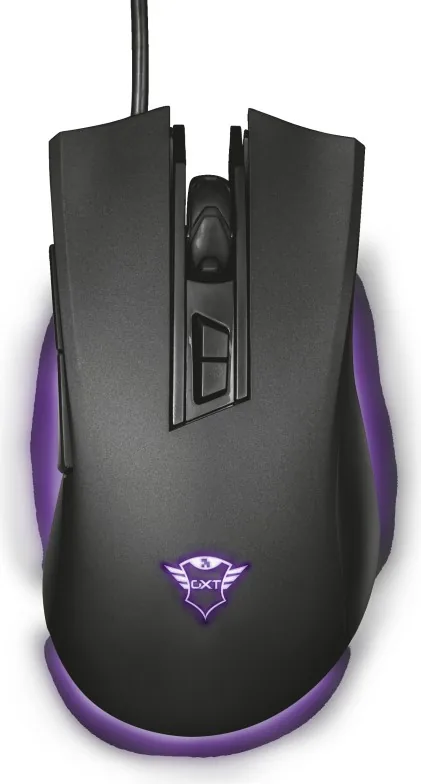
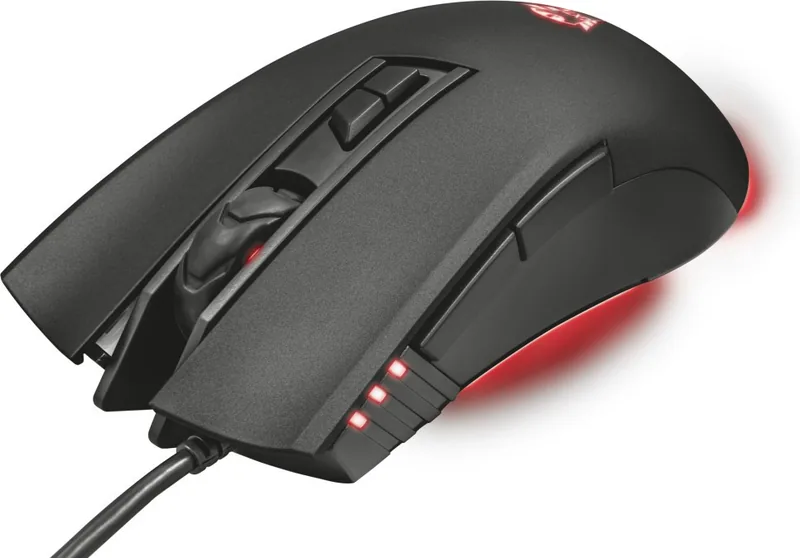
The Trust Gaming GXT 121 Zeebo is an affordable wired USB gaming mouse designed for straightforward customization and dependable day-to-day performance. It features seven programmable buttons, adjustable DPI settings up to 3200, LED indicators tied to DPI levels, and software-driven profile, macro, and lighting controls. The mouse connects via USB and relies on PC software for advanced configuration, making it a practical choice for casual gamers who want button remapping, macros and lighting without a steep learning curve.
Key Features and Usage
The default button layout covers left, middle and right click, forward/back navigation and DPI up/down functions. Using the GXT 121 software (downloadable from www.trust.com/23091/driver), you can reassign buttons through the Base Setting interface, but at least one button must remain as the left click. DPI can be set across up to four stages (1200–3200), with LED colors reflecting the active DPI stage. The scroll wheel can be set to standard scroll or volume control.
Advanced settings let you tune Windows mouse speed, scroll speed, and a fire-speed option. The software supports creating macros (up to 108 key entries), recording, editing delays or mouse actions, saving them, and assigning them to any programmable button. Profiles store all current settings and can be imported/exported via profile files (macros themselves cannot be saved/loaded with profiles). A factory reset option restores defaults but permanently deletes all macros.
Installation and Troubleshooting
Install by downloading the EXE from the Trust support page, running the installer, and launching the GXT 121.exe shortcut. After changing settings in software, click Apply to push updates to the mouse; updates may take about 10 seconds. Note the GXT 121 lacks onboard memory—settings do not persist when moving the mouse between different computers. If the software fails to start or settings aren’t retained, ensure the mouse is connected and retry; contact Trust support at www.trust.com/23091/faq for unresolved issues.
Practical Impression
For players seeking a budget-friendly gaming mouse with configurable buttons and simple macro support, the GXT 121 Zeebo delivers essential functions in a compact, USB plug-and-play package. The software-based customization offers flexibility, though the lack of onboard memory means settings depend on the host PC. Its combination of programmable controls, DPI stages, and LED feedback makes it a solid entry-level option.
Notes
- Software required for full configuration is available at www.trust.com/23091/driver.
- DPI range supported: 1200–3200.
- Max macro length: 108 key entries.
- Changes require clicking Apply; allow ~10 seconds for updates.
- No onboard memory—profiles apply only on the connected PC.
Search for 67,706 Manuals online


Type-in Brand or Model