
Techly IDATA KVM-HDMI4U Manual
PDF manual · 2 Pages
English



Quick check
Incorrect answer, please try again.
Chat with your Techly IDATA KVM-HDMI4U manual using AI
Get instant AI answers from your Techly IDATA KVM-HDMI4U manual
Ask anything about the Techly IDATA KVM-HDMI4U. Answers come from this manual, with the pages they are based on.
Ask a Question
Do you recommend IDATA KVM-HDMI4U?
Yes NoFrequently Asked Questions
Yes, the device supports Windows, Mac, and Linux computers as well as gaming consoles. It is fully compatible with the USB and HDMI standards used by these devices.
Is this answer helpful?
The switch supports 4K@30Hz resolution. It also supports standard PC resolutions like UXGA 1920x1200 for clear image display.
Is this answer helpful?
You can switch inputs using the physical push buttons on the device or by using keyboard hotkeys. Pressing Caps Lock twice combined with a number selects a specific computer.
Is this answer helpful?
Yes, the unit is compatible with gaming consoles, Blu-Ray DVD players, and other electronic devices that have HDMI outputs.
Is this answer helpful?
No driver installation is needed. The hardware operates using standard USB and HDMI protocols without additional software requirements on the connected computers.
Is this answer helpful?
Yes, the switch supports audio formats including Dolby True HD and DTS HD Master Audio. There are dedicated microphone and audio output ports available.
Is this answer helpful?
Advantages and Disadvantages
Advantages

- Shares monitor and keyboard across four computers
- Supports 4K resolution at 30Hz HDMI
- Included USB hub for extra peripheral sharing
- Metal housing provides electromagnetic shielding
- Supports hotkeys for quick source switching
Disadvantages

- Requires external power adapter connection
- Only one HDMI output port for single screen
- 4K video limited to 30Hz refresh rate
- Keyboard configuration required for hotkeys
- Cannot send video to multiple monitors simultaneously
Product Specification
Type
KVM Switch
Ports
4
Monitor
HDMI
Keyboard/Mouse
USB
Audio
2x Jack (3.5mm)
LAN
N/A
Resolution
3840x2160@30Hz
Features
1-Port USB 2.0 Hub
Product Description
Optimizing Your Workspace with the Techly KVM Switch
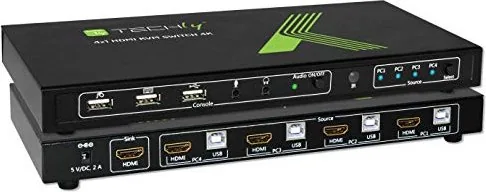
The modern digital environment frequently involves using multiple computers daily for different tasks. Managing separate monitors and input devices for each machine creates significant clutter and operational inefficiency on a desk. The Techly IDATA KVM-HDMI4U 4-port provides an elegant solution to manage these resources effectively without purchasing extra peripherals. This hardware allows you to share a single high-definition monitor, keyboard, and mouse among four different computers or gaming consoles. Users can switch between screens instantly using physical push buttons on the front panel or by using keyboard shortcuts. This capability is essential for IT professionals and gamers who test software on different operating systems simultaneously without unplugging cables.
High Performance Video and Audio
The device supports high-definition video output up to 4K resolution at 30Hz. It maintains a video bandwidth of up to 3Gb per second for smooth visual transmission without lag. The switch complies with HDMI v1.4 standards and supports HDCP for protected content playback on streaming services. Audio signals are handled through Dolby True HD and DTS HD Master Audio formats for immersive sound. This ensures crisp sound quality for multimedia consumption across all connected sources including movies and games.
Setup and Usage
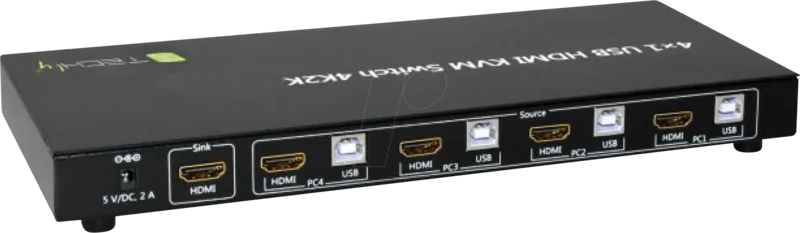
Installing the unit is a simple process that requires no driver software installation on the hosts. You connect an HDMI cable from the switch output to your display screen input port. Then, link the USB peripherals to the specific ports located on the front panel labeled for keyboard and mouse. Each computer must connect to a dedicated HDMI input and a USB Type B port on the rear connector block. The metal housing provides durability and protects against electromagnetic interference during operation. You can access sources by pressing push buttons or using hotkeys involving repeated Caps Lock presses. An optional USB hub on the side allows sharing additional devices like printers or webcams among the systems. Always refer to the Techly IDATA KVM-HDMI4U 4-port Manual for specific wiring diagrams and troubleshooting steps to ensure everything operates correctly.
Safety and Maintenance
Proper care ensures long-term reliability of the equipment for your business needs. Clean the surface with a dry cloth and avoid wet cleaners or abrasive materials that scratch the finish. Do not expose the unit to moisture or water to prevent electrical hazards and internal damage risks. The power adapter is included to ensure stable operation with 5 volts DC current. If any issues arise during use, disconnect from power immediately to avoid shock. Warranty terms apply for manufacturing defects but exclude user modifications or improper handling. For environmental reasons, dispose of the product at designated recycling centers as per WEEE directives to protect the planet. This product guarantees compliance with European safety standards and CE marking requirements. This solution streamlines workflow and reduces cable management issues significantly.
Search for 67,732 Manuals online


Type-in Brand or Model
Klaus Schmidt
7 months ago
Does this device have a reset button for recurring software issues, and how reliable is it reported to be?
Manual.ly
7 months ago
While there is no dedicated reset button, unplugging and reconnecting the power and monitor cables can resolve temporary glitches. However, recurring issues may indicate a defect. We advise reporting problems immediately for a replacement. Our support team is happy to assist with troubleshooting or exchange options. For your convenience, we provide a 30-day return policy for non-compliant products.