
TCL SW6000B Manual
PDF manual · 44 Pages
English



Quick check
Incorrect answer, please try again.
Chat with your TCL SW6000B manual using AI
Get instant AI answers from your TCL SW6000B manual
Ask anything about the TCL SW6000B. Answers come from this manual, with the pages they are based on.
Ask a Question
Do you recommend SW6000B?
Yes NoFrequently Asked Questions
Press and hold the cleaning or switch button for three seconds to turn the unit on or off.
Is this answer helpful?
A full battery charge typically takes four hours for optimal performance from the first run.
Is this answer helpful?
Solid blue is standby or running. Orange is low battery. Blue flashing is Wi-Fi connection or error modes.
Is this answer helpful?
Yes, download the TCL HOME app to rename the robot and set working rooms.
Is this answer helpful?
No, the machine currently does not support 5G Hz Wi-Fi networks.
Is this answer helpful?
Advantages and Disadvantages
Advantages

- Intuitive control buttons for easy turning the unit on or off.
- TCL HOME application allows remote management from smartphone.
- Clear indicator light system provides battery and status updates.
- Automatically returns to base when battery is low.
- Facilitates seamless smart home environment integration.
Disadvantages

- Does not support 5G Hz Wi-Fi connections currently.
- Requires specific clearance around charging dock placement.
- Initial battery charge takes four hours to complete.
- Network configuration requires holding specific buttons together.
- Red flashing light indicates factory settings reset is needed.
Product Specification
Cleaning Robot
Color
black
Capacity
16.91 fl oz
Recommended Room Size
up to 2690.98 sq ft
Cleaning Modes
4 cleaning modes, vacuuming
Navigation
Cliff sensor, bump sensor, wall-following sensor, laser sensor, zones, no-go zones, obstacle detection, obstacle crossing (up to 0.79 in), carpet detection, stair detection, Virtual Wall (Software)
Filtration
HEPA Filter
Display
no
Features
1x Floor brush, 1x Side brush, programmable cleaning times, UV disinfection
Smart Home
App control (Wi-Fi (WLAN)), Voice assistant (Amazon Alexa, Google Assistant)
Runtime
3h
Charging System
automatic
Noise Level
65 dB
Dimensions
134.65x37.40in (DxH)
Weight
7.72 lbs
Package Contents
Station, Side brush, Filter, Cleaning tool
Station
Station Color
black
Station Display
no
Station Features
automatic charging function
Product Description
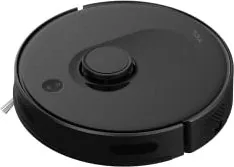
Discovering Cleanliness with TCL SW6000B Black
Cleaning your home has never been this efficient with the TCL SW6000B black robot vacuum. This device simplifies daily chores through smart automation. Before you begin using the unit, remove all protective materials from the chassis. Installing the side brush prepares the internal mechanisms for action. The machine returns to its base when the battery is low, ensuring it always has power to complete your cleaning schedule without interruption.
The device features intuitive control buttons for easy access. You can turn the unit on or off by holding the central button for three seconds. Starting a cleaning session is as simple as pressing the button once. For connectivity, the TCL HOME application allows remote management from your smartphone. Ensure your Wi-Fi environment is stable, as 5G Hz Wi-Fi is not supported. You must download the app to rename your robot vacuum and set specific working rooms.
Setting up the charging dock requires precision. Maintain a clear space of 1.5 meters in front and 0.5 meters on the sides. This ensures the models locate the dock correctly. The front lower section faces the dock, guiding the robot home automatically. An indicator light system provides clear status updates. A solid blue light means the unit is in standby or running with a normal battery level. An orange light indicates a low battery. A breathing blue light signals the robot is returning to charge.
Initial setup involves a full battery charge which takes four hours. This ensures optimal performance from the first run. You can reset factory settings by holding the charging button for fifteen seconds. Network configuration is accessible by holding both charging and cleaning buttons simultaneously for three seconds. This enters the pairing mode required for your mobile device. The TCL SW6000B black Manual outlines these configurations for new users. Using the robot creates a seamless smart home environment where technology handles the dust while you relax.
Important Usage Notes
Always follow safety guidelines during setup. Ensure the charging station is secure against walls. If an error occurs, a red flashing light indicates a fault mode. For further assistance, visit the official support website.
Search for 67,706 Manuals online


Type-in Brand or Model