
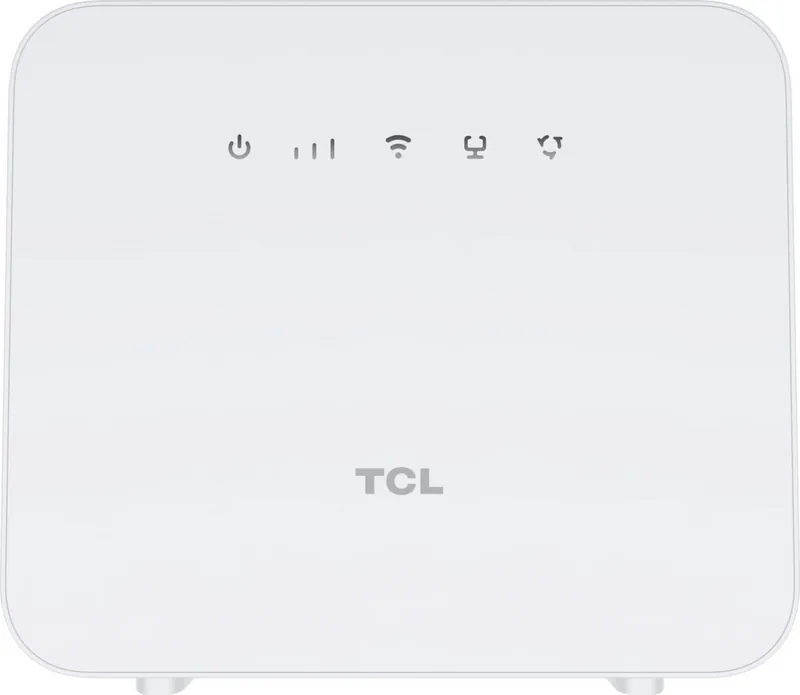

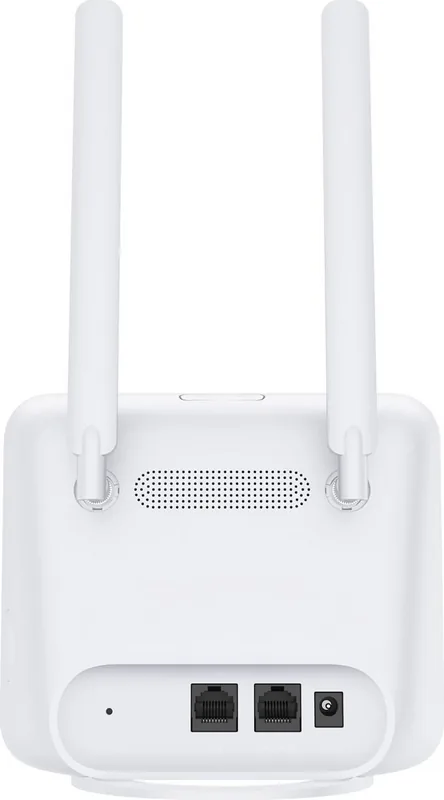
TCL Linkhub HH42CV2 Manual
PDF manual · 23 Pages
English



Quick check
Incorrect answer, please try again.
Chat with your TCL Linkhub HH42CV2 manual using AI
Get instant AI answers from your TCL Linkhub HH42CV2 manual
Ask anything about the TCL Linkhub HH42CV2. Answers come from this manual, with the pages they are based on.
Ask a Question
Do you recommend Linkhub HH42CV2?
Yes NoFrequently Asked Questions
You can connect wirelessly by selecting the Wi-Fi name printed on the bottom label of the CPE on your wireless device and entering the provided password. Alternatively, if your device supports WPS, you can press the WPS button on the CPE for three seconds to facilitate a quick connection without entering a password.
Is this answer helpful?
A solid red indicator means the micro SIM card is not available or the device is not registered to the network. Check that the SIM card is valid and inserted correctly. If using a SIM, ensure it is working. If using an Ethernet connection, check if the network is functioning. Placing the CPE near a window may improve signal registration.
Is this answer helpful?
Open a web browser on a device connected to the CPE network, either wired or wireless. Navigate to http://192.168.1.1 to access the login screen. You will find the default login password on the bottom label of your device after following the on-screen instructions to complete the process.
Is this answer helpful?
Yes, you can install external antennas to improve signal reception if you are in an area with weak signal. Before installation, ensure your CPE is powered off and disconnected from the power supply. Use only antennas compatible with your CPE and contact your supplier before purchasing new equipment.
Is this answer helpful?
To reset, you can locate the reset button on the device and press it for three seconds using a paperclip. Alternatively, you can log in to the web UI and navigate to the System section to restart or reset the device. Be aware this will delete all custom settings and Wi-Fi passwords.
Is this answer helpful?
This router contains components which may interfere with medical devices such as pacemakers or defibrillators. It is important to maintain a safe distance of separation between your medical device and the router. Consult your physician and medical device manufacturer for specific safety information related to your equipment.
Is this answer helpful?
Navigate to the Settings section in the web UI and enable the Quality of Service feature. You can then set upload and download speed limits for applications, online gaming, Ethernet LAN ports, or specified MAC addresses to minimize the impact of busy bandwidth during peak usage times.
Is this answer helpful?
Advantages and Disadvantages
Advantages

- Versatile Cat4 LTE support provides reliable connectivity for multiple devices.
- Intuitive web User Interface allows easy configuration of network settings.
- Optional external antenna ports enhance signal reception in weak areas.
- Comprehensive SMS features integrated directly into device settings.
- Quality of Service options prioritize bandwidth for specific applications.
Disadvantages

- Device operates best within specific temperature ranges between 0c and 45c.
- Requires micro SIM card specifically, not standard mini or nano sizes.
- Web UI access requires connection to the local network first.
- WPS connection function disables automatically if not established within two minutes.
- Resetting the device erases custom configurations and requires re-setup.
Product Specification
Modem
UMTS (900/1800/2100), LTE (B1/B3/B7/B8/B20/B28)
Network Standards
EDGE, LTE
Bandwidth
150Mbps/50Mbps (LTE), 42Mbps/5.76Mbps (UMTS)
Interfaces
Wi-Fi 4 (WLAN 802.11b/g/n), 2x LAN
Dimensions
5.51x4.25x1.48 inches
SIM Form Factor
Micro-SIM
Power Supply
Battery (2000mAh), external power supply (12W/1A/12V)
Features
Hotspot (32 devices)
Product Description
Welcome to High-Speed Connectivity
Understanding the TCL Linkhub HH42CV2 Experience
In todays digital world, maintaining a robust home or business network is essential for seamless productivity and entertainment. The TCL Linkhub HH42CV2 emerges as a versatile Cat4 LTE CPE designed to provide reliable wired and wireless access for multiple computers and mobile devices. This device acts as a central hub, ensuring your internet connection remains strong even in areas where traditional broadband options are limited. Integrating seamlessly into your environment, it supports Wi-Fi-enabled devices operating on 2.4 GHz bands, making it compatible with a wide range of browsers and operating systems on the market.
Setting up your gateway for the first time is straightforward when you follow the instructions outlined in the TCL Linkhub HH42CV2 Manual. The initial configuration involves inserting a micro SIM card into the designated slot on the device. Attention to orientation is critical to prevent damage, ensuring the device detects the network immediately. Once the SIM is in place, you can connect to the network via Wi-Fi or a wired LAN connection. For users in areas experiencing weak signal reception, installing external antennas is an optional step that significantly enhances performance. This flexibility allows the unit to adapt to various environmental conditions and connectivity needs.
Control over your network infrastructure is managed through an intuitive web User Interface accessible via a standard browser. Logging in at the default IP address grants access to comprehensive settings. You can view status indicators, manage services, adjust Wi-Fi security protocols, and configure network modes such as 3G or 4G priority. The web interface also facilitates SMS management, allowing you to send or read texts directly through the device settings. Advanced features include configuring WAN connection modes like PPPoE or Static IP, managing Wi-Fi Protected Setup for faster pairing, and enabling Quality of Service to prioritize traffic.
Safety and longevity are prioritized in the design specifications. Operating the hardware within specific temperature ranges maintains optimal function, while compliance with electromagnetic field standards ensures safe usage around medical devices and sensitive equipment. The system allows for online updates to keep software current without disconnecting from the grid. Should you encounter connectivity issues, the troubleshooting section provides logical steps to resolve common problems. Whether addressing a solid red network indicator or adjusting login credentials, these solutions ensure minimal downtime. Additionally, you can backup your configuration or restore factory settings if needed, providing peace of mind regarding system stability. Embrace the power of mobile broadband tailored for your specific needs with this advanced connectivity solution that bridges the gap between cellular and local networks efficiently.
Search for 67,706 Manuals online


Type-in Brand or Model