
TC Helicon GoXLR Manual
PDF manual · 2 Pages
English



Quick check
Incorrect answer, please try again.
Chat with your TC Helicon GoXLR manual using AI
Get instant AI answers from your TC Helicon GoXLR manual
Ask anything about the TC Helicon GoXLR. Answers come from this manual, with the pages they are based on.
Ask a Question
Do you recommend GoXLR?
Yes NoVideo Manual
BIGGEST GOXLR Tutorial EVER! - How To Get The BEST Audio For Your Stream!
Frequently Asked Questions
Yes. The GoXLR app is required to operate the unit, configure mic EQ, compression, gate, mixer routing, manage samples, save FX presets, and install firmware updates.
Is this answer helpful?
You can use dynamic and condenser microphones. For condenser mics enable +48V phantom power in the GoXLR app’s audio settings. For USB mics like the Blue Yeti, feed the Yeti’s headphone output into the GoXLR mic input and use the Yeti’s USB only for power.
Is this answer helpful?
Yes. The optical (Toslink) input supports console audio such as PlayStation or Xbox. Use optical for console game audio while routing chat and mic signals through the GoXLR and PC as needed.
Is this answer helpful?
The four sample pads let you record, store and trigger audio samples or bumpers. Hold a pad to record, press to play, and use the CLEAR button plus a pad to erase its sample. Samples are organized into banks for quick recall.
Is this answer helpful?
Use the LINE OUT to send an exact copy of your broadcast stream to a dedicated streaming PC or recording device. The PHONE jack provides headphone monitoring and USB connects to your primary PC for multi-channel routing.
Is this answer helpful?
The GoXLR app is Windows-focused and supports Windows 7, 8 and 10 (32- or 64-bit). Minimum recommended hardware includes a PC-class CPU, an Ethernet port and 1 GB of RAM; check the product downloads page for the latest requirements.
Is this answer helpful?
Install the GoXLR app, connect the GoXLR via USB and use the app to check for firmware updates. For support, access TC Helicon resources through the app, the product downloads page, or official TC Helicon support channels and community links.
Is this answer helpful?
Advantages and Disadvantages
Advantages

- Integrated 4-channel motorized mixer with backlit scribble strips for fast, visible control.
- Comprehensive vocal effects (reverb, pitch shift, hardtune, robot, megaphone) with real-time controls.
- Sample pads and banks enable instant jingles, bumpers and on-the-fly recording.
- High-quality 24-bit/48 kHz conversion, wide dynamic range and low noise for broadcast audio.
- Flexible I/O: XLR with phantom, line in/out, phones, USB and optical for consoles.
Disadvantages

- Full functionality depends on the GoXLR app, which is Windows-focused and required to operate the device.
- USB 2.0 connection may limit some multi-device routing compared with newer interfaces.
- Compact unit has limited physical inputs—may require additional gear for complex multi-mic setups.
- Some advanced routing and settings require time to learn within the app environment.
- Power relies on included 12V adapter; adds another external power brick to desk setup.
Product Specification
Interface
USB 2.0
Input Channels
2
Output Channels
2
Mic Preamps
1
Analog Inputs
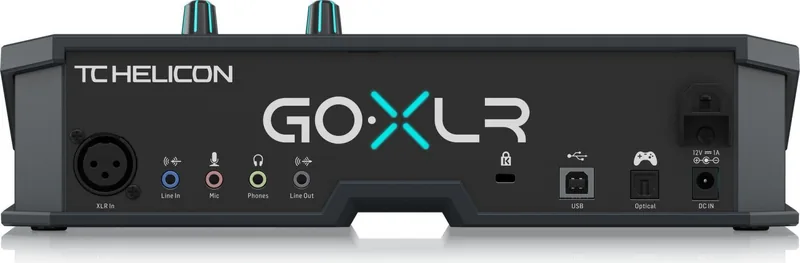
1x Mic In (XLR), 1x Mic In (3.5mm Jack), 1x Stereo Line In (3.5mm Jack)
Analog Outputs
1x Stereo Line Out (3.5mm Jack), 1x Headphone (3.5mm Jack)
Digital Inputs
1x S/PDIF In (optical)
Digital Outputs
no
AD/DA Converter
24bit/48kHz
Special Features
Integrated DSP, Streaming Interface
Dimensions
11.22x6.85x3.23in (WxHxD)
Weight
3.42lb
Product Description
TC Helicon GoXLR — Powerful Live-Streaming Mixer
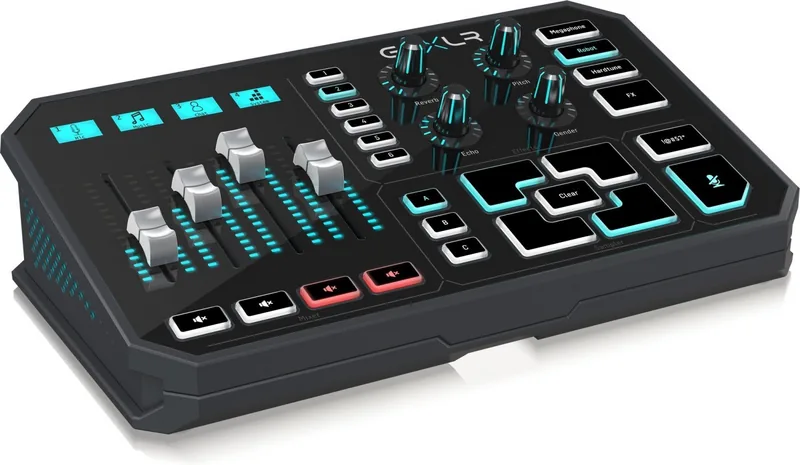
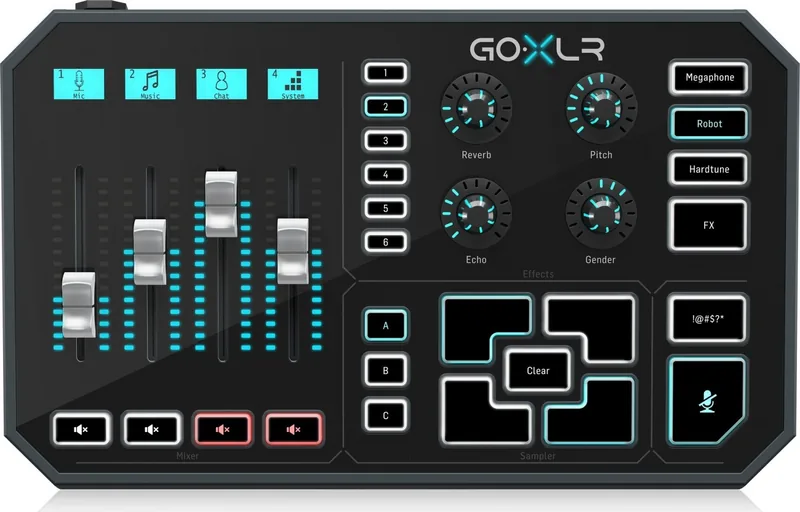
The TC Helicon GoXLR is a compact, feature-rich mixer and voice-processing hub designed for live streamers, podcasters, and gamers who need professional sound control without complex setups. At its core the GoXLR unites a four-channel motorized mixer, customizable RGB lighting, backlit scribble strips, and dedicated sample pads with an extensive suite of vocal effects—reverb, echo, pitch shifting, gender/formant shifting, megaphone, robot, hardtune and a built-in sampler. Combined with 24-bit/48 kHz A/D–D/A conversion, a high dynamic range and low noise floor, it delivers crisp broadcast-quality audio.
Beyond hardware, the GoXLR relies on the GoXLR app to configure mic EQ, compression and gating, assign mixer routing, customize button and screen colors, manage samples, and save voice FX presets. The app also provides firmware updates and direct access to TC Helicon support and manuals. Connections include an XLR mic input with switchable +48 V phantom, stereo line-in and line-out, a phones jack, USB 2.0 for PC connectivity, and an optical input for consoles — making it flexible for single-PC setups, multi-PC streaming rigs, or console integration.
Controls are focused on real-time performance: four motorized faders for mix control, four rotary encoders, 24 programmable buttons, and four scribble strips for channel labeling. Specialized buttons let you toggle all FX, apply megaphone or robot effects instantly, censor with a bleep button, or use a momentary ‘‘cough’’ mute. The sampler pads let you record, store and trigger jingles or bumpers on the fly. A dedicated line out mirrors your broadcast mix for recording or feeding a secondary system.
Physically compact and busily featured, the GoXLR includes a 12V DC adapter, consumes about 10W, and weighs roughly 1.55 kg. Minimum system requirements target Windows platforms; the GoXLR app is required for full operation. Whether you’re polishing live commentary, building character voices, or managing multi-source audio during streams, the GoXLR centralizes performance controls so you can focus on content.
Notes
- The GoXLR app is required for full functionality: download from the product page and follow installation steps. Reboot and connect via USB after install.
- XLR input supports phantom power via the app for condenser microphones.
- Use the LINE OUT to route your broadcast mix to a separate streaming PC or recording device.
Search for 67,706 Manuals online


Type-in Brand or Model
Lina König
8 months ago
Is headphone monitoring on the GoXLR really crackly, and is the hardware overpriced since it is mostly software?
Manual.ly
8 months ago
Some users report crackling during headphone monitoring, which is usually linked to PC audio settings, USB power/latency, or driver/firmware versions. Make sure you install the latest GoXLR drivers and use the correct audio device in your system. Also check sample rate consistency (same rate in Windows and in the GoXLR software) and avoid competing audio apps. The GoXLR includes a solid physical control surface, but many effects (like voice and language features) are provided via software, so part of the value is the workflow and sound processing rather than standalone hardware DSP. If your PC is underpowered or audio buffers are too low, artifacts are more likely.