
TC Helicon GoXLR Mini Manual
PDF manual · 2 Pages
English



Quick check
Incorrect answer, please try again.
Chat with your TC Helicon GoXLR Mini manual using AI
Get instant AI answers from your TC Helicon GoXLR Mini manual
Ask anything about the TC Helicon GoXLR Mini. Answers come from this manual, with the pages they are based on.
Ask a Question
Do you recommend GoXLR Mini?
Yes NoVideo Manual
🎚️🎙️ Set up Your GOXLR // The ONLY Guide Needed!
Frequently Asked Questions
Yes. The GoXLR app is required to access EQ, compression, gating, routing, lighting controls and firmware updates. Without the app you will lack critical configuration and control features.
Is this answer helpful?
The unit accepts an XLR balanced input and a 3.5 mm unbalanced mic input. Condenser microphones that require power can use the +24 V condenser setting in the app; XLR and 3.5 mm mic inputs are exclusive (plugging one disables the other).
Is this answer helpful?
Yes. The GoXLR Mini includes an optical (Toslink) input specifically for PlayStation and Xbox consoles. Use this for sending console audio into your PC stream mix alongside USB audio sources.
Is this answer helpful?
Select 'Broadcast Stream Mix (TC-Helicon GoXLR Mini)' as your microphone/auxiliary audio device and disable other devices to ensure the stream receives the blended output from the GoXLR Mini.
Is this answer helpful?
Audio dropouts can occur when using USB 3.0/3.1 ports. Use a USB 2.0 port as recommended, check cables, and ensure drivers and firmware are up to date via the GoXLR app.
Is this answer helpful?
Open Windows Sound Settings, play the target application, then under 'Other Sound Options' assign that program to the desired GoXLR Mini fader (e.g., Music, Game, Chat) via the dropdown list in the app's routing panel.
Is this answer helpful?
Verify mic selection in the app (enable Condenser if needed), check that mute isn't active, ensure only one mic input is connected (XLR or 3.5mm), confirm proper grounding and cable placement, and reboot the app/device if needed.
Is this answer helpful?
Advantages and Disadvantages
Advantages

- Compact mixer with Midas preamp and 24-bit/48kHz conversion for high-quality voice capture.
- App-controlled EQ, compression, and gate let you shape vocals without extra hardware.
- Flexible routing ensures chat, game, music and stream mixes can be independently managed.
- Optical input and line I/O enable console and dual-PC streaming setups.
- Tactile faders and dedicated chat controls simplify live mixing during streams.
Disadvantages

- Requires the GoXLR app for full functionality and firmware updates.
- USB 3.x compatibility issues — USB 2.0 is recommended to avoid dropouts.
- Limited to four faders, which may constrain more complex productions.
- Phantom/condenser power is +24 V only, not full +48 V for some mics.
- No built-in multitrack recording; external software needed for advanced capture.
Product Specification
Interface
USB 2.0
Input Channels
3
Output Channels
2
Mic Preamps
1
Analog Inputs
1x Mic In (XLR), 1x Mic In (XLR), 1x Stereo Line In (3.5mm Jack)
Analog Outputs
1x Stereo Line Out (3.5mm Jack), 1x Headphones (3.5mm Jack)
Digital Inputs
1x S/PDIF In (optical)
Digital Outputs
no
AD/DA Converter
24bit/48kHz
Special Features
Integrated DSP, Streaming Interface
Product Description
TC Helicon GoXLR Mini Manual — Quick Overview
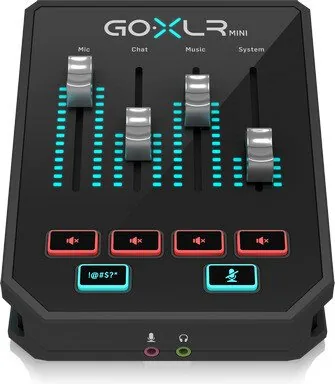
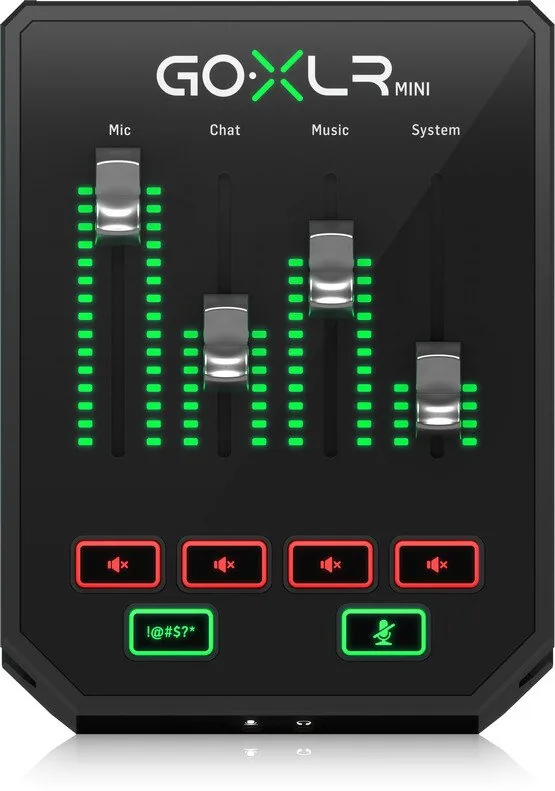
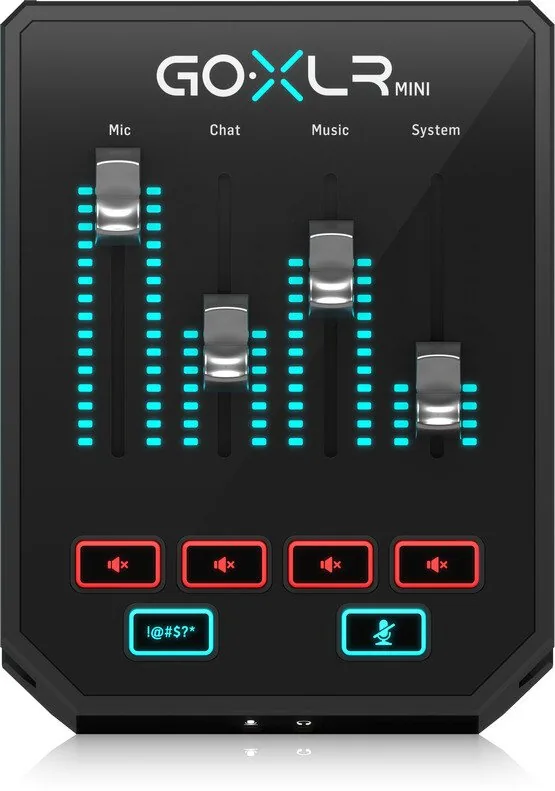
The TC Helicon GoXLR Mini is a compact online broadcast mixer and USB audio interface designed for streamers, podcasters, and content creators who need professional sound in a small footprint. Featuring a Midas preamp, four channel faders, RGB lighting, and a set of vocal processing tools, the GoXLR Mini brings easy-to-use mixing and real-time effects to desktop setups. It supports XLR and 3.5mm mic inputs, line in/out, optical input for consoles, and a headphone output for monitoring. The unit performs 24-bit/48 kHz A/D and D/A conversion with EQ, compression, and gating to shape vocal tones, plus >110 dB dynamic range and >101 dB S/N for clean audio.
Key Features and Setup
Out of the box, the GoXLR Mini offers a simple hardware layout: four channel faders, mute and cough buttons, a censor/bleep button, and dedicated mic and line connections. Phantom-like condenser support (+24 V) can be enabled through the GoXLR app when using compatible condenser mics. USB 2.0 connectivity powers the device and handles audio interface duties; optical input enables console integration with PlayStation and Xbox. The companion GoXLR app is required for full functionality — it provides EQ/compression/gate controls, lighting customization, firmware updates, and routing assignment for Windows audio.
Setup follows straightforward steps: install the driver/app from the TC Helicon site, connect via USB, assign System and Chat devices in Windows sound settings, and map programs to faders through the app’s audio routing. For broadcasting software like OBS or Streamlabs, selecting "Broadcast Stream Mix (TC-Helicon GoXLR Mini)" as the primary input ensures your stream receives the mixed output. The Quick Start also highlights selecting Chat Mic/Chat outputs for communication apps so their volumes are controlled by dedicated faders.
Workflow and Use-Cases
The GoXLR Mini is ideal for solo streamers and small creators who want tactile control over game, music, chat, and mic levels without a large console. Use the optical port to integrate a console into a PC stream, or route a second PC via line connections. The app enables routing individual applications to faders, giving fine-grained control over what goes to chat versus stream mix. Integrated vocal effects and gate/compress/EQ make it easy to achieve polished voice presentation without external processors.
Notes
- Use USB 2.0 ports for stable operation; USB 3.x can cause dropouts.
- Blue Yeti users should route the Yeti’s headphone output into the GoXLR Mini’s mic input and not select the Yeti as the computer audio source.
- The GoXLR app is required for configuration and firmware updates.
- For troubleshooting: check grounding, cable placement, mute states, and ensure correct mic input selection (XLR vs 3.5mm).
Pros and Cons
Pros:
- Compact, streamer-focused mixer with tactile faders and RGB lighting.
- Midas preamp and 24-bit/48kHz audio for clean, professional sound.
- App-driven effects (EQ, compression, gate) and flexible routing per application.
- Optical input and line I/O for console or dual-PC setups.
- Simple setup with clear Windows routing and dedicated chat fader.
Cons:
- Requires the GoXLR app for full functionality and firmware updates.
- USB 3.x ports may cause audio dropouts; USB 2.0 recommended.
- Limited to 4 faders — may be restrictive for multi-source productions.
- Phantom power only +24 V (not full +48 V), which may limit some condenser mics.
- No built-in multitrack recording; relies on external software for advanced capture.
Most Important Results
Top Pros (most important):
- Compact mixer with Midas preamp and 24-bit/48kHz conversion for high-quality voice capture.
- App-controlled EQ, compression, and gate let you shape vocals without extra hardware.
- Flexible routing ensures chat, game, music and stream mixes can be independently managed.
Top Cons (most important):
- Requires proprietary app; functionality is limited without it.
- USB 3.x compatibility issues — use USB 2.0 to avoid dropouts.
- Only four faders may be insufficient for more complex multi-source streams.
FAQ
{ "question": "Do I need the GoXLR app to use the GoXLR Mini?", "answer": "Yes. The GoXLR app is required to access EQ, compression, gating, routing, lighting controls and firmware updates. Without the app you will lack critical configuration and control features." }
{ "question": "Which mic types are supported?", "answer": "The unit accepts an XLR balanced input and a 3.5 mm unbalanced mic input. Condenser microphones that require power can use the +24 V condenser setting in the app; XLR and 3.5 mm mic inputs are exclusive (plugging one disables the other)." }
{ "question": "Can I connect a console to the GoXLR Mini?", "answer": "Yes. The GoXLR Mini includes an optical (Toslink) input specifically for PlayStation and Xbox consoles. Use this for sending console audio into your PC stream mix alongside USB audio sources." }
{ "question": "What should I select in streaming software like OBS?", "answer": "Select 'Broadcast Stream Mix (TC-Helicon GoXLR Mini)' as your microphone/auxiliary audio device and disable other devices to ensure the stream receives the blended output from the GoXLR Mini." }
{ "question": "Why am I getting audio dropouts?", "answer": "Audio dropouts can occur when using USB 3.0/3.1 ports. Use a USB 2.0 port as recommended, check cables, and ensure drivers and firmware are up to date via the GoXLR app." }
{ "question": "How do I route applications to specific faders?", "answer": "Open Windows Sound Settings, play the target application, then under 'Other Sound Options' assign that program to the desired GoXLR Mini fader (e.g., Music, Game, Chat) via the dropdown list in the app's routing panel." }
{ "question": "What troubleshooting steps for mic issues?", "answer": "Verify mic selection in the app (enable Condenser if needed), check that mute isn't active, ensure only one mic input is connected (XLR or 3.5mm), confirm proper grounding and cable placement, and reboot the app/device if needed." }
Search for 67,706 Manuals online


Type-in Brand or Model