
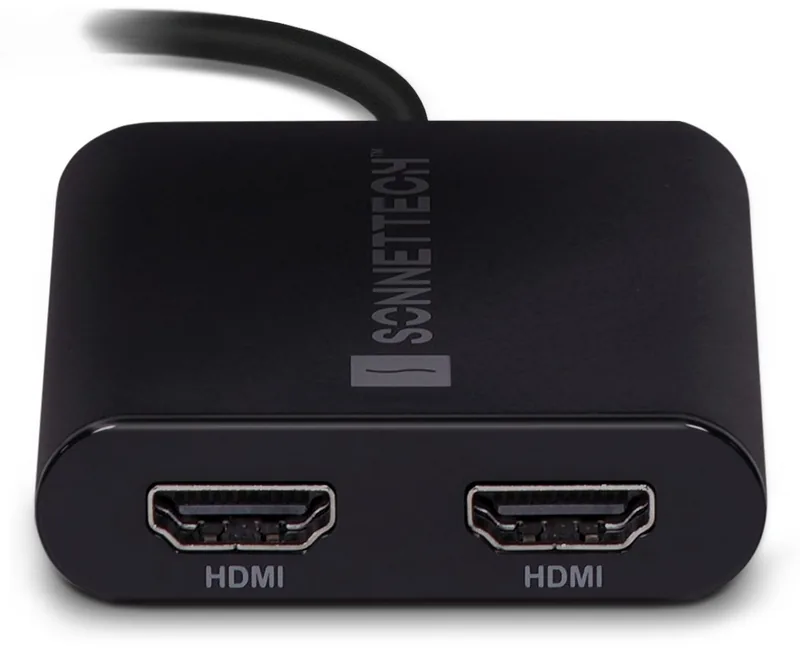
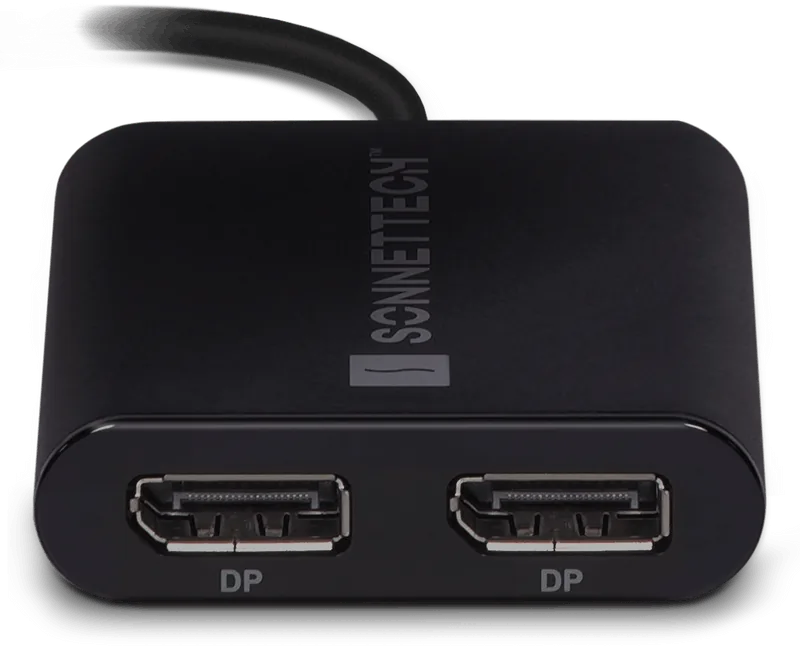
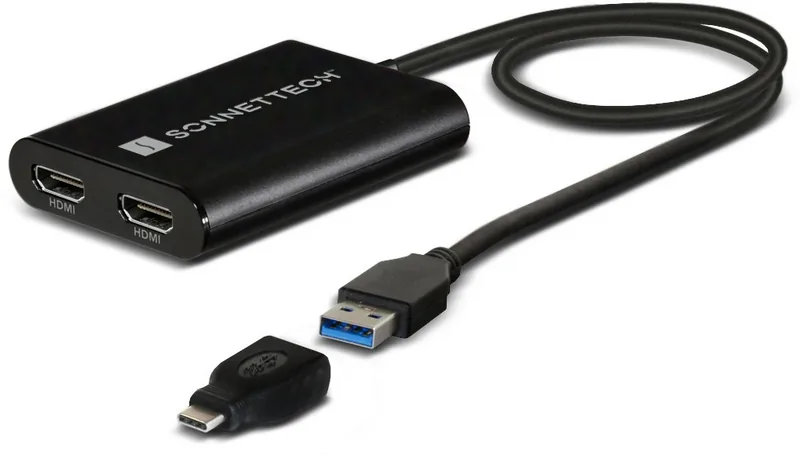
Sonnet DisplayLink Dual HDMI / Dual DisplayPort Manual
PDF manual · 2 Pages
English



Quick check
Incorrect answer, please try again.
Chat with your Sonnet DisplayLink Dual HDMI / Dual DisplayPort manual using AI
Get instant AI answers from your Sonnet DisplayLink Dual HDMI / Dual DisplayPort manual
Ask anything about the Sonnet DisplayLink Dual HDMI / Dual DisplayPort. Answers come from this manual, with the pages they are based on.
Ask a Question
Do you recommend DisplayLink Dual HDMI / Dual DisplayPort?
Yes NoFrequently Asked Questions
Yes, it is fully compatible with Macs featuring M1, M1 Pro, and M1 Max chips running macOS 10.15 or later.
Is this answer helpful?
No, drivers usually install automatically when connected, but you can download updates from the Sonnet website if needed.
Is this answer helpful?
macOS requires this permission for the DisplayLink driver to capture screen pixels and transmit them over USB to the external monitors.
Is this answer helpful?
Currently, they do not appear in System Profiler reports; you must check the Displays preference panel to view them.
Is this answer helpful?
Yes, the adapter supports Ubuntu 20.04 on computers with USB-A or USB-C ports.
Is this answer helpful?
Advantages and Disadvantages
Advantages

- Enables dual display output on single-port M1 Macs and other compatible systems.
- Supports a wide range of operating systems including macOS, Windows, and Ubuntu.
- Includes necessary adapters for flexible connection options.
Disadvantages

- Requires enabling Screen Recording permissions which may concern privacy-conscious users.
- Connected displays do not show up in standard system profiler reports.
- Beta drivers should be avoided due to potential stability issues.
Product Specification
Resolution
max. 3840x2160@60Hz
Features
HDCP 2.2
Manufacturer Warranty
two years
Product Description
Enhance Your Workspace with the Sonnet Dual HDMI Adapter
Expanding your digital workspace has never been easier with the Sonnet Dual HDMI Adapter. This robust peripheral is designed specifically for modern Mac computers equipped with M1, M1 Pro, and M1 Max chips, as well as Intel-based models running macOS 10.15 or later. By leveraging DisplayLink technology, this adapter allows users to connect two external displays simultaneously via a single USB-C port, effectively transforming a laptop into a powerful dual-monitor workstation.
The installation process is streamlined for both macOS and Windows environments. For Mac users, the setup involves downloading the DisplayLink Manager software from the official Sonnet support portal. A critical step in the configuration involves granting specific permissions within System Preferences, particularly regarding Screen Recording and Notifications. While the term "Screen Recording" might sound concerning, it is merely a security requirement by macOS that enables the driver to capture pixels for transmission over USB without actually sending data back to Sonnet. Once configured, the adapter integrates seamlessly, allowing you to extend your desktop or mirror content across two screens with ease.
Windows users benefit from automatic driver detection upon connection, though manual updates are available for those seeking the latest performance tweaks. The device supports high-resolution outputs on Ubuntu systems as well, making it a versatile choice for cross-platform professionals. Whether you are a developer needing extra coding space, a designer managing multiple creative tools, or an analyst reviewing complex spreadsheets, this adapter provides the connectivity backbone required for productivity.
Important Notes
- Beta software is available but not recommended for stable daily use.
- Displays connected to this adapter may not appear in standard System Profiler reports; check the Displays panel instead.
- A USB-C male to USB-A female adapter is included in the package for legacy port compatibility.
Pros and Cons
Pros
- Enables dual display output on single-port M1 Macs and other compatible systems.
- Supports a wide range of operating systems including macOS, Windows, and Ubuntu.
- Includes necessary adapters for flexible connection options.
- Simple software installation with clear permission workflows.
Cons
- Requires enabling Screen Recording permissions which may concern privacy-conscious users.
- Connected displays do not show up in standard system profiler reports.
- Beta drivers should be avoided due to potential stability issues.
- Manual configuration steps are required for macOS security settings.
Frequently Asked Questions
Q: Does this adapter work with M1 Macs? A: Yes, it is fully compatible with Macs featuring M1, M1 Pro, and M1 Max chips running macOS 10.15 or later.
Q: Do I need to install drivers manually on Windows? A: No, drivers usually install automatically when connected, but you can download updates from the Sonnet website if needed.
Q: Why does the installer ask for Screen Recording permission? A: macOS requires this permission for the DisplayLink driver to capture screen pixels and transmit them over USB to the external monitors.
Q: Will my external monitors appear in System Profiler? A: Currently, they do not appear in System Profiler reports; you must check the Displays preference panel to view them.
Q: Can I use this adapter with Ubuntu Linux? A: Yes, the adapter supports Ubuntu 20.04 on computers with USB-A or USB-C ports.
Q: What happens if I skip the autostart setting? A: You will need to manually launch the DisplayLink Manager application every time you log in to your computer.
Q: Is beta software recommended for general users? A: No, Sonnet advises against using beta software as it is intended for testing and may not run stably on your system.
Search for 67,706 Manuals online


Type-in Brand or Model