
Sonnet Allegro Pro USB 3.1 Manual
PDF manual · 2 Pages
English



Quick check
Incorrect answer, please try again.
Chat with your Sonnet Allegro Pro USB 3.1 manual using AI
Get instant AI answers from your Sonnet Allegro Pro USB 3.1 manual
Ask anything about the Sonnet Allegro Pro USB 3.1. Answers come from this manual, with the pages they are based on.
Ask a Question
Do you recommend Allegro Pro USB 3.1?
Yes NoFrequently Asked Questions
It is intended for Mac Pro systems (early 2008 or newer) or other computers with a full-height PCIe x4 (mechanical) slot. Make sure you have an available PCIe slot that matches the required physical form factor.
Is this answer helpful?
macOS versions include 10.10.5 and 10.12.6 and later (not compatible with macOS 10.11). Windows supports Windows 10, 8, and 7, plus Windows Server 2016, 2012, and 2008 (64-bit). Linux support covers Kernel 5.0 and later.
Is this answer helpful?
macOS typically installs the standard drivers as part of macOS versions like 10.10.5 and 10.12.6 and later. Windows drivers install automatically for supported Windows versions except Windows 7, which requires downloading from Sonnet support. Linux drivers install automatically on Kernel 5.0+.
Is this answer helpful?
For full iOS device charging capabilities under macOS, the guide instructs you to download and install the Sonnet USB 3.0 power kernel extension. This is required to provide the power support described for certain macOS charging scenarios.
Is this answer helpful?
For USB 3.1 Gen 2 drives, use the top two ports for the source drive and the bottom two ports for the destination drive. Also use USB 3.1 Gen 2 cables when targeting 10 Gb/s transfers.
Is this answer helpful?
The guide notes that USB 3.1 Gen 2 devices need Gen2 cables for 10 Gb/s. It also advises that 1m or longer Thunderbolt 3 cables do not support USB 3.0 and 3.1 by design, and it states the card is not compatible with Thunderbolt 1 PCIe expansion systems.
Is this answer helpful?
While the computer is on, eject, stop, unplug, or put away drives (hard drives, SSDs) and memory cards using the operating system first. Disconnecting during transfers can cause file damage or system hangs.
Is this answer helpful?
Advantages and Disadvantages
Advantages

- Four USB-A 3.1 Gen 2 ports through PCIe 2.0 x4 for expanded connectivity and fast peripherals
- Charging capability for compatible iOS devices, with a documented macOS power-extension option for full charging behavior
- Two-controller design with clear guidance to improve drive-to-drive transfer speeds
- Driver support is largely automatic on macOS, Windows (with exceptions), and modern Linux kernels
Disadvantages

- Not compatible with Thunderbolt 1 PCIe card expansion systems
- Thunderbolt 3 cable behavior can limit USB 3.0/3.1 support by design, especially with 1m+ cables
- To achieve 10 Gb/s, USB 3.1 Gen 2 devices must use USB 3.1 Gen 2 cables; USB 3.0 cables cap speeds
- Some iOS charging performance on macOS requires downloading and installing an additional Sonnet driver
Product Specification
External
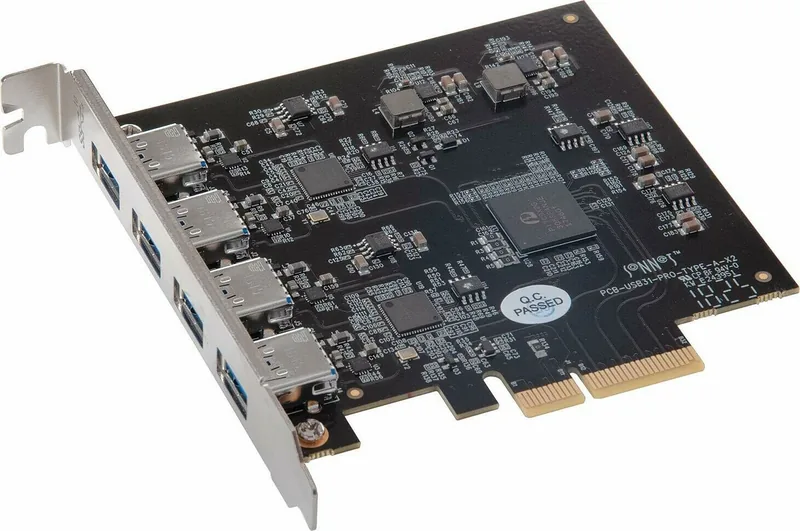
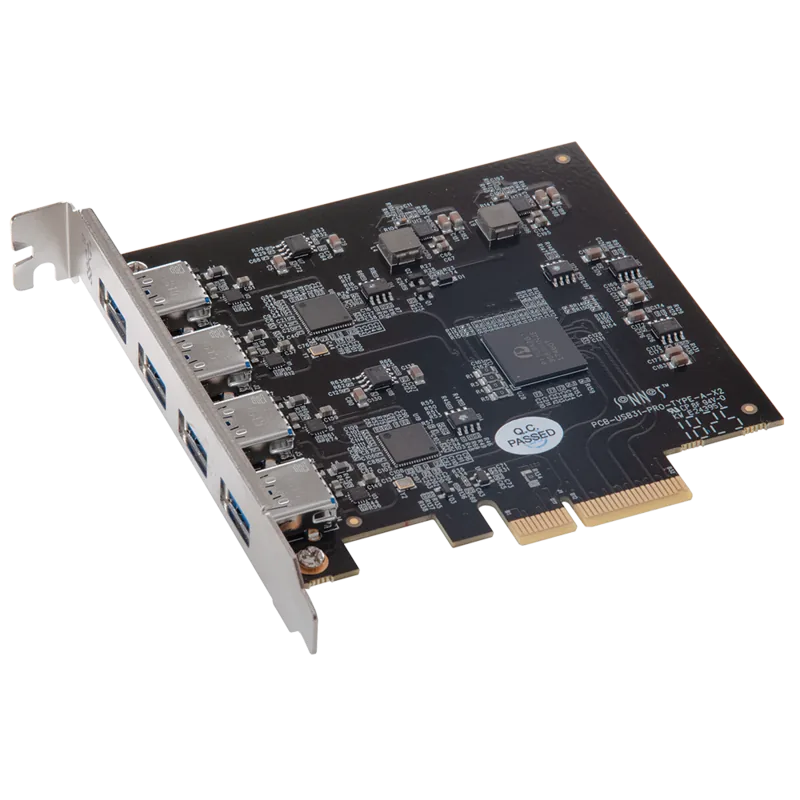
4x USB-A 3.1
Internal
N/A
Interface
PCIe 2.0 x4
Chipset
2x ASMedia ASM3142
Power supply
Power supply only via connection
USB designation
Link
Product Description
Sonnet Allegro Pro, 4x USB-A 3.1, PCIe 2.0 x4 Manual - 4-Port USB 3.1 Expansion with Charging
The Sonnet Allegro Pro brings four dedicated USB-A 3.1 Gen 2 ports to a desktop through a PCIe 2.0 x4 connection. Designed for high-throughput peripherals and faster everyday transfers, it offers charging capability for compatible iOS devices, making it a practical upgrade for creators, office users, and anyone expanding connectivity on a Mac or PC.
This Quick Start Guide highlights what is needed to get the card running quickly: the Allegro Pro USB 3.1 PCIe card and a standard medium Phillips screwdriver for installation prep. It is intended for systems with a full-height PCIe x4 (mechanical) slot, including Mac Pro models from early 2008 onward and many compatible full-height PCIe desktops.
Performance and port layout
The card includes two USB 3.1 Gen 2 controllers, with each controller providing 10 Gbps bandwidth shared across two ports. For the fastest drive-to-drive file transfers using USB 3.1 Gen 2 drives, Sonnet recommends using the top two ports for the source drive and the bottom two ports for the destination drive. When higher speeds are the goal, cable choice matters as well: USB 3.1 Gen 2 devices need USB 3.1 Gen 2 cables to reach 10 Gb/s.
Compatibility and drivers
For macOS, core drivers are included with macOS versions such as 10.10.5 and 10.12.6 and later. On Windows, supported versions install drivers automatically, while Windows 7 users must download the drivers from Sonnet support. Linux users on Kernel 5.0 and later also get automatic driver support.
An important Mac-focused note covers full iOS device charging behavior under macOS. To support those charging capabilities, you must download and install a specific Sonnet driver (the USB 3.0 power kernel extension) from the Sonnet support site.
Setup highlights
Installation is straightforward: power down, access an available PCIe slot, firmly seat the card, then close the chassis. The guide also emphasizes safe handling to prevent static damage, and recommends using external power for peripherals that do not draw enough power from the card.
Key results
- Four USB-A 3.1 Gen 2 ports provide up to 10 Gbps capability on supported setups and proper Gen2 cabling.
- Strong drive-transfer guidance: top ports for source and bottom ports for destination to maximize controller bandwidth use.
- macOS iOS charging may require the USB 3.0 power kernel extension for full charging behavior.
- Know the limits: Thunderbolt 1 PCIe systems are not compatible, and some long Thunderbolt 3 cable configurations restrict USB 3.x to lower modes.
Notes
- Always eject or stop drives and memory cards before unplugging with the computer powered on.
- Use external power supplies when peripherals require more than the card provides.
- Avoid carpeted areas and handle components by edges to reduce static risk.
Search for 67,706 Manuals online


Type-in Brand or Model