Manual.ly Logo

Snakebyte FCB Gaming Mouse Manual

1.0 · 2 Ratings

PDF manual · 2 Pages

English

M: QW-35-FL
page

/ 2

Loading...
991c24dabf7d07e423c6db1017ee4a938ff6 page 1
Functions:
a. Left Button
b. Scroll Button
c. Right Button
d. Forward
e. Backward
f. DPI change
Fonctions :
a. Bouton gauche
b. Bouton de défilement.
c. Bouton droit
d. Avant
e. Arrière
f. Réglage PPP.
Funktionen:
a. Linke Maustaste
b. Mausrad
c. Rechte Maustaste
d. Vorwärts
e. Rückwärts
f. DPI-Taste
Controles:
a. Botón izquierdo
b. Botón de desplazamiento
c. Botón derecho
d. Avance
e. Atrás
f. Cambio de ppp
Funzioni:
a. Pulsante sinistro
b. Pulsante Scorri
c. Pulsante destro
d. Avanti
e. Indietro
f. Cambio DPI
Funções
a. Botão Esquerdo
b. Botão de Deslocação do Rato
c. Botão Direito
d. Para a Frente
e. Para Trás
f. Alteração de DPI
Instruction Manual
Instructions d‘utilisation
Bedienungsanleitung
Manuale di istruzioni
Manual de instrucciones
Instruções de funcionamento
GAMING MAUS FOR PC
OPERATION INSTRUCTION
Installing your GAMING MAUS – TheGAMING MAUS is a plug‘n‘play device. The driver software is installed
automatically when the mouse is first connected to the computer. No further software is required for use.
1. Connect the mouse to a free USB port on your PC or Mac.
2. Windows / MacOS detects the device. A small icon with a note about the installation appears on the
desktop.
3. Wait until the mouse has automatically connected to the PC and the driver software has been installed.
Depending on the speed of the system, this process can take several seconds.
4. The LED light turns on as soon as the mouse is connected and ready for use.
Operation – Use the scroll button (b) to scroll through websites or long documents.
Use the forward and backward buttons (d/e) to navigate between pages of documents or websites.
DPI settings – The GAMING MAUS uses an optical sensor to display mouse movements. DPI settings (dots
per inch) can be adjusted up to 2,400 DPI by pressing the DPI switch (f).
SAFETY PRECAUTIONS
❱ Do not expose the product to extremely hot, or cold temperatures, high humidity or direct sunlight.
❱ Do not use the the product close to any heat sources.
❱ Do not subject the product to any liquids and never use it when the product is wet
❱ Do not put heavy objects on the product.
❱ Do not throw or drop the product.
❱ Do not attempt to take apart, open, service or modify the product. Doing so could present the risk of
electronic shock, damage, fire, or other hazard.
HEALTH PRECAUTIONS
❱ If you feel tired, experience any discomfort or pain in your arms, or hands, stop using the product imme-
diately and consult a doctor, if the conditions persist.
❱ Avoid prolonged use of this product and take a break about every 30 minutes.
CLEANING
❱ Clean only with a soft, dry cloth. Avoid cleaning solutions, solvents or other chemicals and do not attempt
to clean connectors as this may damage the product.
CUSTOMER SUPPORT / TECHNICAL SUPPORT
snakebyte distribution GmbH
Konrad-Zuse-Strasse 13
58239 Schwerte / Germany
Website: www.mysnakebyte.com
GAMING MAUS FOR PC
INSTRUCTIONS DE FONCTIONNEMENT
Installation de votre GAMING MAUS – La GAMING MAUS est un dispositif « Plug and Play ». Le logiciel du
pilote est installé automatiquement lorsque la souris est connectée à l‘ordinateur. Aucun autre logiciel n‘est
requis pour son utilisation.
1. Connectez la souris à un port USB libre sur votre PC ou Mac.
2. Windows / MacOS détecte le dispositif. Une petite icône précisant l‘installation de l’appareil apparaît sur
votre bureau.
3. Attendez que la souris soit automatiquement connectée au PC et que le logiciel du pilote ait été installé.
Selon la vitesse de votre système d’exploitation, ce processus peut prendre plusieurs secondes.
4. L’éclairage LED s‘allume dès que la souris est connectée et prête à l‘emploi.
Fonctionnement – Utilisez le bouton de défilement (b) pour défiler des sites Web ou les longs documents.
Utilisez les boutons avant et arrière (d / e) pour passer d‘une page à l‘autre de documents ou des sites Web.
Réglage PPP / DPI – La GAMING MAUS utilise un capteur optique pour afficher les mouvements de la souris.
Les réglages PPP (Points Par Pouce) peuvent être réglés jusqu‘à 2 400 PPP en appuyant sur le commutateur
PPP (f).
MESURES DE SÉCURITE
❱ Ne pas exposer le produit à des températures extrêmement chaudes ou froides, à une forte humidité ou
à une lumière directe du soleil.
❱ Ne pas utiliser le produit près de quelconque source de chaleur.
❱ Ne pas soumettre le produit dans n’importe quel liquide et ne jamais l’utiliser lorsque le produit est mouillé.
❱ Ne pas mettre d’objets lourds sur le produit.
❱ Ne pas lancer ni laisser tomber le produit.
❱ Ne pas tenter de démonter, d’ouvrir, de servir ou de modifier le produit. Cela pourrait présenter le risque
d’un choc électronique, de dommages, d’incendie ou d’autres dangers.
PRÉCAUTIONS SANITAIRES
❱ Si vous vous sentez fatigué, un inconfort quelconque ou des douleurs au niveau de vos bras, ou vos mains,
cessez d’utiliser le produit immédiatement et consultez un médecin, si ces symptômes persistent.
❱ Évitez l’utilisation prolongée de ce produit et faites une pause environ toutes les 30 minutes.
NETTOYAGE
❱ Nettoyez seulement avec un chiffon doux et sec. Évitez les solutions de nettoyage, les solvants ou d’autres
produits chimiques et ne tentez pas de nettoyer les connecteurs car cela pourrait endommager le produit.
SUPPORT CLIENT / SUPPORT TECHNIQUE
snakebyte distribution GmbH
Konrad-Zuse-Strasse 13
58239 Schwerte / Germany
Website: www.mysnakebyte.com
GAMING MAUS
FC BAYERN MÜNCHEN
DE
PT
FR
IT
EN
ES
DK
EN FR
a
e
d
c
f
b
GAMING MAUS FOR PC
BEDIENUNGSANLEITUNG
Installation der GAMING MAUS – DieGAMING MAUS ist ein Plug’n’Play-Gerät. Die Treibersoftware wird bei
der ersten Verbindung der Maus mit dem Computer automatisch installiert. Zur Verwendung ist keine wei-
tere Software nötig.
1. Schließen Sie das USB-Kabel der Maus an einen freien USB-Port Ihres PCs oder Macs an.
2. Windows / MacOS erkennt das Gerät. Auf dem Desktop erscheint in der Taskleiste ein kleines Symbol mit
einem Hinweis zur Installation.
3. Warten Sie bis sich die Maus automatisch mit dem PC verbunden hat und die Treibersoftware installiert
wurde. Je nach Geschwindigkeit des Systems kann dieser Vorgang einige Sekunden dauern.
4. Die LED-Beleuchtung der Maus schaltet sich ein, sobald die Maus angeschlossen und einsatzbereit ist.
Bedienung der Maus – Webseiten oder lange Dokumente können mit Hilfe des Mausrades (b) komfortabel von
oben bis unten durchgescrollt werden. Mit den vorwärts- und rückwärts-Tasten (d/e) kann zwischen Seiten von
Dokumenten oder Webseiten navigiert werden.
DPI-Einstellung – Die GAMING MAUS nutzt für die Darstellung der Mausbewegungen einen optischen Sensor.
Die DPI (dots per inch) können mit Betätigen des DPI-Schalters (f) auf bis zu 2.400 DPI angepasst werden.
SICHERHEITSHINWEISE
❱ Setzen Sie das Produkt nicht sehr hohen oder kalten Temperaturen, hoher Luftfeuchtigkeit, oder direktem
Sonnenlicht aus.
❱ Verwenden Sie das Produkt nicht in der Nähe von Wärmequellen.
❱ Schützen Sie das Produkt vor Flüssigkeiten und benutzen Sie es niemals, wenn es feucht ist.
❱ Stellen Sie keine schweren Objekte auf dieses Produkt.
❱ Werfen Sie das Produkt nicht und lassen Sie es nicht fallen.
❱ Versuchen Sie nicht das Produkt selbst zu öffnen, auseinanderzunehmen oder zu ändern. Dies kann zu
Stromschlag, Beschädigung des Produkts, Feuer oder anderen Gefahren führen.
GESUNDHEITSHINWEISE
❱ Wenn Sie sich müde oder unwohl fühlen, oder Schmerzen in Armen, oder Händen spüren, unterbrechen
Sie sofort die Nutzung des Produkts. Falls die Beschwerden anhalten, konsultieren Sie bitte einen Arzt.
❱ Vermeiden Sie eine übermäßig lange Verwendung des Produkts und legen Sie alle 30 Minuten eine Pause ein.
REINIGUNG
❱ Reinigen Sie das Produkt nur mit einem weichen, trockenen Tuch. Vermeiden Sie die Verwendung von
Reinigungslösungen und Chemikalien und versuchen Sie nicht, die Kontaktstecker zu reinigen, da dies in
Beschädigungen des Produkts resultieren kann.
KUNDENSUPPORT / TECHNISCHER SUPPORT
snakebyte distribution GmbH
Konrad-Zuse-Strasse 13
58239 Schwerte / Deutschland
Telefon: +49 (0) 0800-4022300
Webseite: www.mysnakebyte.com
DE
Funktion
a. Venstre knap
b. Rulleknap
c. Højre knap
d. Frem
e. Baglæns
f. DPI change

Chat with your Snakebyte FCB Gaming Mouse manual using AI

Get instant AI answers from your Snakebyte FCB Gaming Mouse manual

Ask anything about the Snakebyte FCB Gaming Mouse. Answers come from this manual, with the pages they are based on.

Ask a Question

0/1000

Do you recommend FCB Gaming Mouse?

Yes No
0
User Pic

eosinski56

7 months ago

Is this mouse suitable for gaming, and is the cable length adequate?

0
User Pic

Manual.ly

7 months ago

Thank you for your inquiry. Our product team notes that while the design features regional branding, the mouse is engineered with responsive sensors intended for general use. However, user feedback indicates the cable may be shorter than preferred for some setups. We recommend checking the specific dimensions in our product specifications to ensure it meets your desk setup requirements.

M: QW-35-FL
M: QW-35-FL
0
User Pic

SkepticalBuyer

5 months ago

Does the price reflect the actual performance or just the logo on the device?

M: QW-35-FL

Frequently Asked Questions

A

Yes, the mouse is fully compatible with both Windows and MacOS. It functions as a plug-and-play device, so the operating system will detect and install the necessary drivers automatically upon connection.

Is this answer helpful?

A

You can adjust the DPI settings by pressing the dedicated DPI switch button located on the mouse. This allows you to change the sensitivity up to a maximum of 2,400 DPI instantly.

Is this answer helpful?

A

No, special drivers are not needed. The mouse uses an automatic driver installation process when first connected to a USB port. No further software configuration is required for basic operation.

Is this answer helpful?

A

No, you should never use liquids, solvents, or chemical cleaners on the mouse. Clean only with a soft, dry cloth to avoid damaging the electronics or connectors.

Is this answer helpful?

A

If you experience pain or discomfort in your arms or hands, stop using the product immediately. Take a break and consult a doctor if the symptoms persist. Avoid prolonged use without pauses.

Is this answer helpful?

A

Technical support is available via email at [email protected] or by visiting their website at www.mysnakebyte.com. You can also contact snakebyte distribution GmbH in Schwerte, Germany.

Is this answer helpful?

M: QW-35-FL

Advantages and Disadvantages

Advantages

  • Official FC Bayern Munich license with authentic black and red design
  • Plug-and-play setup requires no additional software installation
  • Adjustable DPI settings up to 2,400 for customizable sensitivity
  • Includes forward and backward navigation buttons for efficiency
VS

Disadvantages

  • Limited to 2,400 DPI which may be insufficient for pro esports
  • No dedicated RGB lighting customization options mentioned
  • Cable length is not specified in the documentation
  • Not suitable for wet conditions or extreme temperatures
M: QW-35-FL

Product Specification

Suitability

right hand

Keys

6 (total), 2 (main), 1 (top), 2 (left), 1 (scroll wheel click)

Scroll Wheel

1x 2-way

Scanning

LED-red/IR

Resolution

2400dpi, reducible to 1600/1200/800dpi

Sensor

Sunplus SPCP168A

Polling Rate

125Hz (wired USB)

Lighting

red

Connection

wired (5.25 ft), USB-A 2.0

Power Supply

USB

Weight

4.8 oz

Color

multi-color, black/red, logo

Features

thumb rest, fabric cable

M: QW-35-FL

Product Description

Elevate Your Gaming with the Snakebyte FCB Gaming Mouse

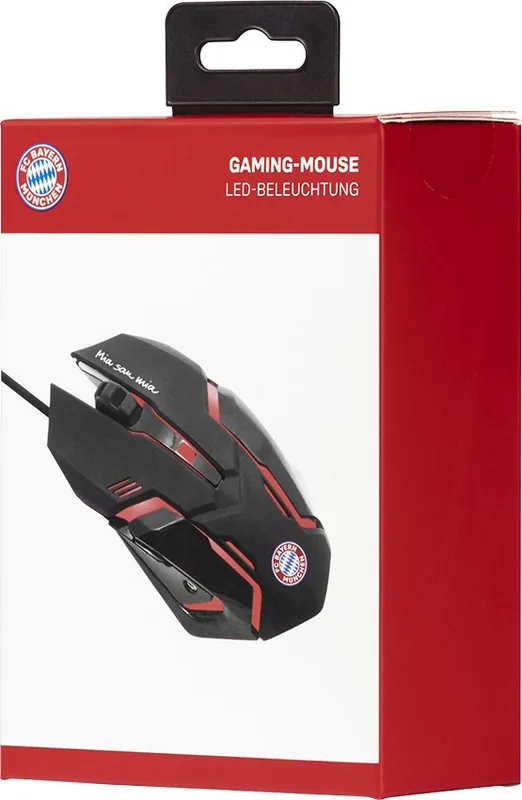
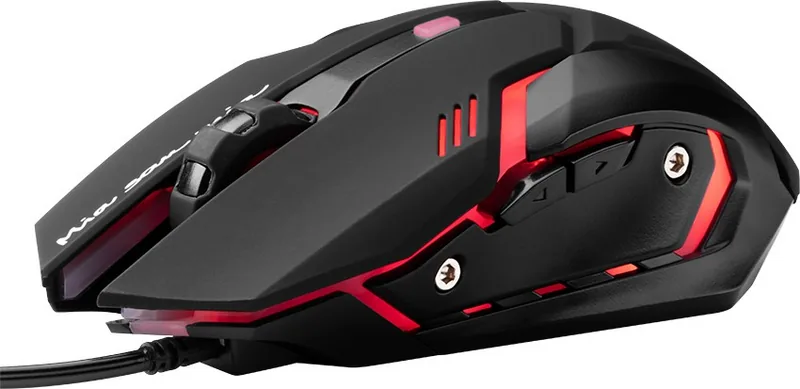
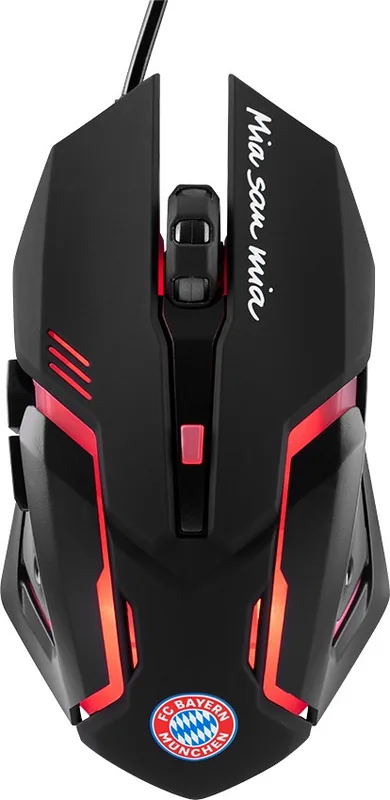
The Snakebyte FCB Gaming Mouse is the ultimate accessory for FC Bayern Munich fans who demand precision and style. Officially licensed by the club, this mouse features a striking black and red color scheme that mirrors the team's iconic jersey. Designed specifically for PC gaming, it combines official merchandise appeal with high-performance functionality.

This device operates on a simple plug-and-play principle, meaning no complex driver installation is required. Upon connecting via USB, Windows or MacOS automatically detects the hardware and installs necessary drivers in seconds. An LED indicator lights up immediately to confirm the mouse is ready for action. The optical sensor ensures accurate tracking of your movements, while the adjustable DPI settings allow you to customize sensitivity up to 2,400 DPI with a single press of the dedicated button.

Ergonomics and control are at the forefront of the design. The scroll wheel facilitates smooth navigation through long documents or web pages, while the forward and backward buttons offer quick access during gameplay or browsing. Whether you are navigating a battlefield or scrolling through match highlights, the responsiveness of this mouse enhances your overall experience. It is built to withstand the rigors of daily use, provided you follow basic safety precautions regarding temperature, moisture, and physical handling.

Key Features and Usage

The mouse includes standard left and right click buttons alongside a central scroll wheel. For advanced users, the DPI switch allows instant adjustment of cursor speed. The device is compatible with both Windows and Mac operating systems. Users should ensure they keep the mouse away from extreme temperatures and liquids to maintain longevity. Regular cleaning with a soft, dry cloth is recommended to remove dust without damaging the surface.

Important Notes

Always take breaks every 30 minutes to prevent strain on your arms and hands. Do not attempt to open or modify the internal components as this voids safety warranties. Dispose of the unit responsibly according to local electronic waste regulations.

M: QW-35-FL

© Copyright 2026 Manual.ly