Manual.ly Logo

Shuttle XPC all-in-one P22U Manual

0.0 · 0 Ratings

PDF manual · 2 Pages

English

M: gpt-5.6-terra
page

/ 2

Loading...
a07e77089a93be014ef97804e94a959e34f7 page 1
Incorrectly replacing the battery may damage this computer. Replace only with the same or equivalent as recommended by Shuttle. Dispose of used batteries according to the manufacturer’s instructions.
󲤤󲘋󵤫󲺐󲟩󲄿󵕟󴳔󱘟󴌭󲤳󲘽󱬎󲥜󵤫󴎖󱄕󱗺󲅅󳢬󳐶󳋨󰆍󳊛󳊭󲑆󱎦󱄆󱖡󵣚󰆎󱋵󴌭󱇍󳢴󲄪󴶠󱄕󳤨󱘼󲑆󱘼󳵹󳢴󵤫󲺐󲤤󲘋󰆎󴳻󱇍󳎗󴬭󵉐󱝶󳢴󱆯󳝘󴳚󲠾󴢅󳘶󲄒󵤫󲺐󰆎
Das unkorrekte Austauschen der Batterie kann diesen Computer beschädigen. Ersetzen Sie die Batterie nur durch den von Shuttle empfohlenen Typ oder ein gleichwertiges Modell. Entsorgen Sie gebrauchte Batterien gemäß den Herstellerangaben.
Ne pas replacer correctement la pile peut endommager l'ordinateur. Remplacez-la uniquement par un modèle identique ou un équivalent comme recommandé par Shuttle. Débarrassez-vous des piles usagées d’après les instructions du constructeur.
La sustitución incorrecta de la batería puede dañar este equipo. Sustituya la batería únicamente por una igual o equivalente recomendada por Shuttle. Deseche las baterías usadas según las instrucciones del fabricante.
󰉎󰉁󰉄󰉨󰈖󵟃󵊅󰇧󰇪󰈹󰉁󰉆󰇝󰈏󰇬󰆍󰇗󰇲󰈱󰉱󰉒󰉣󰉺󰈽󰇐󲘽󱋧󰇝󰈏󱗏󱤐󰇬󰇮󰈎󰈂󰇝󰆎󱃔󲘋󰇝󰈏󵣋󰇳󰆍󰇐󲗘󱮘󰇝󰈏󰉎󰉁󰉄󰉨󰇬󱘼󰇜󰈆󰇲󰈂󰇣󰇳󱘼󳵹󰇲󰈆󰇲󰇤󰇕󰈖󱆯󳝘󰇝󰈏󰈌󰇊󰇯󰇛󰇪󰇓󰇤󰇙󰇈󰆎󱆯󳝘󳀸󰈃󰉎󰉁󰉄󰉨󰇳󰆍󰉟󰉺󰈩󰉺󰇲󲔷󳭪󰇯󲇃󰇧󰇪󱐖󱐶󰇛󰇪󰇓󰇤󰇙󰇈󰆎


󲤤󲖒󳝥󲺐󲟩󲄿󵝉󴸟󱘟󴌭󱅊󲖏󱥿󲥜󳝥󴍁󰆎󱃵󴌭󱇍󳢴󲄪󴷞󱄕󳤨󱘼󲑆󱘼󳵹󳢴󳝥󲺐󲤤󲖒󰆎󴸧󱇍󳎗󱑦󵉐󱝶󳢴󱆯󳝘󴸤󲠾󱬴󳘶󲃏󳝥󲺐󰆎
!
This device complies with Part 15 of the FCC Rules. Operation is subject to the following two conditions: (1) this device may not cause

This device meets the requirements for the EU conformity in accordance to the currently valid EU directives.
Dieses Produkt erfüllt die Anforderungen für die EU-Konformität entsprechend der aktuell geltenden EU-Richtlinien.
Ce produit répond aux exigences de la conformité UE suivant les directives européennes actuellement en vigueur.
 󶾄󶼸 󶢢󳝒󱛱󲥜󵴄󰆍󶽁󲠾󲤨󶘓󶚗󶗶󶻃󲱉󳭪 󱆯󳝘󷀫󶝲󶟆󱋧󶛬󶻰󱓋󰆎
 󲼘󶟞󱂻󵨵 󶢢󳝒󱛱󶽁󲠾󶽁󶘓󶚗󶗶󶻃󲱉󳭪 󱆯󳝘  󱐶󷃐󶽋󱅁󲊟  󱐶󷃐󰆎 󶥯󱄕󱀻󶝥󱎂󱀽󳤻󴧒󶝟 󱎙󶥯󱄕󱀺󶦁󶈶󳤻󴧒󶝟󱀽󴮱󴾵󷀫 󱸿󲡲󰆎
󲼘󶟞 󱃵󷀆󳝘󱂾󱥘󷄵󳌝󲁖󲹄󱉉󲦑󱄦󱀻󶛙󶇰󱆯󳝘󱥘󳌝󲁖󲹄󱉉󲦑󱄦󱀻󱆯󳝘󲠦󱘟󶳬󲤹󶛙󶇰󵣀󲋓󰆎
󲼘󶟞 󶖼󴷨󱃗󱛱󱆯󳝘󳢴󶣟󷆫󳗟󶚃󳁙󶝲󱁪󰆎

󳝒󱛱󶛥󱙺󶣟󱭗󷀼󳝘󶪫󶚃󳃛󶝲󳋪󰆎
󲼘󶟞 󱃵󷀆󳝘󱂾󶦵󲔄󱄕󱀻󶛙󶇰󱆯󳝘󱥘󶦵󲔄󱄕󱀺󱆯󳝘󲠦󱘟󶳬󲤹󶛙󶇰󵣀󲋓󰆎

󵤫󳃀󰈯󰉺󰉔󰉩󳵹󰆍󰇝󰇽󰇪󰇲󱄈󱺎󱛱󰇳󲥜󶥍󱄕󶚗󰇫󰇳󰇘󱆯󳝘󰇯󰇮󰈐󰈂󰇟󰈗󰆎
2000m
Powering on the system
A. Begin Installation

disconnected before opening the case.
!
󳝒󱛱󶚗󶻵󶻍󱛱󶤮󴮱󱃗󱛱󶚗󴯲

󲈛󷀗󶛙󶻃󲔷󱖇󰆌
Kurzanleitung
󰆌
Guide rapide
󰆌
Guía rápida
󰆌󰈭󰈢󰉁󰈭󰈪󰈢󰉇󰆌
Kраткое руководство
󰆌󲈛󷀗󶛙󶻃󲔷󱖇
Hardware Installation
󳪜󵴄󶛙󶻃󰉍󰉺󰉇󰈤󰈥󰈠󰇲󰈢󰉱󰈷󰉆󰉺󰉩󳪜󱄦󶛙󴫵
L
The product’s colour and specifications may vary from the actually shipped product.






®
Lock Hole




11. Microphone jack










the screw.
1. 


o







separately how to install it.





settings.
!

!






Cleaning the screen
Follow these guidelines for cleaning
the outside and handling the screen
of the computer:
Turn off the system and disconnect
all cables. Use a cleaning cloth which

gently wipe the screen surface.
Do not spray liquids directly onto the
device.
!

󲤤󱭊󲥜󳝒󱛱󴻷󶻽󶽋󴛎󴐘󰦗



󲥜󶻍󱛱󰇲󶼩󶰌󰇮󲋵󶙷󰇯󰇨󰇈󰇪󰇳󰆍󲵑󰇲󰈌󰈎󶭉󶼲󵨲󰇕󰈂󰇝󰆎

󲤤󱭊󲥜󱃗󱛱󶖆󲊟󴸧󴷯󵠞󰦗
55
o
1

Safety Information
/
󶛙󶇰󴻷󶻽
/ Sicherheitshinweise / Informations de sécurité / Información de seguridad /
󶛙󶇰󰇯󵟒󰇝󰈏󲋵󶙷
/ Информация о безопасности /
󶛙󶇰󶖆󲊟
E. Complete
Daughter board (CM008)
Placing on a desk

Slope angle

can effectively reduce its temperature.
!

How to use the Touch Panel

jumper for standby voltage

(Default)


(Standby)
 
COM1

 

(Default)

COM port 

06
05
08
09
10
07
14 15 09 16 17
02
0103
23
18
21
11 1312
19
20
04
22
04
24

25
1. Unscrew four screws of the back cover.



cable lengths before closing the cover.
Pull it upward.
Pull the cover outward.
C. Memory Module Installation
1. Locate the SO-DIMM slots on the motherboard.
 Align the notch of the memory module with the one of the
relevant memory slot.


locking mechanism and put back the mylar.
Notch
Latch
Latch
Cutout
SO-DIMM slot

angle

memory modules.
!
5. 
if required.
1. Replace the back cover and refasten the screws.
 Complete.
Power button
DC-IN
1
1. Place an HDD or SSD in the rack and secure with the four screws
from the sides. Affix the EMI shielding gasket with the adhesive

B. HDD or SSD Installation


Slide the rack into the chassis and refasten the screws.
b
a
Push Push
Screw
1
Screw
Back cover
c
a
Serial ATA and
power cable
b
a
c
Screw
EMI shielding gasket
a
b
a
b
a
b
b
c
b

Chat with your Shuttle XPC all-in-one P22U manual using AI

Get instant AI answers from your Shuttle XPC all-in-one P22U manual

Ask anything about the Shuttle XPC all-in-one P22U. Answers come from this manual, with the pages they are based on.

Ask a Question

0/1000

Do you recommend XPC all-in-one P22U?

Yes No

Frequently Asked Questions

A

The P22U has an integrated LCD multi-touch display. It supports direct finger input, allowing the screen to serve as the main interaction surface for compatible software and touch-oriented workspaces.

Is this answer helpful?

A

Yes. The system supports a 100 x 100 mm VESA mounting pattern. Remove the stand before installation and use a compatible wall or arm bracket, which is not included.

Is this answer helpful?

A

The P22U supports a 2.5-inch HDD or SSD and an M.2 M-key device in 2242, 2260, or 2280 lengths. The included thermal pad can help lower the operating temperature of an installed M.2 SSD.

Is this answer helpful?

A

The motherboard supports 1.2 V DDR4 SO-DIMM memory modules. Install each module at a 45-degree angle, then press it down until the locking mechanism engages.

Is this answer helpful?

A

Connections include HDMI, VGA, USB 2.0, USB 3.2 Gen 1, LAN, microphone input, headphone or line-out, and COM ports. Optional features include extra COM ports and an RJ11 cash drawer port.

Is this answer helpful?

A

Turn off the system and disconnect all cables. Wipe the display gently with a soft, lint-free cloth that is slightly damp. Do not spray liquids directly onto the computer.

Is this answer helpful?

M: gpt-5.6-terra

Advantages and Disadvantages

Advantages

  • Integrated multi-touch display reduces the need for separate input devices in touch-focused workflows.
  • Wide connectivity includes HDMI, VGA, USB 2.0, USB 3.2 Gen 1, LAN, audio, and serial COM ports.
  • Supports DDR4 SO-DIMM memory, a 2.5-inch HDD or SSD, and M.2 storage expansion.
  • Flexible deployment with a desk stand, carrying handle, cable management box, and 100 x 100 mm VESA support.
  • Optional 4G antennas, additional COM ports, and RJ11 cash drawer connectivity suit specialized business setups.
VS

Disadvantages

  • Memory compatibility is limited to 1.2 V DDR4 SO-DIMM modules.
  • Internal upgrades require removing the rear cover and disconnecting power first.
  • VESA wall or arm mounting hardware is purchased separately.
  • Some connectivity features, including 4G antennas and extra ports, are optional rather than standard.
  • The integrated audio solution is a mono speaker, which may not suit richer media playback needs.
M: gpt-5.6-terra

Product Specification

Type

All-in-one (11.6", 1366x768, multi-touch, webcam, microphone)

Chipset

System-on-Chip (SoC)

Socket

N/A

CPU

Intel Celeron 5205U, 2C/2T, 1.90GHz, 2MB+0.5MB cache, 15W TDP, 12.5W cTDP, codename "Comet Lake-U" (Comet Lake, Intel 14nm++)

RAM

2x DDR4 SO-DIMM, dual PC4-19200S/DDR4-2400, max. 64GB (UDIMM)

Storage

1x M.2/M-Key (PCIe 2.0 x4/SATA, 2280/2260/2242)

External bays

N/A

Internal bays

N/A

Graphics

Intel UHD Graphics (iGPU), 23EU/184SP, 0.30-0.90GHz, architecture "Gen 9.5" (Comet Lake GT2)

Rear ports

1x VGA, 1x HDMI 1.4, 2x USB-A 3.0 (5Gb/s), 2x USB-A 2.0 (480Mb/s), 1x RJ-45 1Gb LAN (Intel I219-V), 2x 0.14" jack (Realtek ALC269), 2x serial, 1x barrel jack (power input)

Upgradeable rear ports

2x serial

Front/side ports

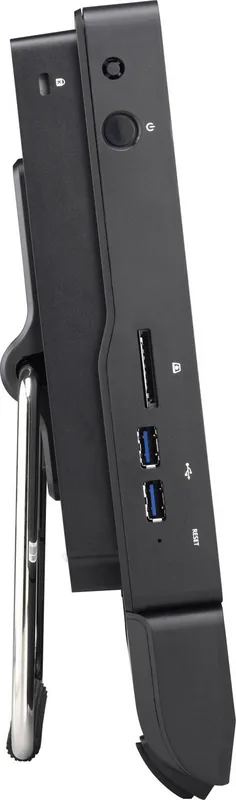
2x USB-A 3.0 (5Gb/s), 1x SD card

Expansion slots

1x M.2/E-Key (PCIe, 2230)

Wireless

N/A

Audio

2.0 (Realtek ALC269)

Card reader

SD card

Power supply

external, 1x barrel plug (65W/19V/3.42A)

VESA mount

3.94x3.94" (optional)

Dimensions (WxHxD)

11.77x10.67x1.97"

Weight

5.45lb

Volume

1.08gal

CPU cooler

included

Special features

fanless, speakers (2x 2W), IP54 certified (front), suitable for continuous operation, security lock (Kensington)

Manufacturer warranty

two years

Note

serial/parallel only with adapter (Shuttle PCP11/PCP21)!

USB notation

Link

M: gpt-5.6-terra

Product Description

Shuttle XPC all-in-one P22U - Read, Download & Print Free

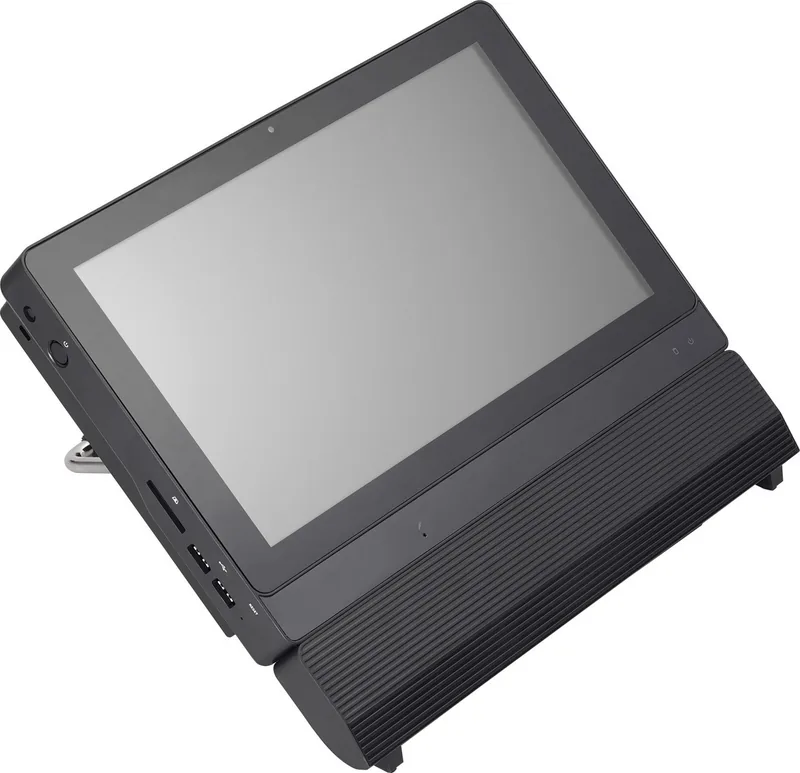
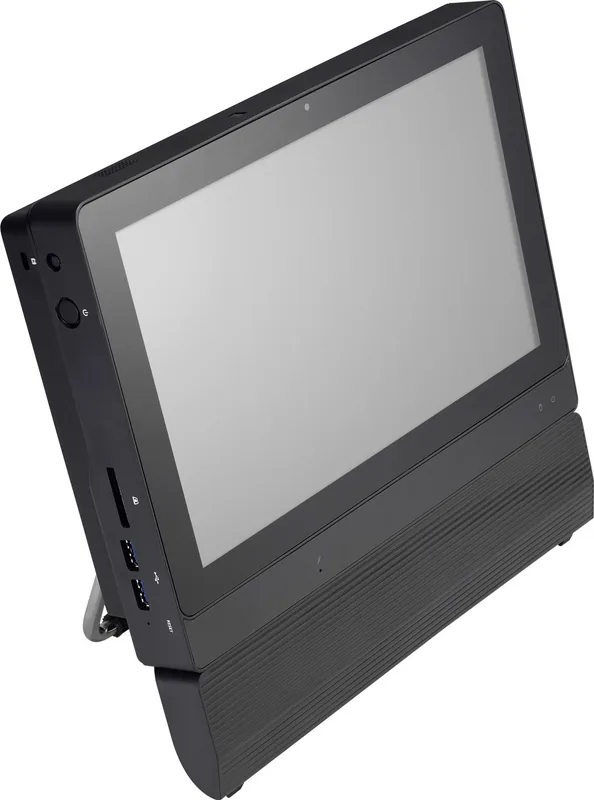
The Shuttle XPC all-in-one P22U is a compact touch-enabled computer designed for practical, space-conscious work areas. Its integrated multi-touch LCD display combines visual output and direct input in one streamlined system, making it well suited to point-of-sale counters, reception desks, kiosks, service stations, and business environments where a conventional desktop setup would take up too much room.

Built for flexible daily operation

The P22U includes a webcam with a status LED, integrated microphone, SD card reader, headphone or line-out jack, and a mono speaker. These features support communication, media access, and everyday tasks without requiring numerous external accessories. The touchscreen allows users to interact directly with applications, which can simplify workflows in customer-facing or shared-use settings.

Connectivity is a key strength. Available connections include HDMI, VGA, USB 2.0, USB 3.2 Gen 1, LAN, microphone input, and serial COM ports. Optional configurations can add 4G antennas, extra COM ports, and an RJ11 cash drawer port. This range makes the Shuttle XPC all-in-one P22U adaptable to retail hardware, legacy peripherals, external displays, and wired networks.

Upgradeable storage and memory

The system supports practical internal expansion. Users can install a 2.5-inch HDD or SSD, plus an M.2 device in 2242, 2260, or 2280 sizes using an M-key slot. A supplied thermal pad can help reduce M.2 SSD temperatures. Memory installation uses 1.2 V DDR4 SO-DIMM modules, offering a straightforward route for tailoring the system to workload needs.

Accessing internal components requires removing the rear cover, so the power cord must be disconnected before opening the case. Storage and memory upgrades should be completed carefully and with compatible hardware. The product also includes a Clear CMOS button and BIOS access through the Delete key during startup.

Placement, mounting, and maintenance

A built-in stand supports desktop use at an approximately 55-degree angle and can extend to 180 degrees as a carrying handle. For permanent installations, the P22U supports a 100 x 100 mm VESA mount when used with a compatible separately purchased wall or arm bracket. A cable collection box helps keep connected wires organized for a cleaner workspace.

Notes: Disconnect all cables before opening the chassis or cleaning the screen. Use a soft, lint-free, slightly damp cloth, and never spray liquid directly onto the display. Replace the battery only with the same or equivalent type recommended by Shuttle.

M: gpt-5.6-terra

© Copyright 2026 Manual.ly
