
Sharp FN2KA Manual
PDF manual · 91 Pages
English



Quick check
Incorrect answer, please try again.
Chat with your Sharp FN2KA manual using AI
Get instant AI answers from your Sharp FN2KA manual
Ask anything about the Sharp FN2KA. Answers come from this manual, with the pages they are based on.
Ask a Question
Do you recommend FN2KA?
Yes NoFrequently Asked Questions
Press and hold the LEFT ARROW and HOME buttons together on the remote until its LED flashes. On the TV go to Settings > Remotes & Accessories, select the remote from the list and confirm pairing. Use the Google Assistant button or on‑screen keyboard to speak or type commands; an internet connection and a paired microphone remote are required.
Is this answer helpful?
Prefer an HDMI (ARC) connection to the TV HDMI(ARC) port and enable HDMI CEC in Settings > Device Preferences > Inputs. If ARC isn't available, use the digital optical output and set Settings > Sound > Digital Output to PCM if the receiver lacks Dolby/DTS. Disable internal speakers when using optical output to avoid echo.
Is this answer helpful?
Screen burn (permanent ‘shadow image’) can occur from long exposure to static elements (logos, paused frames). Prevent it by lowering brightness/contrast, avoiding static images for extended periods, using screen savers, and turning the TV off when not in use. Burn damage is not covered by warranty.
Is this answer helpful?
Yes — sign in with a Google account, open Google Play Store, download compatible apps, then move supported apps via Settings > Apps to a formatted USB/SD memory device. Note: external storage is formatted for TV use and may not be readable on a PC; some apps cannot be moved.
Is this answer helpful?
During first‑time installation or via Settings > Channel, choose the appropriate signal type (Antenna for Freeview/Saorview), then run Channel Scan. For Freeview Play ensure an internet connection is active. Country selection during setup affects available services.
Is this answer helpful?
Use anti‑tip straps when placing the TV on furniture, follow the provided wall‑mount screw guidance, keep ventilation clear (min 5cm from the wall), avoid unstable surfaces, and retain original packaging for transport and warranty service. Educate children about TV safety and anchor tall furniture if relocating a set.
Is this answer helpful?
Insert the USB device into a TV USB port, open the Digital Media Player app from the Home Page, browse folders and press OK to play files. The TV supports FAT32 and NTFS for general media playback but note some file types or codecs may not be playable.
Is this answer helpful?
Advantages and Disadvantages
Advantages

- Full Android TV platform with Google Assistant and Chromecast built-in for voice control and easy casting.
- Wide connectivity: HDMI (ARC/CEC), optical audio, analog, USB, Ethernet and dual-band Wi‑Fi.
- Comprehensive picture and sound settings including user presets, 11‑point white balance and multiple audio formats.
- Integrated Freeview/Freeview Play (UK) and Saorview (ROI) support for live and catch‑up TV alongside streaming apps.
- Safety and installation guidance: anti‑tip strap recommendations, wall‑mount instructions and detailed warranty/support info.
Disadvantages

- Risk of irreversible LCD/LED screen burn from prolonged static images; requires careful usage.
- Some advanced features and app behaviors depend on software version, region or specific model variations.
- External USB/SD formatting for app storage uses proprietary format and may not be readable on PCs.
- Not all apps or functions can be uninstalled or moved; internal storage may fill quickly.
- Certain HDMI CEC and audio features require compatible external devices and specific configuration.
Product Specification
Resolution
3840x2160
Panel
LCD
Backlight
LED
HDR
Dolby Vision, HDR, HDR10, HLG
Refresh Rate
50/60 Hz native
3D
no
Tuner
1x DVB-C/-T/-T2/-S/-S2 HEVC (H.265) MPEG-4 AVC (H.264)
Video Ports
4x HDMI 2.1
Audio Ports
eARC, Digital Audio Out (optical), Headphone (3.5mm jack)
Other Ports
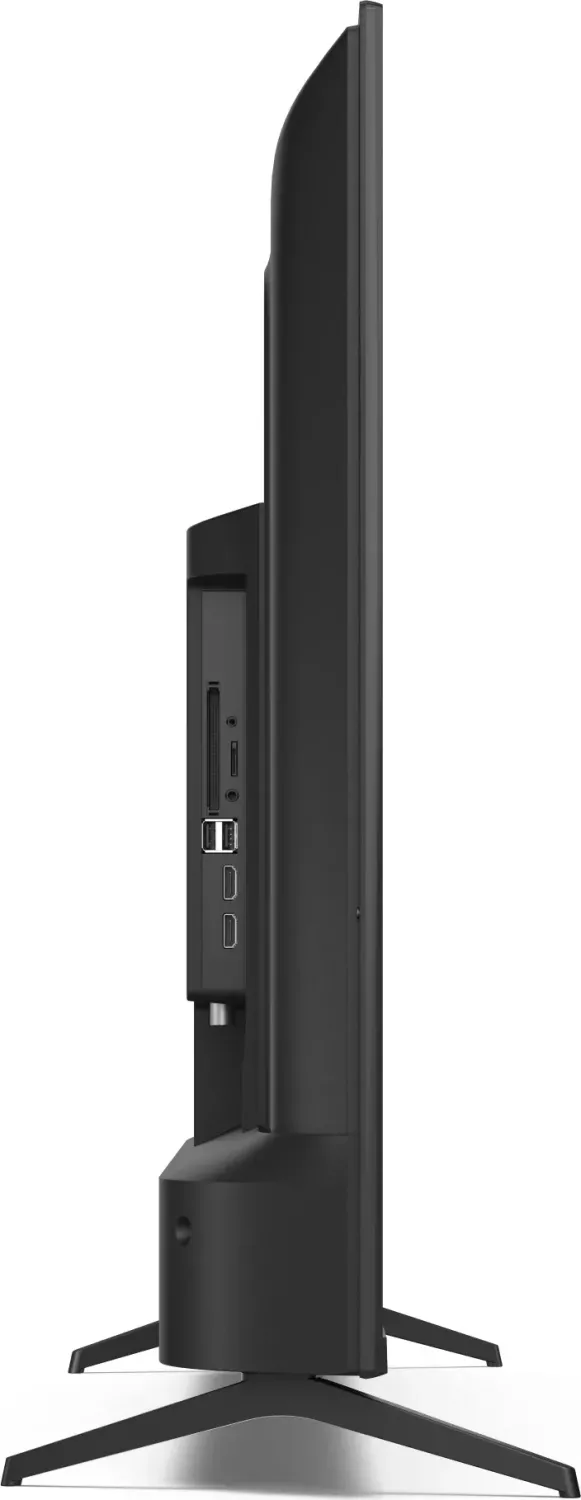
2x USB-A 2.0, 1x RJ-45 (10/100Base-TX), 1x CI+, Card reader (SD)
Wireless
Wi-Fi (WLAN), Bluetooth
Operating System
Android TV 11
Voice Assistants
Google Assistant (not usable in all countries)
Streaming Clients
Screen Mirroring (Google Cast), DLNA Client
Total Audio Power
2.0, 16 W (2x 8 W)
Special Features
HbbTV
HDR Energy Efficiency Class
G (A to G)
Color
black
Stand
side
Manufacturer Warranty
2 years
Note
Information about DVB-T2 reception in AustriaInformation about DVB-T2 reception in Germany
Product Description
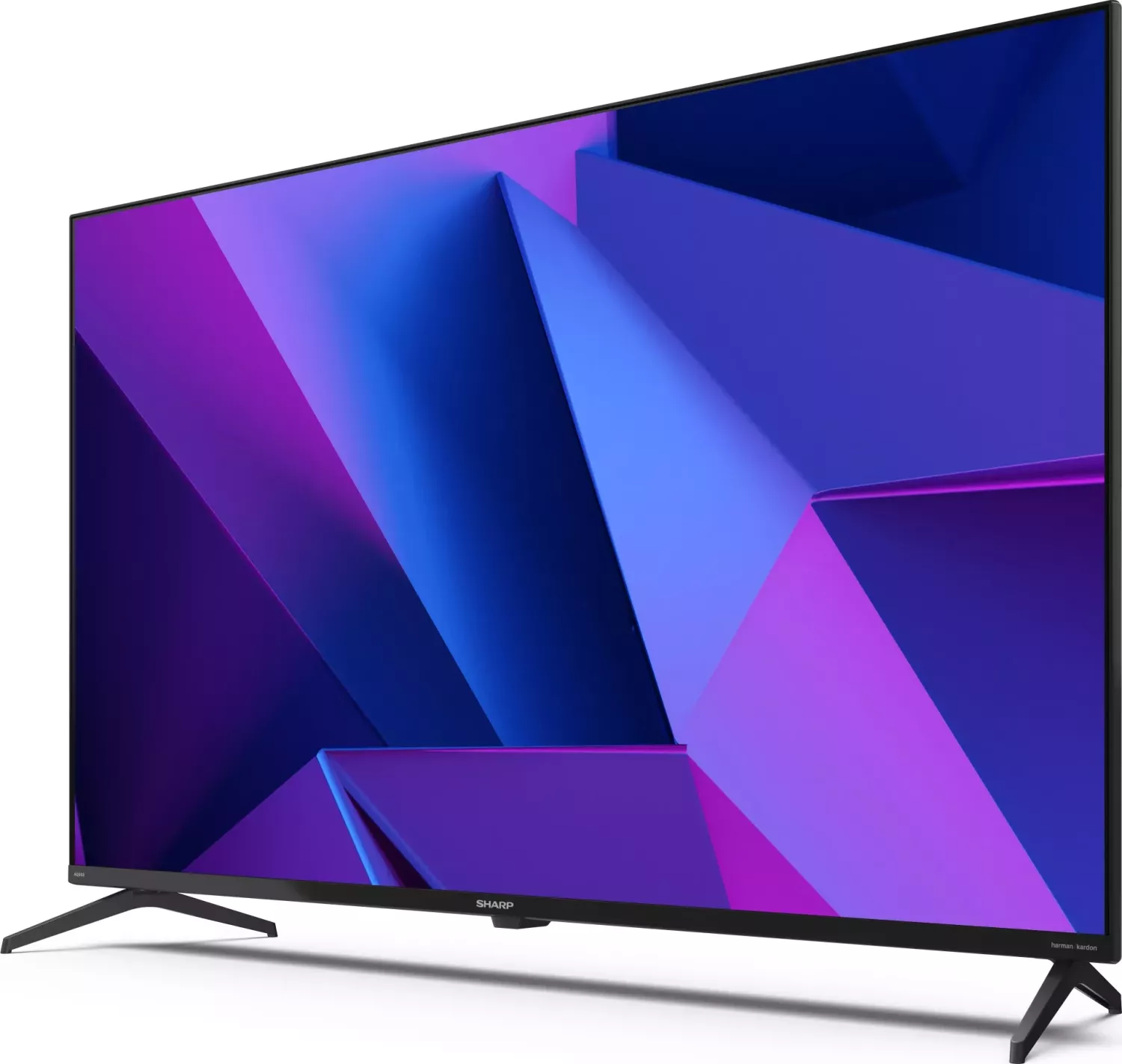
Sharp FN2KA Manual — Smart Android TV Overview
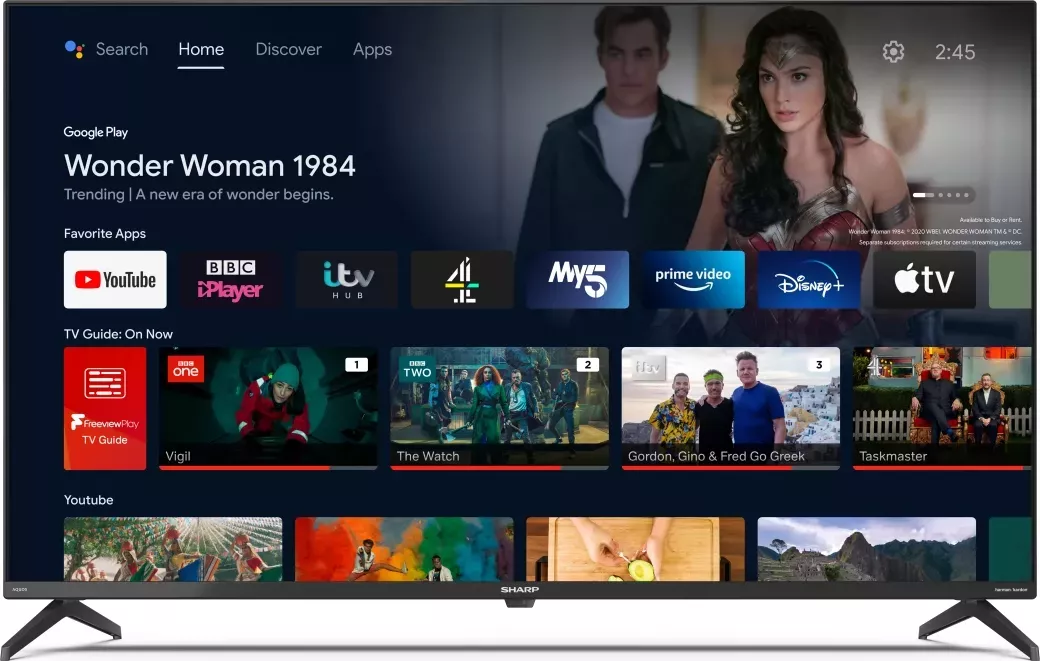
The Sharp FN2KA is a modern Android TV that blends smart streaming, everyday TV viewing and flexible connectivity in a single, user-friendly package. Built on Android TV, it gives direct access to major streaming apps such as Netflix, Prime Video and YouTube, supports Chromecast built-in for seamless casting from phones and tablets, and includes the Google Assistant for voice search and smart-home control. The set supports Freeview/Freeview Play (UK) and Saorview (ROI) for live digital TV and catch-up services, making it suitable for both streaming-first households and viewers who still rely on broadcast TV.
Design and usability are straightforward: an intuitive Home Page organizes apps, recommendations and Play Next suggestions, while a Bluetooth-capable remote with microphone enables voice commands. The FN2KA provides both wired and wireless connectivity — HDMI (including ARC/CEC for audio system control), optical and analog audio outputs, USB ports for media playback and storage, Ethernet and dual-band Wi‑Fi. HDMI‑CEC integration streamlines control of compatible Blu-ray players, AV receivers and cameras. Wall-mount guidance and anti-tip strap recommendations emphasize safe installation, while an included TV control stick offers basic on-set control.
Picture and audio customization are comprehensive. Multiple picture modes (Standard, Movie, Game, Sport, Vivid, User) and advanced settings (gamma, colour temperature, 11‑point white balance and various noise reduction options) let you fine-tune the image. Sound options cover preset styles, EQ adjustments, digital output formats (PCM, Dolby, DTS variants) and speaker routing for external audio systems or soundbars. For gamers, Game Mode reduces processing delay; for daily viewing there are energy‑saving picture modes and configurable sleep/auto‑power timers.
Practical features include USB and DLNA support for photo, music and video playback, support for external wired and Bluetooth input devices (keyboards, mice, headphones), and the ability to move or store apps on a formatted USB/SD storage device. The manual outlines first‑time setup, account sign-in, network configuration, channel tuning, parental controls and troubleshooting. It also details safety, maintenance, recycling and battery guidance, plus manufacturer support and warranty information.
Notes:
- The TV warns about fixed-image “screen burn” on LCD/LED panels and recommends reducing brightness, avoiding long static images and turning off the set when idle.
- Anti‑tip straps and secure mounting instructions are emphasized for safety, especially around children.
- Firmware updates, Google Play Store limits and app-specific behaviors are noted; some features may vary by region, software version or model.
Overall, the Sharp FN2KA is positioned as a versatile and safety-conscious Android TV combining familiar broadcast features with contemporary smart TV capabilities, extensive picture/sound controls and flexible connectivity.
Search for 67,706 Manuals online


Type-in Brand or Model