Manual.ly Logo

Renkforce RF-WC-200 Manual

0.0 · 0 Ratings

PDF manual · 4 Pages

English

M: QW-35-FL
page

/ 4

Loading...
90241258eb3f52fe9977e3c66caead6729e0 page 2
2
Operating Instructions
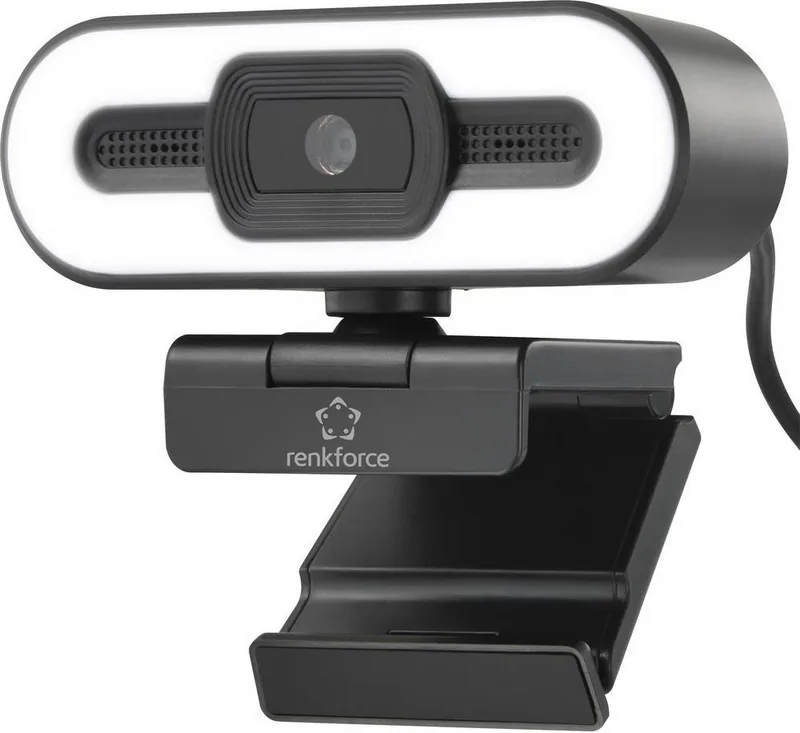
RF-WC-200 2K HD Resolution Web Camera
Item no: 2380280
1 Intended use
The product is a webcam that connects to a USB port on a PC. Use the product in video calls and to re-
cord images and videos.
If you use the product for purposes other than those described, the product may be damaged.
Improper use can result in short circuits, fires, or other hazards.
The product complies with the statutory national and European requirements.
For safety and approval purposes, you must not rebuild and/or modify the product.
Read the operating instructions carefully and store them in a safe place. Make this product available to
third parties only together with the operating instructions.
All company names and product names are trademarks of their respective owners. All rights reserved.
2 Delivery contents
■
Product
■
Operating instructions
3 Latest product information
Download the latest product information at www.conrad.com/downloads or scan the QR code shown. Fol-
low the instructions on the website.
4 Description of symbols
The symbol with the exclamation mark in the triangle is used to indicate important informa-
tion in this document. Always read this information carefully.
5 Safety instructions
Read the operating instructions carefully and especially observe the safety informa-
tion. If you do not follow the safety instructions and information on proper handling,
we assume no liability for any resulting personal injury or damage to property. Such
cases will invalidate the warranty/guarantee.
5.1 General
■
The product is not a toy. Keep it out of the reach of children and pets.
■
Do not leave packaging material lying around carelessly. This may become dangerous playing mater-
ial for children.
■
If you have questions which remain unanswered by this information product, contact our technical
support service or other technical personnel.
5.2 Handling
■
If it is no longer possible to operate the product safely, take it out of operation and protect it from any
accidental use. Safe operation can no longer be guaranteed if the product:
– is visibly damaged,
– is no longer working properly,
– has been stored for extended periods in poor ambient conditions or
– has been subjected to any serious transport-related stresses.
■
Handle the product carefully. Jolts, impacts or a fall even from a low height can damage the product.
■
Consult an expert when in doubt about the operation, safety or connection of the appliance.
5.3 Operating environment
■
Do not place the product under any mechanical stress.
■
Protect the appliance from extreme temperatures, strong jolts, flammable gases, steam and solvents.
■
Protect the product from high humidity and moisture.
■
Protect the product from direct sunlight.
■
Do not switch the product on after it has been taken from a cold to a warm environment. The con-
densation that forms might destroy the product. Allow the product to reach room temperature before
you use it.
5.4 Connected devices
■
Also observe the safety and operating instructions of any other devices which are connected to the
product.
6 Disposal
Electronic devices are recyclable waste and must not be disposed of in the household waste.
At the end of its service life, dispose of the product in accordance with applicable regulatory
guidelines.
You thus fulfill your statutory obligations and contribute to the protection of the environment.
7 Product overview
1
2
3
5
6
4
1
2
3
4
5
6
Light control button
Light
Camera
Microphone
Clamp
Tripod socket
8 Getting started
To get started, mount the product on top of a PC display or on a tripod and connect the product to a PC.
PRECONDITIONS:
a
The PC has booted.
1. Mount the product on top of a PC display or on a tripod.
2. Connect the USB-A plug to a USB port (min. USB2.0) on the PC.
à The required drivers install automatically.
à The product is ready for use.
9 Operation
Note:
When another webcam is connected to the same PC, it is necessary to switch webcams.
9.1 Making video calls
After connecting the product to the PC, use the camera and microphone in video calls.
1. Start a video call application.
à The application recognizes the product as a camera.
2. Speak into the microphone for sound transmission.
9.2 Recording video and images
Use the product to record video and images and save them to the PC.
1. Open a video recording application on the PC.
à The application recognizes the product as a camera.
2. Record video and images and save them to the PC.
9.3 Adjusting the light
Turn on and off the light. Adjust the light settings for better image quality.
1. Touch the light control button multiple times to select a light colour or to turn the light off.
2. When the light is on, keep touching the light button to adjust the light intensity.
10 Cleaning and care
NOTICE!Do not use aggressive cleaning agents, rubbing alcohol or other chemical solutions as
they can cause damage to the housing and malfunctioning.
1. Disconnect the product from the power supply.
2. Clean the product with a dry, fibre-free cloth.
11 Technical data
Power supply ........................................ 5 V/DC, min. 500 mA via USB
USB interface ....................................... min. USB 2.0
System requirements ............................ Windows® 7 and above
MacOS Mojave 10.14 and above
Ubuntu 14.04
Cable length ......................................... 150 cm
Operating temperature ......................... -20 to +65 °C
Operating humidity ............................... 20 – 90 % RH
Storage temperature ............................. -20 to +65 °C
Storage humidity ................................... 20 - 90 % RH
Dimensions (W x H x D) (approx.) ........ 95 x 56 x 55 mm
Weight (approx.) ................................... 106 g
11.1 Camera
Video resolution .................................... max. 2592 x 1944 px
Video format ......................................... AVI
Focal distance ....................................... 50 cm to infinity
Image resolution ................................... max. 2592 x 1944 px
11.2 Light
Luminous flux ....................................... 20 lm
This is a publication by Conrad Electronic SE, Klaus-Conrad-Str. 1, D-92240 Hirschau (www.conrad.com).
All rights including translation reserved. Reproduction by any method (e.g. photocopying, microfilming or the capture in
electronic data processing systems) requires prior written approval from the editor. Reprinting, also in part, is prohibited.
This publication reflects the technical status at the time of printing.
Copyright by Conrad Electronic SE.
*2380280_V2_1121_jh_mh_en I3/O2

Chat with your Renkforce RF-WC-200 manual using AI

Get instant AI answers from your Renkforce RF-WC-200 manual

Ask anything about the Renkforce RF-WC-200. Answers come from this manual, with the pages they are based on.

Ask a Question

0/1000

Do you recommend RF-WC-200?

Yes No

Frequently Asked Questions

A

The camera supports a maximum video resolution of 2592 x 1944 pixels, providing high-definition clarity for video calls and recordings.

Is this answer helpful?

A

You can adjust the light by touching the dedicated control button. Multiple taps switch colors or turn the light off, while holding the button adjusts brightness intensity.

Is this answer helpful?

A

Yes, the Renkforce RF-WC-200 is compatible with Ubuntu 14.04 and later versions, as well as Windows 7+ and MacOS Mojave 10.14+.

Is this answer helpful?

A

Absolutely. The device features a standard tripod socket, allowing you to mount it on any standard camera tripod for flexible positioning.

Is this answer helpful?

A

Allow the product to reach room temperature before turning it on. Switching it on immediately after moving from cold to warm environments can cause condensation damage.

Is this answer helpful?

A

Use a dry, fiber-free cloth to clean the device. Do not use alcohol, aggressive cleaners, or chemical solvents as they can damage the housing.

Is this answer helpful?

A

No, the webcam is powered directly through the USB connection, requiring a minimum of 5V/DC and 500mA from the computer port.

Is this answer helpful?

M: QW-35-FL

Advantages and Disadvantages

Advantages

  • High 2K resolution up to 2592 x 1944 pixels for sharp video quality
  • Built-in adjustable LED light with touch control for better visibility
  • Plug-and-play USB 2.0 connection with automatic driver installation
  • Compatible with multiple operating systems including Windows, Mac, and Linux
  • Flexible mounting options with monitor clamp and tripod socket
VS

Disadvantages

  • Requires specific ambient temperature conditions to prevent condensation damage
  • Cannot be modified or rebuilt without voiding the warranty
  • Sensitive to harsh cleaning agents which may damage the housing
  • Cable length is fixed at 150 cm which may limit some setups
  • Not suitable for use as a toy or by children without supervision
M: QW-35-FL

Product Specification

Type

Webcam

Resolution

2592x1944 Pixels

Viewing Angle

65 degrees

Wireless

N/A

Camera Cover

Flip cover

Microphone

Integrated

Speaker

N/A

Lighting

Ring light

Cable Length

4.92 feet

Power Supply

Via USB

Mounting

Clip mount

Dimensions

3.35x2.80x1.30 inches

Weight

3.74 ounces

Package Contents

Camera, Camera cover

M: QW-35-FL

Product Description

Renkforce RF-WC-200 HD Webcam Review

The Renkforce RF-WC-200 is a versatile 2K HD webcam designed to enhance your digital communication experience. Whether you are attending important video conferences, streaming content, or recording high-quality personal videos, this device offers reliable performance with its integrated microphone and adjustable lighting system. The camera connects effortlessly via a standard USB port, ensuring plug-and-play compatibility with Windows, macOS, and Ubuntu systems without the need for complex driver installations.

One of the standout features of the RF-WC-200 is its built-in LED light control. This touch-sensitive button allows users to switch between different light colors or adjust brightness levels to ensure optimal image quality in various lighting conditions. The camera supports a maximum resolution of 2592 x 1944 pixels, delivering crisp and clear visuals that make every interaction feel professional. Its flexible clamp design fits securely on most monitor stands, while the included tripod socket offers additional mounting options for creative setups.

Safety and durability are paramount in the design of this webcam. Users are advised to handle the device with care, avoiding exposure to extreme temperatures, moisture, or direct sunlight. The unit requires specific environmental conditions to operate correctly, such as allowing it to reach room temperature after moving from a cold environment to prevent condensation damage. Regular cleaning with a dry, fiber-free cloth ensures the device remains in top condition without risking damage from harsh chemicals.

For those seeking a seamless upgrade to their home office or streaming station, the Renkforce RF-WC-200 provides a robust solution. Its compact dimensions and lightweight build make it easy to transport, while the 150 cm cable length provides ample flexibility for placement. By combining high-resolution capture with user-friendly controls, this webcam stands out as an essential tool for modern digital connectivity.

Important Notes

Always read the safety instructions before use to avoid voiding the warranty. Ensure your computer meets the minimum system requirements for smooth operation. Dispose of the product responsibly at the end of its life cycle according to local electronic waste regulations.

M: QW-35-FL

© Copyright 2026 Manual.ly