1/2
• Taschenrechner • Calculatrice de poche
• Zakrekenmachine • Calculadora de bolsillo
• Calculadora de bolso • Calcolatrice tascabile
• Lommekalkulator • Taskulaskin
• Αριθμομηχανή • Джобен калкулатор
• Zsebszámológép • Kapesní kalkulačka
• Vrecková kalkulačka • Žepni kalkulator
DESKTOP
calculaTOr
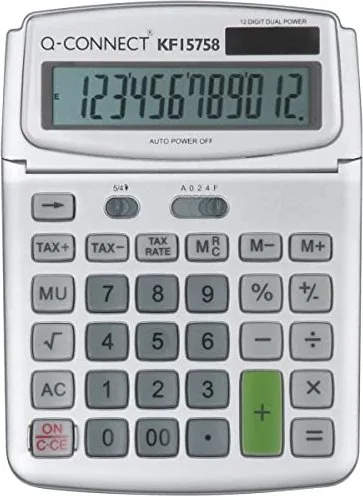
KF15758
InSTrucTIOn Manual
t
FEaTurES
. Auto Power O: If the calculator is not used within
approximately 5-12 minutes, the unit shuts o
automatically.
. Four function memory including addition, subtraction,
recall and clear.
. Tax calculation: Calculates price plus tax, price minus
tax and the tax amount.
. Mark up function.
OPEraTIng ThE calculaTOr
AC All clear
ON/C.CE Powers on / Clears the display without losing the
calculation. If a number is too large to be
displayed, the calculator stops and ‘E’ is displayed.
Press [CE] to continue.
+/- Press to switch between positive and negative
numbers. ‘-‘ will
appear when the number is negative.
MU Mark up calculation.
g Delete key: deletes the last input digit by digit so
that the number can be edited.
√ Square root calculation
MEMOry FuncTIOnS
[M+] Press to add the displayed number to the
memory. ‘M’ is displayed.
[M-] Press to subtract the displayed number from the
memory. ‘M’ is displayed.
[MRC] Press once to recall the number in memory.
Press twice to clear the memory.
rOunDIng SElEcTOr
Species the rounding system used in all calculations.
Use the decimal place selector (see below) to set the
number of decimal places.
5/4 Rounds o the decimal to the specied number
of places.
Rounds down the decimal to the specied
number of places.
DEcIMal PlacE SElEcTOr
Specied the number of decimal places for rounding:
F Floating decimal place. The value is not rounded
up or down.
0 The number of decimal places is set to ‘0’
2 The number of decimal places is set to ‘2’
4 The number of decimal places is set to ‘4’
A 2 decimal places are displayed automatically,
even if the decimal point key is not used.
PErFOrMIng calculaTIOnS
Example Key Operation Display
6 + 7 = 13 [6][+][7][=] 13.
10 - 4 = 6 [1][0][-][4][=] 6.
7 x 5 = 35 [7][x][5][=] 35.
14 ÷ 7 = 2 [1][4][÷][7][=] 2.
Calculate 6% of 200 [2][0][0][x][6][%] 12.
Calculate 20% discount from €150 [1][5][0][x][2][0][%] 30.
Mark up €150 by 20% [1][5][0][x][2][0][MU] 180.
Calculate the mark up where the cost price is €80 and
the selling price is €150 [1][5][0][-][8][0][MU] 87.5
Calculate the price + tax and the tax on a €150 nett price
[1][5][0][TAX+] 162.
Note: Tax is 8% [TAX+] 12.
Calculate the price - tax and the tax on a €162 price (incl. tax)
[1][6][2][TAX-] 150.
Note: Tax is 8% [TAX-] 12.
30 x 40 = 1200 + [3][0][x][4][0][M+] 1200.
50 x 60 = 3000 + [5][0][x][6][0][M+] 3000.
25 x 30 = 750 + [2][5][x][3][0][M+] 750.
235 x 35 = 8225 . [2][3][5][x][3][5][M-] 8225.
[MRC] -3275.
SETTIng ThE Tax raTE
- Input the tax rate and then press [TAX RATE] and
[TAX+]. The tax rate is set.
- To check the tax rate, press [TAX RATE] and press [TAX-]
again. The rate will be displayed.
rEPlacIng ThE BaTTEry
. Remove the battery cover and the old battery
. Wipe the new battery with a dry soft cloth and place it
into the calculator with the positive (+) side facing up.
. Replace the battery cover and secure with the screws.
. Press [ON/AC] to turn the power on.
. Note: A dead battery can leak and damage the
calculator if left in the battery compartment for long
periods.
carE anD MaInTEnancE
. Keep the calculator dry. If it gets wet, dry before use.
. Do not use harsh solvents or detergents to clean the
unit. Wipe with a soft, dry cloth to clean.
. Do not drop or strike the calculator.
. Do not bend or twist the calculator.
BEDIEnungSanlEITung
D
MErKMalE
. Wenn der Taschenrechner ca. 5-12 Minuten nicht
weiter verwendet wird, schaltet er sich automatisch
aus.
. Speicher mit view Funktionen, inklusive Addition,
Subtraktion, Wiederholung und Löschen.
. Steuerfunktionen: Rechnet Preis plus Steuer, Preis
minus Steuer und den Steuerbetrag.
. Mark Up: Schnelle Rechnung von Kosten,
Preisänderung und Prozent der Änderung für eine
angegebene Spanne.
BEDIEnung DES rEchnErS
AC Alles löschen.
ON/C.CE Einschalten/Alles löschen.
CE Löscht die Anzeige aber nicht die Rechnung.
Wenn eine Zahl aufgrund der Größe nicht
angezeigt werden kann wird E angezeigt.
[CE] Drucken um weiterzugehen.
+/- Zeichenänderung. ‘-‘ wird angezeigt, wenn die
Zahl negativ ist.
MU Schnelle Rechnung von Kosten, Preisänderung
und Prozent der Änderung für eine angegebene
Spanne.
g Löschtaste: Löscht die letzte Eingabe Zier für
Zier, damit Sie die Nummer ändern können.
√ Wurzelberechnung
SPEIchErFunKTIOnEn
[M+] Beim Drücken wird die angezeigte Zahl zum
Speicher addiert. MEMORY wird angezeigt
[M-] Beim Drücken wird die angezeigte Zahl vom
Speicher subtrahiert. MEMORY wird angezeigt.
[MRC] Drücken Sie einmal um die Zahl aus dem Spe-
icher aufzurufen.
Drücken Sie zweimal um den Speicher zu
löschen.
SchalTEr Für auF-/aBrunDEn
Bestimmt das Auf-/Abrundungssystem für alle
Rechnungen. Den Dezimalstellen-wähler (s. unten)
benutzen, um die Anzahl der Dezimalstellen einzustellen.
5/4 Ergebnisse werden je nach dem Wert und der
Dezimaleinstellung auf- oder abgerundet.
Ergebnisse werden aufgerundet
DEZIMalSTEllEn-WÄhlEr
Bestimmt die Anzahl der Dezimalstellen für
Auf-/Abrundung:
F Flexible Dezimalsteller. Der Wert wird nicht
auf- order abgerundet.
0 Die Anzahl der Dezimalstellen wird auf ‘0’
eingestellt.
2 Die Anzahl der Dezimalstellen wird auf ‘2
eingestellt.
4 Die Anzahl der Dezimalstellen wird auf ‘4’
eingestellt.
A 2 Dezimalstellen werden automatisch angezeigt
auch wenn die Dezimalstellentaste nicht
gedrückt wird.
KalKulaTIOnEn DurchFührEn
Beispiel Tasten Anzeige
6 + 7 = 13 [6][+][7][=] 13.
10 - 4 = 6 [1][0][-][4][=] 6.
7 x 5 = 35 [7][x][5][=] 35.
14 ÷ 7 = 2 [1][4][÷][7][=] 2.
6% von 200 rechnen [2][0][0][x][6][%] 12.
20% Rabatt von €150 rechnen [1][5][0][x][2][0][%] 30.
€150 mit einer Handelsspanne von 20% rechnen
[1][5][0][x][2][0][MU] 180.
Die Handelsspanne rechnen, wenn der Kostenpreis €80 und der
Verkaufspreis €150 ist [1][5][0][-][8][0][MU] 87.5
Den Preis + Steuer und den Steuerbetrag für einen
Nettopreis von €150 rechnen [TAX+] 162.
NB: Steuer ist 8% [1][5][0][TAX+] 12.
Den Preis - Steuer und den Steuerbetrag für einen Brutto-preis
von €162 price rechnen [1][6][2][TAX-] 150.
NB: Steuer ist 8% [TAX-] 12.
30 x 40 = 1200 + [3][0][x][4][0][M+] 1200.
50 x 60 = 3000 + [5][0][x][6][0][M+] 3000.
25 x 30 = 750 + [2][5][x][3][0][M+] 750.
235 x 35 = 8225 . [2][3][5][x][3][5][M-] 8225.
[MRC] -3275.
VErÄnDErung DES STEuErSaTZES
. Geben Sie den Steuersatz ein und drücken Sie erneut
[TAX+]. Der Steuersatz ist dann gespeichert.
- Um den Steuersatz zu prüfen, drücken Sie [TAX RATE]
und erneut [TAX-]. Der Wert wird angezeigt.
ErSETZEn DEr BaTTErIE
. Deckel abnehmen und die alte Batterie raus nehmen.
. Die neue Batterie mit einem trockenen, weichen
Tuch wischen und sie in den Taschenrechner mit der
(+)-Seite nache oben stellen.
. Den Rückdeckel zurücklegen und mit den Schrauben
sichern.
. [ON/AC] drücken, um den Taschenrechner
einzuschalten.
. Achtung: Leere Batterien können lecken und den
Taschenrechner beschädigen.
PFlEgE unD lagErung
. Taschenrechner trocken halten. Wenn er nass wird, vor
Gebrauch trocknen.
. Keine rauhen Lösungs- oder Säuberungsmittel zur
Reinigung benutzen.
. Den Taschenrechner nicht fallen lassen oder schlagen.
. Den Taschenrechner nicht biegen oder verdrehen.
MODE D’EMPlOI
F
caracTérISTIquES
. Extinction automatique: au bout de 5 à 12 minutes
d’inutilisation, la calculatrice s’éteint automatiquement.
. Mémoire avec 4 fonctions: somme, diérence, rappel et
eacement.
. Calcul de la TVA: calcule le prix avec TVA, le prix sans
TVA et le montant de TVA.
. Détermination de pourcentages de majoration
uTIlISaTIOn DE la calculaTrIcE
AC Eace tout
ON/C.CE Fonction marche / Eace l’écran sans perdre
l’opération en cours.
Si un nombre est trop grand pour apparaître
dans son intégralité, la calculatrice s’arrête et
ache le signe “E” à l’écran. Appuyez sur [CE]
pour poursuivre.
+/- Basculement entre nombres positifs et nombres
négatifs. “-” apparaît en cas de nombre négatif.
MU Opération avec pourcentage de majoration.
g Eacement eace la dernière saisie, chire par
chire, pour vous permettre de corriger le
nombre.
FOncTIOnS DE MéMOIrE
[M+] Appuyez sur [M+] pour ajouter le nombre aché
au nombre en mémoire. L’écran ache “M”.
[M-] Appuyez sur [M-] pour retrancher le nombre
aché du nombre en mémoire. L’écran ache
“M”.
[MRC] Appuyez une fois our acher le chire en mé-
moire
Appuyez 2 fois pour vider la mémoire
SélEcTEur D’arrOnDI
Détermine le facteur d’arrondi qui sera appliqué dans
toutes les opérations. Utilisez le facteur de position
décimale (voir ci-après) pour déterminer le nombre de
décimales.
5/4 Arrondit au nombre de décimales indiquées.
Arrondit vers le bas au nombre de décimales
indiquées.
FacTEur DE POSITIOn DécIMalE
Détermine le nombre de chires décimaux pour
l’arrondi.
F Nombres décimaux ottants. La valeur n’est pas
arrondie.
0 Le nombre de chires décimaux est xé à ‘0’.
2 Le nombre de chires décimaux est xé à ‘2’.
4 Le nombre de chires décimaux est xé à ‘4’.
A L’écran ache automatiquement 2 chires
décimaux, même si la touche du point décimal
n’est pas utilisée.
cOMMEnT EFFEcTuEr DES OPéraTIOnS
Exemples Appuyez sur Achage
6 + 7 = 13 [6][+][7][=] 13.
10 - 4 = 6 [1][0][-][4][=] 6.
7 x 5 = 35 [7][x][5][=] 35.
14 ÷ 7 = 2 [1][4][÷][7][=] 2.
Calculer 6% de 200 [2][0][0][x][6][%] 12.
Calculer 20% de réduction sur un montant de 150 €
[1][5][0][x][2][0][%] 30.
Calculer 150 € avec une majoration de 20%
[1][5][0][x][2][0][MU] 180.
Calculer le pourcentage de majoration quand le prix de revient est de 80 €
et le prix de vente est de 150 € [1][5][0][-][8][0][MU] 87.5
Calculer le prix TTC et le montant de TVA sur un prix net de 150 €
[1][5][0][TAX+] 162.
Attention: la TVA est réglée sur 8% [TAX+] 12.
Calculer le prix HT et le montant de TVA sur un prix TTC de 162 €
[1][6][2][TAX-] 150.
Attention: la TVA est réglée sur 8% [TAX-] 12.
Calculs avec mémoire
30 x 40 = 1200 + [3][0][x][4][0][M+] 1200.
50 x 60 = 3000 + [5][0][x][6][0][M+] 3000.
25 x 30 = 750 + [2][5][x][3][0][M+] 750.
235 x 35 = 8225 . [2][3][5][x][3][5][M-] 8225.
[MRC] -3275.
cOMMEnT DéFInIr lE Taux DE TVa
. Inscrivez le taux de TVA puis appuyez de nouveau
[TAX+]. Le taux de TVA est enregistré
. Pour vérier le taux de TVA, appuyez sur [TAX RATE] et
appuyez de nouveau sur [TAX-] Ce taux sera appliqué.
rEMPlacEMEnT DE la PIlE
. Enlevez le couvercle et l’ancienne pile usagée.
. Nettoyez la nouvelle pile avec un chion sec et propre
et placez-la dans la calculatrice en orientant la face (+)
vers l’extérieur.
. Replacez le couvercle et revissez les vis.
. Appuyez sur [ON/AC] pour rallumer la calculatrice.
. Note: une pile usée risque de fuir et d’endommager
la calculatrice si celle-ci reste en place pendant une
longue durée.
EnTrETIEn
. Conservez la calculatrice au sec. En cas de contact avec
l’humidité, séchez l’appareil avant emploi.
. N’utilisez pas de solvants ni de détergents pour
nettoyer l’appareil. Nettoyez-le avec un chion sec et
doux.
. Evitez de faire tomber la calculatrice.
. Evitez de plier la calculatrice.
gEBruIKSaanWIjZIng
EIgEnSchaPPEn
• Auto Power O: Indien de rekenmachine gedurende
ongeveer 5 tot 12 minuten niet wordt gebruikt,
schakelt het apparaat zichzelf automatisch uit.
• Geheugen met 4 functies, inclusief som, verschil,
herhaling en wissen.
• BTW berekening: berekent de prijs met BTW, de prijs
zonder BTW en het BTW bedrag.
• Bepalen van opslagpercentages.
BEDIEnIng Van DE rEKEnMachInE
AC Alles wissen
ON/C.CE Aanzetten/Leegt het scherm zonder de bereken-
ing te verliezen. Indien een nummer te groot is
om in zijn geheel te verschijnen, zal de rekenma-
chine stoppen en verschijnt de “E” in het scherm.
Druk op [CE] om verder te gaan.
+/- Wisselen tussen positieve en negatieve getallen.
‘-‘ verschijnt bij een
negatief getal.
MU Berekening opslagpercentage.
g Wissen: wist de laatste ingave, getal voor getal,
zodat het nummer kan worden gewijzigd.
√ Berekening vierkantswortel.
gEhEugEnFuncTIES
[M+] Intoetsen om het getoonde getal bij het
geheugen te tellen. ‘M’ verschijnt.
[M-] Intoetsen om het getoonde getal van het
geheugen af te trekken. ‘M’ verschijnt.
[MRC] Druk eenmaal om het nummer in het geheugen
op te roepen.
Druk tweemaal op om het geheugen te wissen.
aFrOnDIngSKEuZESchaKElaar
Bepaalt de afrondingsfactor die in alle berekeningen
wordt gebruikt. Gebruik de decimale plaatsfactor (zie
hieronder) om het aantal decimalen te bepalen.
Rond af naar boven naar het aantal ingegeven
decimalen.
5/4 Rond af naar het aantal ingegeven decimalen.
Rond af naar beneden naar het aantal ingegeven
decimalen.
DEcIMalE PlaaTSFacTOr
Bepaalt het aantal decimale getallen voor de afronding.
F Fluctuerende decimale getallen. De waarde
wordt niet afgerond.
0 Het aantal decimale getallen is vastgesteld op ‘0’
2 Het aantal decimale getallen is vastgesteld op ‘2’
4 Het aantal decimale getallen is vastgesteld op ‘4’
A 2 decimale getallen worden automatisch
getoond, ook indien de decimale punt toets niet
wordt gebruikt.
BErEKEnIngEn uITVOErEn
Voorbeeld Druk op Scherm
6 + 7 = 13 [6][+][7][=] 13.
10 - 4 = 6 [1][0][-][4][=] 6.
7 x 5 = 35 [7][x][5][=] 35.
14 ÷ 7 = 2 [1][4][÷][7][=] 2.
Bereken 6% van 200 [2][0][0][x][6][%] 12.
Bereken 20% korting op bedrag van €150
[1][5][0][x][2][0][%] 30.
Bereken €150 met een opslag van 20% [1][5][0][x][2][0][MU] 180.
Bereken het opslagpercentage wanneer de kostprijs €80 is en de verkoop-
prijs €150 is [1][5][0][-][8][0][MU] 87.5
Bereken de prijs incl. BTW en het BTW bedrag op een netto prijs van €150
[1][5][0][TAX+] 162.
Let op: BTW is 8% [TAX+] 12.
Bereken de prijs minus BTW en het BTW bedrag bij een prijs
van €162 (incl. BTW) [1][6][2][TAX-] 150.
Let op: BTW is 8% [TAX-] 12.
Reken uit met het geheugen
30 x 40 = 1200 + [3][0][x][4][0][M+] 1200.
50 x 60 = 3000 + [5][0][x][6][0][M+] 3000.
25 x 30 = 750 + [2][5][x][3][0][M+] 750.
235 x 35 = 8225 . [2][3][5][x][3][5][M-] 8225.
[MRC] -3275.
23 x 45 [2][3][x][4][5][=] 1035.
hET BTW PErcEnTagE VaSTZETTEn
. Geef het gewenste BTW percentage in en druk [TAX
RATE] en [TAX+]. Het BTW percentage staat nu vast.
- Om het BTW percentage te controleren, druk op [TAX
RATE] en druk opnieuw op [TAX-]. Het percentage
verschijnt op het scherm.
DE BaTTErIj VErVangEn
. Verwijder de achterkant en de oude batterij.
. Veeg de nieuwe batterij met een schone, droge doek
en plaats hem in de rekenmachine met de (+) kant
naar boven.
. Plaats het klepje terug en draai de schroeven er weer
in.
. Druk op [ON/AC] om de rekenmachine weer aan te
zetten.
. Opmerking: een lege batterij kan lekken en de
rekenmachine beschadigen indien deze voor een
lange periode in de rekenmachine blijft zitten.
OnDErhOuD
. Houd de rekenmachine droog. Als deze nat wordt,
drogen voor gebruik.
. Gebruik geen bijtende oplosmiddelen of detergenten
om te reinigen. Veeg schoon met een zachte, droge
doek.
. Laat de rekenmachine niet vallen.
. Probeer de rekenmachine niet te buigen.
Manual DE InSTruccIOnES
E
caracTEríSTIcaS
. Apagado automático: Si no se utiliza la calculadora
aproximadamente durante 5-12 minutos, esta se
apagará automáticamente.
. Cuatro funciones de memoria incluyendo suma, resta,
recuperación y borrado.
. Cálculos de impuestos: Calcula el precio más el
impuesto, el precio menos el impuesto y el valor del
impuesto.
. Función de Margen