
Pulsar Gaming Gears X2V2 Manual
PDF manual · 5 Pages
English



Quick check
Incorrect answer, please try again.
Chat with your Pulsar Gaming Gears X2V2 manual using AI
Get instant AI answers from your Pulsar Gaming Gears X2V2 manual
Ask anything about the Pulsar Gaming Gears X2V2. Answers come from this manual, with the pages they are based on.
Ask a Question
Do you recommend X2V2?
Yes NoFrequently Asked Questions
Press and hold the right-click, left-click, and scroll-wheel simultaneously for 3–4 seconds. Wait for the LED to blink, which indicates pairing mode is active.
Is this answer helpful?
The default DPI is 800. Use the Pulsar software to set DPI anywhere from 50 to 26,000, or cycle DPI using the mouse DPI button (LED will blink three times in the designated color on change).
Is this answer helpful?
Polling rates supported are 125, 250, 500, and 1000 Hz. Change the polling rate through the Pulsar configuration software to optimize responsiveness for your setup.
Is this answer helpful?
LEDs indicate DPI color, charging state, and battery warnings. The LED blinks three times in the DPI color upon DPI changes, blinks red for low battery, and shows charging animation while charging; it returns to the DPI color when charging completes.
Is this answer helpful?
Yes. Do not disassemble or expose the battery to liquids or temperatures above 54°C (130°F). Do not use a damaged battery. Recycle batteries per WEEE instructions and contact your retailer or local government for recycling procedures.
Is this answer helpful?
Basic functions work immediately when the mouse is plugged into a USB port, as drivers install automatically. Download Pulsar’s software from pulsar.gg/download for full customization of DPI, polling rate, lighting, and button mapping.
Is this answer helpful?
Visit pulsar.gg/support for global help and pulsar.gg/warranty for warranty details. Regional support emails are available on Pulsar’s site for Korea and Japan.
Is this answer helpful?
Advantages and Disadvantages
Advantages

- Wide DPI range (50–26,000) configurable via software for extreme sensitivity tuning.
- Selectable polling rates (125/250/500/1000 Hz) for tailored responsiveness.
- USB-C charging, PTFE feet, and compact ergonomic design for smooth performance.
- Quick pairing using simultaneous left, right and scroll-wheel press for 3–4 seconds.
- LED feedback for DPI changes, battery status, and charging state for easy monitoring.
Disadvantages

- Some advanced features require downloading Pulsar software to unlock full customization.
- Default settings may not suit every user; manual tuning is often necessary.
- Battery requires careful handling and proper recycling per WEEE guidelines.
- Minor risk of signal interference if not using the recommended USB extension cable.
- Onboard LED indicators may be limited for users who prefer extensive RGB control.
Product Specification
Suitability
right hand
Buttons
5 (total), 2 (main), 2 (left), 1 (scroll wheel click)
Scroll wheel
1x 2-way
Tracking
LED-red/IR
Resolution
26,000 dpi, reducible to 50 dpi, adjustable in 50 dpi increments
Sensor
PixArt PAW 3395
Switches
optical switches, Raesha Optical, 90 Mio. clicks
Polling Rate
1,000 Hz, adjustable to 500/125 Hz (wired USB/wireless 2.4 GHz); 4,000 Hz, adjustable to 2,000/1,000/500/250/125 Hz (wireless, with 4K Wireless Dongle, optional)
Lighting
N/A
Connection
wired (70.87 in), USB-A 2.0 or wireless (2.40 GHz), USB-A (USB-A receiver), Cable detachable (USB-C port)
Power supply
Battery (built-in), charging cable (USB-C)
Features
Charge level indicator, textile cable
Product Description
Pulsar Gaming Gears X2V2 Manual
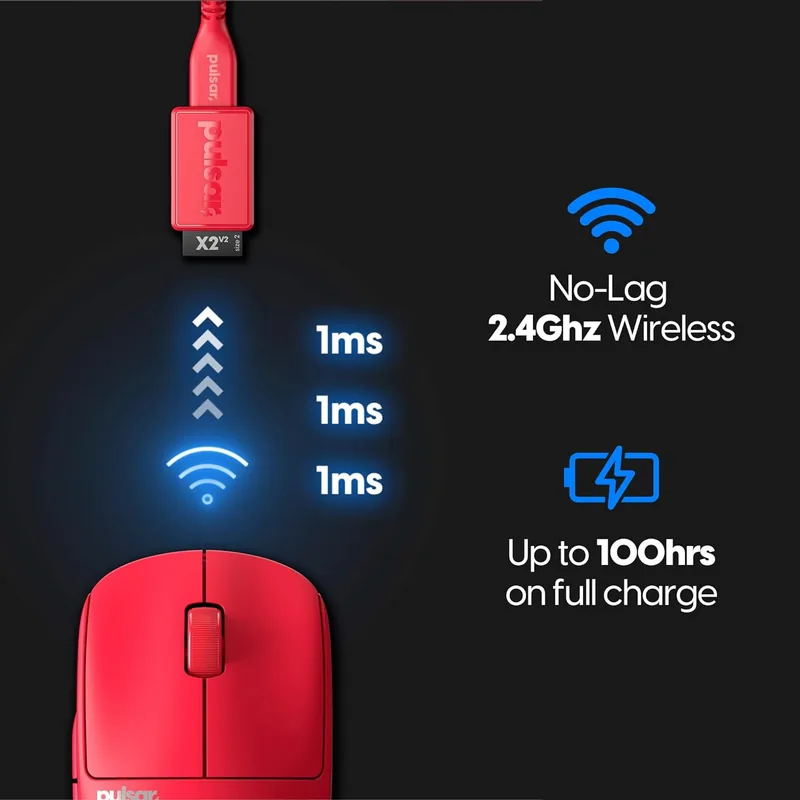
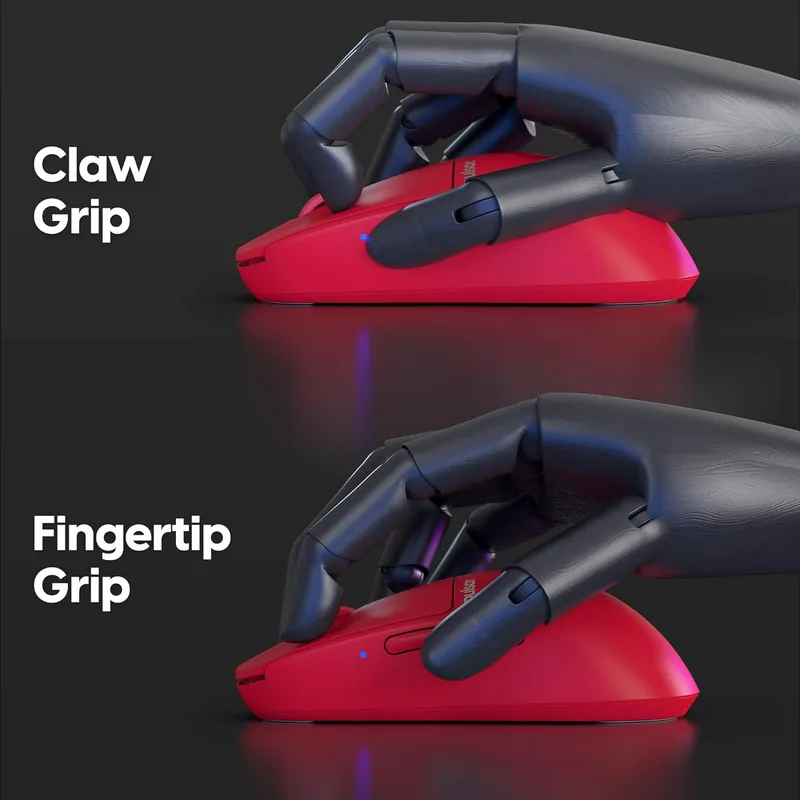
The Pulsar Gaming Gears X2V2 is a versatile wireless gaming mouse built for precision, comfort, and adaptability. With an optical sensor, adjustable DPI, programmable polling rates, and a compact ergonomic shape, it caters to competitive gamers and everyday users alike. The mouse defaults to 800 DPI and a 1000 Hz polling rate but can be configured through Pulsar's software to support DPI from 50 up to 26,000 and polling rates of 125, 250, 500, or 1000 Hz. LED indicators reflect battery status and DPI color, returning to the chosen DPI color after charging completes.
Features and Design
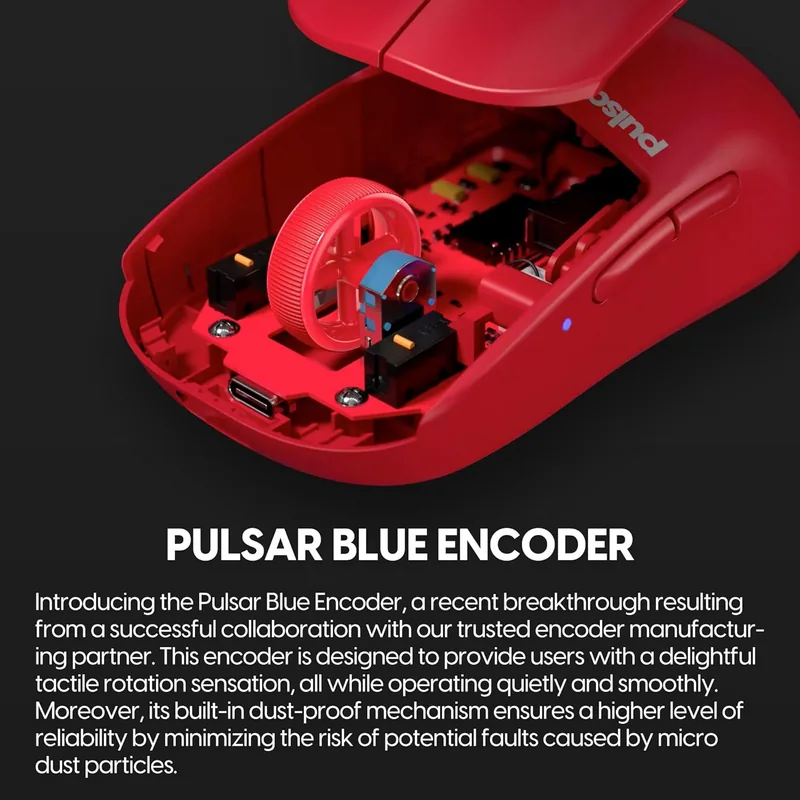
X2V2 includes a USB-C port for charging, PTFE feet for smooth gliding, multiple buttons including forward/back and DPI switch, and an on/off power toggle. A USB extension cable is recommended to prevent signal interference. The mouse supports quick pairing by holding left-click, right-click, and the scroll-wheel for 3–4 seconds until the LED blinks. Default settings and visual feedback—such as three color blinks on DPI change—help users quickly confirm adjustments.
Performance and Battery
Default polling and DPI settings favor responsive tracking out of the box. Software customization unlocks advanced tuning: broad DPI range, selectable polling rates, and LED behavior controls. The LED indicates battery state—blinking red for low battery and a charging animation while connected. Battery safety and handling are emphasized: avoid exposure to heat above 54°C (130°F), do not disassemble, and recycle the battery responsibly as per WEEE guidelines.
Software and Support
Pulsar’s downloadable software allows full customization of DPI, polling rate, lighting, and button assignments. Drivers install automatically when plugged into a free USB port, but the software unlocks the full feature set. For warranty details, battery recycling guidance, or support, users can visit pulsar.gg/warranty and pulsar.gg/support or contact regional support emails.
Notes
- Pairing: press right-click + left-click + scroll-wheel for 3–4 seconds to enter pairing mode.
- Default settings: 800 DPI, 1000 Hz polling rate, LED off for battery indication when idle.
- Charging: LED returns to DPI color after charging; charging shows a red blink while in progress.
- Safety: follow WEEE and battery disposal instructions; do not expose battery to liquids or heat above 54°C.
Search for 67,732 Manuals online


Type-in Brand or Model