
Pulsar Gaming Gears 4K Wireless Dongle Manual
PDF manual · 8 Pages
English



Quick check
Incorrect answer, please try again.
Chat with your Pulsar Gaming Gears 4K Wireless Dongle manual using AI
Get instant AI answers from your Pulsar Gaming Gears 4K Wireless Dongle manual
Ask anything about the Pulsar Gaming Gears 4K Wireless Dongle. Answers come from this manual, with the pages they are based on.
Ask a Question
Do you recommend 4K Wireless Dongle?
Yes NoDo you recommend 4K Wireless Dongle?
Yes NoFrequently Asked Questions
Position the dongle within 50 cm of the mouse for stable performance. Ensure there are no physical obstacles blocking the signal path between the two devices.
Is this answer helpful?
You must use a USB 3.0 port or a higher version number to ensure the dongle functions correctly.
Is this answer helpful?
Download the Pulsar Fusion software along with the 4K Wireless Pairing tool from the official website.
Is this answer helpful?
Press and hold buttons one, two, and three for 5 seconds to adjust the LED On or Off state.
Is this answer helpful?
A brief USB connection refresh occurs. The connection might disconnect and reconnect for 2 to 3 seconds.
Is this answer helpful?
No, the X2 dongle is not compatible with X2V2, X2H, or X2A models.
Is this answer helpful?
Advantages and Disadvantages
Advantages

- Industry leading 4K performance minimizes input lag significantly.
- Compatible with Pulsar Fusion software for advanced customization.
- Adjustable polling rate improves responsiveness for esports.
- LED toggle feature reduces visual distractions on desk.
- Intuitive pairing tool simplifies setup process.
Disadvantages

- Requires proximity within 50 cm for stable performance.
- Needs USB 3.0 or higher port for operation.
- Incompatible with X2V2, X2H, and X2A models.
- Multiple dongles cause connection warnings during setup.
- Switching dongles requires full re-pairing process.
Product Specification
Type
Wireless Receiver
Compatibility
Pulsar X2V2, Pulsar X2H, Pulsar X2A, Pulsar Xlite V3
Connection
Wired, USB-A 3.0
Ports
1x USB-C (Female)
Features
Detachable cable (USB-C, not included)
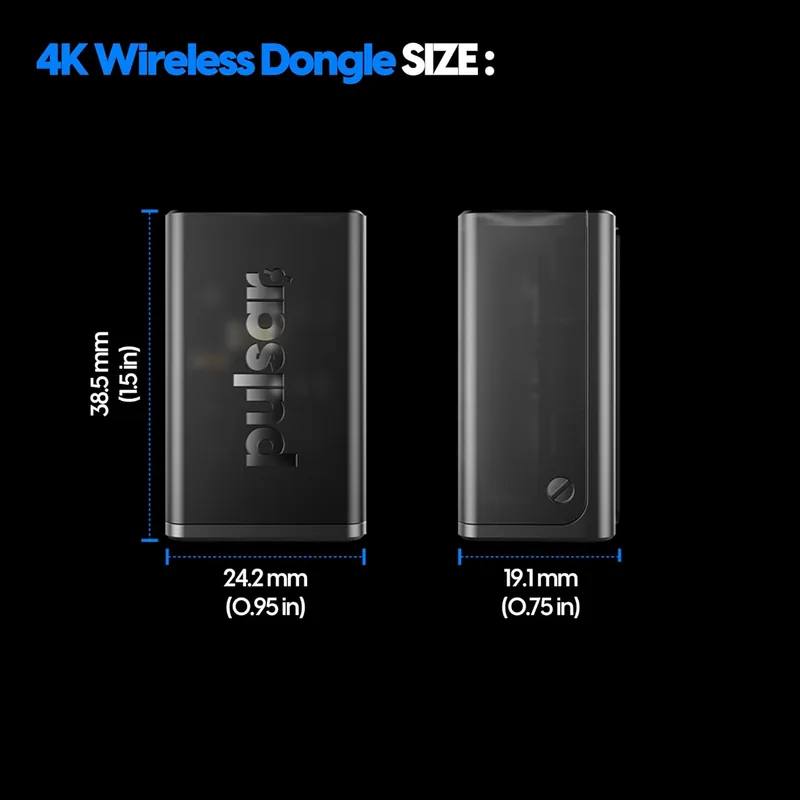
Dimensions
0.95x0.75x1.52 in (WxHxD)
Weight
0.57 oz
Color
Translucent Black
Material
Plastic
Product Description
Experience Ultimate Responsiveness with Pulsar Gaming Gears 4K Wireless Dongle
Elevate Your Competitive Edge for Professional Gaming
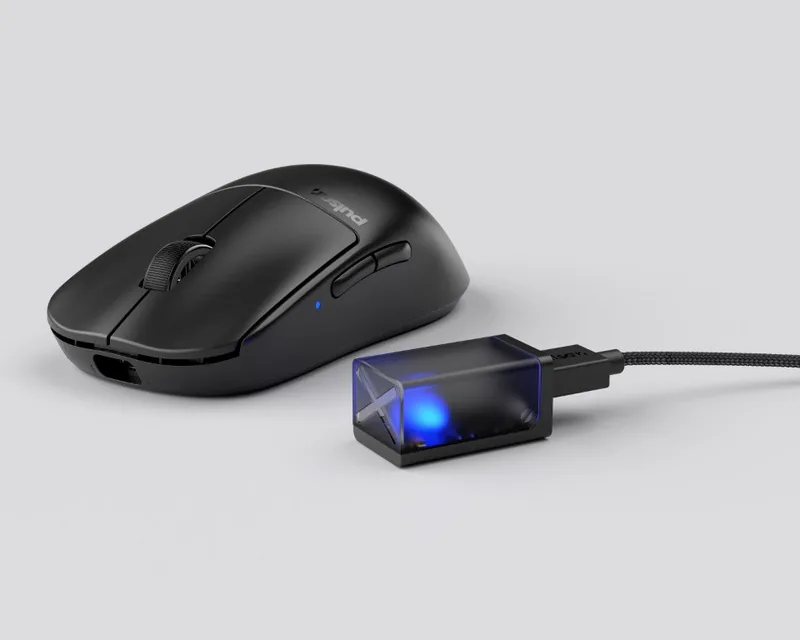
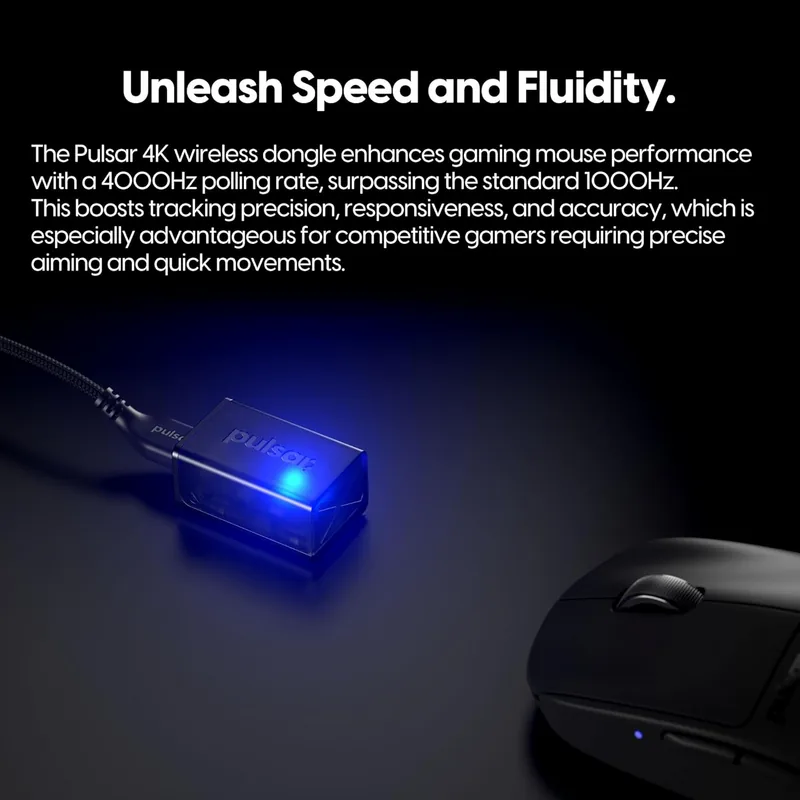
Competitive gaming demands absolute precision and speed from your hardware components. The Pulsar Gaming Gears 4K Wireless Dongle delivers industry leading performance capabilities to gamers worldwide. It ensures your precise mouse movements are translated instantly into on screen action without any delay. This advanced technology minimizes input lag significantly compared to standard wireless options found in general gaming markets today. Gamers seeking a distinct competitive advantage require stable and reliable connectivity during intense matches and professional tournaments. This receiver ensures consistency when the pressure is highest and every single millisecond counts.
Seamless Setup Process for Optimal Performance
Connecting your device to your personal PC is an intuitive experience for all users. First ensure you download the official Pulsar Fusion software suite from the designated web portal. Use the included pairing tool to establish the connection effectively between hardware units. Position the wireless dongle physically within 50 cm of your mouse for maximum stability and range. Ensure no physical obstacles block the signal path between the two devices during active gameplay use. Use a USB 3.0 port or a higher version number for best results always. Hold the designated buttons for 3 to 4 seconds until the LED blinks yellow confirming readiness. Launch the software tool and select Pair to finalize the process successfully on your system.
Deep Customization and Advanced Software Control
Advanced customization is key for professional esports players who need tailored settings for victory. Adjust your polling rate directly through the integrated software interface provided by the manufacturer officially. A brief USB refresh occurs automatically after you make changes to the rate. This ensures the system acknowledges the new rate correctly every single time without error. You can toggle the dongle LED light on or off to suit your specific preference. Simply hold buttons one two and three simultaneously for five seconds to toggle states easily. This keeps your desk clean and reduces visual distractions during gameplay sessions significantly for everyone.
Important Compatibility Notes and Troubleshooting Tips
Be aware of specific model compatibility before purchasing new components or accessories to avoid issues. The X2 dongle does not work with X2V2, X2H, or X2A peripheral models effectively. Switching back to a standard dongle later requires re-pairing your mouse again fully and completely. Always remove extra dongles from the port during setup to avoid warning messages popping up on screen. Support is available globally for any technical inquiries or questions you may have regarding your hardware unit using their website. Following these guidelines ensures maximum stability and longevity for your equipment during heavy daily use.
Final Thoughts on Gaming Gear Performance
Trust this system for your next match to win games at the highest competitive level. The 4K receiver is a solid investment for serious players looking to improve performance. Visit pulsar.gg/support for further assistance from the dedicated team available around the clock.
Search for 67,732 Manuals online


Type-in Brand or Model