
Poly Studio P21 Manual
PDF manual · 19 Pages
English



Quick check
Incorrect answer, please try again.
Chat with your Poly Studio P21 manual using AI
Get instant AI answers from your Poly Studio P21 manual
Ask anything about the Poly Studio P21. Answers come from this manual, with the pages they are based on.
Ask a Question
Do you recommend Studio P21?
Yes NoFrequently Asked Questions
Locate the slider on the top edge of the Poly Studio P21 device. Slide it to the right to physically cover the camera lens and slide it to the left to open it. Closing the shutter also mutes your video feed during calls.
Is this answer helpful?
It is recommended to use only the supplied USB cable because it is directional. Using third-party USB-C to USB-C cables or adapters may negatively affect video quality or prevent the device from working entirely.
Is this answer helpful?
No, the wireless charging feature requires the computer to be active. If your computer enters sleep mode, the USB ports stop providing power, and the wireless charger will cease charging devices.
Is this answer helpful?
To disable the distracting LED light bar at the bottom of the unit, press and hold the volume plus (+) and minus (-) buttons simultaneously for one second. Press them again to turn them back on.
Is this answer helpful?
The device supports Windows 8.1 and Windows 10 version 1803 or later, as well as macOS version 10.15.0 or later. You must install the DisplayLink drivers corresponding to your specific operating system.
Is this answer helpful?
Find the touch pad on the back side of the personal meeting display. Slide your finger up to increase the brightness or down to decrease it until you achieve the desired lighting level for your video calls.
Is this answer helpful?
Advantages and Disadvantages
Advantages

- Integrated physical privacy shutter for enhanced security
- Built-in wireless charging pad for convenient device power
- Adjustable vanity lighting adapts to room conditions automatically
- Dedicated buttons for Microsoft Teams and Zoom Rooms integration
- Comprehensive accessibility features including audible cues
Disadvantages

- Requires specific DisplayLink driver installation for initial setup
- USB cable is directional and third-party cables may cause issues
- Wireless charging stops if the computer enters sleep mode
- May experience temporary input freezes with certain peripherals
- Cannot function as a standalone monitor without connected PC
Product Specification
Type
Conference system
Product Description
Elevate Your Video Conferencing with Poly Studio P21
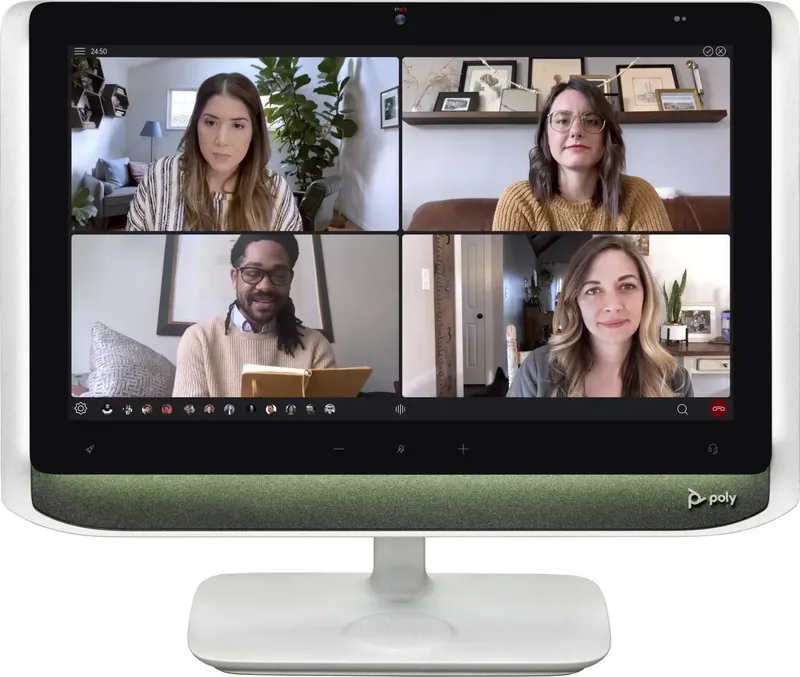
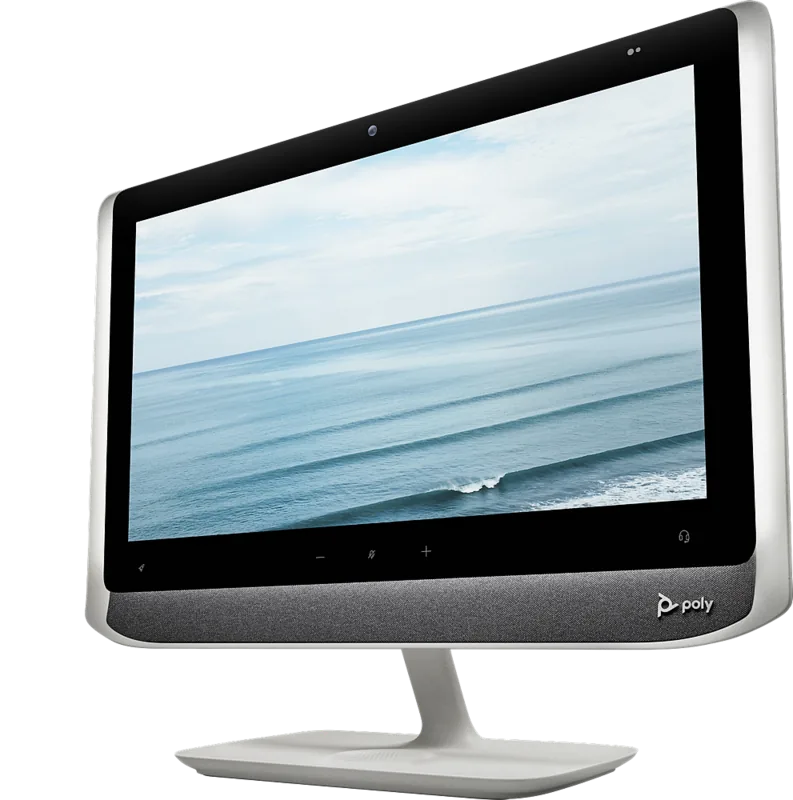
The Poly Studio P21 is a comprehensive personal meeting display designed to transform any workspace into a professional video conferencing hub. This all-in-one device combines a high-quality monitor, integrated camera, microphone, speakers, and even a wireless charging pad into a sleek, compact unit. Whether you are working from home or in a modern office, the P21 ensures your presence is clear and your audio is crisp.
At the heart of the Poly Studio P21 is its intelligent hardware suite. The built-in camera features a physical privacy shutter that can be manually closed to block the lens entirely, ensuring your security when not on a call. Surrounding the screen are adjustable vanity lights that automatically adapt to ambient room conditions, eliminating harsh shadows and providing flattering illumination for every participant. The device also includes a robust set of physical controls on the front bezel, allowing users to mute microphones, adjust volume, and toggle between headset and speaker modes with a single press.
Connectivity is seamless thanks to the included USB-C cable, which delivers both power and data to support full 1080p video output. A standout feature is the built-in wireless charger located at the base of the stand, enabling you to charge compatible smartphones without cluttering your desk with extra cables. The system supports integration with major platforms like Microsoft Teams and Zoom Rooms, offering dedicated buttons to manage calls directly from the display.
Setting up the Poly Studio P21 is straightforward but requires specific drivers. Users must install the DisplayLink software to ensure the monitor functions correctly as an extended or primary display. Once configured, the device offers advanced accessibility features, including audible tones for mute status and volume changes, making it inclusive for users with hearing or vision impairments. With its blend of functionality, privacy protection, and ease of use, the Poly Studio P21 stands out as an essential tool for modern remote collaboration.
Search for 67,732 Manuals online


Type-in Brand or Model