
Polaroid3D ModelSmart 250S Manual
PDF manual · 36 Pages
English



Quick check
Incorrect answer, please try again.
Chat with your Polaroid3D ModelSmart 250S manual using AI
Get instant AI answers from your Polaroid3D ModelSmart 250S manual
Ask anything about the Polaroid3D ModelSmart 250S. Answers come from this manual, with the pages they are based on.
ModelSmart 250S Maintenance Schedule
Remove the bed after each print, clear model and filament remnants, wipe with a clean cloth and warm water or glass solution to remove adhesive residue. Ensure the bed is dry before applying a new Z-Axis sheet.
Ensure the extruder remains clean and free from residual filament prior to each print to prevent nozzle blockage and failed prints.
Ensure no items, models, or residual material are left underneath or around the print bed inside the printer to avoid obstructing movement.
Keep the exterior of the printer clean by using a damp cloth to remove dust or dirt while the printer is switched off. Avoid getting water near electrical components.
Ask a Question
Do you recommend ModelSmart 250S?
Yes NoFrequently Asked Questions
Select Change Filament on the Main Menu. Wait for extruder warm-up. Install the cartridge, feed filament through the tube, and press Continue. The machine will extrude material to confirm installation. For multiple cartridges, ensure the old one is uninstalled before loading the new one.
Is this answer helpful?
Ensure you are using Z-Axis sheets on the print bed for adhesion. Check settings to confirm the correct print material is selected in the software. If warping persists, enable the brim function in Advanced Settings to retain heat around the model base.
Is this answer helpful?
Yes, the printer supports multi-color printing. You can pause the print job by changing cartridges mid-print via the touchscreen menu or pre-set a pause height in the software. This allows for color changes during the printing process.
Is this answer helpful?
Visit the website provided in the manual link. Click register your product to enter your serial number. Download the installer and run it. Windows will search for drivers automatically. If drivers fail, you must manually download the hardware device driver.
Is this answer helpful?
First double-check you entered the serial number correctly on the product box or rear panel. If the issue persists, contact the support team via the online contact form. You will need proof of purchase as they may provide a temporary serial number.
Is this answer helpful?
Remove the glass bed from the printer. Peel back the four corners of the Z-axis sheet. Pull the sheet and model away from the glass. Peel the model off the adhesive sheet. Clean any residue with household cleaner.
Is this answer helpful?
The maximum model size for the ModelSmart 250S is 250mm in width, 150mm in height, and 150mm in depth. Ensure your models fit within these measurements for successful printing.
Is this answer helpful?
Advantages and Disadvantages
Advantages

- Intuitive touchscreen LCD interface for direct printer control without computer.
- Multi-color printing capability allows changing filaments mid-print job.
- Built-in Wi-Fi enabled camera for remote visual monitoring of prints.
- Auto-calibration process ensures precise bed leveling and extruder positioning.
- Polaroid Prep software includes a built-in 3D model library for free downloads.
Disadvantages

- Unloading stuck filament may require complex manual unloading procedures.
- LCD screen file names are limited to eight characters for easy identification.
- Z-axis sheets must cover printer corners for calibration to work correctly.
- Warranty is voided if non-Polaroid filament or unauthorized software is used.
- Printer is heavy and requires two people to safely move from packaging.
Product Specification
Process
Fused Filament Fabrication (FFF)
Manufacturer Recommended Materials
1.75mm Filament
Build Volume
9.84x5.91x5.91 inches (WxHxD)
Layer Height
0.05-0.35mm
Interfaces
USB 2.0, LAN, WLAN
Manufacturer Warranty
1 year
Product Description
Explore the Polaroid ModelSmart 250S 3D Printer
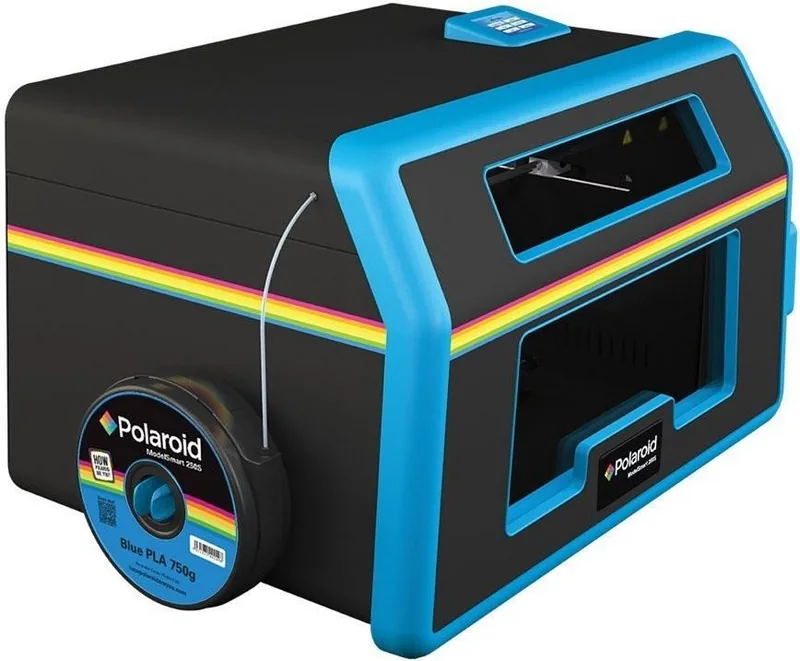
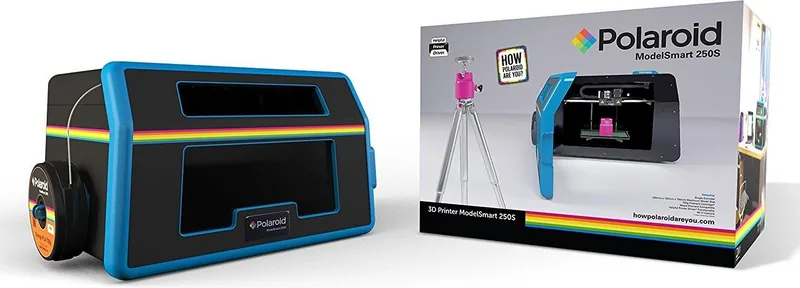
The Polaroid ModelSmart 250S brings creativity to life with its advanced 3D printing capabilities designed for enthusiasts and professionals alike. Understanding how to operate this machine efficiently requires the information found in the Polaroid3D ModelSmart 250S Manual. This comprehensive guide ensures users can set up the printer, install cartridges, and utilize the built-in features without unnecessary hassle.
Ease of Setup and Operation
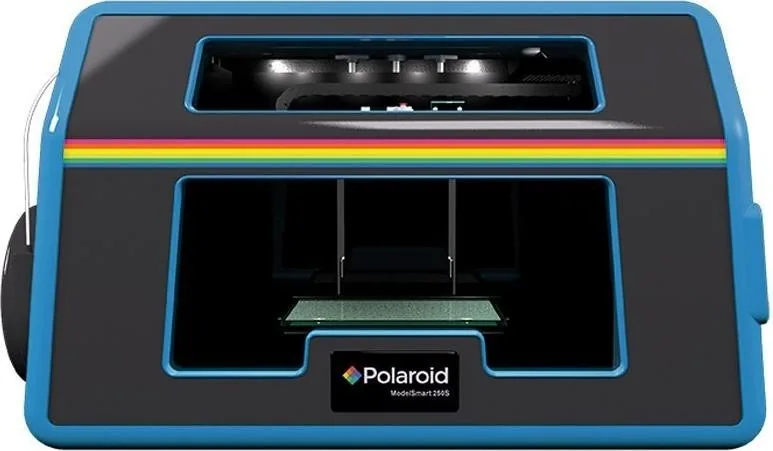
Setting up the Polaroid ModelSmart 250S is straightforward. The printer features an intuitive touchscreen LCD interface located on the top of the unit. This allows users to perform tasks like changing filaments, preheating the extruder, and checking settings directly on the device. The manual details the unboxing process, highlighting that due to the printer's weight, two people are required for safe removal from the packaging. Once unboxed, it must be placed on a stable, flat surface to minimize vibrations for accurate prints.
Software and Connectivity
Printing begins by using the Polaroid Prep software. Users can download this tool by registering their serial number on the Polaroid website. The software supports .stl files, the industry standard for 3D models. Inside the software, users can import models, adjust scaling, orientation, and position them on the virtual print bed. A key feature highlighted in the Polaroid3D ModelSmart 250S Manual is the ability to save scenes for future printing.
An integrated Wi-Fi camera enables remote monitoring. The Doby Smart Camera app connects to the printer's internal unit, allowing users to watch real-time video of prints on their mobile devices. This adds convenience for long print jobs.
Advanced Features and Material Handling
One standout feature is multi-color printing. Although the printer has a single extruder, it supports changing filaments mid-print. Users can pause a print job, swap a cartridge, and continue creating vibrant, multi-colored models. The printer utilizes Z-Axis sheets for bed adhesion. These transparent adhesive sheets ensure the first layer sticks securely, allowing easy removal of the finished model.
Maintenance is crucial for longevity. The manual advises cleaning the glass bed and extruder regularly. Care must be taken to ensure the printer is in a clean, dry, and ventilated area. Safety instructions emphasize warnings about the hot extruder and moving parts.
Overall, the Polaroid ModelSmart 250S is a robust machine. With proper adherence to the user guide, it provides high quality results. Whether prototyping or creating art, this 3D printer delivers reliability.
Search for 67,706 Manuals online


Type-in Brand or Model