
PerfectPro Netbox Manual
PDF manual · 70 Pages
English



Quick check
Incorrect answer, please try again.
Chat with your PerfectPro Netbox manual using AI
Get instant AI answers from your PerfectPro Netbox manual
Ask anything about the PerfectPro Netbox. Answers come from this manual, with the pages they are based on.
Netbox Maintenance Schedule
Replace or recharge batteries when reduced power, distortion, stuttering sound, or a red battery indicator appears.
If the radio is exposed to rain, dry the plug and cord completely before reconnecting to AC power to avoid electric shock.
Ask a Question
Do you recommend Netbox?
Yes NoFrequently Asked Questions
Select Bluetooth mode on the radio, press and hold the tuning knob until the indicator blinks blue. Then select the radio on your device. The password is 0000 if asked.
Is this answer helpful?
It means the radio is protected against water splashes and dust ingress. It is suitable for outdoor use when running on battery power during rain.
Is this answer helpful?
Yes, the USB port provides 5V / 1A output to charge USB devices or play audio files connected to the port.
Is this answer helpful?
The radio can store up to 40 memory presets for DAB, FM, and Internet radio stations for quick access.
Is this answer helpful?
Yes, you can connect via Bluetooth or use Spotify Connect technology through compatible devices to stream music.
Is this answer helpful?
Go to the System settings menu, select Time/Date, and choose Set Time/Date. Use the tuning knob to adjust each element.
Is this answer helpful?
The radio comes with a 2 year limited warranty covering defects but not damage from misuse or unauthorized modifications.
Is this answer helpful?
Advantages and Disadvantages
Advantages

- IP64 protection against water and dust
- Wide range of audio modes including DAB and Internet
- Bluetooth 5.2 stereo pairing feature
- USB charging capability for external devices
- Compatible with UNDOK app for remote control
Disadvantages

- Requires 6 separate C-size batteries for mobile use
- No built-in rechargeable battery included
- Manual setup required for network connection
Product Specification
Power Source
6x C Battery, AC Power (110-230V)
Output Power
3-7W
Tuner
FM, DAB, DAB+, Internet Radio
Connections
AUX In (3.5mm), USB, Bluetooth, Wi-Fi 802.11b/g/n
Features
Carrying handle, Clock, Alarm function, 5 memory slots, USB charging port
Safety
Splash resistance, Impact protection, Dust protection, IP65
Dimensions (WxHxD)
13.98x8.86x8.46in
Weight
9.92 lbs
Package Contents
Power adapter
Product Description
The Ultimate Construction Site Companion
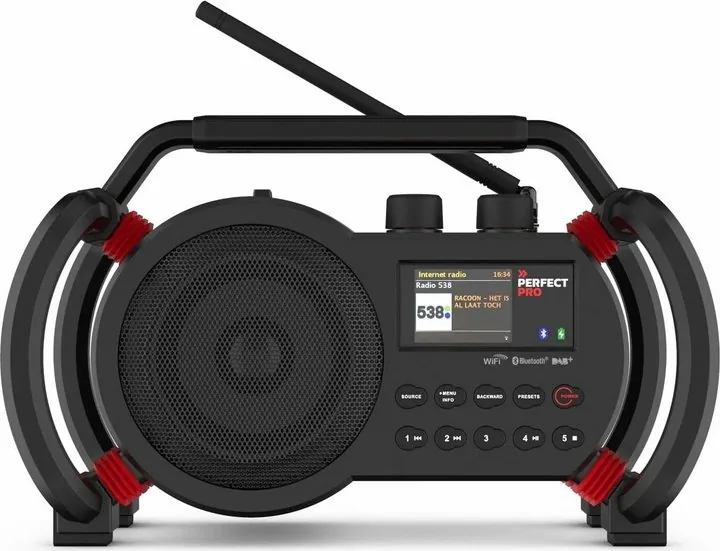
The PerfectPro Netbox Construction Site Radio stands out as an indispensable tool for professionals on the go. Designed to withstand the rigors of a construction environment, this radio ensures clear audio regardless of the noise around you. Integrating multiple connectivity options, it offers versatility that traditional radios lack. Its rugged build quality makes it a favorite among contractors who need reliable equipment in challenging conditions without relying solely on mains electricity. This unit is engineered for durability and performance in demanding settings.
Connectivity and Versatility
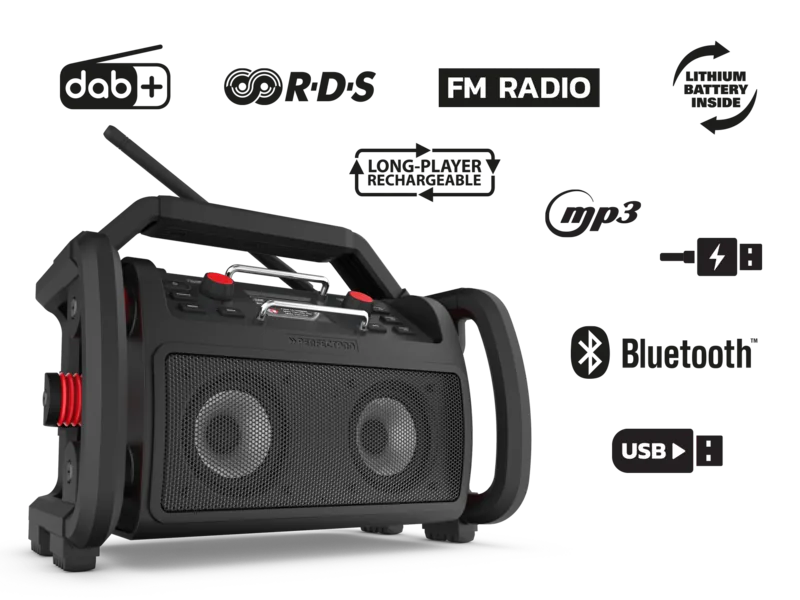
Users can enjoy DAB, FM, and Internet radio modes seamlessly. With Wi-Fi connectivity, access thousands of stations globally without needing a signal tower nearby. Podcasts and Spotify integration mean entertainment is never far away during downtime. Bluetooth 5.2 supports stereo pairing, allowing two units to create a true stereo sound system wirelessly. A USB port provides audio playback and device charging, adding convenience for power users who need to keep their phones running on shift. Auxiliary input ensures compatibility with older devices like MP3 players or tablets. You can even store presets for your favorite stations for quick access.
Durability and Design
Built with an IP64 rating, the Netbox resists dust and water splashes effectively. This makes it ideal for outdoor use, even in wet conditions when battery power is selected. The rugged design includes a robust handle and sturdy casing that protects internal components from accidental drops. Battery operation supports 6 C-size batteries, ensuring long runtime without reliance on mains power during site work. Rechargeable NiMH batteries can also be used with the appropriate switch setting for eco-friendly operation.
User Interface and Control
Navigation is straightforward with a clear LCD display and intuitive knob controls. The UNDOK app enables remote management from smartphones or tablets for added convenience. Settings like tone control and loudness allow audio customization to suit personal hearing preferences or noisy environments. An alarm clock function aids in waking up early on site, while a sleep timer ensures energy conservation at night. The system settings menu allows for network configuration and factory resets if needed.
Safety and Setup
Refer to the PerfectPro Netbox Construction Site Radio Manual for detailed setup instructions including network configuration. This device combines robust engineering with modern streaming capabilities. Whether on site or at home, it delivers reliable performance. Ensure you read the safety guidelines regarding battery handling and electrical connections before operation. The product supports automatic time updates via network or radio signals. Always keep ventilation clear to prevent overheating during extended use periods. Warranty covers defects but not misuse or water damage when using AC power in rain. The 5 inch full-range speaker delivers 7 watts of power at AC voltage. It supports both 50/60 Hz power standards globally. This ensures international compatibility for travel. Protect the power cord from wear.
Search for 67,732 Manuals online


Type-in Brand or Model