Manual.ly Logo

PDP Afterglow Wave Manual

0.0 · 0 Ratings

PDF manual · 5 Pages

English

M: OA-GPT-5-NAN
page

/ 5

Loading...
498702f3df45bd23e218f8d9fc9ef456548b page 1
2
Mute Microphone
Couper le son du Microphone
Silenciar el micrófono
Silenciar o microfone
Slå mikrofon fra
Mikrofon stummschalten
Disattivazione del microfono
Wyciszanie mikrofonu
Press the function button, located above the
audio jack, twice to mute your microphone.
Appuyez deux fois sur le bouton de fonction situé
au dessus de la sortie audio jack pour couper le
son du microphone.
Para silenciar el micrófono, pulsa dos veces el
botón de función, ubicado encima del conector de
audio.
Drücke die Funktionstaste, die sich über der
Audiobuchse beindet, zweimal, um dein
Mikrofon stumm zu schalten.
Premi due volte il pulsante funzione, posizionato
al di sopra dello spinotto dell’audio, per
silenziare il microfono.
Aby wyciszyć mikrofon, dwa razy naciśnij
przycisk funkcyjny znajdujący się ponad
wejściem audio.
Prima duas vezes o botão de função, localizado
por cima da tomada de áudio, para silenciar o
seu microfone.
Tryk to gange på funktionsknappen, der sidder over
lydstikket, for at slå din mikrofon fra.
EN
ES
DE
IT
PL
PT
DK
FR
SMALL PARTS Not for children under 3 years.
WARNING: CHOKING HAZARD
AVERTISSEMENT: RISQUE DE SUFFOCATION
PETITES PIÈCES Garder hors de la portée des enfantes âgés de moins de 3 ans.
Xbox Series X|S
Xbox One
Windows 10/11
AFTERGLOW
®
WAVE
WIRED CONTROLLER
MANETTE FILAIRE AFTERGLOW WAVE
Controllo del volume
Sterowanie głośnością
4
Game/Chat Balance
Jeu/Égaliseur
Balance de chat/juego
Balanço de jogo/chat
Spil-/chatbalance
Spiel/Chat-Balance
Equilibrio gioco/chat
Balans gry/czatu
Controllo del volume
Sterowanie głośnością
Controllo del volume
Sterowanie głośnością
3
Control Volume
Contrôler le volume
Control de volumen
Controlo de volume
Juster lydstyrken
Lautstärke kontrollieren
Controllo del volume
Kontrola głośności
1
Initial setup
Coniguration initiale
Coniguración inicial
Coniguração inicial
Indledende opsætning
Ersteinrichtung
Conigurazione iniziale
Koniguracja początkowa
While holding down the function button, press
D-Pad Left/Right to adjust game/chat balance.
Tout en maintenant enfoncée la touche fonction,
utilisez les boutons directionnels gauche et droite
pour ajuster l'égaliseur jeu/chat.
Para regular el balance de chat/juego,
manteniendo pulsado el botón de función, pulsa
Izquierda/Derecha en la cruceta.
Drücke auf dem Steuerkreuz nach links oder
rechts, während du die Funktionstaste gedrückt
hältst, um die Spiel-/Chatbalance anzupassen.
FR
DE
ES
EN
ES
A. While holding down the function button, press the
back button you would like to map a function to, and
the function button LED will start lashing.
B. Press any button you would like mapped, and the
function button LED will lash 3 times indicating a
successfully mapped function.
C. To clear a mapped function or disable the back
buttons completely, hold down the function button and
double press any back button.
A. Tout en maintenant la touche Fonction enfoncée,
appuyez sur la touche arrière à laquelle vous souhaitez
associer une fonction, et le voyant LED de la touche
Fonction se mettra à clignoter
B. Appuyez sur n'importe quel bouton que vous
souhaitez associer, et le voyant LED du bouton de
fonction clignotera 3 fois, indiquant que la fonction a été
associée avec succès.
C. Pour réinitialiser une fonction associée aux boutons
arrières, ou la désactiver complètement, maintenez la
touche Fonction enfoncée et appuyez deux fois sur
n'importe quel bouton arrière.
FR
EN
Tenendo premuto il pulsante funzione, premi i tasti
sinistra/destra della croce direzionale per regolare
l’equilibrio gioco/chat.
Przytrzymując przycisk funkcyjny, naciśnij strzałkę
w lewo/w prawo na d-padzie, aby zapewnić balans
gry/czatu.
Enquanto mantém premido o botão de função,
prima o botão de direções para a esquerda/direta
para ajustar o balanço de jogo/chat.
Mens du holder funktionsknappen nede, skal du
trykke på D-Pad venstre/højre for at justere
spil-/chatbalancen.
PL
IT
PT
DK
DE
2-Year Manufacturer’s Warranty:
For product issues, contact us instead of returning to the store.
Garantie de 2 ans du fabricant : en cas de panne, veuillez nous
contacter plutôt que d'aller en magasin.
Further Warranty Information Inside
Plus d'informations à propos de la garantie à l'intérieu
Quick Start Guide
Guide de démarrage rapide
While holding down the function button, press
D-Pad +Up/-Down to adjust game volume.
Tout en maintenant enfoncée la touche Fonction,
utilisez les boutons directionnels haut et bas pour
ajuster le volume du jeu.
Para regular el volumen del sonido del juego,
manteniendo pulsado el botón de función, pulsa
+Arriba/-Abajo en la cruceta.
Drücke auf dem Steuerkreuz nach oben oder
unten, während du die Funktionstaste gedrückt
hältst, um die Spiellautstärke anzupassen.
Tenendo premuto il pulsante funzione, premi i tasti
+Su/-Giù della croce direzionale per regolare il
volume di gioco.
Przytrzymując przycisk funkcyjny, naciśnij strzałkę
+w górę/-w dół na d-padzie, aby wyregulować
głośność rozgrywki.
Enquanto mantém premido o botão de função,
prima o botão de direções + para cima/- para
baixo para ajustar o volume do jogo.
Mens du holder funktionsknappen nede, skal du
trykke på D-Pad +Op/-Ned for at justere spillets
lydstyrke.
FR
PL
IT
DE
ES
EN
PT
DK
FR
Plug the USB-C end of the cable into the top of
the controller, and the USB side into your console
or PC. The light above the Xbox logo will appear
to indicate it is connected.
Branchez le câble USB-C dans la partie
supérieure de la manette, et la partie USB dans
votre console ou votre PC. La lumière au-dessus
du logo Xbob apparaîtra pour indiquer la
connexion.
Conecta el extremo USB-C del cable a la parte
superior del mando y el extremo USB a tu
consola o PC. Se encenderá la luz sobre el
logotipo de Xbox, lo que indicará que está
conectado.
Stecke das USB-C-Ende des Kabels in die
Oberseite des Controllers und die USB-Seite in
deine Konsole oder deinen PC. Das Licht über
dem Xbox-Logo zeigt an, dass die Verbindung
hergestellt ist.
DE
ES
EN
PL
IT
PT
DK
Inserisci lo spinotto USB-C del cavo nella parte
superiore del controller e lo spinotto USB nella
tua console o PC. La luce al di sopra del logo
Xbox si accenderà a indicare il corretto
collegamento.
Wepnij końcówkę USB-C przewodu do złącza na
górze kontrolera, a końcówkę USB do gniazda w
konsoli lub komputerze. Ponad logo Xbox zapali
się dioda wskazująca, że urządzenia są
połączone.
Ligue a extremidade USB-C do cabo à parte
superior do controlador e o lado USB à sua
consola ou PC. A luz por cima do logótipo Xbox
iluminar-se-á para indicar que está ligada
Sæt kablets USB-C stik i toppen af controlleren
og USB-stikket til din konsol eller pc. Lyset over
Xbox-logoet viser, at det er tilsluttet.
A. Manteniendo pulsado el botón de función, pulsa el
botón trasero al que deseas asignar una función, con lo
que empezará a parpadear el LED del botón de función.
B. Pulsa el botón que desees asignar y el LED del botón
de función parpadeará tres veces, lo que indica que la
función se ha asignado correctamente.
C. Para eliminar una función asignada o inhabilitar por
completo los botones traseros, mantén pulsado el botón
de función y pulsa dos veces cualquier botón trasero.
A. Während du die Funktionstaste gedrückt hältst,
drückst du die Rücktaste, der du eine Funktion zuweisen
möchtest. Die LED der Funktionstaste beginnt zu
blinken.
B. Drücke eine beliebige Taste, die du zuordnen
möchtest, und die LED der Funktionstaste blinkt
dreimal, um anzuzeigen, dass die Funktion erfolgreich
zugeordnet wurde.
C. Um eine zugewiesene Funktion zu löschen oder die
Rücktasten komplett zu deaktivieren, halte die
Funktionstaste gedrückt und drücke zweimal eine
beliebige Rücktaste.
.
5
Program Back Buttons
Programmer les boutons arrières
Programar los botones traseros
Programar os botões traseiros
Programmer tilbage-knapper
Rücktasten programmieren
Programmazione dei pulsanti posteriori
Programowanie przycisków tylnych

Chat with your PDP Afterglow Wave manual using AI

Get instant AI answers from your PDP Afterglow Wave manual

Ask anything about the PDP Afterglow Wave. Answers come from this manual, with the pages they are based on.

Ask a Question

0/1000

Do you recommend Afterglow Wave?

Yes No

Frequently Asked Questions

A

Plug the controller’s USB-C end into the top of the controller and the USB-A end into your console or PC. The light above the Xbox logo will illuminate to indicate a successful connection. It works with Windows 10/11, Xbox Series X|S, and Xbox One.

Is this answer helpful?

A

Press the function button twice (the button located above the audio jack) to mute or unmute the microphone. This on-controller shortcut provides instant mic control without opening any menus or apps.

Is this answer helpful?

A

Hold the function button and press the back button you want to map; the function LED will flash. Press the button/input you want assigned; the LED will flash three times to confirm. To clear or disable, hold function and double-press the back button.

Is this answer helpful?

A

The controller has four built-in effects: Static, Wave, Breathing, and Rumble. Cycle them by holding the function button and pressing L or R. Use the PDP Control Hub app to access additional effects (Ripple, Pulse) and full RGB zone customization.

Is this answer helpful?

A

Yes. Hold the function button and use the left analog stick to change color. Click the left stick while holding function for white. Hold function and press the left trigger to adjust brightness; hold and press until 0% to turn lights off. For finer control, use the PDP Control Hub app.

Is this answer helpful?

A

The free PDP Control Hub app enables advanced RGB zone editing, custom lighting profiles, button remapping, diagnostics, analog stick and trigger recalibration, and firmware updates. Download it from the Microsoft Store on Xbox or PC to unlock full controller customization.

Is this answer helpful?

A

PDP provides a two-year limited manufacturer’s warranty against manufacturing defects for the original purchaser with valid proof of purchase. The warranty excludes damage from accidents, misuse, unauthorized repairs, or modifications. For service, contact PDP support or submit a ticket at support.pdp.com.

Is this answer helpful?

M: OA-GPT-5-NAN

Advantages and Disadvantages

Advantages

  • Extensive RGB customization with eight individually controllable zones via PDP Control Hub.
  • On-controller shortcuts for volume, game/chat balance, mic mute, and lighting adjustments.
  • Programmable back buttons allowing quick remapping without external tools.
  • Plug-and-play wired USB-C connectivity for PC and Xbox with a connection status LED.
  • Free PDP Control Hub app adds diagnostics, recalibration, button remapping, and firmware updates.
VS

Disadvantages

  • Full RGB zone editing and advanced lighting effects require the PDP Control Hub app.
  • Wired-only design limits mobility compared to wireless controllers.
  • Some advanced features depend on firmware updates; functionality may vary over time.
  • Mic mute and mapping rely on memorizing function-button combos for on-controller control.
  • Warranty excludes accidental damage and unauthorized modifications; proof of purchase required.
M: OA-GPT-5-NAN

Product Specification

Type

Gamepad

Compatibility

PC, Xbox Series X, Xbox Series S, Xbox One

Connection

wired (94.49 in), USB (Type-C)

Power supply

USB

Buttons

17 (total), 5 (function buttons), 4 (action buttons), 2 (Trigger), 2 (shoulder buttons), 2 (analog sticks), 2 (rear)

Analog sticks

1 concave (left above D-pad), 1 concave (right below action buttons)

D-pad

concave

Features

3.5mm jack, Vibration motor, LED lighting, 2 programmable buttons, Detachable cable

M: OA-GPT-54-NAN

Product Description

PDP Afterglow Wave Controller (PC/Xbox Series X|S/Xbox One) — Manual and Feature Guide

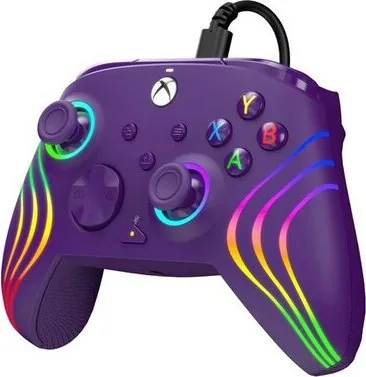
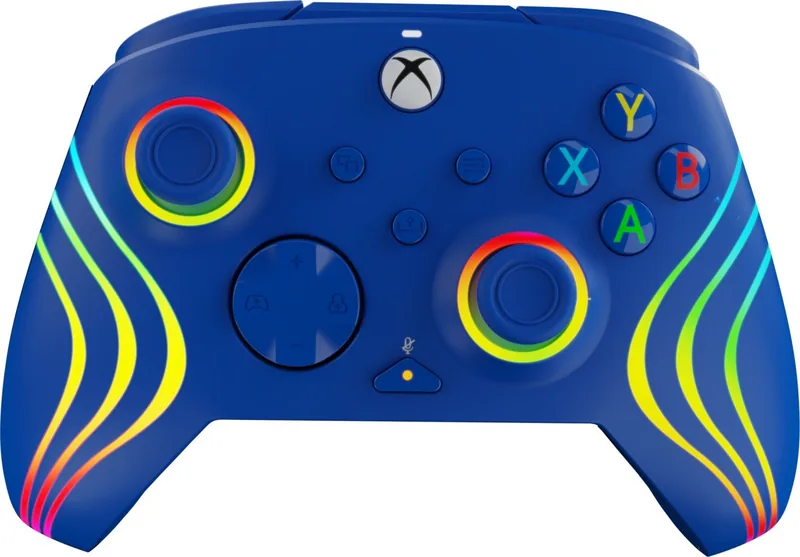
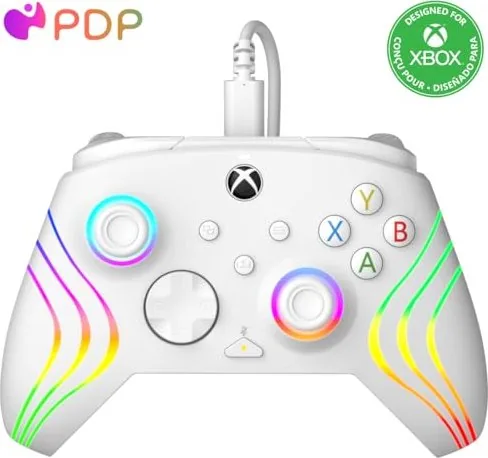
The PDP Afterglow Wave wired controller blends retro-inspired RGB visuals with modern functionality for PC, Xbox Series X|S, and Xbox One. Built for players who want a customizable, plug-and-play experience, the Afterglow Wave offers tactile controls, programmable back buttons, adjustable audio controls, and deep lighting customization via onboard shortcuts or the free PDP Control Hub app.

Plug the USB-C cable into the controller and connect the USB-A end to your console or PC. A status light above the Xbox logo confirms connection. Volume and audio routing are handled on-controller: use the function button with the D-Pad up/down to change game volume and left/right to shift game/chat balance. Double-pressing the function button mutes the microphone for quick privacy.

Program back buttons by holding the function button and pressing a chosen back button to start mapping, then press the input to map. Successful mapping is indicated by three flashes of the function LED. Clear mappings by holding function and double-pressing a back button. These remapping features let competitive and accessibility-focused players tailor inputs without third-party tools.

Lighting is a standout feature. The controller includes four preprogrammed effects—Static, Wave, Breathing, and Rumble—and can cycle effects with function + L/R. The controller exposes eight independently customizable RGB zones, but full zone control and advanced lighting modes (Ripple, Pulse, and future firmware-added effects) are available in the PDP Control Hub app. On-controller color, brightness, and on/off settings are adjustable using the function button combined with the left stick and left trigger for quick tweaks.

Beyond aesthetics, the PDP Control Hub app unlocks diagnostics, analog stick and trigger recalibration, button remapping, custom lighting profiles, and firmware updates. Firmware updates add lighting effects and advanced features, so keeping the controller up to date ensures access to new functionality.

The Afterglow Wave is backed by a two-year limited manufacturer’s warranty and PDP customer support channels. Warranty covers manufacturing defects for the original purchaser with valid proof of purchase; exclusions include accidental damage, misuse, or unauthorized modifications. For service, contact PDP support or submit a ticket at support.pdp.com.

Notes:

  • Works with Windows 10/11, Xbox Series X|S, and Xbox One via wired USB connection.
  • On-controller shortcuts provide immediate control without opening the app.
  • Firmware and app keep expanding lighting and customization options.
M: OA-GPT-5-NAN

© Copyright 2026 Manual.ly