
Optoma DC556 Manual
PDF manual · 12 Pages
English


Quick check
Incorrect answer, please try again.
Chat with your Optoma DC556 manual using AI
Get instant AI answers from your Optoma DC556 manual
Ask anything about the Optoma DC556. Answers come from this manual, with the pages they are based on.
Ask a Question
Do you recommend DC556?
Yes NoFrequently Asked Questions
It automatically switches to live mode and displays the view captured by the camera. Users can then adjust focus, zoom, brightness, rotation, mirroring, and other presentation controls.
Is this answer helpful?
Yes. Recording controls let users select a capture source, choose video and audio formats, set a storage location, and start or stop recording.
Is this answer helpful?
The software includes freehand drawing, erasing, lines, arrows, rectangles, ellipses, text, color choices, fill options, line width controls, undo, redo, selection, cut, copy, and duplicate functions.
Is this answer helpful?
Yes. Interval capture lets you set the timing between captures and the total number of images to collect, helping you show changes or steps in a process.
Is this answer helpful?
You can export either a selected area or the full annotation layer as a PNG image. This can preserve added text, drawings, and other overlays separately from the background visual.
Is this answer helpful?
Yes. Drawing mode provides a white or black workspace with the full set of drawing and text tools. It also supports 16:9 and 4:3 aspect ratios.
Is this answer helpful?
Advantages and Disadvantages
Advantages

- Automatic live mode starts when connected to a computer or laptop.
- Includes autofocus, zoom, brightness, rotation, freeze, and image mirroring controls.
- Supports video recording, snapshots, interval capture, and selectable save settings.
- Offers extensive annotation tools and whiteboard or blackboard drawing modes.
Disadvantages

- The broad toolbar may require time for first-time users to learn.
- Export options focus on JPG snapshots and PNG annotation output.
- Advanced workflows depend on connecting the camera to a computer or laptop.
- Recording setup requires users to choose formats and storage locations.
Product Specification
Type
Document camera/overhead camera
Resolution
3840 x 2160 dpi
Ports
1x USB 2.0, 1x USB-A 2.0 (host), card reader (SD), 1x HDMI input, 1x HDMI output, 1x VGA input, 1x VGA output, 1x audio input (3.5 mm jack), 1x audio output (3.5 mm jack)
Dimensions
7.09 x 15.75 x 21.26 in
Weight
5.47 lb
Features
LED lighting, 17x optical zoom, 8x digital zoom, integrated microphone, security lock
Product Description
Optoma DC556 Document Camera - Read, Download & Print Free
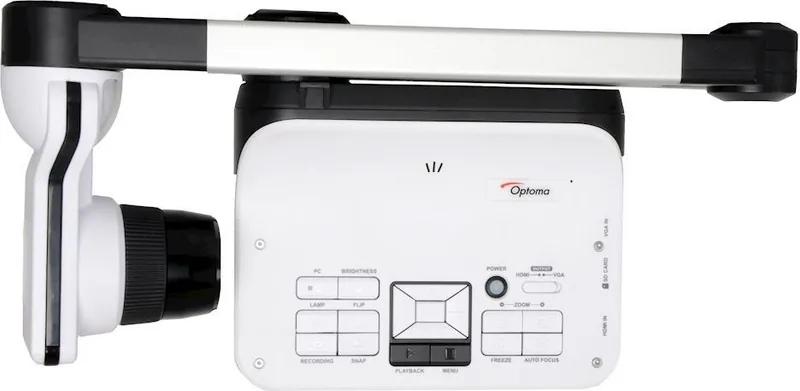
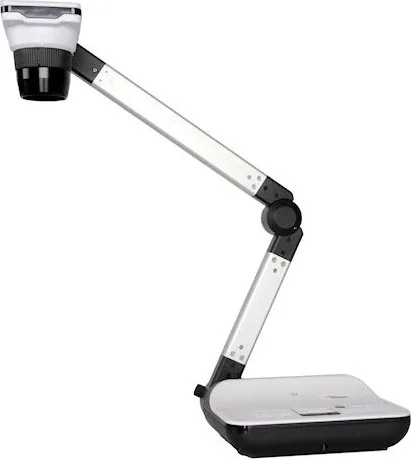
The Optoma DC556 Document Camera is a versatile visual presentation tool designed to make demonstrations, lessons, meetings, and creative sessions more engaging. When connected to a computer or laptop, it automatically enters live mode, displaying the camera view for immediate sharing. Its companion controls provide a practical workspace for capturing visuals, adding notes, and presenting ideas with clarity.
Live presentation tools
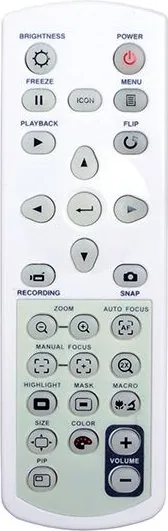
Live mode is built for active demonstrations. Users can freeze the current view, take snapshots, rotate the image through 360 degrees, adjust brightness, zoom in or out, and use autofocus for a clearer result. Horizontal and vertical mirroring help adapt the display to different presentation needs. An interval capture option can collect images at a chosen timing and quantity, which is useful for showing a process step by step.
Recording controls allow users to select the capture source, choose video and audio formats, set a save location, and start or stop recording. These features make the DC556 a useful choice for explaining physical materials, displaying small objects, or preserving a presentation for later review.
Annotation and creative controls
The Optoma DC556 Document Camera includes a broad set of markup tools that turn a live visual into an interactive canvas. Choose line width, ink color, fill color, and text fonts, then add freehand writing, lines, arrows, rectangles, ellipses, and text. An eraser, undo, redo, clear, cut, copy, duplicate, and selection controls support fast revisions while presenting.
Imported JPG and PNG images can be enhanced with the same annotation tools. Users can save snapshots as JPG images and export selected or full annotation layers as PNG images, keeping added labels and drawings separate from the background view when needed.
Playback and drawing modes
Playback mode provides a focused area for opening captured visuals and refining them with drawing, text, and selection tools. It is ideal for reviewing an image, highlighting details, or preparing a visual explanation before sharing it.
Drawing mode offers either a white or black background, plus 16:9 and 4:3 aspect ratio options. This gives presenters a simple digital board for brainstorming, outlining concepts, or building diagrams from scratch. The consistent tool layout across modes helps users move between live viewing, editing, and drawing without changing their workflow.
Notes
- Use autofocus and brightness controls before recording for a cleaner presentation.
- Export annotations when you need to preserve notes separately from the displayed visual.
- Select white or black board backgrounds to improve contrast for your audience.
Search for 67,706 Manuals online


Type-in Brand or Model